
If you held off on Windows 10 because you thought security updates would stop this month, you got a reprieve. Microsoft quietly extended the consumer Extended Security Updates (ESU) program by a full year, so enrolled Windows 10 PCs now keep getting security patches through October 12, 2027. This guide walks you through what changed, the three ways to enroll, and a quick checklist to confirm you are covered.
What actually changed
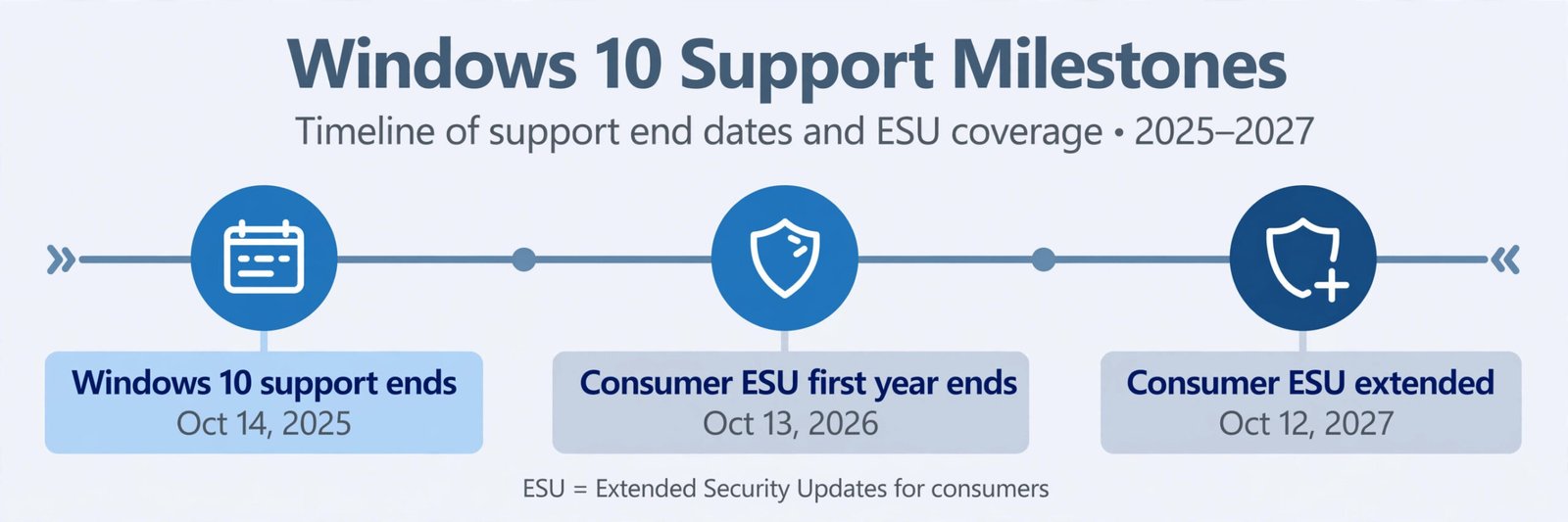
Windows 10 itself reached its normal end of support on October 14, 2025. After that date, Microsoft stopped the regular monthly updates. The consumer ESU program was the bridge: one extra year of security-only updates for home PCs, originally ending October 13, 2026. In late June 2026, Microsoft updated its support documentation and added an editor’s note to its Windows Experience Blog post, pushing the consumer program out to October 12, 2027. There was no big announcement, which is why so many articles still show the old date.
| Program | Old end date | End date now |
|---|---|---|
| Consumer ESU for home PCs | October 13, 2026 | October 12, 2027 |
| Business ESU for companies | A separate program through volume licensing, up to three years after end of support, with prices that rise each year. Unchanged by this extension. | |
One important detail: if you already enrolled in consumer ESU last year, you do not need to do anything. Microsoft says coverage continues automatically through the new date. Only PCs that were never enrolled need to take action, and they can enroll any time before the program ends.
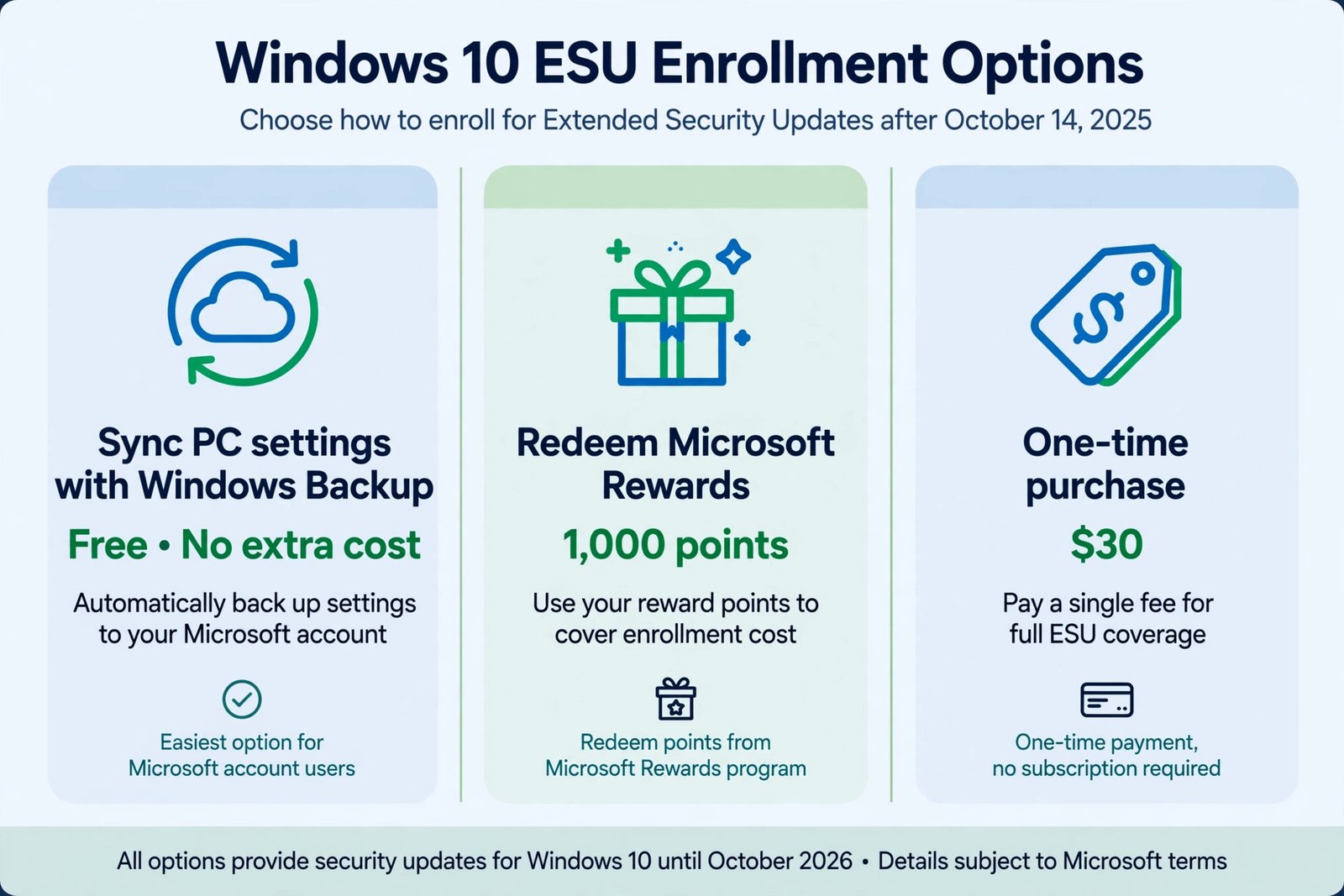
Your 3 enrollment options
Before you enroll, check three things on the PC: it runs Windows 10 version 22H2 (press Windows key plus R, type winver, and look for 22H2), it has the latest Windows updates installed, and you can sign in with a Microsoft account that has administrator rights. The enrollment option appears in Settings, then Update and Security, then Windows Update, but only on eligible PCs. Once eligibility is confirmed, pick one of these three routes. They all give the same coverage through October 12, 2027.
- Sync your PC settings with Windows Backup (free). Sign in with your Microsoft account and turn on Windows Backup, which syncs your PC settings. This enrolls the PC at no extra cost. Note that this syncs settings, not your full file backup, and you can check the backup status in the Windows Backup app. A note for readers in the European Economic Area: enrollment there is free simply by signing in with a Microsoft account, but Microsoft requires you to keep signing in with that account; updates stop after up to 60 days without a sign-in.
- Redeem 1,000 Microsoft Rewards points (free with points). If you use Bing, buy from the Microsoft Store, or otherwise collect Microsoft Rewards points, you can redeem 1,000 points to claim the ESU entitlement on your Microsoft account. This suits anyone who already has points sitting around.
- One-time purchase of $30 (plus tax). Pay once, about $30 USD or the local currency equivalent, and the ESU license is linked to your Microsoft account. This is the route for people who want neither the settings sync nor the points, and it is also the cleaner choice if you plan to use a local account day to day.
If Windows Update refuses to cooperate while you install the latest updates first, these Windows Update error fixes cover the most common failure codes. And one warning that matters: ESU enrollment is tied to your Microsoft account, so do not look for unofficial activator tools. This is the same reason KMS activators are not for home PCs: they create more problems than they solve.
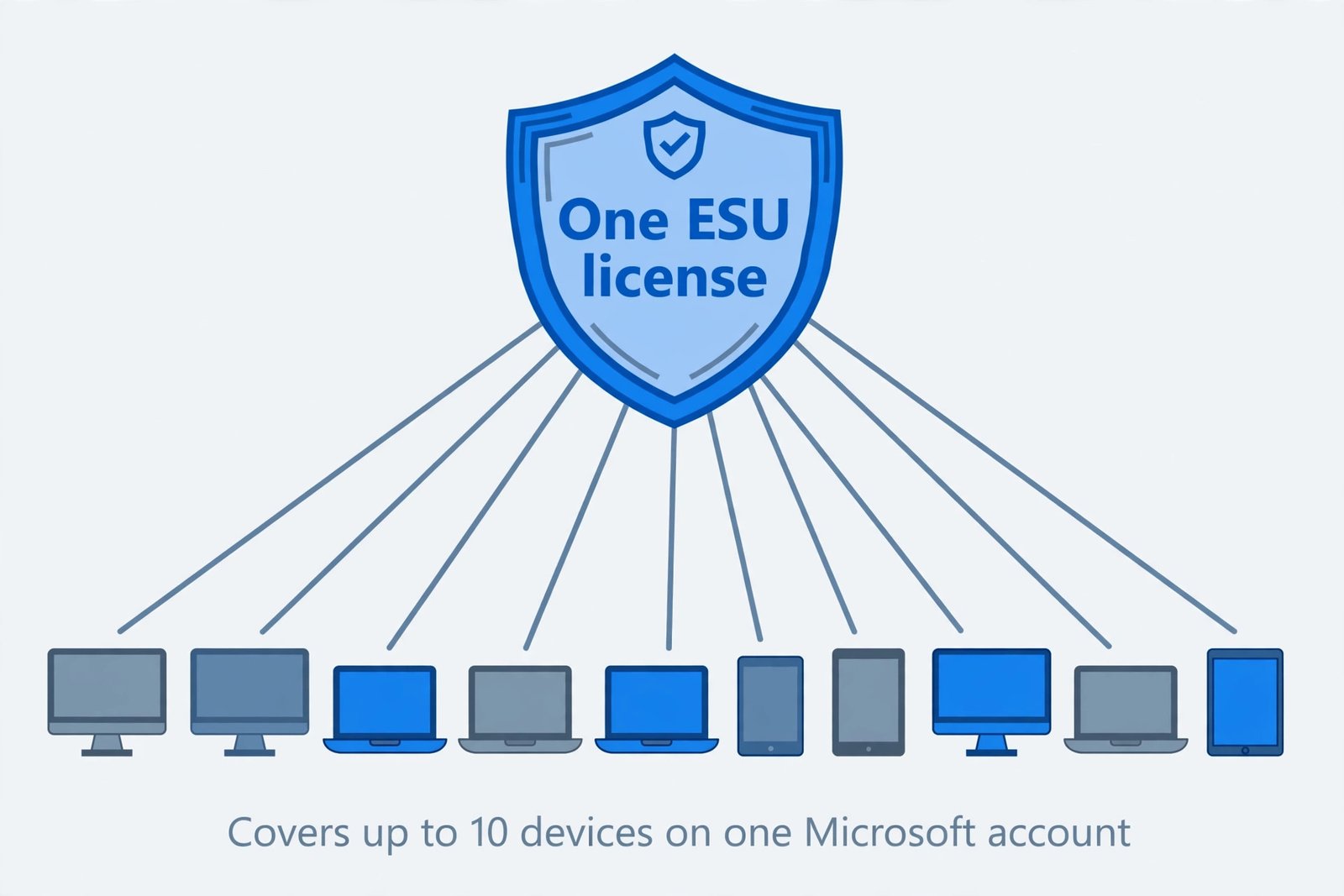
One license goes further than most people expect: a single ESU license covers up to 10 devices signed in to the same Microsoft account. If you look after a few family PCs, one enrollment can cover the whole household.
Which option fits you
- Already enrolled last year: do nothing. Your coverage rolls over automatically to October 12, 2027.
- Comfortable with a Microsoft account and cloud sync: pick the free Windows Backup route. It costs nothing and takes a few minutes in Settings.
- Already collect Microsoft Rewards: redeem the 1,000 points. If you use Bing daily, you may have enough without thinking about it.
- Prefer to keep things local or manage several family PCs: pay the one-time $30. It is the simplest option, and one purchase covers up to 10 devices.
- This is a work PC: stop here and talk to your IT team. Domain-joined, Entra-joined, and MDM-managed PCs are not eligible for the consumer program. Businesses use the separate volume-licensing ESU, which costs $61 per device in year one and doubles each year after that.
What ESU does and does not cover
ESU is a security patch service, not a support contract. Understanding the boundary keeps expectations realistic.
| Covered by ESU | Not covered by ESU |
|---|---|
| Critical and important security updates, as defined by the Microsoft Security Response Center | New features or product enhancements |
| Security fixes for Windows 10 version 22H2 | Non-security bug fixes and design changes |
| Help with ESU activation and installing the ESU updates themselves | General technical support for Windows 10 |
Think of ESU as extra time, not a permanent plan. It keeps the PC protected while you decide what comes next: upgrading to Windows 11 if the hardware allows it, replacing the PC, or eventually switching to one of the free Linux alternatives compared for 2026. For the official enrollment details, see Microsoft’s Windows 10 ESU page.
After you enroll: 2 quick checks
- Confirm the enrollment shows up. Go to Settings, then Update and Security, then Windows Update. You should see a message that the PC is enrolled to receive Extended Security Updates. If it is missing, install any pending updates, restart, and check again.
- Keep the Microsoft account in use. The license is linked to the account you enrolled with. Stay signed in, especially in the European Economic Area where a long sign-in gap can pause the updates, and keep installing the monthly patches when they arrive.
Frequently asked questions
Do I need to re-enroll if I joined ESU last year?
No. Microsoft confirmed that existing consumer ESU enrollments continue automatically through October 12, 2027. Nothing to buy, nothing to click.
Is the $30 a yearly subscription?
No, it is a one-time purchase. You pay once and the license covers the PC through October 12, 2027. There is nothing to renew next year because the consumer program ends on that date.
Can I enroll a PC that cannot run Windows 11?
Yes, and that is exactly the situation ESU was built for. As long as the PC runs Windows 10 version 22H2 and meets the other eligibility requirements, it can enroll even if the hardware fails the Windows 11 requirements.
What happens to my PC after October 12, 2027?
Nothing stops working. The PC will boot and run exactly as before, but it will no longer receive security updates, so the risk grows over time. Use the extra year to plan: move to Windows 11 on a supported PC, budget for a replacement, or explore a free operating system for older hardware.
You can enroll in ESU any time until the program ends on October 12, 2027. If you are already enrolled, your coverage will automatically continue through that date, no action needed.
Microsoft, Windows 10 Extended Security Updates page
The bottom line: the October 2026 deadline you may have read about is outdated. Check your version, pick one of the three enrollment routes, and give yourself a full extra year of protected Windows 10 while you plan the longer-term move.

- Windows 10 ESU Extended to 2027: What to Do Now - October 15, 2026
- How to Turn Off Google AI Mode and AI Overviews: 3 Workarounds That Still Work - October 15, 2026
- Best Phone Grips and Stands in 2026 (Buyer Guide) - October 15, 2026