
To reverse mouse scroll direction on Windows 11, open Settings, go to Bluetooth and devices, then Mouse, and set Scrolling direction to Down motion scrolls up. That gives you the reversed, natural style of scrolling, where rolling the wheel toward you moves the page up, like dragging a page on a touchscreen. The change applies at once on Windows 11 24H2 and later, with no restart needed. If your PC is on an older build and the setting is missing, the registry method below achieves the same result. The touchpad has a separate setting, so this guide also shows you where that lives.
Reverse scrolling with the Settings toggle
This is the method to try first. It is built into Windows, it is easy to undo, and it does not touch the registry.
- Press the Windows key and I together to open Settings.
- Select Bluetooth and devices in the left sidebar.
- Select Mouse.
- Scroll down to the Scrolling section.
- Open the Scrolling direction drop-down menu.
- Select Down motion scrolls up to reverse the direction, or Down motion scrolls down to restore the normal Windows behaviour.
- Open a web page or document and roll the wheel to confirm the new direction.
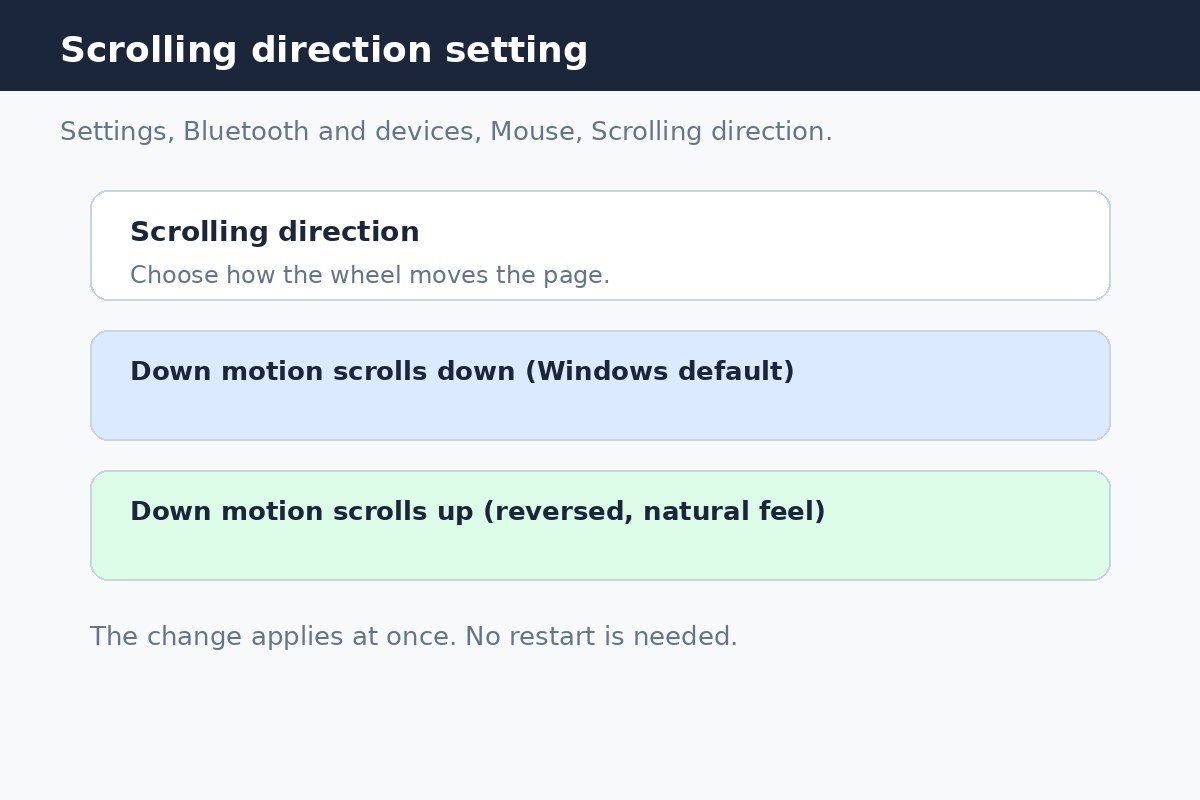
If you do not see a Scrolling direction option on the Mouse page, your PC is probably on Windows 11 23H2 or older, or the page has not picked up the setting yet. Skip to the registry method below rather than installing a third party tool. Also check that your mouse software is not overriding Windows. Apps from mouse makers, such as Logitech Options and Razer Synapse, can hold their own scroll settings, so a direction set there can win over the Windows setting.
Default scrolling compared with reversed scrolling
The two options describe the same wheel movement from opposite sides. Rolling the wheel toward you is the movement most people mean when they say scroll down, so the wording can feel confusing at first. The table below makes the difference concrete.
| Setting | Roll the wheel toward you | Feels like |
|---|---|---|
| Down motion scrolls down (default) | The page moves down | Traditional Windows scrolling |
| Down motion scrolls up (reversed) | The page moves up | Dragging a page on a touchscreen, or scrolling on a Mac |
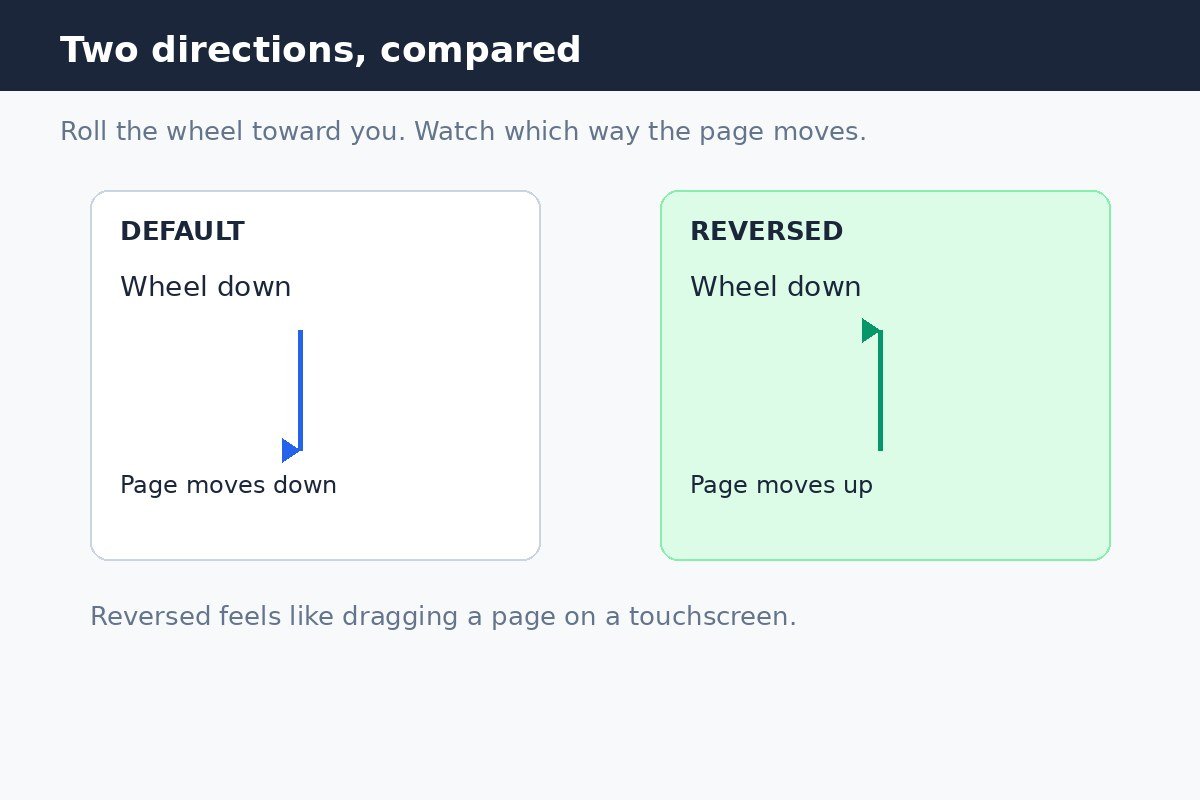
Reversed scrolling often feels wrong for the first few minutes, especially if you have used Windows for years. Give it a full day of normal use before deciding. Many people who switch because they also use a Mac or a touchscreen keep the reversed setting once it stops feeling new.
The touchpad setting is separate
Changing the mouse direction never changes the touchpad, and changing the touchpad never changes the mouse. If you use a laptop with an external mouse, you may want one direction for the mouse and the other for the touchpad, or the same direction for both. Either way, set each one where it lives.
- Open Settings and select Bluetooth and devices.
- Select Touchpad. If there is no Touchpad page, Windows does not recognise a precision touchpad on this PC.
- Expand Scroll and zoom under Gestures and interaction.
- Open the Scrolling direction drop-down and pick the direction you prefer.
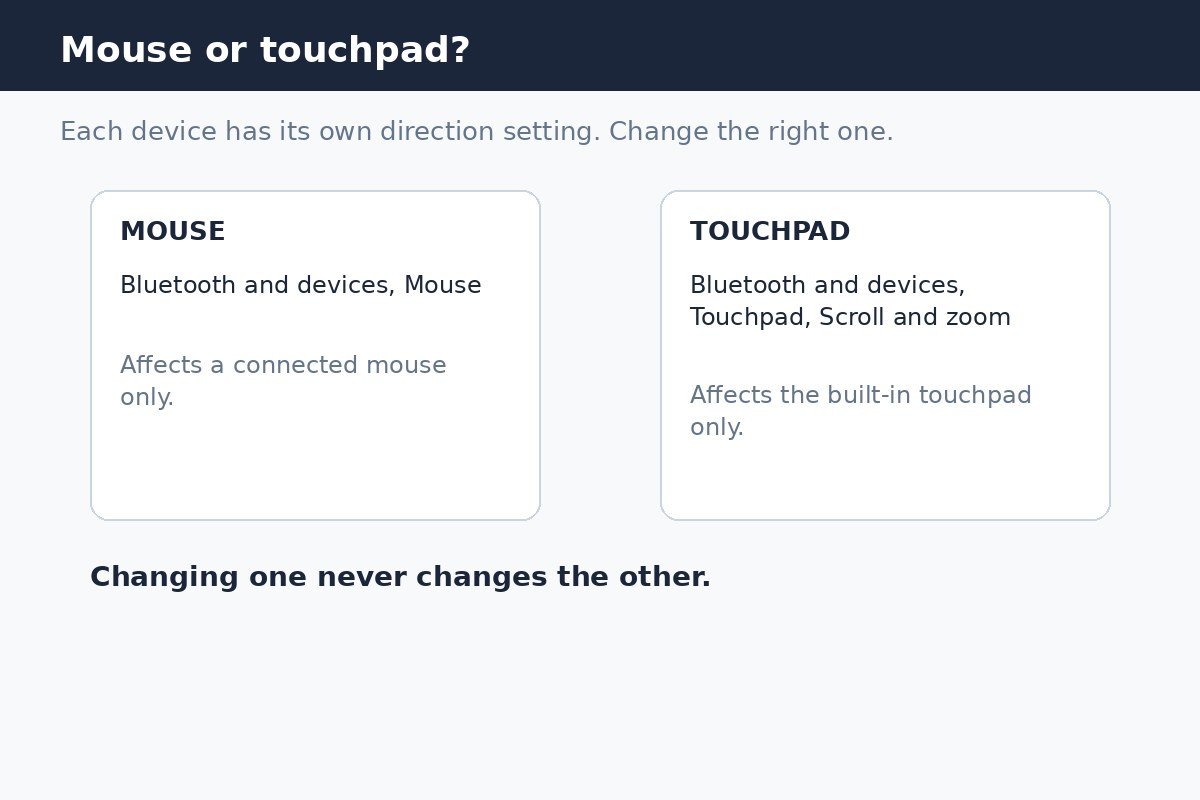
Touchpad direction is worth checking after a Windows update, because an update can occasionally reset input settings. If your touchpad suddenly feels backwards while the mouse feels fine, this page is almost always the cause.
Older builds: reverse scrolling with the registry
On Windows 11 23H2 and older, there is no built-in mouse direction setting. The fallback is a per-device registry value called FlipFlopWheel. Setting it to 1 reverses scrolling for that mouse, and setting it back to 0 restores the default. Because this edits the registry, create a restore point first, and follow the steps exactly. If you are not comfortable editing the registry, updating Windows to 24H2 or later is the safer route to the Settings toggle.
- Open Device Manager. Expand Mice and other pointing devices, right-click your mouse, and select Properties.
- Open the Details tab and select Device instance path from the property list. Note the device path shown there, since it identifies your mouse in the registry.
- Open Registry Editor as an administrator.
- Navigate to the matching device entry under HKEY_LOCAL_MACHINE, SYSTEM, CurrentControlSet, Enum, HID, then open its Device Parameters key.
- Find the FlipFlopWheel value. If it is missing, do not create entries under a device you have not identified with certainty. Recheck the device instance path first.
- Double-click FlipFlopWheel and change its value data to 1 to reverse scrolling, or to 0 to restore the default.
- Select OK, then restart your PC, or unplug and reconnect the mouse. The change does not always apply until then.
Each mouse has its own FlipFlopWheel value, so repeat the steps for every mouse you want reversed. If the change has no effect, you probably edited a different device entry, such as a keyboard or an extra HID entry for the same mouse. Go back through the device instance paths and check each HID folder in turn.
If scrolling still feels wrong
- Check mouse maker software first. A profile in Logitech Options, Razer Synapse, or Microsoft Mouse and Keyboard Center can override the Windows setting.
- Confirm you changed the right device. Mouse and touchpad directions are independent, and two mice on one PC are independent too.
- Restart after a registry change. Signing out and back in, or reconnecting the mouse, also works in many cases.
- Try the other direction for a day. A setting that feels backwards in the first minute can feel natural once your hand adjusts.
How to switch back to normal scrolling
On 24H2 and later, reopen Settings, go to Bluetooth and devices, then Mouse, and set Scrolling direction back to Down motion scrolls down. For the registry method, set FlipFlopWheel back to 0 and restart. For the touchpad, use the Touchpad page and pick Down motion scrolls down there.
Scroll direction is a small setting with an outsized effect on how a PC feels, which is why getting it wrong is so noticeable. Set it once for the mouse, once for the touchpad if you use one, and leave it alone until your setup changes.

- How to Reverse Mouse Scroll Direction on Windows 11 - October 31, 2026
- How to Turn Off Transparency Effects on Windows 11 - October 30, 2026
- How to Turn Off the Sticky Keys Shortcut Popup on Windows 11 - October 29, 2026