
To turn off Live Voicemail on iPhone, open Settings, tap Apps, tap Phone, and switch Live Voicemail off. That stops the live transcript that appears on screen while a caller leaves a message. It does not delete your voicemail mailbox, and missed calls still reach your carrier voicemail as normal, just without the live preview. The confusion around this setting comes from the word voicemail itself, which covers three different things on an iPhone. This guide untangles them first, then gives the exact steps.
Three different things people mean by voicemail
Before changing anything, work out which voicemail you want to stop. The toggle in this guide controls only the first row of the table.
| Feature | What it is | How to stop it |
|---|---|---|
| Live Voicemail | A live transcript on your iPhone while a caller records a message, with the option to pick up mid-message | Settings, Apps, Phone, Live Voicemail toggle |
| Carrier voicemail | Your mailbox on your carrier network, where messages wait when you miss a call | Only your carrier can remove the mailbox |
| Call screening and silencing | Rules for unknown callers, such as asking why they call or sending them to voicemail quietly | Settings, Apps, Phone, Screen Unknown Callers |
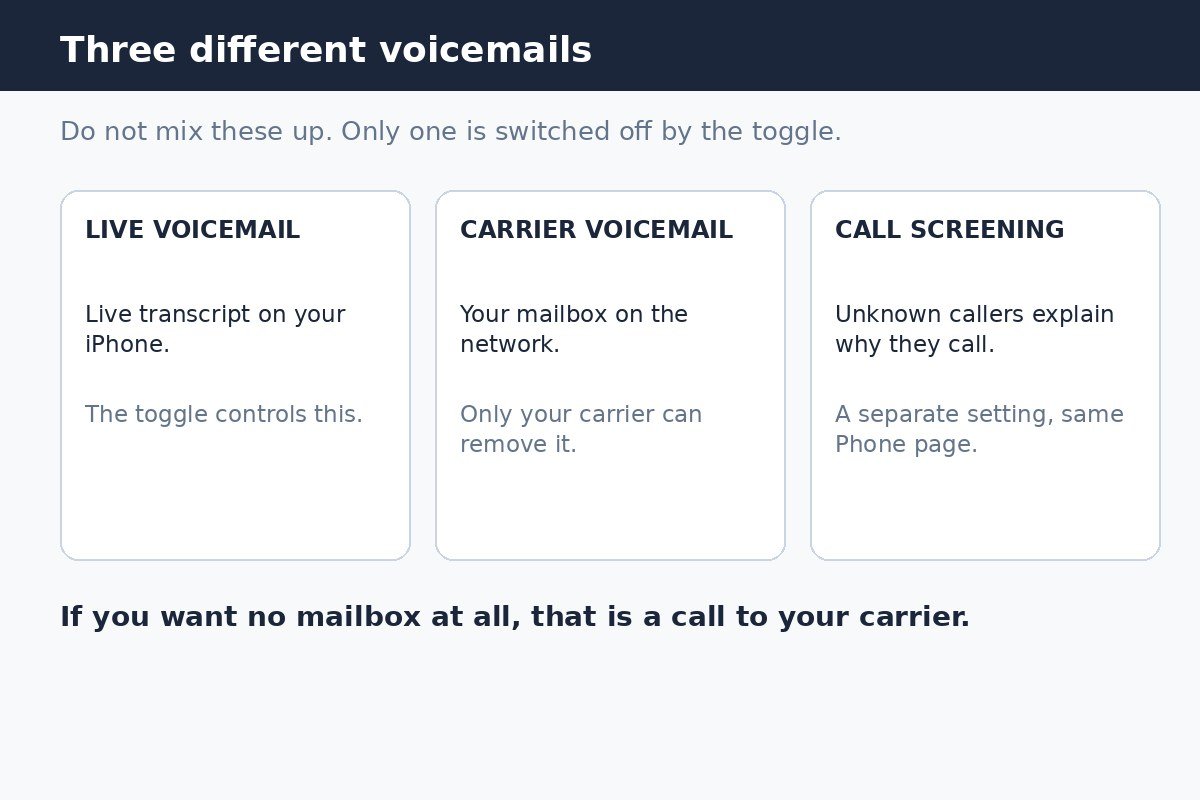
There is no switch in iPhone settings that deletes your carrier mailbox. Guides that point to a general voicemail off switch in the Phone settings are describing a control that does not exist on current iOS versions. The real controls in Phone settings are Live Voicemail and Change Voicemail Password, and neither one shuts off the carrier mailbox.
What Live Voicemail does
Live Voicemail, available since iOS 17 and present on iOS 26 and iOS 27, shows a real-time transcript on screen while someone leaves you a message. If the message turns out to be important, you can pick up while the caller is still talking. It is useful for screening calls without answering every unknown number, but it can also feel intrusive, since the transcript pops up in the middle of whatever you are doing.
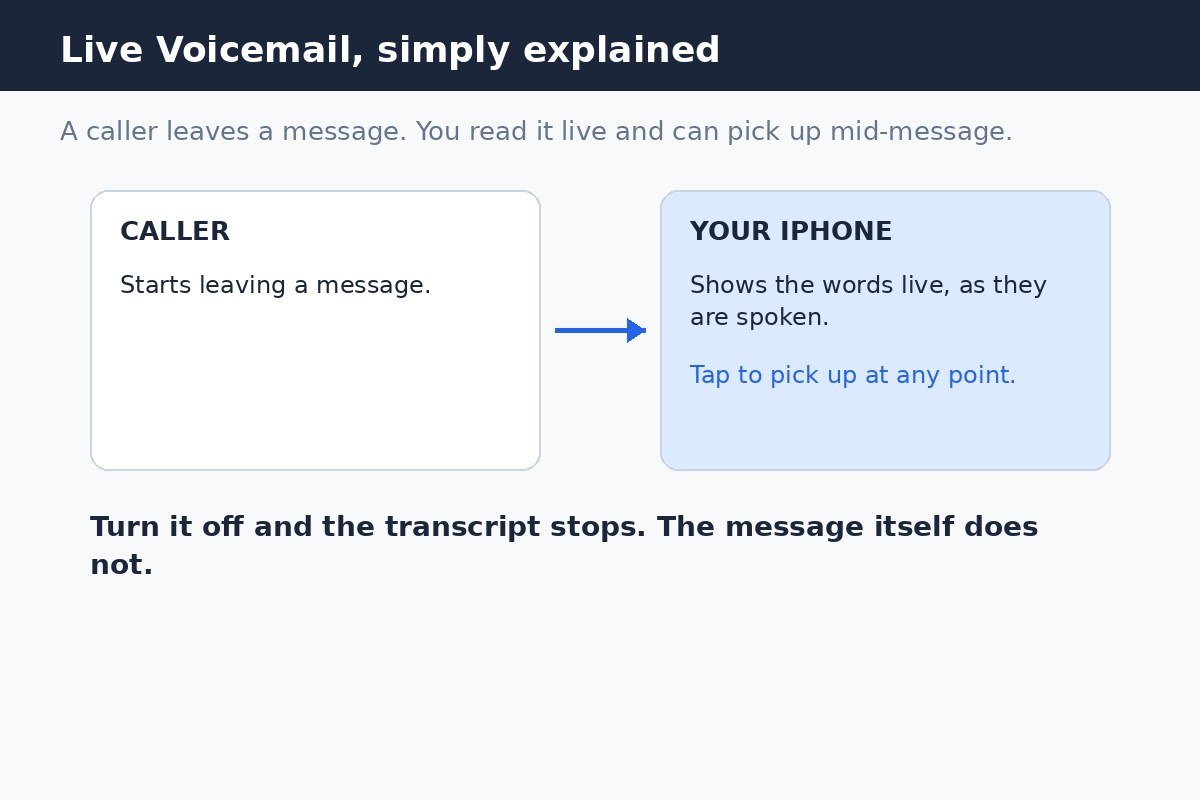
Availability depends on your carrier and region, so the toggle may not appear for everyone. If you do not see Live Voicemail on the Phone settings page, your carrier or region does not support it, and there is nothing further to switch off on the iPhone itself.
Turn off Live Voicemail
- Open the Settings app.
- Scroll down and tap Apps.
- Tap Phone.
- Tap Live Voicemail.
- Switch the Live Voicemail toggle off.
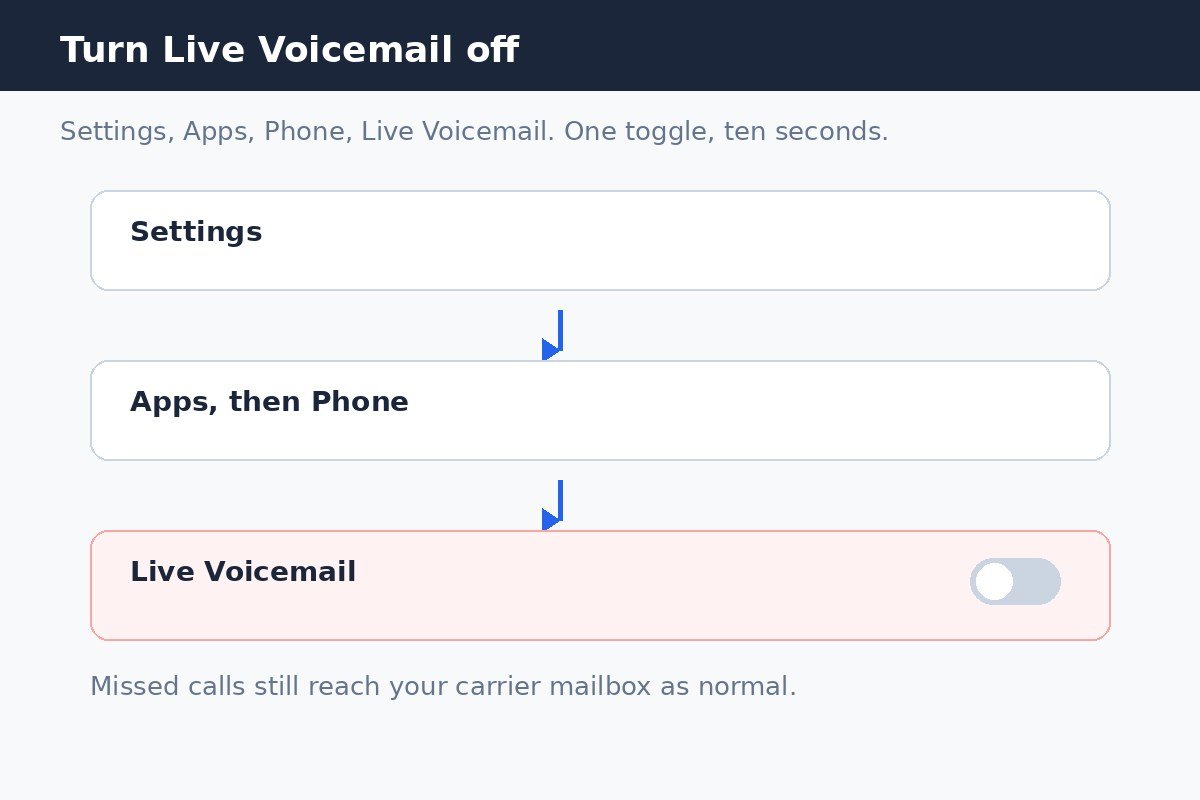
On older iOS versions the Phone settings sat directly in the main Settings list rather than under Apps, so on iOS 17 and earlier, open Settings and tap Phone instead. The Live Voicemail toggle itself works the same way. The change takes effect at once, with no restart required, though restarting the phone can help if a transcript lingers after the change.
What changes, and what does not
- Callers can still leave messages. Missed calls go to your carrier voicemail as they always did.
- You stop seeing the live transcript while a message is recorded, and you lose the option to pick up mid-message from that transcript screen.
- Messages already saved in your voicemail list stay there. Turning the toggle off does not delete them.
- Your phone still rings normally for incoming calls. Live Voicemail only affects what happens after you do not answer.
Silence Unknown Callers and call screening
On iOS 26 and iOS 27, the same Phone settings page holds Screen Unknown Callers, with three choices: Never, Silence, and Ask Reason for Calling. Never lets unknown numbers ring normally. Silence sends unknown callers to voicemail without ringing. Ask Reason for Calling has your iPhone answer first, ask the caller who they are and why they are calling, and show you the answer before you decide to pick up.
These choices interact with Live Voicemail in a simple way. With Live Voicemail on, a silenced unknown call goes straight to the live transcript screen without ringing. With Live Voicemail off, that same call still goes to voicemail, but as an ordinary carrier message, with no live transcript to watch. So if unknown callers are still reaching a mailbox after you switch Live Voicemail off, that is expected. The mailbox is doing its job. To stop unknown numbers ringing or leaving messages in the first place, use the Screen Unknown Callers choices or block specific numbers instead.
On older iOS versions, the same idea appears as a single Silence Unknown Callers switch in the Phone settings. Turning it on sends calls from numbers outside your contacts to voicemail, much like the Silence choice in newer versions. Call screening with the Ask Reason for Calling option arrived with iOS 26, so updating is the way to get it.
If you want no voicemail mailbox at all
Removing the mailbox itself is a carrier change, not an iPhone setting. Contact your carrier and ask them to remove voicemail from your line, or to disable the forwarding that sends unanswered calls to the mailbox. Dial codes that disable forwarding exist on some networks, but they vary by carrier and region, so do not rely on a code quoted for a different carrier. Your carrier can confirm the right method for your line and restore it later if you change your mind.
Also check Call Forwarding on the same Phone settings page. A leftover forwarding entry can send calls somewhere unexpected, and clearing it restores normal ringing. If calls still skip the ring after that, check for an active Focus mode, which can silence calls unless the caller is on your allowed list.
Turn Live Voicemail back on
Open Settings, tap Apps, tap Phone, tap Live Voicemail, and switch the toggle back on. The live transcript returns for future messages, where your carrier and region support it.
Most people who look for a voicemail off switch really want the live transcript gone, not the mailbox itself. Switch off Live Voicemail for that, leave the carrier mailbox in place for messages that matter, and let the Screen Unknown Callers setting handle the calls you never wanted.

- How to Turn Off Live Voicemail on iPhone - October 31, 2026
- How to Stop Your iPhone From Asking to Share a Wi-Fi Password - October 30, 2026
- How to Turn Off Auto Brightness on Your Mac - October 28, 2026