
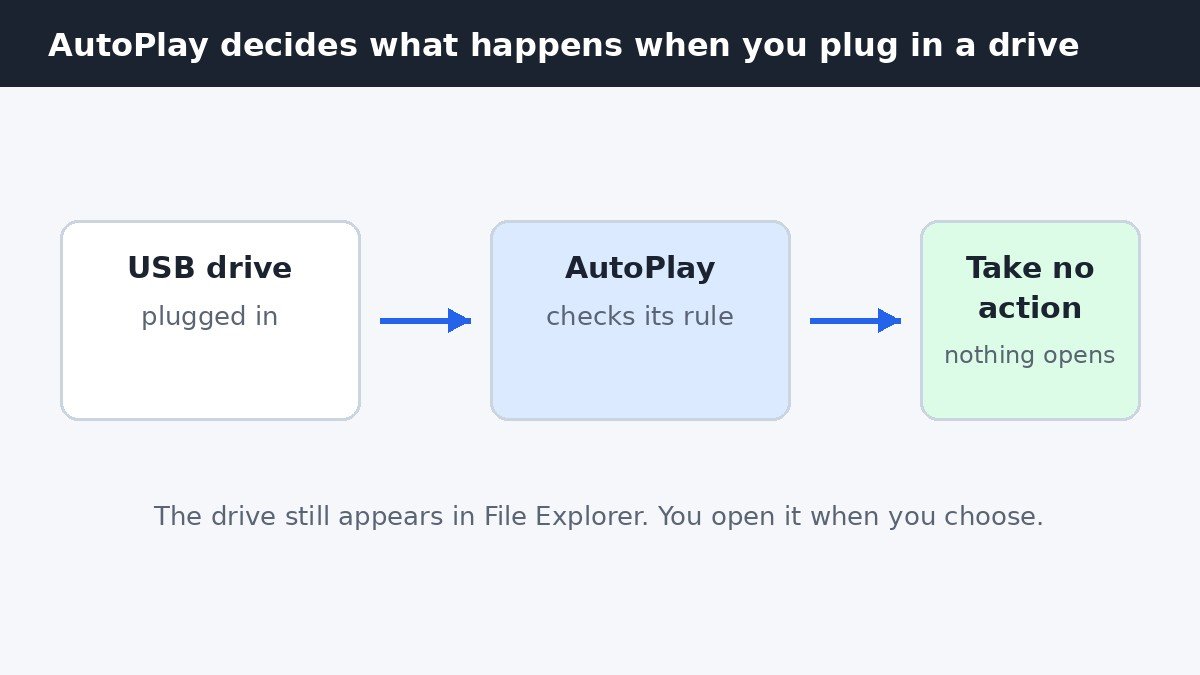
If Photos pops open every time you plug in a USB drive, the app is not misbehaving. Windows is following an instruction you probably never gave on purpose. The feature responsible is called AutoPlay, and it decides what happens the moment a removable device connects. Turn it off, or change its rule for that device type, and the pop-ups stop while the drive itself keeps working exactly as before.
Why Photos opens in the first place
When Windows detects a new removable device, it looks at what is on it. If it finds photos or videos, the default action on many PCs is to import them or open them in Photos. That is convenient the first time you connect a camera, and annoying every time after that when you only wanted to copy a document from a flash drive. Nothing is wrong with your drive, and Photos is not launching itself at random. It is AutoPlay doing its job, and you can change the job description.
Turn off AutoPlay completely
This is the fastest fix if you never want Windows to act on its own when you plug something in. Your drives still appear in File Explorer, and you open them yourself.
- Press Win + I to open Settings.
- Click Bluetooth & devices in the left-hand menu.
- Click AutoPlay.
- Switch off Use AutoPlay for all media and devices. The change applies at once, with no restart and no Save button.
Plug in a drive and check: nothing should open. The drive shows up in File Explorer under This PC, ready when you want it.
Keep AutoPlay, but set each device type to do nothing
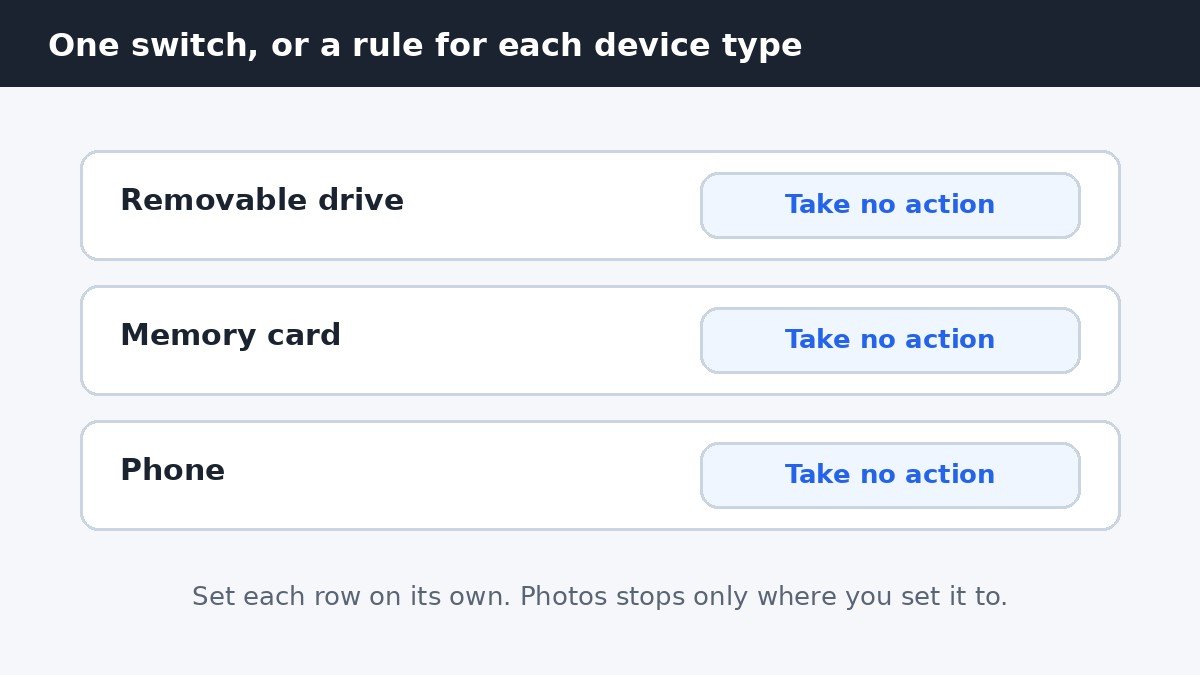
If you like AutoPlay for some things, such as opening a music disc, leave the main switch on and change only the rows that bother you. On the same AutoPlay page, under Choose AutoPlay defaults, each device type has its own drop-down menu.
| Device type | Setting that stops Photos | What changes |
|---|---|---|
| Removable drive | Take no action | USB sticks and external drives no longer trigger anything |
| Memory card | Take no action | SD cards stop importing or opening Photos |
| Phone | Take no action | Connecting a phone no longer launches Photos |
One detail worth knowing: on many Windows 11 builds, the Settings page shows only Removable drive and Memory card. Phone and camera rows appear once the device has been connected, and the older Control Panel AutoPlay page lists every category. If you do not see the phone row, connect the phone once, then look again.
Phones need a second check on the phone itself
Setting the phone row to Take no action stops Windows from opening Photos, but your phone has its own say in the connection. Android phones default to No data transfer when plugged in, which means the phone charges and shares nothing. If you previously switched the phone to File transfer, Windows can still see its storage, even though Photos no longer opens on its own. For a phone you only want to charge, leave the USB mode on No data transfer, or Charging only on some models, and change it to File transfer only when you actually want to move files. iPhones have no equivalent mode switch: the Windows-side Take no action setting is the control that matters, along with tapping Don’t Allow if the phone asks whether to trust the computer.
Skip AutoPlay just once, without changing anything
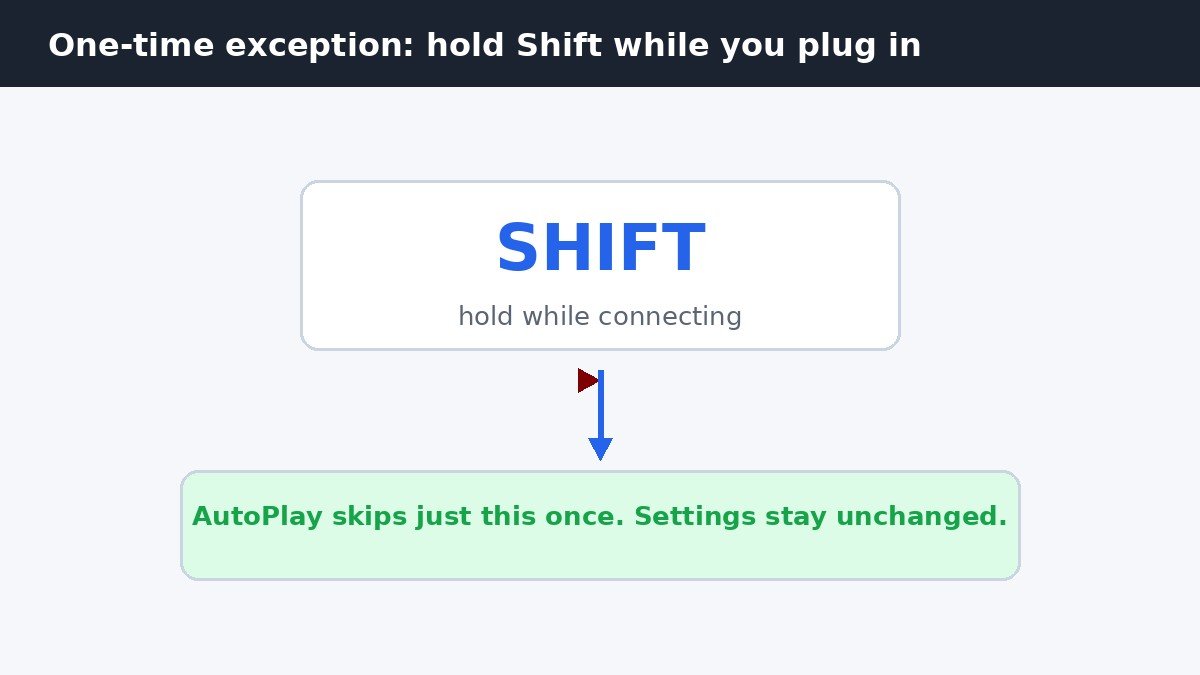
Sometimes you want the usual behavior tomorrow and silence today. Hold the Shift key while you connect the device, and keep holding it until Windows has recognized it. That suppresses the AutoPlay action for that one connection only. Your settings stay exactly as they were, which makes this the right trick for a borrowed drive or a one-off camera import you would rather do by hand.
If Photos still opens after you change the setting
Work through these in order, since each one points to a different cause.
- You changed the wrong row. A USB stick is a removable drive, but a camera’s SD card counts as a memory card. Set both rows to Take no action if you are unsure which one fired.
- A vendor app is launching instead. Some camera and phone makers install their own import tool, which opens independently of AutoPlay. Check the app’s own settings or uninstall it if you never use it.
- OneDrive photo import is on. OneDrive can offer to import photos from a connected device separately from AutoPlay. If the pop-up mentions OneDrive, turn that offer off in OneDrive settings rather than in AutoPlay.
- The setting did not stick. On a work or school PC, an administrator policy can override AutoPlay choices. If the switch flips itself back on, that is the likely reason, and your IT administrator controls it.
The core idea is simple: AutoPlay is a convenience that should wait for your instruction, not guess it. Set it to Take no action for the device types you handle yourself, keep it on only where it genuinely saves you time, and the days of Photos jumping open uninvited are over.

- How to Stop Windows 11 Opening Photos When You Plug In a USB Drive - November 2, 2026
- How to Hide the Search Box on the Windows 11 Taskbar - November 1, 2026
- How to Reverse Mouse Scroll Direction on Windows 11 - October 31, 2026