
AirDrop receiving is the setting that decides who can see your iPhone and send you files over AirDrop. If you keep getting unwanted transfer requests in public places, the fix is simple: open Settings, tap General, tap AirDrop, and choose Receiving Off. Nobody will be able to send you files until you change it back, but you can still send files to other people, and sharing with your own devices keeps working.
The three receiving levels, explained
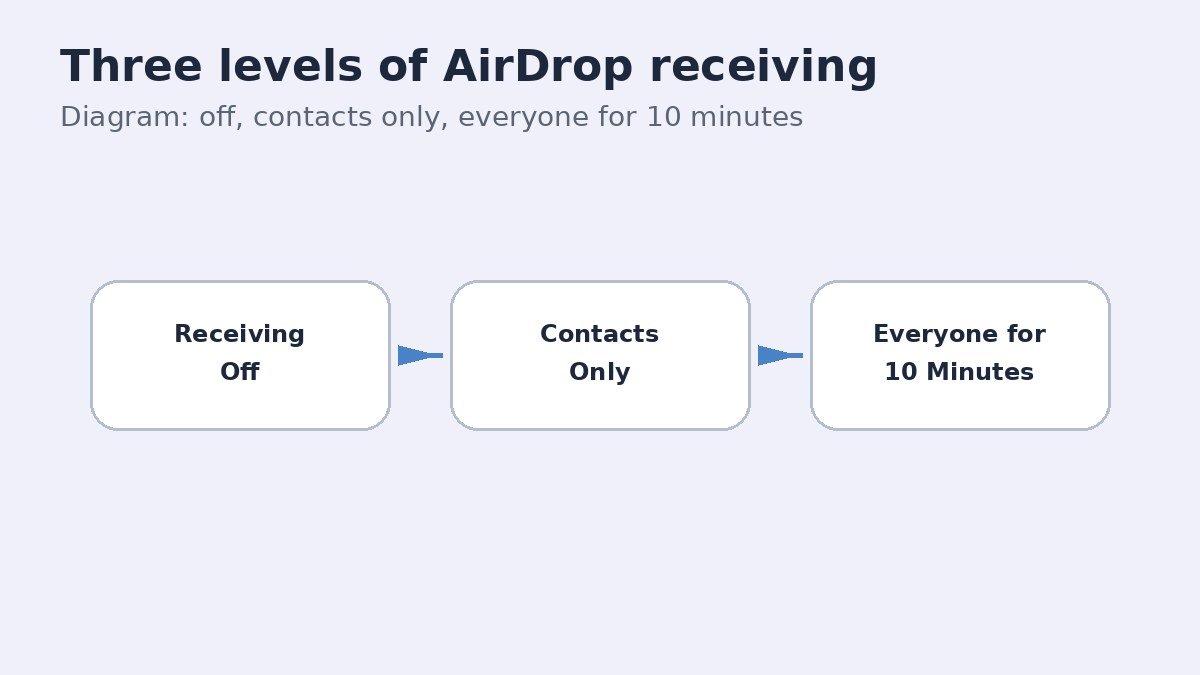
AirDrop has three receiving choices, and picking the right one matters more than simply switching the feature off. Receiving Off is the full stop. Contacts Only lets people in your contacts reach you, provided they have your Apple Account email address or phone number saved in your contact card. Everyone for 10 Minutes opens receiving to any nearby Apple device, but only for ten minutes, after which it falls back to Contacts Only if you are signed in to an Apple Account, or to Receiving Off if you are not.
| Receiving setting | Who can send you files | Best for |
|---|---|---|
| Receiving Off | Nobody | Public places, or when you never receive files |
| Contacts Only | People in your contacts | Everyday use, the safest routine choice |
| Everyone for 10 Minutes | Any nearby Apple device, for ten minutes | One-off sharing with someone not in your contacts |
Turn off AirDrop receiving in Settings
The Settings route is the lasting one. It stays as you set it until you change it again, unlike the ten-minute option, which expires on its own.
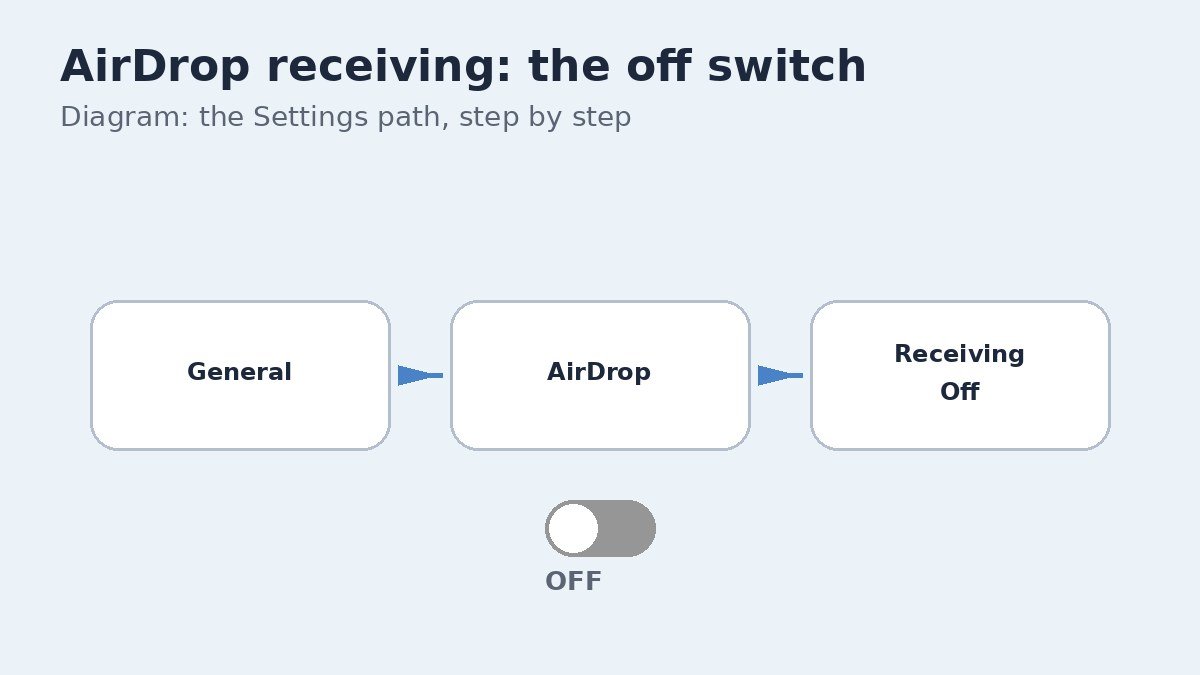
- Open Settings.
- Tap General.
- Tap AirDrop.
- Choose Receiving Off.
- Check the choice is selected, then leave Settings. Your iPhone will no longer appear on other people’s AirDrop screens.
To receive files again later, return to the same screen and choose Contacts Only or Everyone for 10 Minutes. Contacts Only is the sensible everyday default once the unwanted requests stop.
The faster way: Control Center
If you need to stop requests right now, Control Center is quicker than Settings, and it changes the same setting. Swipe down from the top-right corner of the screen, or swipe up from the bottom on an iPhone with a Home button. Touch and hold the top-left group of controls, the one holding Airplane Mode, Wi-Fi, and Bluetooth, then tap AirDrop and choose Receiving Off.
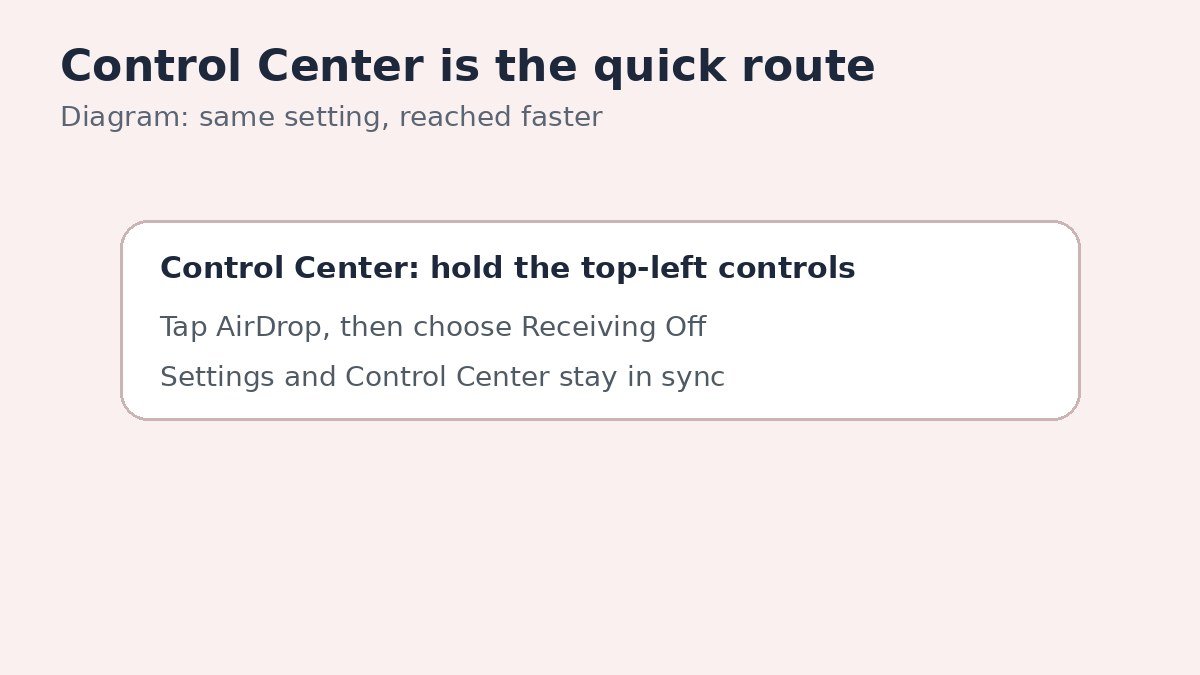
Both routes stay in sync, so a change made in Control Center shows up in Settings, and the other way round. Use Control Center for quick changes and Settings when you want to be sure the choice sticks.
Two traps that catch people out
The first trap is Wi-Fi and Bluetooth. AirDrop needs both switched on to work, so turning either one off in Settings also stops AirDrop. That sounds like a shortcut, but it also breaks your Wi-Fi connection and your Bluetooth accessories, so it is a poor substitute for Receiving Off. Note that the Wi-Fi and Bluetooth buttons in Control Center only disconnect you temporarily, they do not switch the radios off, so they do not reliably stop AirDrop either. Use the Receiving Off choice instead.
The second trap is the Everyone timer. On recent iOS versions, Everyone for 10 Minutes reverts after ten minutes, which is by design, but it can surprise anyone who expected it to stay open. On iOS 26.2 and later, there is also an AirDrop code step: a sender who is not in your contacts must enter a code shown on your phone before the transfer goes through, and that person then stays able to share with you for 30 days unless you remove them from the Other Known list in Contacts.
Sharing with your own devices still works
Turning receiving off does not lock you out of your own Apple devices. When you send a file from your iPhone to your own iPad or Mac, you are the sender, and the receiving setting on your iPhone does not block that. Apple documents that devices signed in to the same Apple Account accept and save items automatically, and Apple support on using AirDrop on iPhone or iPad covers the full checklist, including Wi-Fi and Bluetooth being on and devices being within about 30 feet of each other.
If a transfer between your own devices fails after this change, check the receiving setting on the device that should receive the file, not the one sending it. That is the side that controls whether the transfer can arrive.
Receiving Off is the quietest AirDrop setting, and Contacts Only is the best balance for most people. Set it once in Settings, use Control Center for quick changes, and let the ten-minute window handle the rare stranger you actually want to hear from.

- How to Turn Off AirDrop Receiving on iPhone - November 3, 2026
- How to Turn Off Background App Refresh on iPhone, Per App - November 2, 2026
- How to Fix Bluetooth Audio Stutter and Lag on Windows 11 - November 1, 2026