
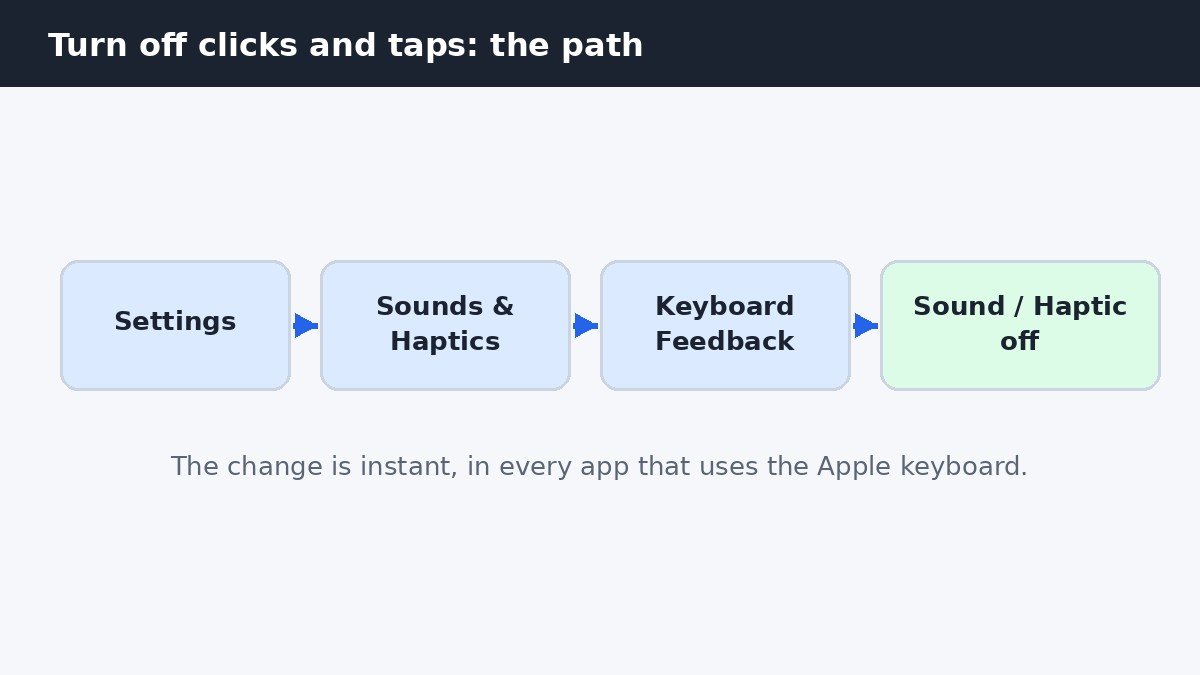
The clicks and the tiny vibration you feel while typing are two separate settings on one screen. Open Settings, tap Sounds & Haptics, tap Keyboard Feedback, and turn off Sound to stop the clicks, or turn off Haptic to stop the vibration. Turn both off for completely silent typing. The change takes effect right away in every app that uses the Apple keyboard, and it does not touch your ringtone, message alerts, music, or alarms.
Sound and Haptic are independent switches
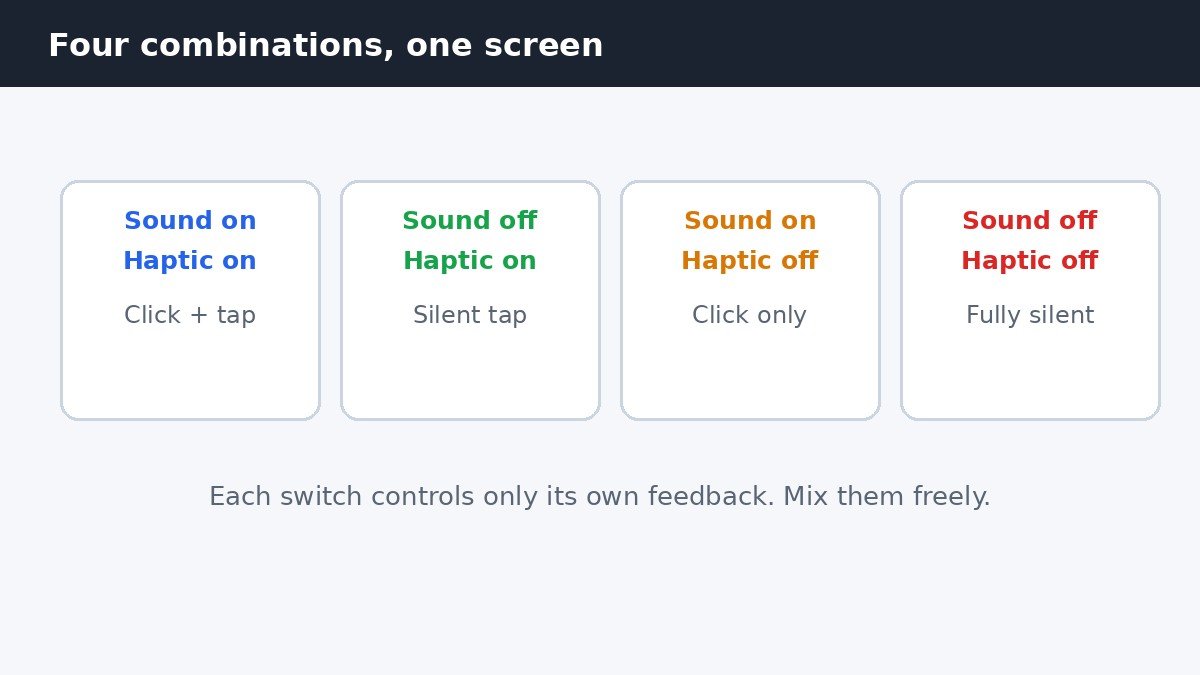
The Keyboard Feedback screen holds exactly two switches, and each one controls only its own kind of feedback. That independence is the whole point of the screen: you can keep the feedback you like and drop the one you do not, instead of choosing between all feedback and none.
| Sound | Haptic | What typing feels and sounds like |
|---|---|---|
| On | On | Click sound plus a light tap on every key |
| Off | On | Silent typing with a light tap on every key |
| On | Off | Click sound only, no vibration |
| Off | Off | Completely silent typing, no tap at all |
Turn off clicks, haptics, or both
- Open the Settings app.
- Tap Sounds & Haptics.
- Scroll down and tap Keyboard Feedback.
- Turn off Sound to stop the click on every key.
- Turn off Haptic to stop the small vibration on every key.
If the Keyboard Feedback entry is missing, the phone is running an older iOS version: on iOS 15 and earlier, the same screen offered a single Keyboard Clicks switch instead, with no haptic option, because keyboard haptics arrived with iOS 16. Updating the phone brings the current two-switch screen. Apple documents both switches on its change iPhone keyboard sounds or haptics page.
The Silent mode trap: it mutes clicks, not haptics
Many people try Silent mode first, and it half works, which is why it confuses. Flipping the Ring/Silent switch so orange shows, or turning on Silent Mode from Control Center on newer iPhones, silences keyboard clicks along with other system sounds. It does not stop keyboard haptics. The vibration keeps tapping away in Silent mode, because haptics are not a sound. If the goal is no feedback at all, Silent mode is not enough: turn off Haptic on the Keyboard Feedback screen itself.
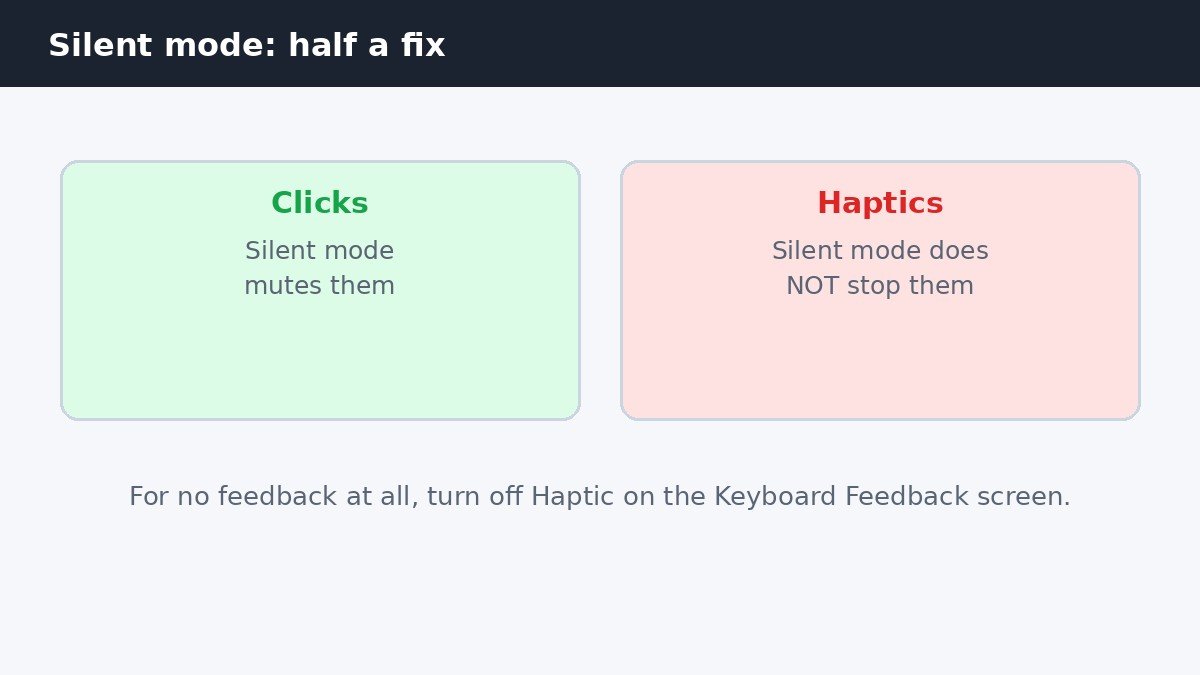
The reverse is also true. Turning off keyboard haptics does not silence anything else: ringtone vibration, message vibration, and system haptics all keep their own settings on the same Sounds & Haptics screen, and none of them change when Keyboard Feedback changes. On iPhones without a physical Ring/Silent switch, Silent mode lives in Control Center as a bell icon, or under Settings, then Sounds & Haptics, where the Silent Mode switch sits near the top. Either route silences the same set of system sounds, including keyboard clicks, and neither route touches keyboard haptics.
Third-party keyboards have their own settings
The Keyboard Feedback switches control only the Apple keyboard. If you type with Gboard or SwiftKey, those keyboards ignore the Apple setting and use their own in-app options. In Gboard, open the keyboard, tap the settings gear, then Preferences, and turn off Sound on keypress and Haptic feedback on keypress. In SwiftKey, open the SwiftKey app, go to Sound and vibration, and turn off Keypress sound and Keypress vibration. If clicks or taps persist after changing the Apple setting, check which keyboard is actually active: touch and hold the globe or emoji key on the keyboard and see which keyboard is selected.
If haptics are on but you feel nothing
When the Haptic switch is on and typing still feels flat, the cause is usually one level up. Open Settings, tap Accessibility, tap Touch, and check that Vibration is turned on. That switch is the master control for all vibration, and with it off, keyboard haptics cannot work no matter what the Keyboard Feedback screen says. Apple also notes that turning keyboard haptics on might affect battery life, since the vibration motor fires on every key, though it gives no fixed percentage for the effect. Turning Haptic off is therefore a small battery saving as well as a quieter keyboard, but the saving is modest compared with screen brightness or cellular use.
Keyboard feedback is a preference, not a right answer, and the two switches exist so you do not have to accept a bundle. Pick the combination that suits where you type, silent taps for a quiet room, clicks only when you want the sound without the buzz, or nothing at all, and change it back any time your surroundings change.

- How to Turn Off iPhone Keyboard Clicks and Haptic Feedback - November 4, 2026
- How to Turn Off AirDrop Receiving on iPhone - November 3, 2026
- How to Turn Off Background App Refresh on iPhone, Per App - November 2, 2026