
Siri Suggestions put apps, contacts, and shortcuts where you did not ask for them: at the top of search, on the Lock Screen, and inside the Share Sheet. The suggestions come from several separate toggles, and turning off one of them only quiets one surface. This guide maps each surface to the toggle that controls it, so you can silence exactly the suggestions you do not want.
Find the settings on your iOS version
The settings live in a different place depending on your iPhone software version. On iOS 26, open Settings, then Apple Intelligence and Siri. On iOS 27, open Settings, then Siri: Apple dropped the Apple Intelligence name from the menu and split the features up. On iOS 27 there is also no master Apple Intelligence switch any more. Features are turned off one at a time, and Siri AI (Beta) can be turned off or switched to Siri Classic from the same Siri page. If you are on iOS 25 or earlier, the page is called Siri and Search and the toggles below have the same names. Check your version first in Settings, then General, then About, so you are following the right path.
The three places suggestions appear
Most guides list the toggles without saying where each suggestion actually shows up, which is why people turn one off and still see suggestions somewhere else. There are three surfaces, and each one has its own toggle.
| Where the suggestion appears | What it shows | Toggle that controls it |
|---|---|---|
| Spotlight and Search | Apps and contacts above search results | Suggest Apps Before Searching |
| Lock Screen | App suggestions and shortcuts | Allow Notifications |
| Share Sheet | Contacts and apps when sharing | Show When Sharing |
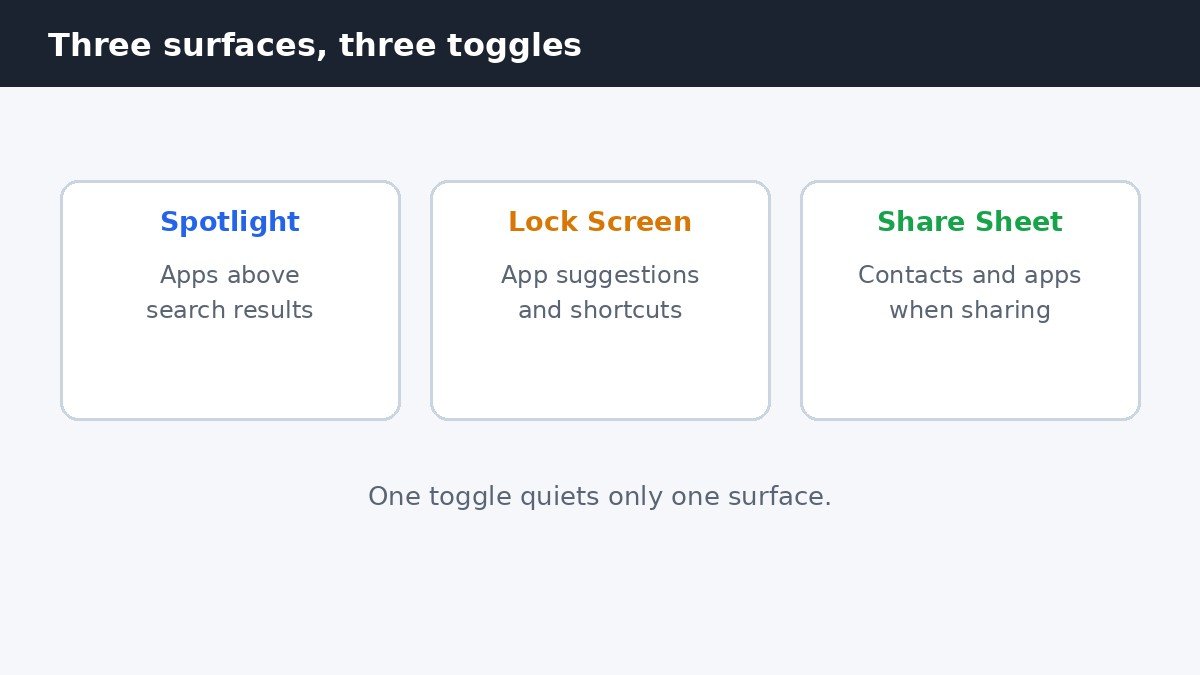
The Lock Screen is the busiest surface, because suggestions sit next to Live Activities and other cards there. If the Lock Screen is the place that bothers you most, our guide to turning off Live Activities on the iPhone Lock Screen covers the live card that sits beside the suggestions. The toggles in the next section control all three surfaces at once.
Turn off suggestions everywhere
- Open Settings, then Apple Intelligence and Siri on iOS 26, or Siri on iOS 27.
- Scroll to the Suggestions section.
- Turn off Suggest Apps Before Searching to clear Spotlight suggestions.
- Turn off Allow Notifications to stop suggestions on the Lock Screen.
- Turn off Show in App Library to hide suggestions from the App Library.
- Turn off Show When Sharing to clear the Share Sheet row.
- Turn off Show Listening Suggestions to stop the listening prompts.
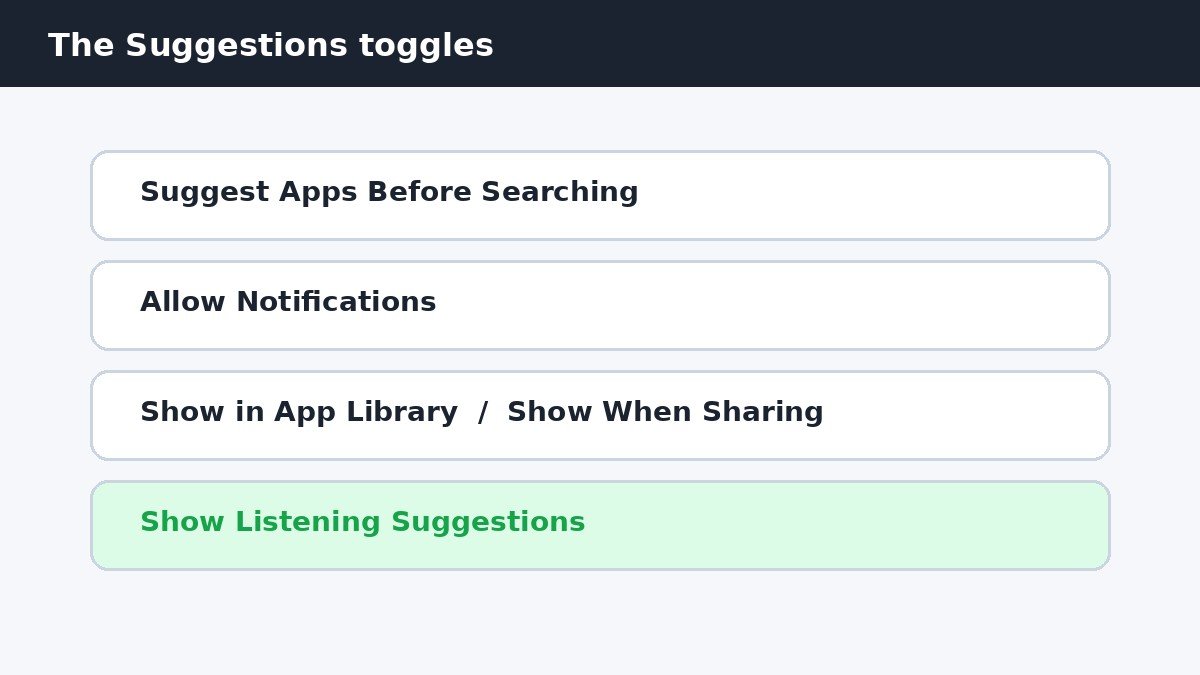
Turn off only the toggles for the surfaces that bother you. If you like the Share Sheet row but hate the Lock Screen suggestions, leave Show When Sharing on and turn off Allow Notifications. The changes take effect straight away, with no restart needed, though a suggestion that is already on screen may stay until you dismiss it once.
Turn off suggestions for one app
- Open Settings, then Apple Intelligence and Siri on iOS 26, or Siri on iOS 27.
- Tap Apps near the bottom of the page.
- Pick the app you want to quiet.
- Turn off Learn from this App, which stops Siri learning your habits in that app.
- Turn off the app’s own Suggestions toggles on the same page.
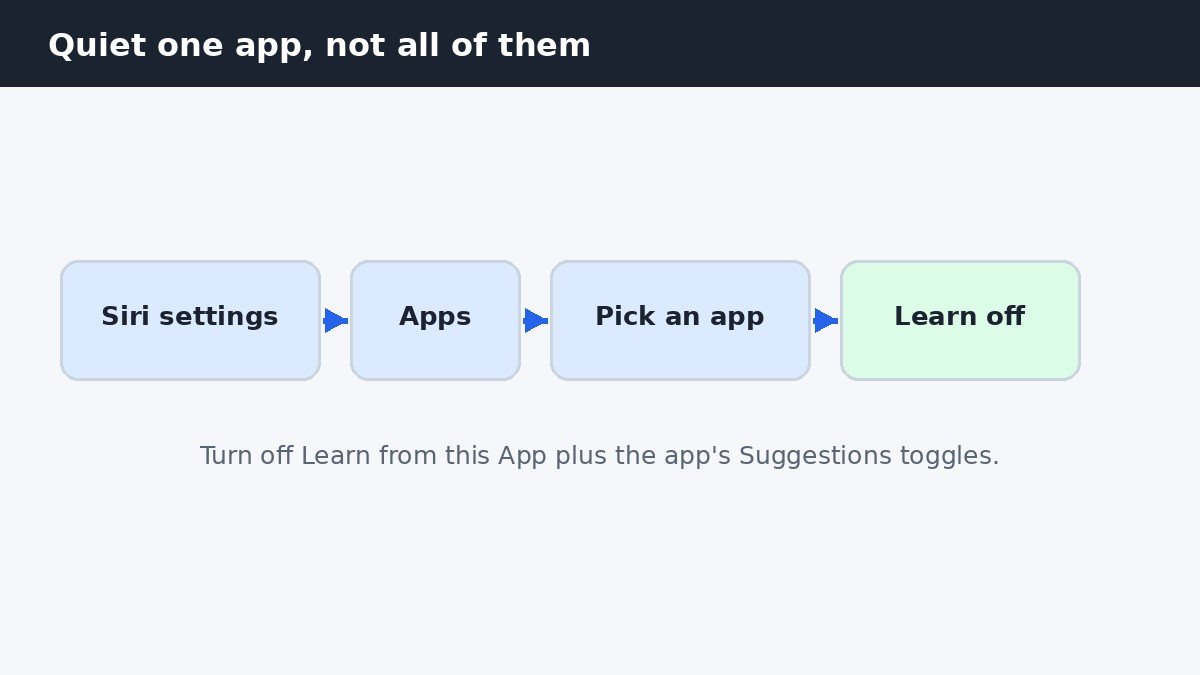
Learn from this App and the Suggestions toggles do different jobs. Learning is what lets Siri notice that you open a certain app every morning. The Suggestions toggles decide whether Siri shows that app to you. Turning off learning alone does not hide the app, and turning off the toggles alone does not stop Siri learning from it, so switch both off for a full quiet.
Quiet a single suggestion in the Share Sheet
Sometimes one contact or one app is the problem, not all suggestions. Open the Share Sheet from any app, long-press the suggestion you do not want, and tap Suggest Less. Siri stops showing that contact or app in the Share Sheet, while everything else stays as it is. This is the gentlest fix when the suggestions are mostly useful and one entry keeps appearing at the wrong time. If the same entry comes back after a few days, turn off suggestions for that app entirely using the per-app steps above.
What turning off suggestions does not change
Turning off suggestions does not turn off Siri itself. You can still hold the side button or say Hey Siri and ask questions, set timers, and send messages exactly as before. It does not stop any app from working either: the apps still open, sync, and notify normally, they just stop being suggested to you. And it does not delete anything Siri has learned unless you also turn off Learn from this App for that app. Apple documents the iOS 27 controls in its guide to turning Apple Intelligence features on or off on iPhone.
Siri Suggestions are several small features sharing one name, which is why one switch never seems to turn them all off. Once you know which toggle owns which surface, you can keep the suggestions you like and silence the rest, and the iPhone stops guessing what you want to open next.

- How to Turn Off Siri Suggestions on iPhone - November 6, 2026
- How to Change Screenshot Save Folder in Windows 11 - November 5, 2026
- How to Stop Samsung Galaxy Apps Running in the Background - November 4, 2026