
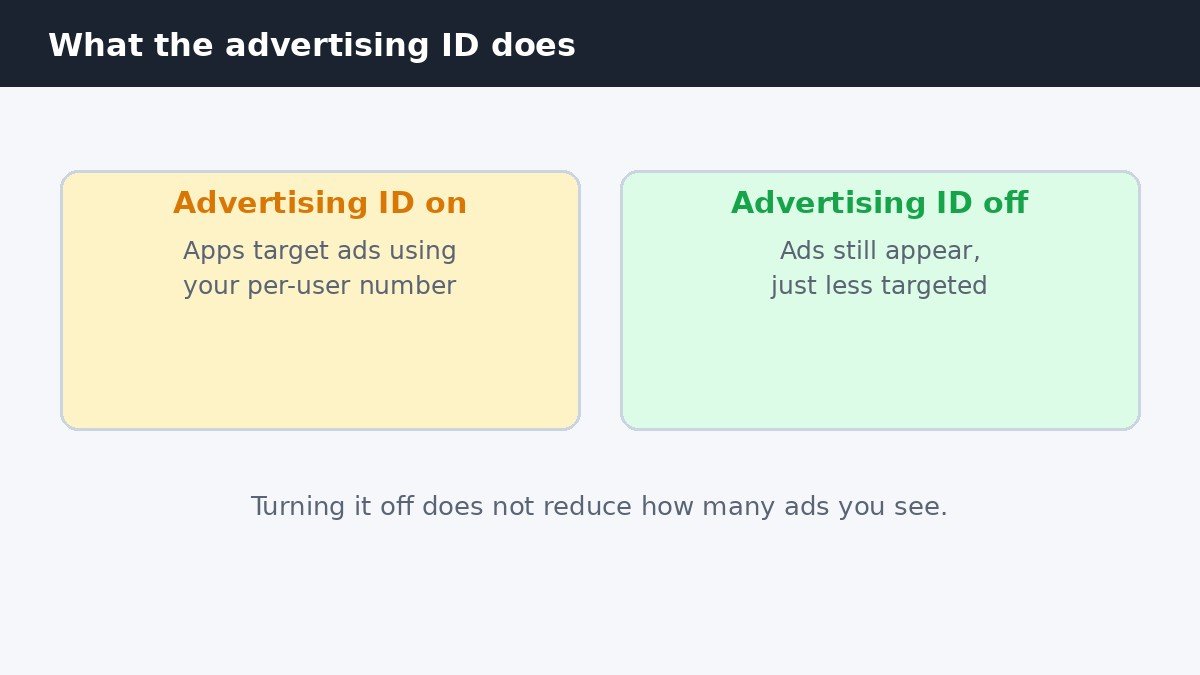
Windows gives every user account its own advertising ID, a number that apps can use to show ads matched to your activity. Turning it off takes less than a minute, and the honest caveat comes first, straight from Microsoft: switching it off does not reduce how many ads you see. It only makes the ads less targeted, because apps can no longer use your ID to tailor them. It will not give you an ad-free PC, but it does stop apps building a profile around one stable identifier. The quick answer: open Settings, go to Privacy & security, then Recommendations & offers, and turn off the Advertising ID toggle.
What the advertising ID actually is
The advertising ID is a per-user identifier that Windows creates for each account on a device. Apps that use the Windows advertising system can read it and link the activity they see to that one number, so ads can follow your interests across different apps. It is not your name or email address, or a record of everything you do. It is one number participating apps may use, and switching it off takes that number away from them.
Two limits are worth knowing before you change anything. First, the setting only covers apps that use the Windows advertising identifier. It does not stop cookie-based ads in your browser, ads inside websites, or ad systems built into third-party software. Second, turning the switch back on gives you a fresh advertising ID, so the old profile does not come back. That reset gives you a clean break from whatever the old ID had gathered.
Turn it off on current builds
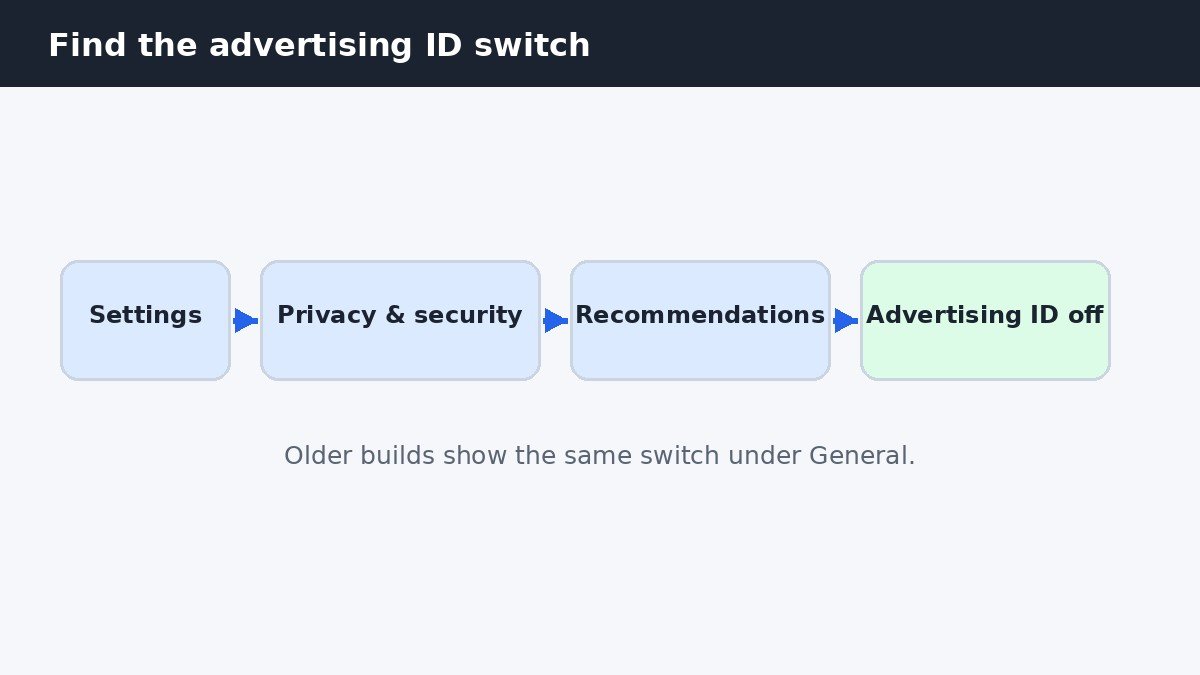
On current Windows 11 builds, the toggle lives on a page called Recommendations & offers. Open Settings from the Start menu, then select Privacy & security in the left sidebar. Select Recommendations & offers. Find the toggle labelled Let apps show my personalized ads by using my advertising ID and switch it off. The change applies at once, with no restart and no confirmation to click through.
The wording can vary slightly between builds, so match on the meaning and look for the phrase advertising ID on the same page as the other personalization toggles. Microsoft documents the Recommendations & offers page and the advertising ID setting on its support site, including the same warning that turning it off will not reduce the number of ads you see.
Turn it off on older builds
Microsoft has moved these toggles between updates, so older Windows 11 builds keep the same switch under a different page name. If your PC has no Recommendations & offers page, open Settings, select Privacy & security, then select General. The toggle there carries the same wording: Let apps show me personalized ads by using my advertising ID. Switch it off in the same way.
The General page holds a few other toggles worth a look while you are there. One lets Windows track app launches to improve Start and search results, and another controls suggested content inside the Settings app. Neither is the advertising ID, but both are personalization switches of the same kind, so turn them off too if you want Windows to stop tailoring suggestions based on your activity.
Turn off Personalized offers too
The advertising ID toggle has a neighbour that many people miss, and it does a different job. On the same Recommendations & offers page, Personalized offers controls whether Windows uses your activity and diagnostic data to show tips, ads, and recommendations tailored to you. The full label reads Get personalized tips, ads, and recommendations based on my Windows activity. Turn it off as well if you want the personalization to stop, not just the identifier behind it.
On older builds it may appear as Tailored experiences, in Diagnostics & feedback, but the job stayed the same. Personalized offers also feeds the recommendations Windows shows in the Start menu, so if you want those suggestions gone as well, this guide to removing the Recommended section from the Start menu covers the Start side of the same problem.
The per-user trap, and the device-wide fix
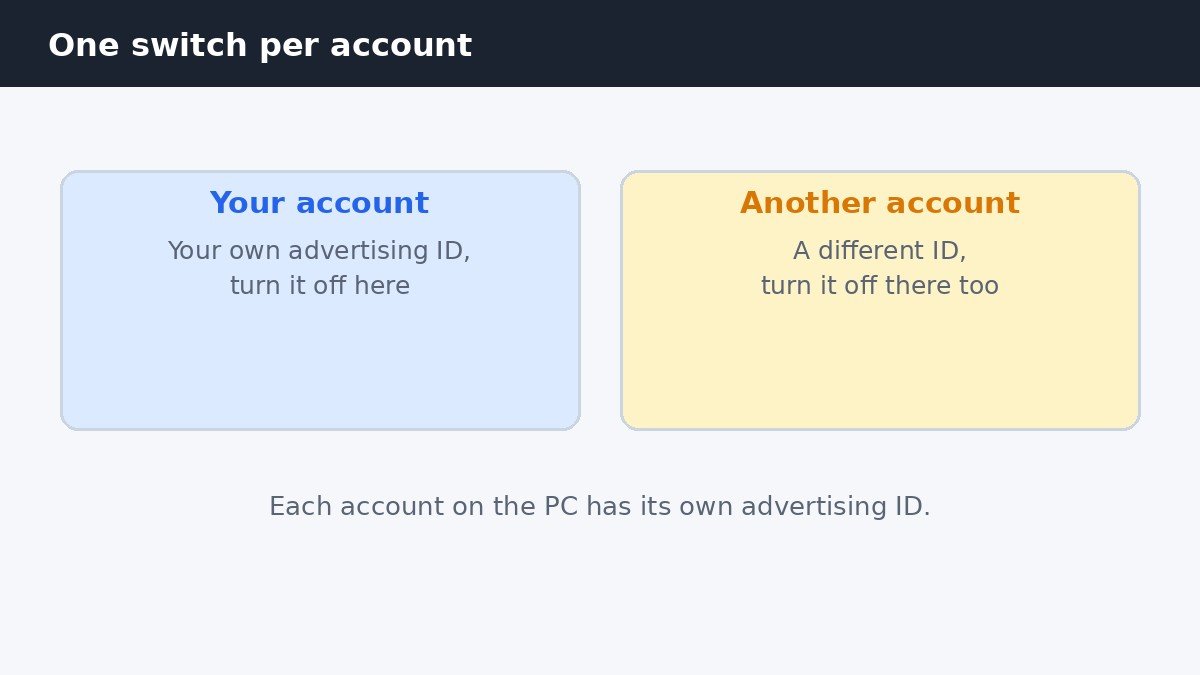
Here is the catch that surprises most people: the advertising ID belongs to each user account, not to the PC. Turning it off on your account leaves it on for every other account on the same machine. If the PC is shared with family, each person has to switch it off while signed in to their own account. There is no single switch in Settings that covers everyone at once.
For a PC you administer, Group Policy and the registry both offer a way to enforce the setting for every account, so individual users cannot switch it back on. That route is an administrator job, best left to someone comfortable with policy settings, because a wrong change can cause wider problems. For a home PC, switching the toggle off on each account is simpler.
| Switch | Where it lives | What it stops |
|---|---|---|
| Advertising ID | Recommendations & offers | Apps using your per-user ID to target ads |
| Personalized offers | Recommendations & offers | Tips, ads, and recommendations based on your activity |
| App launch tracking | Recommendations & offers, or General | Windows tailoring Start and search from apps you open |
| Suggested content | General | Promotional suggestions inside the Settings app |
What changes, and what does not
After switching the advertising ID off, apps that showed targeted ads will still show ads, but the ads will be generic rather than matched to your activity. Windows itself will not look different, nothing will break, and no app will stop working, because the ID was only ever used for ad targeting.
What does not change is everything else that personalizes Windows. The Start menu still shows recommendations until you turn those off separately, the Settings app still shows suggestions until you switch those off, and websites still track you with cookies, which this setting never touched. Think of the advertising ID as one tap: closing it stops one flow, and the other taps need their own switches, most of which sit on the very same page.
Turning off the advertising ID is a small change with a narrow effect, and that is exactly why it is worth doing honestly. It takes under a minute, it stops apps from using one stable identifier to target ads at you, and it costs nothing in how the PC works. Pair it with the Personalized offers switch beside it and repeat it on each account, and you have closed the main personalization controls Windows puts in front of you.

- How to Turn Off Advertising ID in Windows 11 - November 10, 2026
- How to Turn Off Emergency Alerts on iPhone - November 9, 2026
- How to Disable Shake to Undo on iPhone - November 8, 2026