
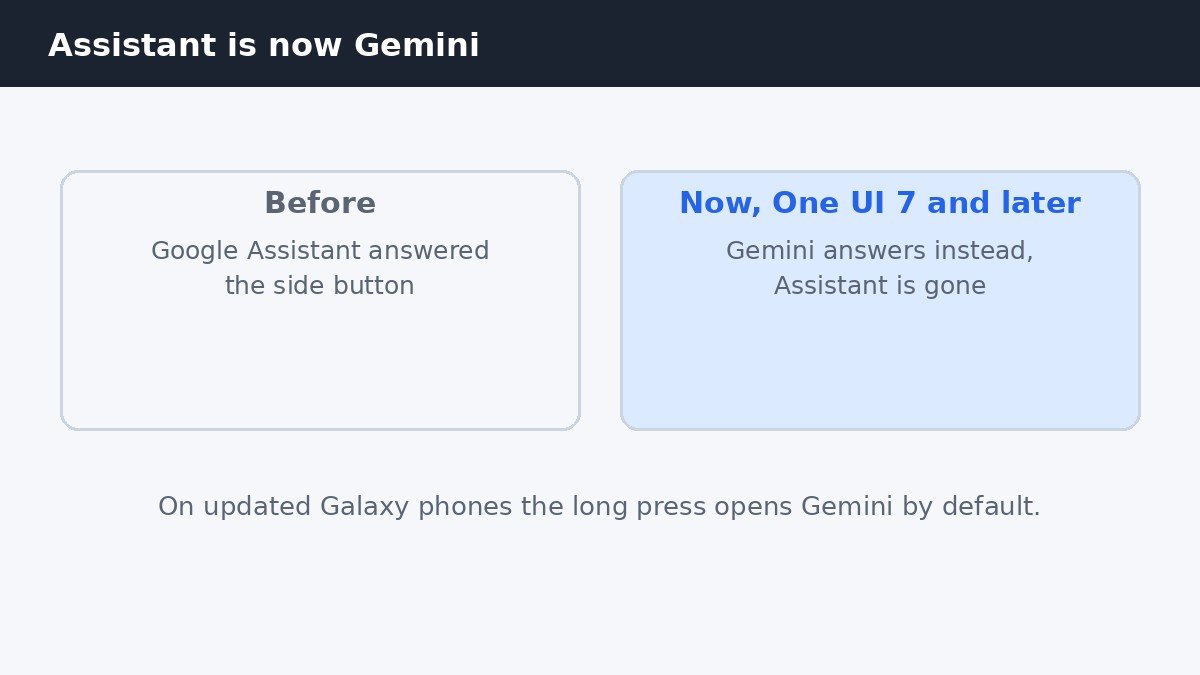
If you hold the side button on your Galaxy phone and Gemini answers instead of Google Assistant, nothing is broken. Google began replacing Google Assistant with Gemini on Android phones in September 2026, so on an updated Galaxy phone running One UI 7 or later, a long press opens Gemini by default. That changes the job completely: there is no classic Assistant left to switch back to on many updated phones, and old guides that tell you to pick Google Assistant no longer do what they promise. The quick answer: set the default digital assistant app to None, change the side button long press to the power off menu, and turn off Hey Google in the Gemini app. Those three switches together are what turning the assistant off means now.
First, the honest change: Assistant is now Gemini
For years, turning off Google Assistant on a Galaxy phone meant one switch in the default apps settings. That switch still exists, but the assistant behind it has changed. Google Assistant is being replaced by Gemini, and on updated Galaxy phones Gemini is the assistant that opens when you press and hold the side button or say the wake phrase. Choosing Google as the assistant now means choosing Gemini, not the classic Assistant you may remember.
Some of the advice still floating around the web no longer works. Guides that say to switch the assistant back to Google Assistant assume the old assistant is still there to switch back to, but on a phone that has already moved to Gemini, that option may simply not exist. The steps below work with the phone as it is today, and they say plainly where a switch removes the assistant and where it only changes which assistant answers.
Remove the assistant completely with None
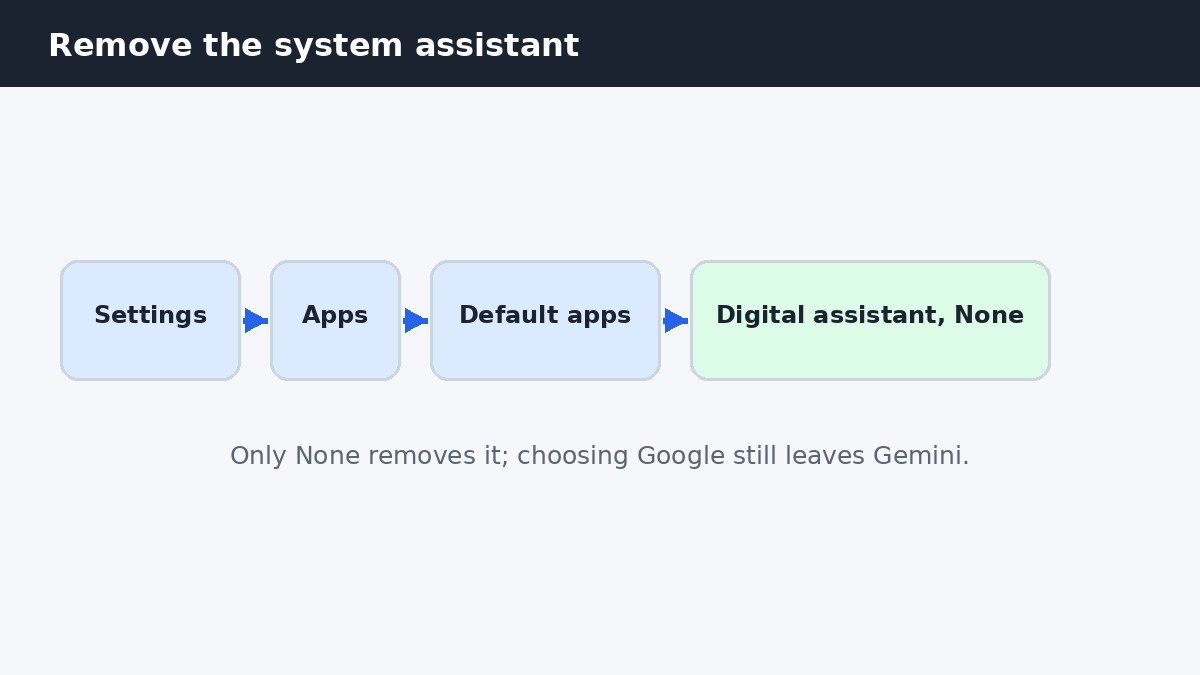
The only switch that fully removes a system assistant is setting the default digital assistant app to None. Open Settings, then Apps, then Default apps. On some Galaxy phones this screen is called Choose default apps instead. Tap Digital assistant app, then Default digital assistant app, and choose None. That is the step that matters most.
Choosing Google here does not turn the assistant off: Gemini stays, so the side button and the wake phrase will keep opening it. Only None removes the system assistant altogether. After choosing None, holding the side button will do nothing, unless you also change what the button does, which the next section covers.
Fix the side button so it stops opening Gemini
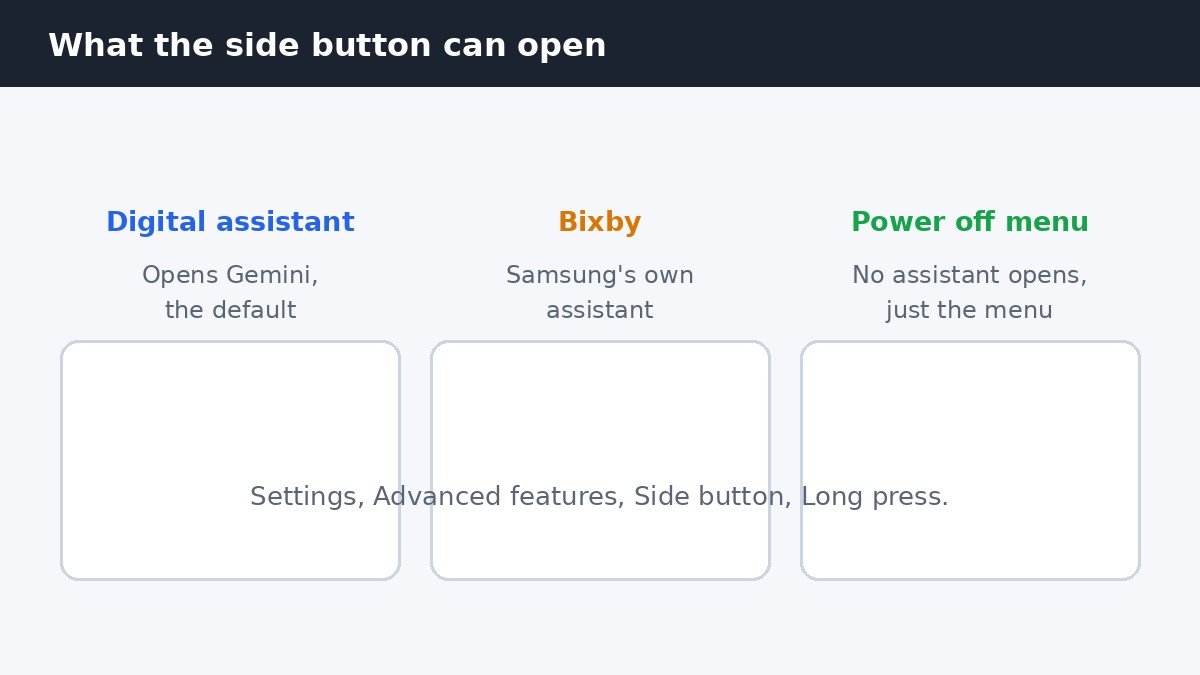
Setting the assistant to None stops Gemini from answering, but the side button still needs a job. Open Settings, then Advanced features, then Side button. Under Long press, choose Power off menu. Now holding the button opens the power menu, which is what the button did before assistants took it over.
If you would rather keep an assistant on the button, the same screen lets you choose Bixby instead. Bixby is Samsung’s own assistant, and it stays available as a separate choice. Samsung explains the side button options, including the long press choices, on its support site. Either way, holding the side button together with volume down still opens the power menu, so you are never left without a way to restart the phone.
Turn off Hey Google and Gemini activity
Even with the assistant set to None, the wake phrase can still be listening, so turn that off too. Open the Gemini app, tap your profile picture, then Settings. Look for the Hey Google switch, which may appear under Voice Match on some phones. Switch it off so the phone stops listening for the wake phrase.
While you are in the Gemini app settings, look for Gemini Apps Activity, sometimes shown as Keep Activity. Turning this off stops Google from saving your Gemini conversations and activity to your account. It is separate from the wake phrase, and it controls what is stored rather than what is listening. Neither switch affects the Google app, Search, Gmail, Maps, or YouTube, which all keep working normally.
What about Bixby?
Bixby is separate from Google Assistant and Gemini, and turning off the Google assistant does not turn off Bixby. Bixby keeps its own wake phrase, Hi Bixby, and its own place in the side button choices, so it will still answer if it is switched on. For a phone with no assistant at all, Bixby needs switching off separately, and this guide to turning off Bixby voice wake-up on Samsung Galaxy walks through that side of it.
That separation cuts both ways. If you like having an assistant but not Gemini, Bixby is the built-in alternative, and it is good at phone settings and device controls, such as changing brightness or opening apps by voice. Choose it on the side button screen and leave the default assistant setting alone, and you have swapped assistants instead of removing one.
| What you change | What happens | Assistant left? |
|---|---|---|
| Default assistant set to None | No system assistant answers | No |
| Side button set to Power off menu | Long press opens the power menu | No |
| Hey Google switched off | Phone stops listening for the wake phrase | No |
| Default assistant set to Google | Gemini stays as the assistant | Yes, Gemini |
What still works after the assistant is off
Turning the assistant off does not break Google. The Google app still opens, Search still works, Gmail still syncs, Maps still navigates, and YouTube still plays, because none of those depend on the assistant. The Gemini app also stays installed, and you can still open it by tapping its icon and typing a question, even though it will no longer answer to the side button or the wake phrase.
What you lose is hands-free help: no asking the phone a question out loud, no voice commands to set a timer or send a message, and no long-press shortcut to the assistant. For most people that is the point of switching it off, usually because the assistant kept opening by accident.
Turning off Google Assistant on a Samsung Galaxy phone is a different job than it was a year ago, because the assistant itself has changed. Gemini replaced Assistant on updated phones, so the old single switch no longer tells the full story. Set the default assistant to None, give the side button the power menu back, and switch off Hey Google, and the phone stops listening and stops interrupting. Bixby stays separate if you want it, and every change reverses just as quickly if you change your mind.

- How to Turn Off Google Assistant on Samsung Galaxy - November 10, 2026
- How to Turn Off Fast Startup in Windows 11 - November 9, 2026
- How to Turn Off Auto Rotate on Windows 11 - November 8, 2026