
By default, anyone holding your iPhone can open Control Center without unlocking it. That is convenient when the phone is in your hand, and a problem when it is not: Control Center gives instant access to Airplane Mode, Wi-Fi, and Bluetooth. Flip Airplane Mode on from the Lock Screen and the phone drops off Find My before you can track it. The quick answer: open Settings, tap Face ID & Passcode, enter your passcode, scroll to Allow Access When Locked, and turn Control Center off. Control Center itself stays exactly where it was: it just stops opening until you unlock the phone.
Why this one switch matters
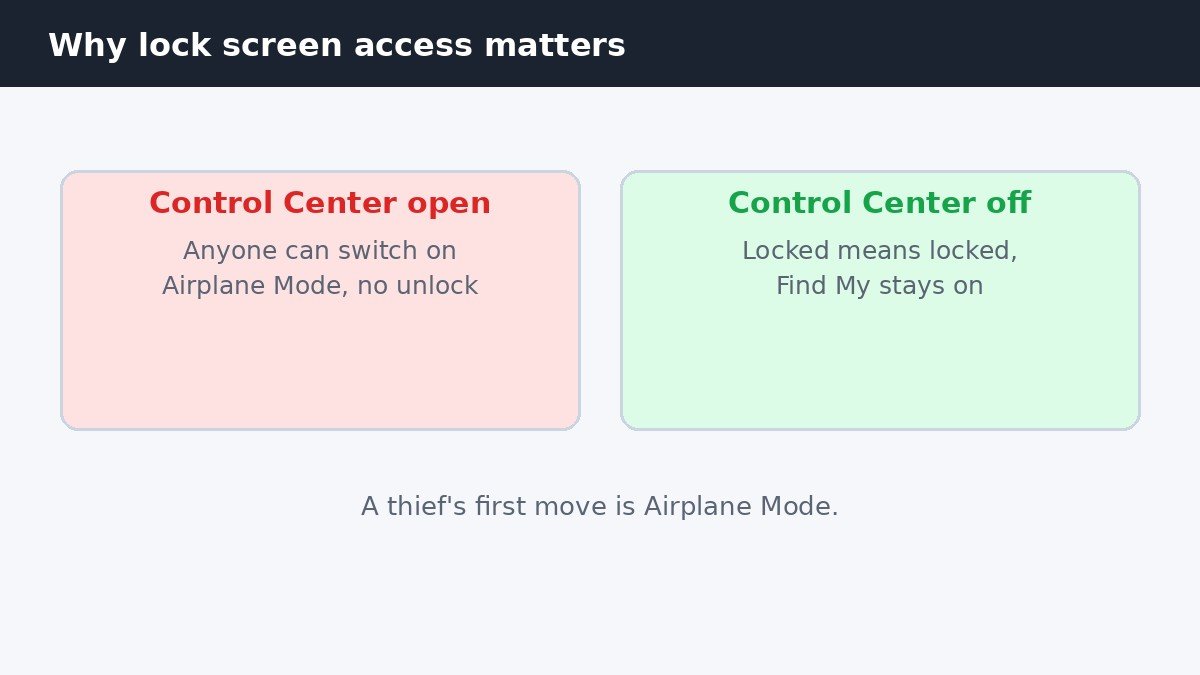
Control Center is the panel of quick controls for Wi-Fi, Bluetooth, Airplane Mode, brightness, volume, and more. On a locked iPhone it opens with the same swipe as on an unlocked one, and Apple leaves that access on by default. The risk is what it controls: Airplane Mode cuts the phone off the network, and Wi-Fi, Bluetooth, and Do Not Disturb can all be switched without a passcode.
That matters most for a lost or stolen phone: the first thing someone does with a phone they should not have is put it in Airplane Mode. Turning the switch off does not make the phone harder to use, because Control Center works normally the moment you unlock.
Turn it off on Face ID iPhones
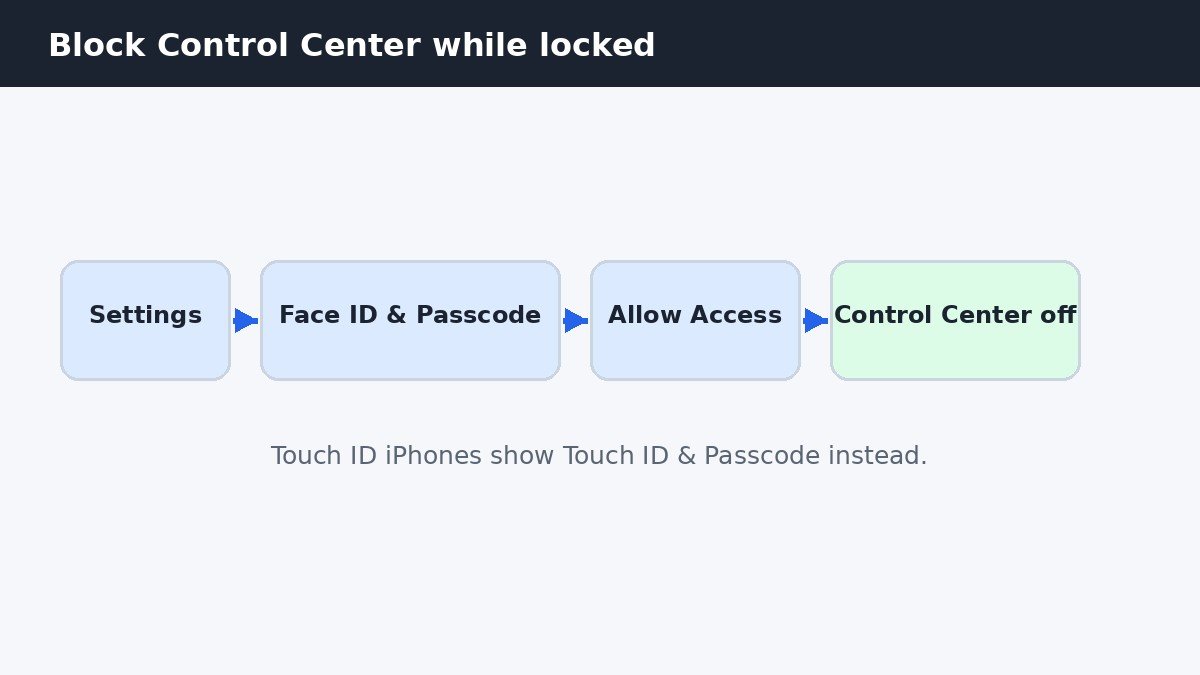
On an iPhone with Face ID, iPhone X and every newer model without a Home button, the path runs through the passcode settings. Open Settings, then tap Face ID & Passcode. Enter your passcode when asked, scroll to Allow Access When Locked, and switch Control Center off. The toggle turns grey, and the change applies at once.
That section holds the rest of the Lock Screen permissions too: Today view, Notification Center, Siri, Reply with Message, and Wallet all sit in the same list, and each one is a separate choice. Apple lists the Lock Screen features and how to reach them in its iPhone user guide, including Control Center and the other items in this list. Turn off only the ones you do not need on a locked phone, and leave the rest as they are.
Turn it off on Home-button iPhones
On an iPhone with a Home button, such as the iPhone SE, the path is the same except for one name. Open Settings, then tap Touch ID & Passcode instead of Face ID & Passcode. Enter your passcode, scroll to Allow Access When Locked, and switch Control Center off. Everything else about the setting is identical.
The swipe to test it is different on these models. On a Home-button iPhone, Control Center opens by swiping up from the bottom edge, not down from the top-right corner. If you try the Face ID gesture on a Home-button phone, nothing will happen, and that tells you nothing about whether the setting worked.
Test it, and know what changes
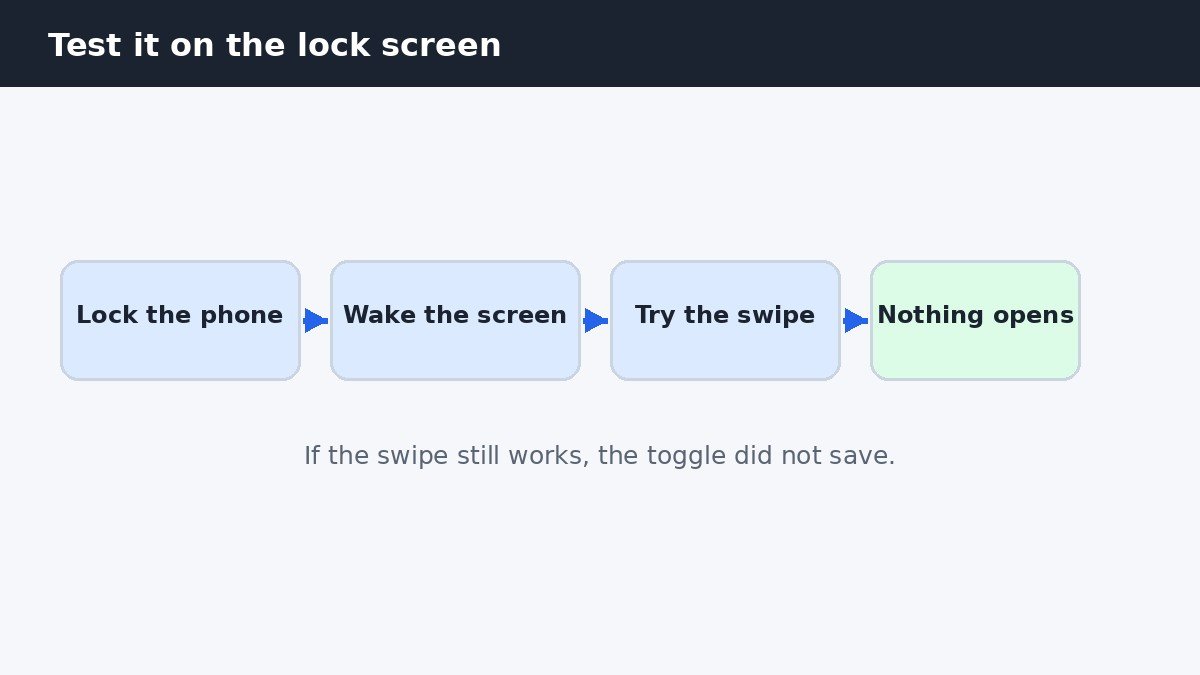
Testing takes ten seconds and it is worth doing, because the setting is easy to misread. Press the side button to lock the phone, then wake the screen without unlocking it. On a Face ID iPhone, swipe down from the top-right corner. On a Home-button iPhone, swipe up from the bottom edge. Control Center should not appear. Unlock the phone and try the same swipe: Control Center should open normally.
Be clear about what this switch does and does not do. It blocks access, it does not remove Control Center. The panel is still there, with all the same controls, and it still opens the moment you unlock. Nothing else changes: notifications, the camera shortcut, and the flashlight button all work exactly as before. StandBy on a charging iPhone is untouched too, and this guide to turning off iPhone StandBy mode covers that feature separately.
The companion switch: Access Within Apps
There is a second Control Center switch in a different place, and it does a different job. Open Settings, then tap Control Center, and look for Access Within Apps. Turning this off stops Control Center from opening while you are inside an app, which helps if the swipe keeps firing by accident during games or full-screen video. It has nothing to do with the Lock Screen.
The two switches are easy to confuse because they sit in different menus and sound similar. Remember it this way: Face ID & Passcode controls the Lock Screen, and the Control Center menu controls apps. If Control Center opens when unlocked but not on the Lock Screen, check the passcode setting. If it opens on the Lock Screen but not inside an app, check Access Within Apps.
| iPhone model | Open Control Center | Lock Screen switch lives in |
|---|---|---|
| Face ID, no Home button | Swipe down from the top-right corner | Face ID & Passcode |
| Home button, Touch ID | Swipe up from the bottom edge | Touch ID & Passcode |
| Either model | Same gesture, after unlocking | Works normally once unlocked |
If Face ID & Passcode is missing
If you cannot find Face ID & Passcode or Touch ID & Passcode in Settings at all, the phone may be managed by a work or school profile, or a Screen Time limit set by a family organizer may be hiding it. Use the search box at the top of Settings, type passcode, then open the first match and look for the Allow Access When Locked list. If the list is there but the Control Center toggle is greyed out, the same management or Screen Time restriction is likely locking it, and only the person who set it can change it.
A restart is the other fix worth trying before anything else. If the toggle switches off but Control Center still opens on the Lock Screen, restart the iPhone and test again, because the setting can take a restart to apply on some versions. If it still opens after a restart, check that you changed the setting on the right phone, especially if you share an Apple ID across devices, because the setting is per device, not per account.
Control Center on the Lock Screen is a trade between convenience and security, and for most people the security side wins. One switch in the passcode settings takes Airplane Mode and the network controls away from anyone who has not unlocked your phone, while leaving Control Center exactly as useful for you once you are in. Test it locked, test it unlocked, and leave the companion Access Within Apps switch for the separate problem of accidental swipes inside apps.

- How to Turn Off Control Center on iPhone Lock Screen - November 10, 2026
- How to Turn Off Keyboard Vibration on Samsung Galaxy - November 9, 2026
- How to Turn Off Read Receipts on Samsung Galaxy - November 8, 2026