
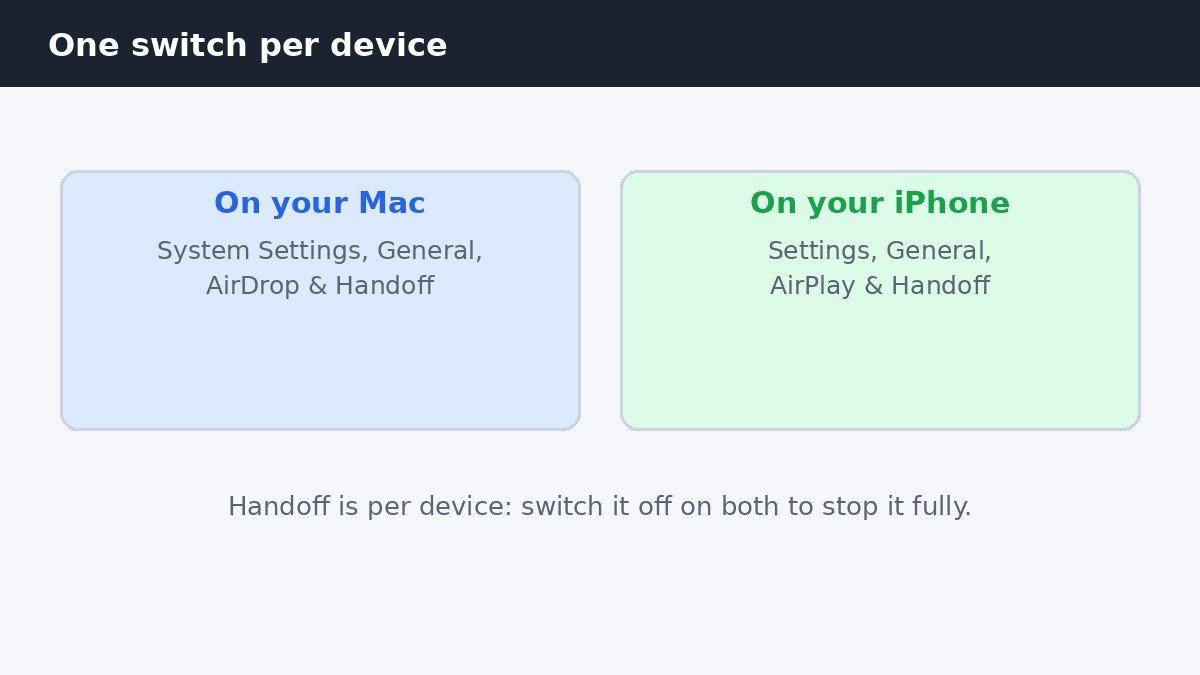
Handoff is the Apple feature that lets you start something on one device and finish it on another, like opening a web page on your iPhone and continuing it in Safari on your Mac. To turn it off on your Mac, open System Settings, click General, click AirDrop & Handoff, and turn off Allow Handoff between this Mac and your iCloud devices. Handoff is switched off per device, not per account, so turning it off on your Mac does nothing to your iPhone, and you need to switch it off there too for a full stop.
Turn Handoff off on your Mac
In macOS Tahoe (the current release), click the Apple menu in the top-left corner of the screen and choose System Settings. In the sidebar on the left, click General, then click AirDrop & Handoff on the right. On some Macs the same page is labelled AirDrop & Continuity, so do not worry if the name looks slightly different. Find the switch labelled Allow Handoff between this Mac and your iCloud devices and turn it off. Confirm by clicking Don’t Allow Handoff if asked.
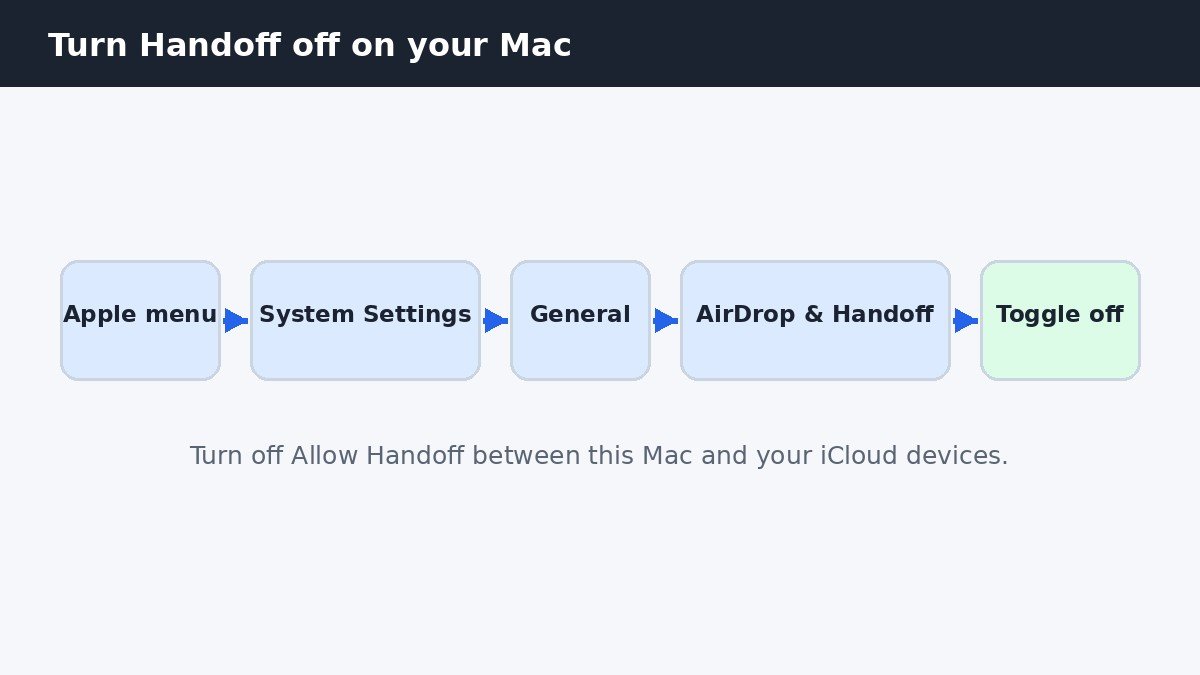
The change takes effect right away. Any Handoff icons sitting in your Dock disappear at once, and your Mac stops offering to continue tasks from your other devices. If your Mac runs an older version of macOS with System Preferences instead of System Settings, the same checkbox sits at the bottom of the General page. For Handoff to work at all, your devices need the same Apple ID, with Wi-Fi and Bluetooth switched on and the devices near each other. No restart is needed, and there is nothing else to clean up.
Turn Handoff off on your iPhone too
Switching Handoff off on your Mac only stops the Mac side of it. Your iPhone still has its own Handoff switch, and while it stays on, your phone keeps offering tasks to your other devices. The same is true of an iPad or an Apple Watch, since each device carries its own switch. To stop it fully, open Settings on your iPhone, tap General, tap AirPlay & Handoff, and turn off Handoff. The same path works on an iPad.
It helps to know what Handoff is not. Handoff passes open tasks between devices, like a half-written email or a web page you are reading. AirDrop is the separate feature that sends files between devices, and turning off Handoff leaves AirDrop untouched. If AirDrop is the thing bothering you, with other people sending files to your phone, that is a different switch, and this guide to turning off AirDrop receiving on iPhone walks through it.
What you lose: Universal Clipboard
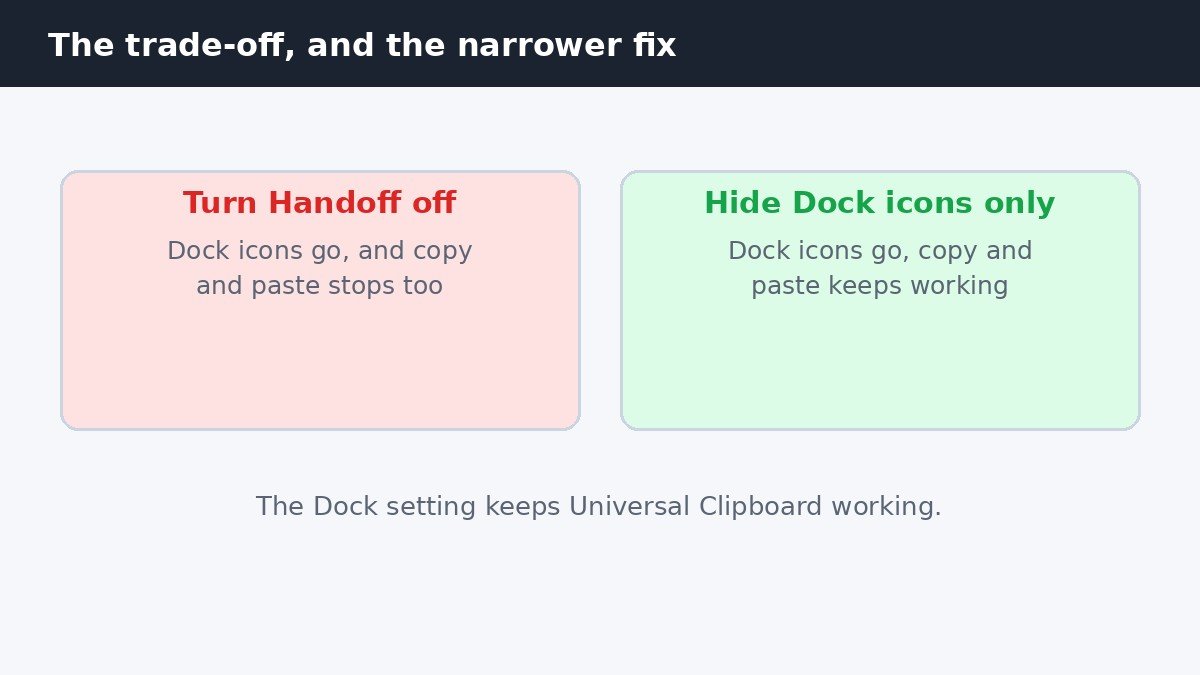
The trade-off most guides leave until the end is Universal Clipboard, the part of Continuity that lets you copy text, a photo, or a link on one device and paste it on another. It runs on Handoff, so when you turn Handoff off, copy and paste between your devices stops working too. That catches people out, because the clipboard feels separate, and the toggle carries no warning. Apple lists Universal Clipboard among the features that need Handoff switched on, along with Sidecar and Universal Control, so those stop working too.
Everything else keeps working. AirDrop still sends files, calls still reach your Mac if you have that set up, and iCloud still syncs your photos, notes, and files as before. Handoff only covers the passing of open tasks and the clipboard, so the rest of your devices keep talking to each other normally. The table below sums up the three choices, so you can pick the one that fits.
| Option | Dock icons | Copy and paste between devices | Open tasks carry over |
|---|---|---|---|
| Turn Handoff off on the Mac | Gone | Stops | No |
| Turn it off on the iPhone too | Gone | Stops | No |
| Hide suggested apps in the Dock only | Gone | Keeps working | Yes |
If you only hate the Dock icons, hide those instead
For many people, the real annoyance is not Handoff itself. It is the app icons that keep appearing at the end of the Dock, with a small phone or tablet badge, every time another device opens Safari or Mail. If that is your only complaint, a narrower fix keeps the clipboard working. Open System Settings, click Desktop & Dock, and turn off Show suggested and recent apps in Dock. The Handoff icons stop appearing, and Handoff itself stays on underneath.
The catch is that the same switch also hides the recent apps your Mac suggests in the Dock, so you lose those shortcuts too. If you use recent apps from the Dock often, that is a real cost, and you can turn the setting back on any time. But if the floating icons were the whole problem, this one switch solves it without touching the clipboard.
Check it worked, and turn it back on
A quick test tells you whether the switch took. Open a web page in Safari on your iPhone, then look at your Mac Dock. With Handoff off, no Safari icon with a phone badge should appear. Then test the clipboard: copy a few words on your iPhone, then try to paste on your Mac. With Handoff off, nothing pastes, which confirms the link is broken. If an icon still appears, check the toggle saved, and check you switched off the right device.
Turning Handoff back on is the same path in reverse. On your Mac, go back to System Settings, General, AirDrop & Handoff, and turn the switch on again. On your iPhone, open Settings, General, AirPlay & Handoff, and turn Handoff back on. The clipboard starts working again straight away.
Should you turn Handoff off?
It comes down to what bothers you more. If the Dock icons distract you, or you share devices with family and do not want your open tasks showing up on a shared screen, turning Handoff off is a clean fix, and the clipboard is the only real loss. If you copy links and text between your iPhone and Mac all day, keep Handoff on and hide the Dock icons instead, because the clipboard is worth more than a tidy Dock.
Handoff is a small feature with an outsized footprint on your screen, and now you know exactly which switch controls it. Turn it off on each device you want quiet, keep the clipboard in mind before you do, and use the Dock setting if the icons were the only problem. Whatever you choose, every switch here reverses in seconds, so nothing is permanent.

- How to Turn Off Handoff on Mac - November 11, 2026
- How to Turn Off Control Center on iPhone Lock Screen - November 10, 2026
- How to Turn Off Keyboard Vibration on Samsung Galaxy - November 9, 2026