
Closing your LinkedIn account takes about two minutes from a browser, and LinkedIn gives you a 14-day window to change your mind. Here’s the exact path, what disappears forever, and the one backup step to do first.
You don’t need any tool for this, just a browser logged into LinkedIn. Two things to handle before you start: cancel LinkedIn Premium first (LinkedIn won’t close an account with an active subscription), and transfer ownership of any groups or company pages you administer, since a sole admin can’t close their account.
Delete your LinkedIn account in 7 steps
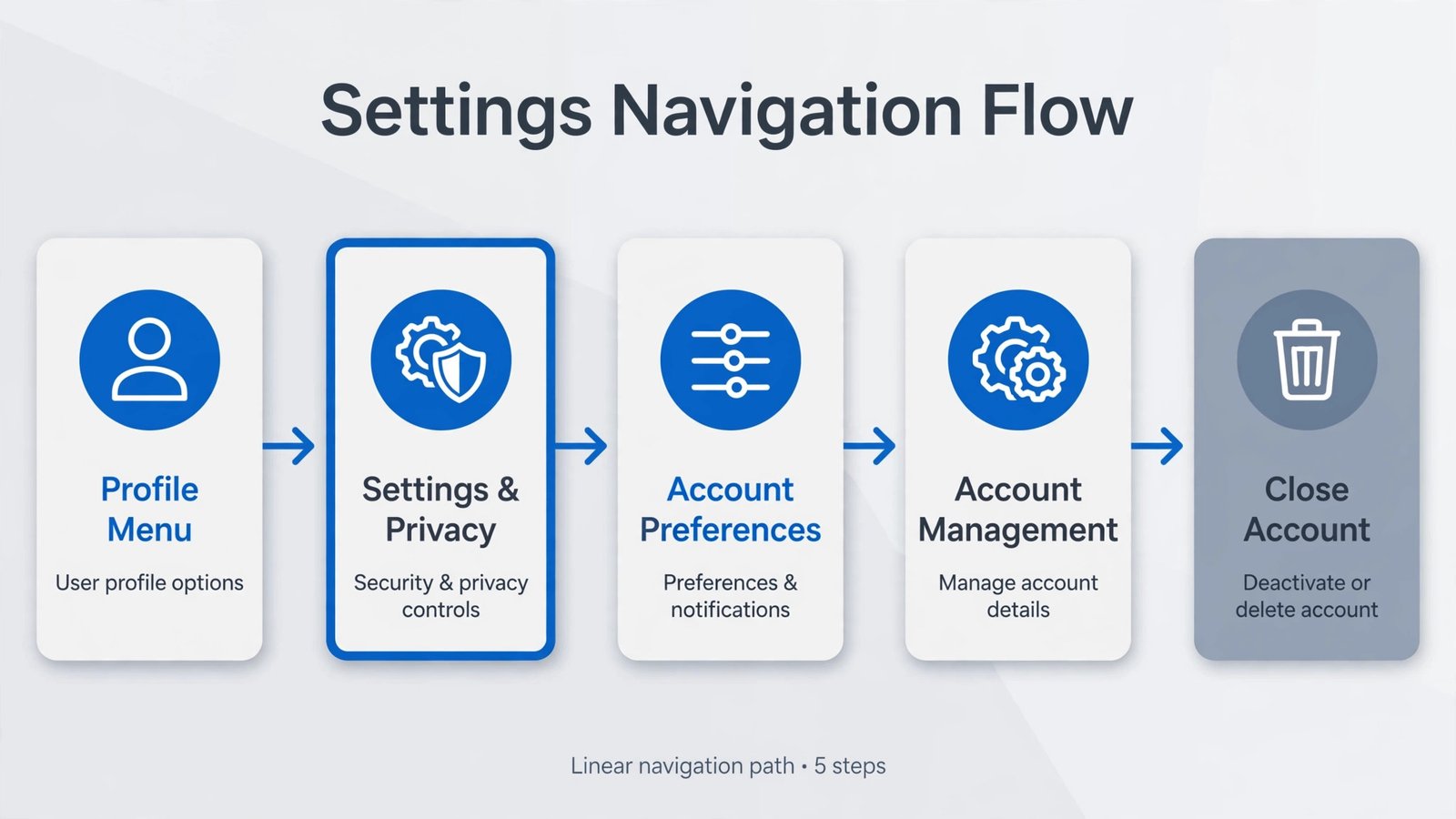
- Click the Me icon (your profile photo) at the top of your LinkedIn homepage.
- Select Settings & Privacy from the dropdown menu.
- Stay on the Account preferences tab and scroll down to the Account management section.
- Click Change next to Close account.
- Pick a reason for closing your account and click Next.
- Enter your account password to confirm your identity.
- Tick the box to unsubscribe from LinkedIn emails, then click the blue Close account button.
On the mobile app the route is shorter: tap your profile photo, go to Settings, then Account preferences, and choose Close account under Account management. The confirmation steps are the same.
And that’s it. Your profile goes dark immediately.
What actually happens after you close your account
This is the part most guides gloss over, and it’s the part that matters. LinkedIn’s own help documentation lays out the timeline clearly:
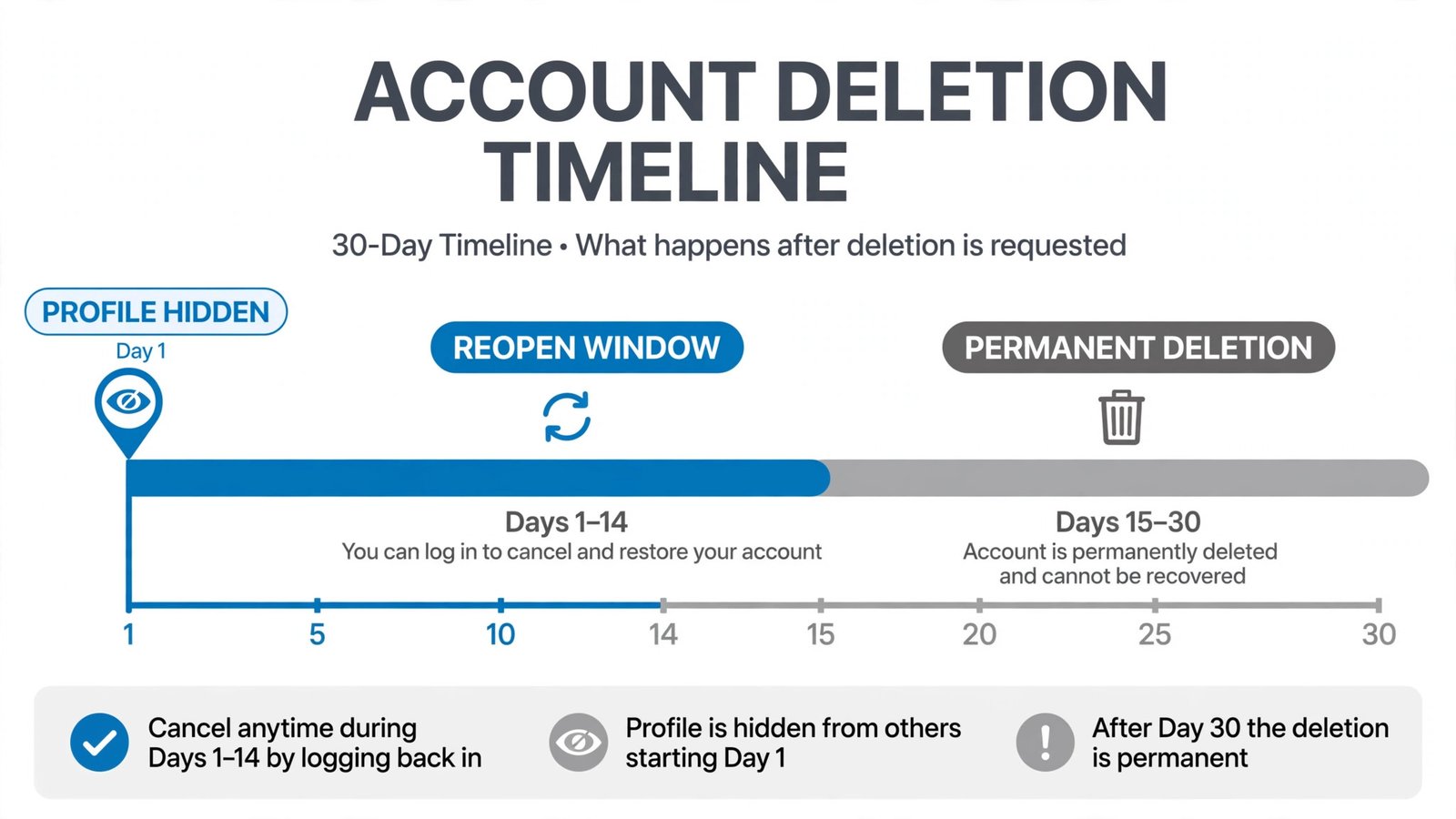
- Day 1: your profile is hidden and your information starts leaving LinkedIn’s systems.
- Days 1-14: the grace period. Your profile is hidden but your data is still on LinkedIn’s servers, and you can sign back in to cancel the closure.
- Days 15-30: permanent deletion begins across active systems, backups, and partner networks.
- After 30 days: your profile and personal information are gone, though LinkedIn may retain some data for legal or business purposes.
Here’s the catch LinkedIn states explicitly: even if you reopen your account within 14 days, some things are gone forever. Endorsements, recommendations, pending and ignored invitations, and your follows (companies, Top Voices, newsletters) cannot be recovered. Your connections, profile details, and uploaded content come back, but the social proof doesn’t. LinkedIn’s official close-account help page lists exactly what’s recoverable and what isn’t.
Search engines are a separate story. Google, Bing, and Yahoo cache profile pages, so your name may keep appearing in search results for weeks after deletion. That’s outside LinkedIn’s control; the cached pages fade as search engines re-index. Your old profile URL becomes a dead link immediately.
Download your data before you close
Do this before step 1 above, because afterward it’s too late:
- Go to Settings & Privacy, then the Data privacy tab.
- Click Get a copy of your data.
- Choose specific items (connections, messages, recommendations) or request the full archive.
- LinkedIn emails you a download link that’s valid for 72 hours. Save the archive somewhere safe.
If you’re leaving because the job hunt is over rather than because you’re done networking, grab your connections list at minimum. Rebuilding a network from memory is miserable. Our guide to AI resume makers can help with the next step of the career move, and if you’re cleaning house across platforms, see how to delete your Google account for the bigger breakup.
Not sure? Hibernate instead
If the 14-day cliff makes you nervous, LinkedIn’s hibernate option (same Settings area) hides your profile and pauses all activity without deleting anything. You can wake it up whenever you like with everything intact. Deletion is for when you’re certain; hibernation is for when you’re tired. There’s no shame in the second one.
Common blockers: active Premium subscription (cancel it first), being the sole admin of a group or page (hand it off), an outstanding LinkedIn Ads balance (pay it), or an enterprise seat your admin must release. ExpressVPN’s walkthrough has a useful troubleshooting section if LinkedIn refuses to close your account.
More account guides
- How to delete your Google account permanently
- How to create a second Facebook account
- Top AI-based resume makers

- What Is Google Gemini Agent? What It Does and Who Gets It - October 17, 2026
- What Happened to ChatGPT Atlas? And What to Use Instead in 2026 - October 16, 2026
- How to Avoid Black Friday Scams in 2026: The Scam-Spotting Field Guide - October 15, 2026