
Your PC wakes from sleep and asks for your PIN or password again. You were gone for two minutes, and now you have to sign in like you just booted up. The fix is one dropdown in Settings. Open Settings, go to Accounts, then Sign-in options, and set "If you've been away, when should Windows require you to sign in again?" to Never. That is the whole answer. The rest of this guide covers the cases where that dropdown is greyed out, and the lookalike settings people confuse with it.
The quick answer: set it to Never
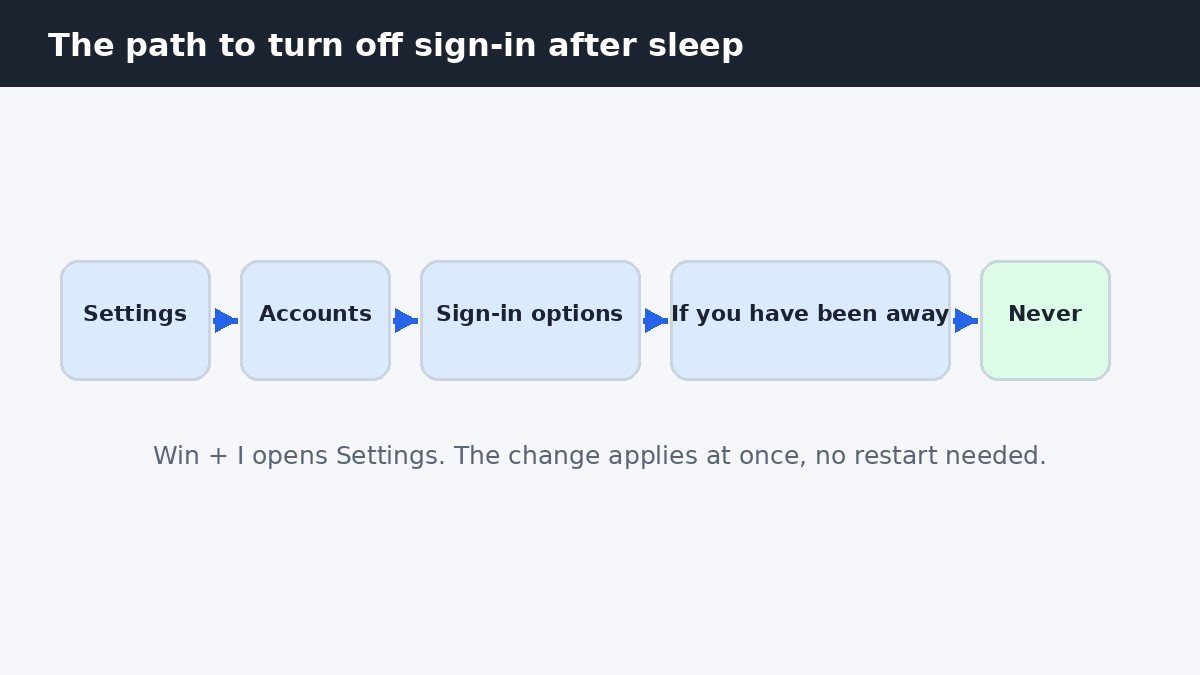
Press Win + I to open Settings. Click Accounts in the left column, then click Sign-in options. Scroll to the Additional settings area and find the question "If you've been away, when should Windows require you to sign in again?" Open the dropdown next to it and choose Never. The change applies right away, so the next time your PC wakes from sleep it goes straight to the desktop. There is no restart and no sign out needed.
First, check which lock is bothering you
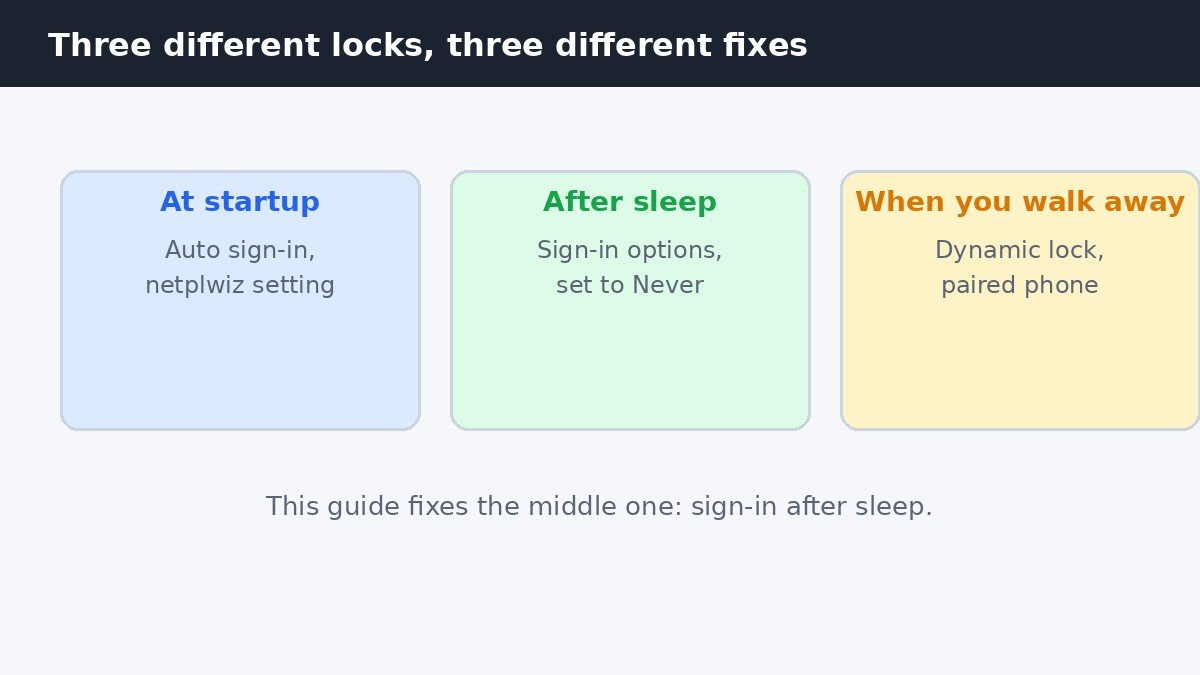
Most people who search for this fix are actually fighting one of three different locks, and each one has its own switch. Changing the wrong one leaves the prompt exactly where it was, which is why this setting has a reputation for not working.
| Lock | When it appears | Where to change it |
|---|---|---|
| Sign-in at startup | Every time you switch the PC on | Automatic sign-in (netplwiz), a separate setting |
| Sign-in after sleep | When the PC wakes from sleep or hibernation | Settings, Accounts, Sign-in options, set to Never |
| Dynamic Lock | When your paired phone walks out of Bluetooth range | Settings, Accounts, Sign-in options, Dynamic lock |
If the prompt shows up after you close the lid or the PC sleeps on its own, you want the middle row, and this guide covers it. If it shows up when you walk away from your desk with your phone in your pocket, that is Dynamic Lock, and it has its own checkbox further down the same page.
Turn off sign-in after sleep, step by step
- Press Win + I to open Settings. You can also open the Start menu and click the gear icon.
- Click Accounts in the left-hand column.
- Click Sign-in options on the right side of the page.
- Scroll down to Additional settings. It sits below the list of sign-in methods such as PIN, fingerprint, and face recognition.
- Find the question "If you've been away, when should Windows require you to sign in again?" and open the dropdown next to it.
- Choose Never.
That is it. Put the PC to sleep and wake it again to confirm. If it goes straight to the desktop, the setting is working. Microsoft documents the Sign-in options page, including the Windows Hello-only toggle and Dynamic Lock.
One related timer: the screen going dark is not the same as the PC sleeping. If your display turns off quickly but the PC is still awake, the sign-in prompt is not the problem, the screen timeout is. Our guide to changing the lock screen timeout on Windows 11 walks through that timer.
When Never is greyed out or missing
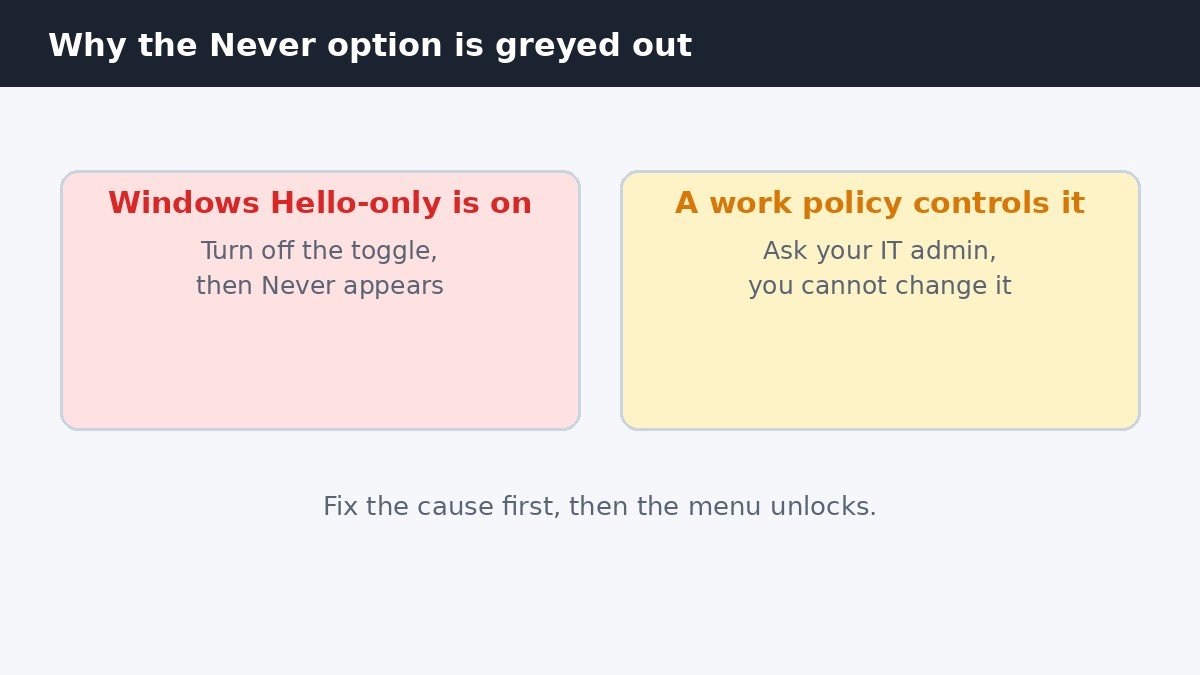
Sometimes the dropdown is there but you cannot open it, or Never is not in the list at all. There are three usual causes, and each one has a different fix.
The most common cause is the Windows Hello-only toggle. On the same Sign-in options page, look for "For improved security, only allow Windows Hello sign-in for Microsoft accounts on this device." When that toggle is on, Windows disables password sign-in for Microsoft accounts, and that can lock the wake-up dropdown too. Turn the toggle off, then check the dropdown again. It usually frees up immediately, with no restart. Microsoft's own support thread confirms the same fix: turn off the Windows Hello-only setting, then the wake-up option becomes available.
The second cause is a missing sign-in method. Windows has nothing to ask for on wake if the account has no PIN or password set up at all, so the setting can hide or grey out. Add a PIN first under the PIN (Windows Hello) section on the same page, then set the dropdown to Never.
The third cause is a work or school policy. If the PC is managed by an employer or a school, an administrator can control this setting, and your changes may be blocked or reverted. Check under Settings, Accounts, Access work or school to see whether an organization account is connected. On a managed PC, the setting belongs to the administrator, not to you.
The security trade-off, honestly
Turning this off means anyone who can wake your PC can use it. On a desktop that never leaves your home, that is a small risk. On a laptop, it is a bigger one. A laptop gets left on a train seat or a coffee shop table while you step away, and with this setting off, the person who picks it up is already signed in. Your files, your email, and your saved browser sessions are all open.
Think about where the PC goes before you turn the prompt off. If it stays at home and only you touch it, turning the prompt off is a reasonable convenience. If it travels with you, or other people can reach it, keep the prompt on and use a PIN instead. Four quick digits keep the barrier between a stranger and your accounts.
There is a middle ground if you want both. Keep the sign-in requirement on, but set the PC to sleep less eagerly, so it does not lock itself during a short break. Press Win + L to lock the screen yourself when you walk away. And if the phone in your pocket is the reason the PC locks, turning off Dynamic Lock alone may be enough, without touching the sleep setting at all.
How to turn it back on
Changed your mind, or the laptop is about to travel? The undo is the same path in reverse. Open Settings, go to Accounts, then Sign-in options, and set "If you've been away, when should Windows require you to sign in again?" to "When PC wakes up from sleep." The prompt returns the next time the PC wakes. You can flip this setting as often as you like, so there is no harm in trying Never for a week and deciding with real experience whether it suits how you use the PC.
So the short version is this: one dropdown, set to Never, and your PC stops asking for a sign-in every time it wakes. Check first that you are fixing the right lock, free up the dropdown if it is greyed out, and weigh the trade-off honestly if the laptop ever leaves the house.

- How to Turn Off Require Sign-In After Sleep in Windows 11 - November 13, 2026
- How to Turn Off Clipboard History in Windows 11 - November 12, 2026
- How to Turn Off Handoff on Mac - November 11, 2026