
If your iPhone has called emergency services from inside your pocket, or the countdown alarm has gone off at the worst possible moment, the first thing to know is that you are not looking for one switch. There is no master switch for Emergency SOS, and Apple designed it that way on purpose. The feature is built to reach help fast, even when you cannot look at the screen, so it cannot be switched off in one tap.
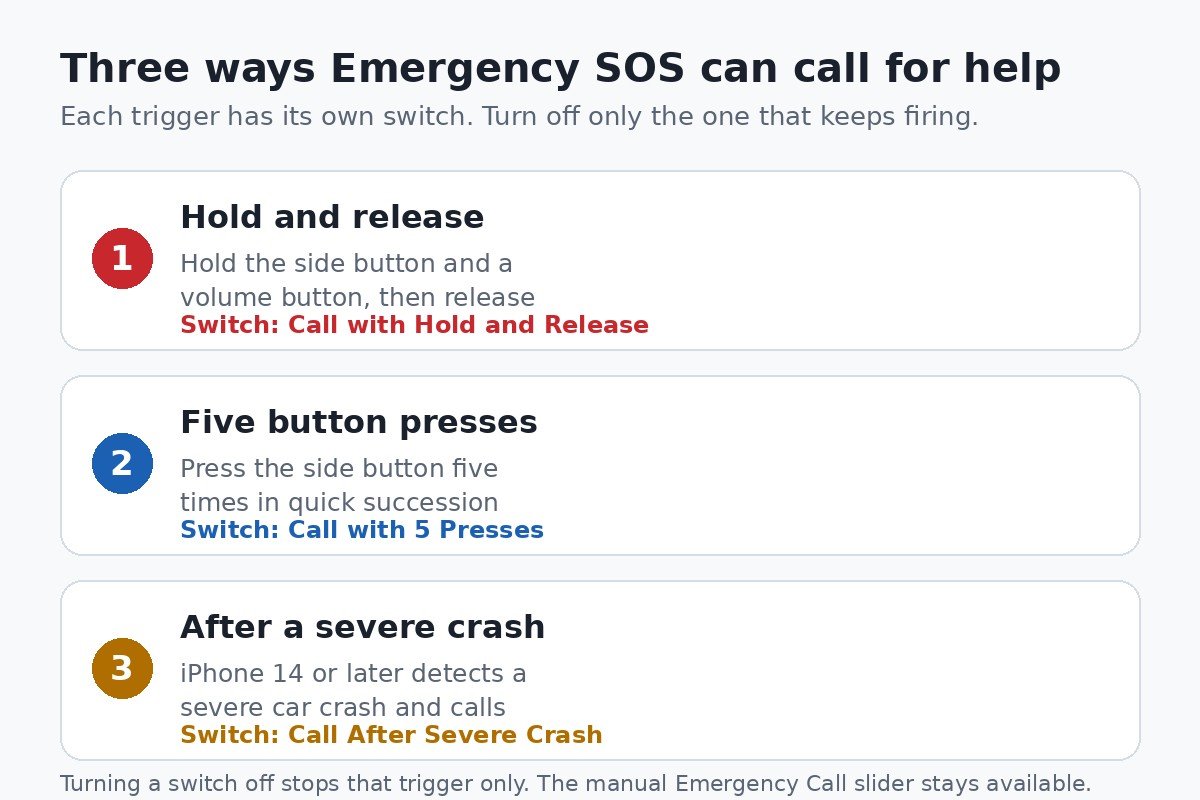
What you can do is switch off the individual trigger that keeps firing. Emergency SOS can start a call in three different ways, and each one has its own switch in Settings. Turn off the one that causes your problem and leave the rest alone, and your iPhone can still call for help when you really need it.
This guide walks through each trigger one at a time, explains what stays working after you turn a switch off, and clears up two mix-ups that send people to the wrong setting: the SOS letters in the status bar, and emergency alerts, which are a different feature entirely.
The quick answer: switch off the trigger, not the feature
All three switches live on one screen. Open Settings, tap Emergency SOS, and you will see them listed together. The table below matches each trigger to its switch, so you can go straight to the one you need.
| What sets the call off | Switch to turn off |
|---|---|
| Holding the side button and a volume button, then releasing them | Call with Hold and Release |
| Pressing the side button five times in quick succession | Call with 5 Presses |
| A severe car crash detected by the iPhone | Call After Severe Crash |
One note on wording before you start. Apple names the second switch Call with 5 Presses in its current iPhone guide. On some iPhones and iOS versions the same switch reads Call with 5 Button Presses. It is the same switch, so use whichever label your phone shows. The steps in this guide follow Apple’s guide to using SOS on iPhone, and the labels below match what Apple shows there.
First, work out which trigger keeps firing
Before changing anything, it helps to know which of the three is behind your accidental calls, because the fix is different for each one. Think back to the last time it happened and match it to the list below.
- If the alarm starts while the phone is in a pocket, a bag, or pressed against something, the side and volume buttons are being squeezed together. That is the Hold and Release trigger.
- If it starts after the side button gets tapped several times, by a child, in a tight pocket, or against a car mount, that is the five-press trigger.
- If it starts after a hard jolt or a drop, and you have an iPhone 14 or later, Crash Detection may be behind it. This one needs no button press at all.
If you are not sure which one it is, turn off one switch at a time and give it a few days. Turning everything off at once leaves you with no fast way to call for help, and it makes it harder to tell which trigger was the problem.
Turn off Call with Hold and Release
This is the trigger most people mean when they say Emergency SOS keeps going off in their pocket. When it is on, holding the side button and either volume button starts a warning sound and a countdown, and when the countdown ends the iPhone calls emergency services as soon as you release the buttons. A tight pocket, a bag strap, or a phone squeezed in a car mount can do exactly that without you noticing.
- Open Settings.
- Tap Emergency SOS.
- Turn off Call with Hold and Release.
That is all there is to it. The change takes effect right away and there is nothing to save.
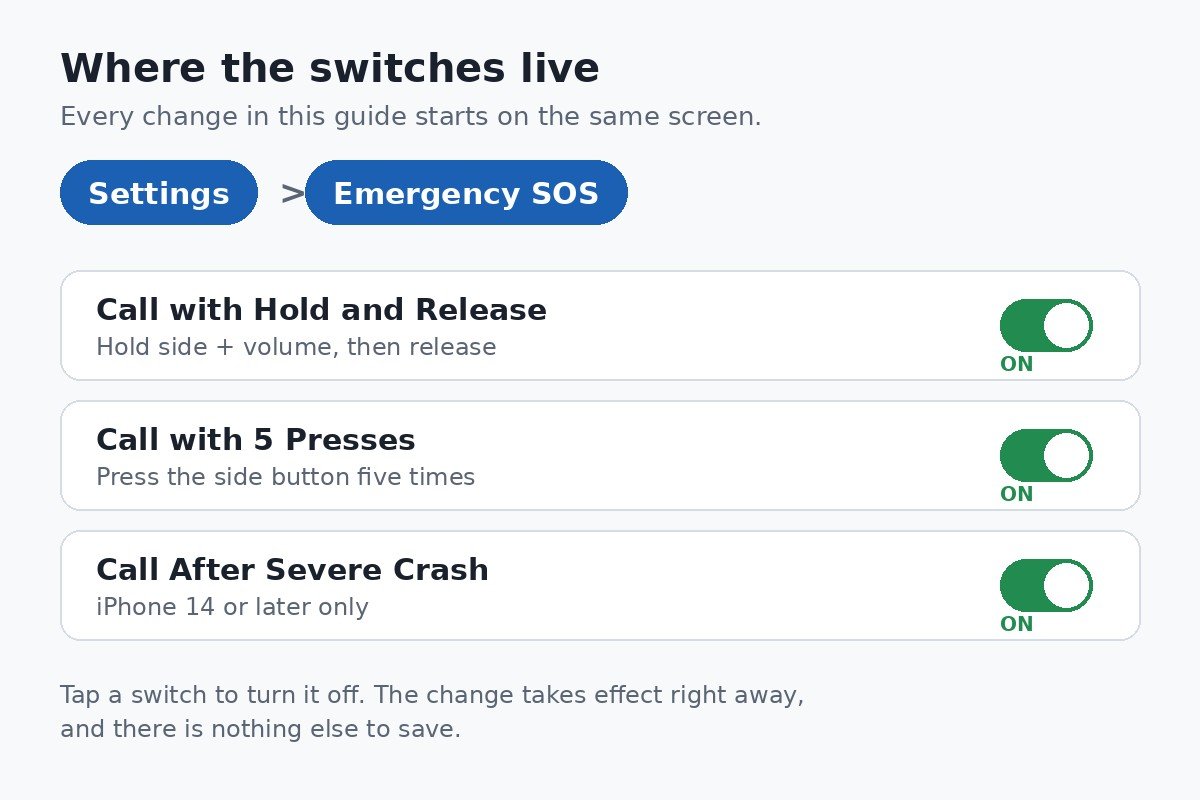
What changes is simple: squeezing the buttons no longer starts a countdown. What does not change matters more. Holding the side button and a volume button still brings up the power-off screen, and the Emergency Call slider is still there to drag if you ever need it. So you lose the automatic call, not the ability to call.
Some iPhones also show a Call Quietly switch on the same screen. It silences the warning sound that plays during the countdown. Whether it appears depends on your region and iOS version, and it only changes the sound, not whether the call is placed, so leave it alone unless the alarm sound itself is the problem.
Turn off Call with 5 Presses
This trigger exists for moments when you cannot hold two buttons at once. Five quick presses on the side button start the same warning sound and countdown, and the call goes through when the countdown ends. It is handy in a real emergency, and it is also the easiest trigger to set off by accident, because a side button can be pressed five times by a child playing with the phone, by a tight case, or by the phone shifting around in a pocket.
- Open Settings.
- Tap Emergency SOS.
- Turn off Call with 5 Presses.
In India, the same switch works with three presses instead of five, because Apple describes a triple press for that region. If your iPhone is set to India, look for the same switch and expect three presses to be the trigger.
Think about what you keep before you turn this one off. If the five-press trigger is the one misfiring, turn it off and keep Hold and Release switched on, so you still have a fast way to call for help that does not rely on dragging a slider.
Turn off Call After Severe Crash on iPhone 14 and later
Crash Detection is separate from the button triggers. It uses the motion sensors in an iPhone 14 or later to recognise the pattern of a severe car crash, such as a front, side, or rear-end collision or a rollover, and it can call for help even if you cannot reach the phone. It needs no button press at all, which is why it catches people by surprise when it fires after a hard jolt that was not a crash.
When a crash is detected, the iPhone sounds an alarm and shows an alert for 10 seconds. If you do not respond, a 30-second countdown starts, and when it ends the iPhone calls emergency services and sends your location to your emergency contacts. Those timings come from Apple’s Crash Detection guide, and the alert gives you time to cancel if nobody is hurt.
- Open Settings.
- Tap Emergency SOS.
- Turn off Call After Severe Crash.
This switch only appears on an iPhone 14 or later running iOS 16 or later, because older iPhones do not have Crash Detection. Apple turns it on by default, and it is the one switch most worth leaving alone unless it has fired when there was no crash. A car crash is exactly the situation where you may not be able to press a button or drag a slider, so the automatic call is doing work the other two triggers cannot do.
If you also wear an Apple Watch, check the same setting in the Watch app on your iPhone, under Emergency SOS, because the watch has its own crash detection and its own copy of the switch.
What still works after you turn the switches off
Turning off the automatic triggers does not remove your ability to call for help. It only removes the automatic part. These are the ways to reach emergency services that stay available no matter which switches you turned off.
- Press and hold the side button and either volume button until the sliders appear, then drag the Emergency SOS slider to call right away. This manual slider stays available even with both button switches off.
- On the lock screen, tap Emergency on the passcode screen and dial the local emergency number, such as 911 in the United States.
- After any emergency call ends, your iPhone sends a text message with your location to your emergency contacts, unless you choose to cancel it.
- On an iPhone 14 or later with no cellular or Wi-Fi coverage, Emergency SOS via satellite may still be available, depending on your country or region.
In short, switching off a trigger changes how a call starts, not whether you can make one. The manual route is slower than a button press, so it is worth knowing where the slider is before you need it.
If a call already went through by accident
If the countdown is still running, tap Stop on the countdown screen and confirm that you do not want to call. That cancels it before the call is placed, and nothing is sent to emergency services.
If the call has already connected, do not hang up. Apple advises waiting until a responder answers and explaining that you do not need help. A call that ends without an explanation leaves the dispatcher with no way to know you are safe, so staying on the line for a few seconds saves everyone time and worry.
The same applies if Crash Detection started a call and nobody is hurt. Answer the alert or the call and say so, rather than letting the countdown run or hanging up on a dispatcher who is trying to help.
SOS or SOS only in the status bar is a different problem
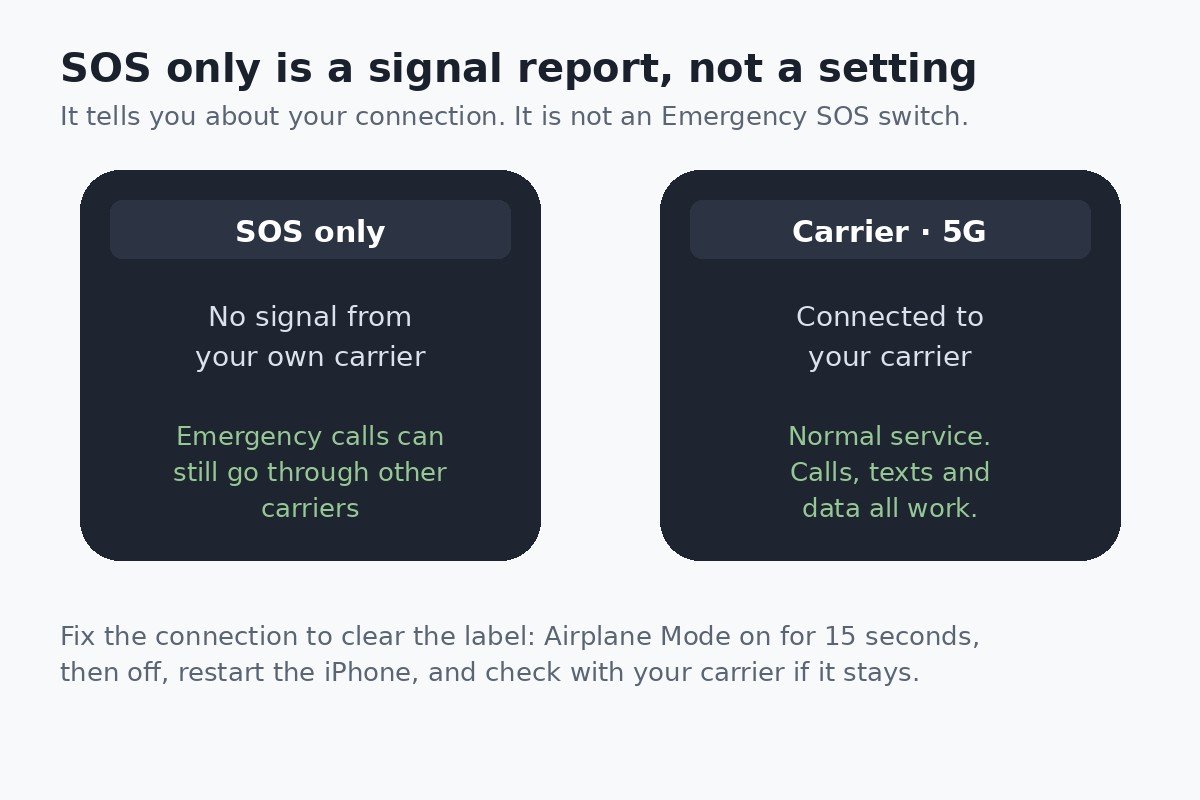
Many people land on this topic because their iPhone shows SOS or SOS only where the signal bars normally sit. That message has nothing to do with the switches above. It is a report about your connection: your iPhone is not connected to your own carrier’s network, but it can still make emergency calls through another carrier’s network. There is no setting that hides those letters. They disappear on their own once your iPhone reconnects to your carrier.
| What you see | What it means | What to do |
|---|---|---|
| SOS or SOS only in the status bar | Your carrier is out of reach, but another network can carry an emergency call | Fix the connection using the steps below |
| A countdown or a call after pressing buttons | Emergency SOS was triggered | Change the switches in Settings, Emergency SOS |
To get your signal back, work through these in order and check the status bar after each one. These are Apple’s own steps for this problem.
- Turn on Airplane Mode for at least 15 seconds, then turn it off. A quick on and off is not enough.
- Restart your iPhone.
- Connect to Wi-Fi, then check for an iOS update in Settings, General, Software Update, and check for a carrier settings update in Settings, General, About.
- If you use two SIMs, check that your line is turned on in Settings, Cellular.
- If the letters stay, contact your carrier and check that your account is active and that you are in an area with coverage.
Apple says the SOS label appears in Australia, Canada, and the United States. In other countries the same situation usually shows No Service or Searching instead, and the same fixes apply.
Emergency SOS is not the same as emergency alerts
There is one more mix-up worth clearing up. Emergency alerts are government notifications, such as extreme weather warnings and AMBER alerts, that arrive on your iPhone without you dialling anything. They are switched on and off in a different place, under Settings, then Notifications, near the bottom of the screen. Emergency SOS, the subject of this guide, is the button-triggered call for help. Changing one does not affect the other, so if your complaint is a loud alert that woke you at night, the switches in this guide will not stop it. Our guide to turning off emergency alerts on iPhone explains the notification switches instead.
Which switches should you turn off
The safest setup keeps at least one fast way to call for help. A good rule is to turn off only the trigger that has actually caused a problem, and to leave the others alone.
- Pocket dials from squeezed buttons: turn off Call with Hold and Release, and keep Call with 5 Presses.
- A child or a tight case keeps pressing the side button: turn off Call with 5 Presses, and keep Hold and Release.
- False alarms after hard jolts: turn off Call After Severe Crash, but only on an iPhone 14 or later, and only if it has fired when there was no crash.
- You never want an automatic call, only a manual one: turn off both button switches and the crash switch, and rely on the Emergency Call slider. Only do this if you are comfortable dragging the slider in an emergency, because it is slower than a button press.
After changing a switch, do not test it by placing a real call. There is no practice mode, and a test call still reaches a real dispatcher. The switches take effect right away, so you can trust that the one you turned off is off.
Emergency SOS is one of those features that is easy to resent right up until the day it matters. Turning off the one trigger that keeps firing, and leaving the rest in place, is the balance most people want: no more pocket calls, and a fast way to reach help still there when it counts. If you are unsure which switch caused your last accidental call, change one at a time and give each change a few days before deciding.

- How to Turn Off Emergency SOS on iPhone - November 21, 2026
- How to Adjust Brightness on Windows 11 - November 20, 2026
- How to Turn Off Sensitive Content Warning on iPhone - November 18, 2026