
Turning off Copilot in Microsoft Edge is confusing for one simple reason: there is no single switch that does the whole job. Copilot shows up in the toolbar, in the sidebar, in the new tab page, and inside Bing search results, and each of those places answers to a different setting.
This guide untangles the four places. It is written for the current Edge build, version 157, released November 5, 2026. Older guides still tell readers to open Settings, then AI innovations, and turn off Copilot Mode. That advice is out of date, because Microsoft retired Copilot Mode as a separate mode on May 13, 2026 and folded its features directly into Edge.
Why turning off Copilot in Edge takes four switches
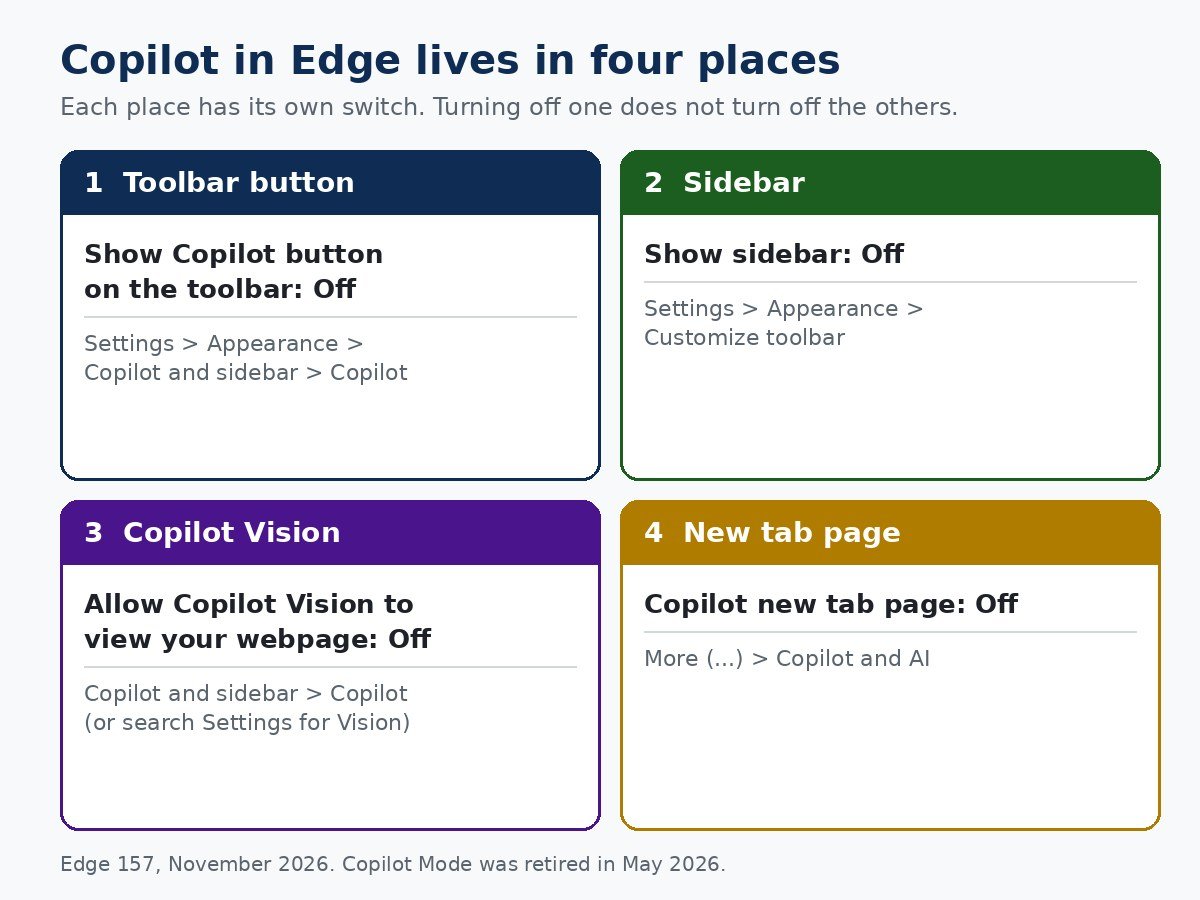
Copilot in Edge is not one feature with one front door. It is a set of features that share a name: the toolbar button opens the Copilot panel, the sidebar holds Copilot alongside other apps, Vision can look at the page on screen, and the new tab page can show a Copilot search box. Each is controlled somewhere different, and hiding one leaves the others in place.
| Where Copilot appears | The switch that controls it | Where the switch lives |
|---|---|---|
| Toolbar button, top right | Show Copilot button on the toolbar: Off | Settings, Appearance, Copilot and sidebar, Copilot |
| Sidebar, right edge | Show sidebar: Off | Settings, Appearance, Customize toolbar |
| Copilot Vision on screen | Allow Copilot Vision to view your webpage: Off | Settings, Copilot and sidebar, Copilot |
| New tab page | Copilot new tab page: Off | More menu, Copilot and AI |
Before you start: check your Edge version and forget Copilot Mode
First, confirm Edge is up to date, because menu names and available switches change between releases. Open the three dot menu in the top right, select Settings, then select Help and feedback, then select About Microsoft Edge. Edge checks for updates on that page and installs anything it finds, then asks for a restart. The steps here match Edge 157, the Stable release dated November 5, 2026.
Second, set aside anything an older guide said about Copilot Mode. Microsoft announced Copilot Mode in July 2025 as an experimental, opt in way of browsing with Copilot at the center. On May 13, 2026, Microsoft retired it as a separate mode, and its features, such as reasoning across open tabs, Voice, and Vision, became part of the regular browser instead. That is why the Settings page called AI innovations, with its Copilot Mode toggle, no longer appears on a current build. Microsoft describes the change in its May 13, 2026 update about Copilot features built directly into Edge.
Switch 1: Hide the Copilot button from the toolbar
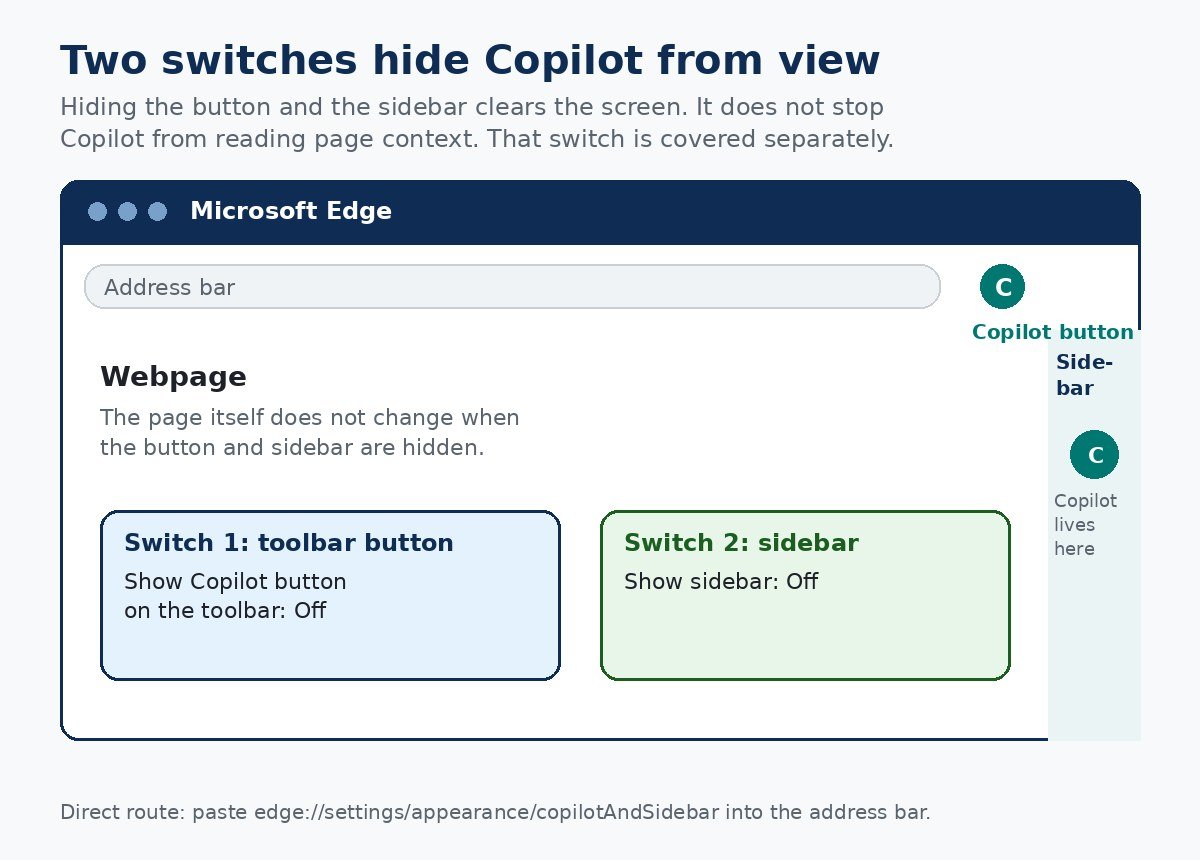
The fastest visible change is hiding the Copilot button from the toolbar. The button sits near the top right of the Edge window, and it opens the Copilot panel. The quickest way is to right click the button itself and select Hide Copilot. The button disappears at once, with no restart needed. If the right click menu does not offer the option, use Settings instead.
- Open Microsoft Edge.
- Select the three dot menu in the top right corner, then select Settings.Open Edge Settings from the three dot menu.
- Select Appearance from the left hand menu.
- Find Copilot and sidebar and select Copilot under App specific settings.
- Turn off Show Copilot button on the toolbar.
- Return to any webpage and check the top right corner. The button should be gone.
There is a shortcut for the same page. Paste edge://settings/appearance/copilotAndSidebar into the address bar and press Enter, and Edge opens the Copilot and sidebar settings directly. The Settings search box is another reliable route: type Copilot into the search box at the top of the Settings page, and Edge lists every Copilot setting in one place.
Hiding the button removes the entry point from the toolbar. It does not stop Copilot in the sidebar or Vision, and it does not change Bing results. The next three switches handle the rest.
Switch 2: Turn off the sidebar
Copilot lives inside the Edge sidebar, the narrow strip along the right edge of the window that holds apps and tools. Even with the toolbar button hidden, the sidebar can still offer Copilot, so turning the sidebar off removes that launch point as well. The trade off is that it also removes the other sidebar apps, such as Search and Tools, so readers who use those every day may prefer to leave the sidebar on and only hide the Copilot button.
- Open Microsoft Edge.
- Open Edge Settings from the three dot menu.
- Select Appearance from the left hand menu.
- Scroll to Customize toolbar and find Show sidebar.
- Turn off Show sidebar.
- Close the Settings tab and look at the right edge of the window. The sidebar strip should be gone.
If the sidebar is already hidden and Copilot still appears, the toolbar button is the likely cause, so go back to Switch 1. If both are hidden and Copilot still opens, a keyboard shortcut or a pinned Copilot app may be launching it instead.
Switch 3: Stop Copilot Vision from seeing your screen
Copilot Vision lets Copilot look at what is on screen and talk about it, for example explaining a webpage, a video, or a PDF. It has its own switch, separate from the button and the sidebar. Vision only starts a session when it is invoked, usually through Copilot Voice, and Microsoft describes Voice and Vision sessions in the context of a Microsoft 365 subscription.
- Open Microsoft Edge.
- Open Edge Settings from the three dot menu.
- Select Appearance, then select Copilot and sidebar, then select Copilot.
- Find Allow Copilot Vision to view your webpage and turn it off.
- If that path shows no Vision switch, type Vision into the Settings search box and open the matching result instead. Menu organization shifts between releases, and the search box follows the current layout.
Turning the permission off stops future Vision sessions from viewing webpage content. It does not end a session that is already running. To end a session in progress, click the X in the Vision toolbar at the bottom of the Copilot pane, or close the Copilot side pane, or exit Edge.
Also turn off Context Clues, the switch that feeds Copilot browsing data
Vision is only half of the privacy story. The other half is Context Clues, the setting that decides whether Copilot can use browsing data when it answers. Microsoft says browsing context can include the current webpage, the page title, open tabs, and browser history. With Context Clues on, a prompt such as asking Copilot to summarize a page can draw on that material. With it off, Copilot cannot use it in its responses. Microsoft explains this in its own guide to getting started with Copilot in Edge.
- Open Microsoft Edge.
- Select the three dot menu, then select Copilot and AI.
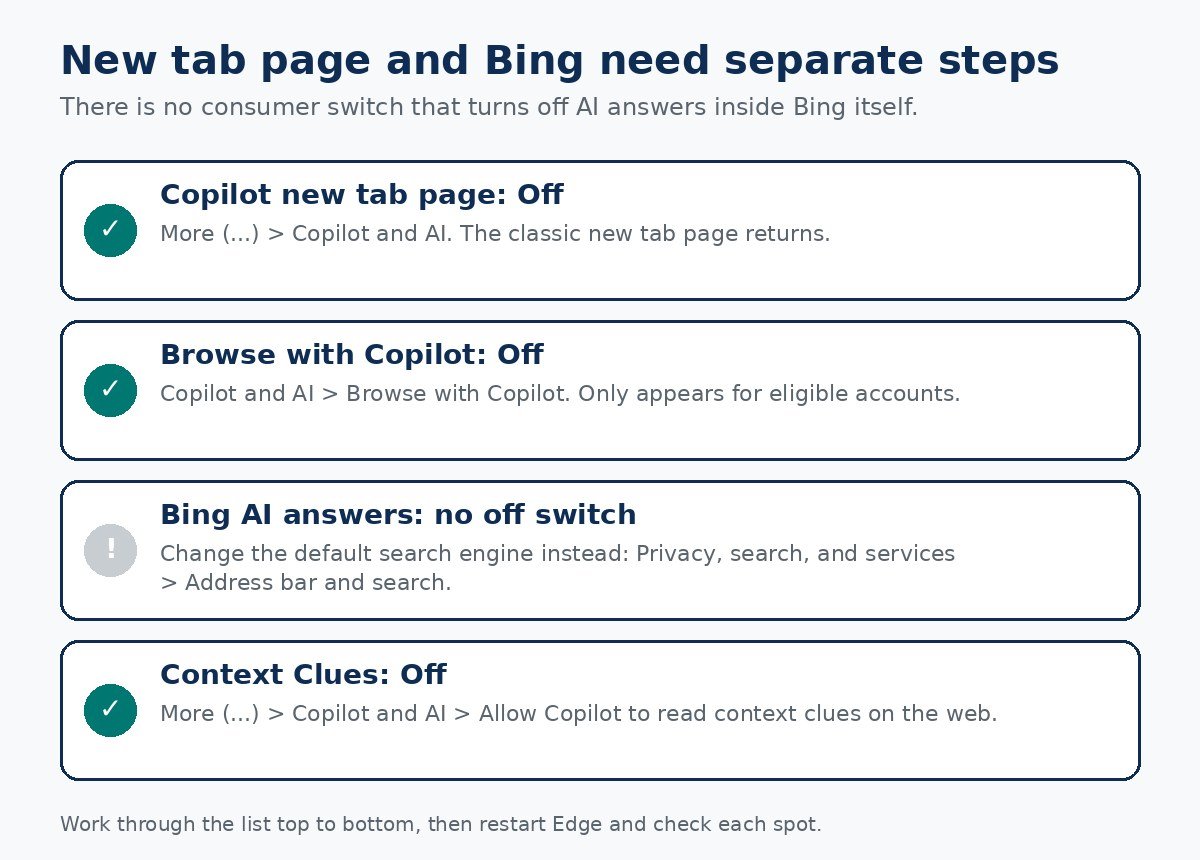
- Turn off Allow Copilot to read context clues on the web.
- Close any open tabs that were part of the browsing context, and clear browsing history if the goal is to remove that material from context entirely.
Switch 4: Turn off the Copilot new tab page
The new tab page is the fourth surface. Edge 157 upgraded the Copilot new tab page, bringing search, chat, and web exploration together in a single search box. Readers who open a new tab and find a Copilot search box instead of the familiar page are looking at this feature, and the toolbar and sidebar switches do nothing about it.
- Open Microsoft Edge.
- Select the three dot menu, then select Copilot and AI.
- Turn off Copilot new tab page.
- Open a new tab with Ctrl plus T and check that the classic new tab page is back, without the Copilot search box.
If the Copilot and AI menu shows no new tab page switch, type new tab into the Settings search box, or look under the Copilot and AI section in Settings, reached through edge://settings/ai. Availability can vary by region and by rollout, so a missing switch usually means the feature has not reached that installation yet. In that case the new tab page is already the classic one, and there is nothing to turn off.
What about Copilot answers in Bing search results?
This is the part that catches the most people, because it looks like an Edge setting and it is not. When a search on Bing returns an AI generated Copilot answer at the top of the results page, that answer comes from Bing, the search engine, not from the Edge toolbar, sidebar, or new tab page. None of the four switches above removes it, and Microsoft has no consumer setting that turns off AI generated answers inside Bing search itself. A Microsoft support moderator confirmed this directly in a Microsoft Learn thread.
The practical answer is to change the default search engine Edge uses, so searches go somewhere that does not show Copilot answers. This changes every search from the address bar, so choose a search engine the reader is happy to use every day. Readers who keep Bing should expect Copilot answers to keep appearing in Bing results.
- Open Microsoft Edge.
- Open Edge Settings from the three dot menu.
- Select Privacy, search, and services from the left hand menu.
- Scroll to Services, then select Address bar and search.
- Under Search engine used in the address bar, choose a different search engine from the list.
- Type a test search in the address bar and check that the results page no longer shows a Copilot answer at the top.
One more control to check: Browse with Copilot
Browse with Copilot is the current name for what used to be called Copilot Actions. It is the feature that can click, type, and navigate tabs on behalf of the reader, and it is separate from the ordinary Copilot button. Microsoft says it is available on Edge desktop for Microsoft 365 Premium subscribers in the United States, with usage limits, so most readers will not see it at all.
- Open Microsoft Edge.
- Open Edge Settings from the three dot menu.
- Select Copilot and AI from the left hand menu, then select Browse with Copilot.
- Turn off Enable Browse with Copilot.
If the Browse with Copilot entry is missing, the feature is not available on that account, region, or subscription, and there is nothing to switch off. Do not install anything, edit the registry, or follow a guide that promises to unlock it, just to turn it off. A feature that is not present cannot act.
If a Copilot setting is missing or greyed out
A missing switch usually has a boring explanation. First, update Edge from the About page and restart, because a switch from a recent release cannot appear on an older build. Second, use the Settings search box: type the exact label, such as Copilot or Vision, and open the result Edge returns.
A greyed out switch points in a different direction: the browser is probably managed. On a work or school PC, an administrator can control Edge through policy, and a managed setting cannot be changed from the Settings page. Type edge://policy into the address bar and look for HubsSidebarEnabled. If it shows as Disabled, policy is hiding the sidebar and its Copilot controls. The fix then is to ask the administrator, because no Settings change on the PC can override a policy.
What turning Copilot off in Edge does not change
Edge settings only govern Edge. They do not change Copilot anywhere else on the PC. Uninstalling the Copilot app from Windows does not remove Copilot from Edge, and turning Copilot off in Edge does not remove the Copilot app from Windows. The two are separate, and each needs its own steps.
The Windows side of the job is covered in the companion guide to turning off Copilot in Windows 11, which deals with the taskbar button, the Copilot app, and the Windows settings that Edge cannot reach. Readers who have quieted Edge and still see Copilot on the taskbar or in the Start menu should work through that guide next. The Copilot key found on some newer keyboards is part of the same Windows side, covered in the guide to remapping or turning off the Copilot key in Windows 11. Copilot in Word, Excel, Outlook, and on the web at copilot.microsoft.com each has its own controls too.
Check your work: the four-switch checklist
Before calling the job done, run through the checklist below and confirm each spot in the browser itself. A switch only counts when its effect is visible. Restart Edge after changing the settings, then check each item once more.
| Check | What good looks like |
|---|---|
| Toolbar button | No Copilot button in the top right corner of Edge |
| Sidebar | No sidebar strip along the right edge of the window |
| Copilot Vision | Allow Copilot Vision to view your webpage is off, and no Vision session is running |
| Context Clues | Allow Copilot to read context clues on the web is off |
| New tab page | A new tab opens the classic page, with no Copilot search box |
| Bing results | Either Bing is no longer the default search engine, or Copilot answers in Bing results are accepted as expected |
Edge will keep changing. Microsoft is still reshaping Copilot in the browser, and the May 2026 retirement of Copilot Mode is a reminder that a guide written for one release can go stale within months. The habit that keeps this working is simple: check the Edge version first, use the Settings search box when a label has moved, and treat each Copilot surface as its own switch.

- How to Turn Off Copilot in Microsoft Edge (4 Switches) - November 25, 2026
- How to Change a Folder Icon on Windows 11 (Step-by-Step Guide) - November 24, 2026
- How to Use Color Management in Windows 11 (Step-by-Step Guide) - November 23, 2026