
Microsoft Defender checks for new threat definitions, called security intelligence, several times a day, and Windows Update usually installs them without any action. A manual update earns its place in three situations: a PC that has been offline, a definition date in Windows Security that is days old, or an automatic update that failed and left protection behind. This guide starts with the quick in-app check, then covers the offline definition file and the command line tools for the cases where that check is not enough.
The quickest route is the Windows Security app. Open Virus and threat protection, open Protection updates, and select Check for updates. If that works, the job is done in a minute or two. Keep reading for the offline route, the commands, and how to read the version number that proves the update landed.
What Defender definitions are, and what a manual update changes
Security intelligence is the detection data Microsoft Defender Antivirus compares files, downloads, and programs against. Microsoft publishes new versions several times a day as the Security Intelligence Update for Microsoft Defender Antivirus, listed in Windows Update history as KB2267602. A manual update refreshes that detection data only. It does not install Windows cumulative updates, and it does not install the latest Defender engine or platform version. Those are separate components, and they update on their own schedule.
| Component | What it does | How often it changes |
|---|---|---|
| Security intelligence | Threat detection data, the definitions themselves | Several times a day |
| Antimalware engine | The scanning engine that reads the definitions | With engine releases |
| Antimalware platform | The Defender service and app itself | With platform releases |
Knowing which piece is out of date saves a wasted repair. A definition date that is old points at security intelligence, and every method in this guide targets exactly that. An engine or platform version that is months old is a Windows Update problem, not a definition problem.
A manual update also helps after a repair. If Windows Security was reset, if a definition update failed partway, or if the PC spent weeks switched off, the automatic schedule may need a push before it catches up. A manual check forces that catch-up immediately, and the version check at the end of this guide shows whether it worked.
Check the definition version already installed
Start by reading what is already on the PC. An update is only needed when the installed version is behind, and the version number is also the proof that a later update worked.
- Select Start, type Windows Security, and open the app.
- Select Virus and threat protection in the left panel.
- Scroll to the Virus and threat protection updates section and select Protection updates.
- Read the Security intelligence version and the date shown beside it.
The version looks like a dotted number, for example 1.463.433.0, which was the current version listed on Microsoft’s definitions page on 23 November 2026. The date matters more than the number. A date from today means the PC is current. A date several days old on a PC that has been online and switched on is the sign that updates are not reaching it.
One more check belongs here. Updating definitions only helps when Defender itself is the active protection on the PC. If real-time protection is switched off, or another antivirus product owns protection, definitions will sit unused. The guide to turning on Windows Security in Windows 11 walks through the switches to check before spending time on definitions.
Method 1: Check for updates in the Windows Security app
This is the method to try first. It uses the same download source as the automatic schedule, and Microsoft notes that a manually triggered update can also clear a problem with automatic updates.
- Select Start, type Windows Security, and open the app.
- Select Virus and threat protection.
- Scroll down to Virus and threat protection updates and select Protection updates.
- Select Check for updates and wait while Windows downloads and installs anything available.
- When the screen reports that definitions are up to date, close the app. No restart is needed unless the screen asks for one.
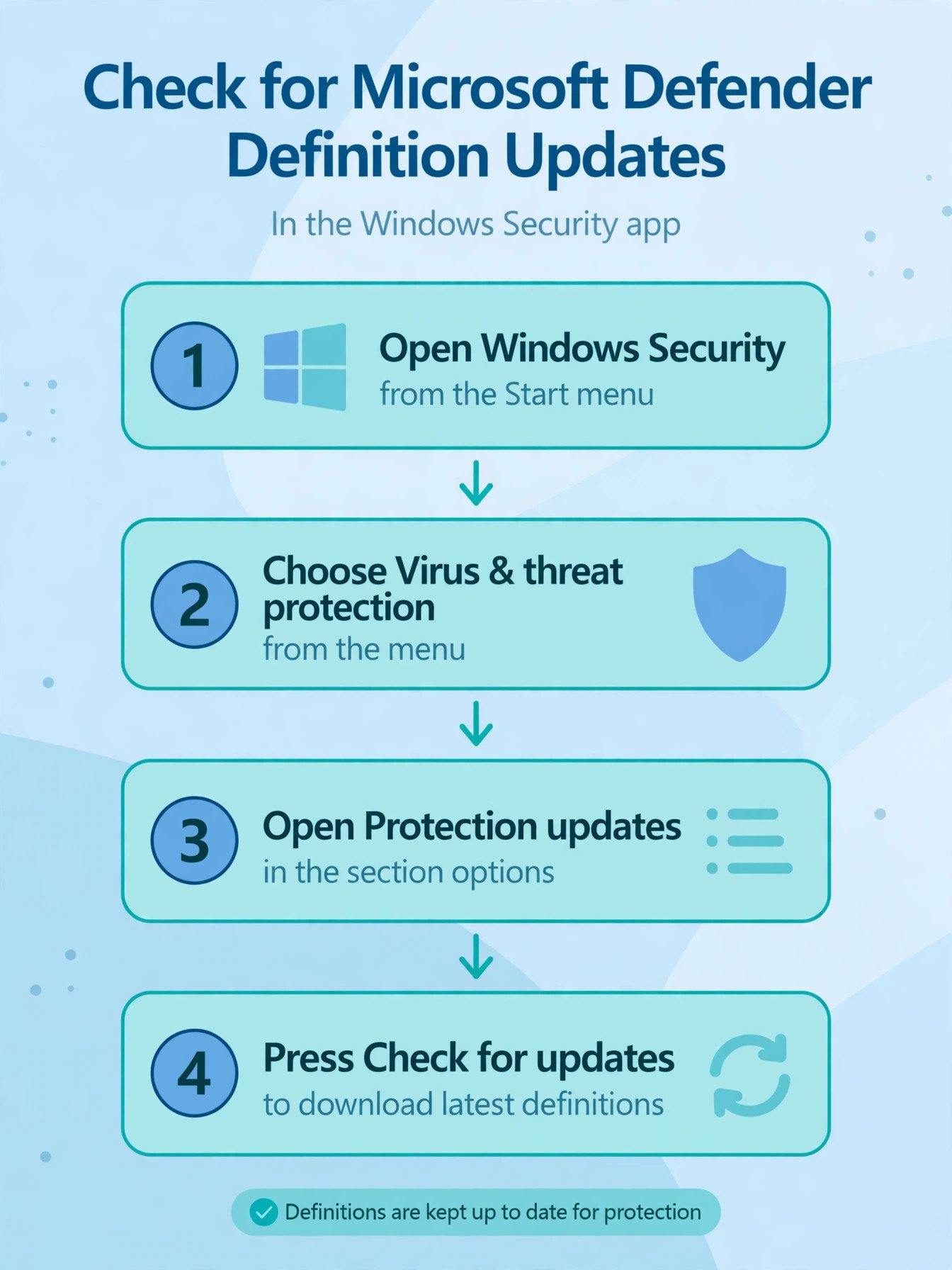
The download usually takes a minute or two on a normal connection. If the button spins and then reports an error, note the error code shown and move to the troubleshooting section at the end of this guide. Repeating the same failed check rarely changes the result.
Method 2: Download the definition file for a PC with no internet
A PC with no internet connection cannot reach Windows Update, and neither can a PC whose connection blocks Microsoft’s update servers. For those machines, Microsoft publishes a standalone definition file. Download it on any PC with internet access, carry it over on a USB drive, and run it on the PC that needs it.
Only Microsoft’s own definitions page supplies this file. Definition files from any other site should never be run, since a fake definition installer is an easy way to deliver malware onto a PC that already has weak protection.
- On a PC with internet access, open Microsoft’s security intelligence updates page.
- Scroll to the Manually download the update section.
- Find the row for Microsoft Defender Antivirus for Windows 11, Windows 10, Windows 8.1, and Windows Server.
- Pick the file that matches the offline PC. Most modern PCs need the 64-bit file, mpam-feX64.exe. Older 32-bit PCs need mpam-fe.exe, and ARM PCs have their own file.
- If the system type is unknown, check it on the offline PC first: open Settings, select System, then About, and read System type.
- Copy the downloaded file to a USB drive, then plug the drive into the offline PC.
- Double-click the file to install the definitions, then allow a few minutes before checking the result.
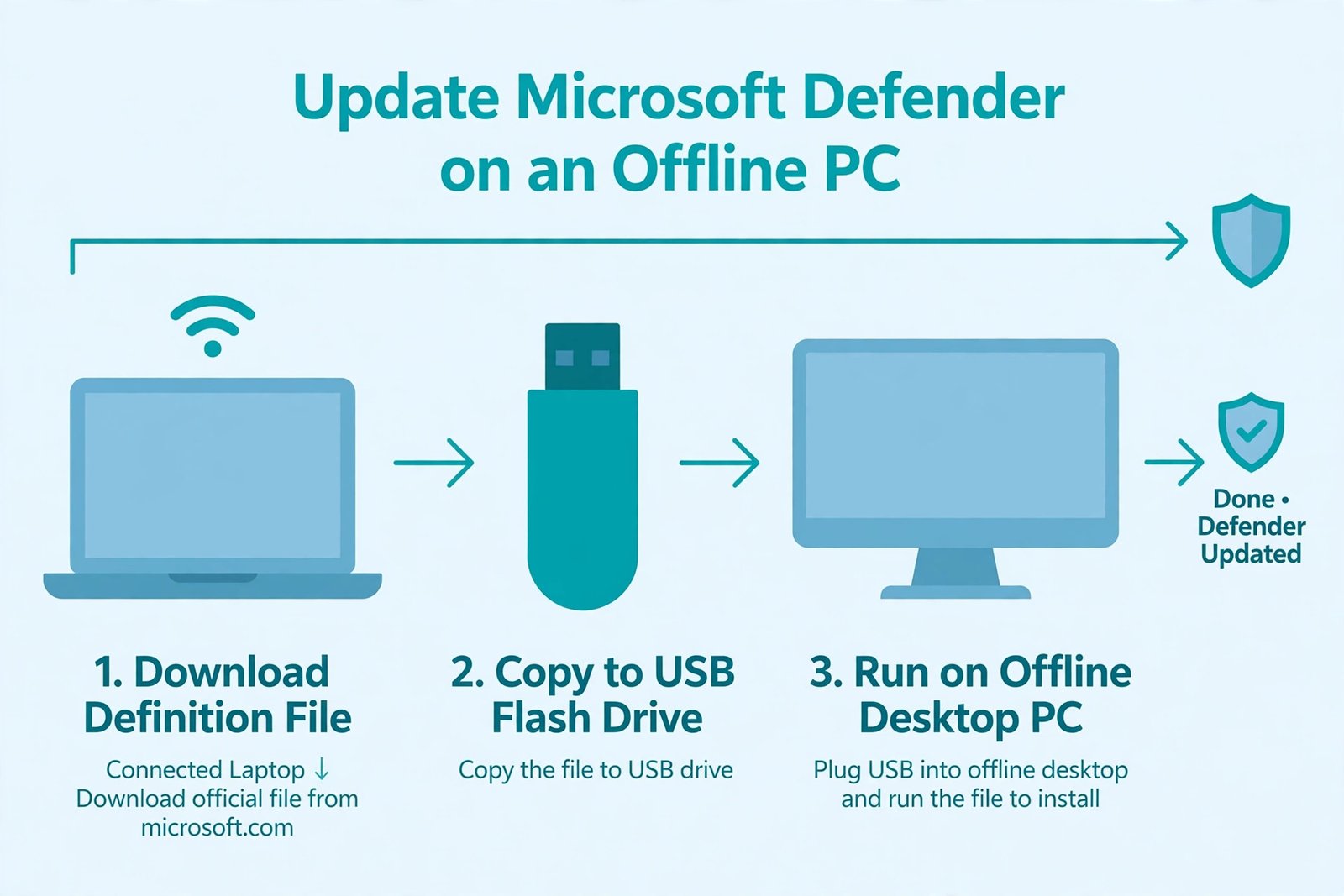
The installer runs without a confirmation window, so a quiet finish is normal rather than a sign of failure. Open Protection updates afterwards and check that the security intelligence version and date have moved forward. That version check is the confirmation, and it is covered in full below.
Method 3: Force the update with PowerShell or Command Prompt
Two command line tools do the same job as the Check for updates button, and they are useful when the Windows Security app will not open or the button keeps failing. Both need administrator rights. Close other work first, since an update that starts mid-repair can report a misleading error.
Update definitions with PowerShell
- Select Start, type PowerShell, right-click Windows PowerShell, and select Run as administrator.
- Select Yes at the User Account Control prompt.
- Type Update-MpSignature and press Enter.
- Wait for the command to finish. It downloads and applies the latest definitions from the update sources configured on the PC.
To pull from Microsoft Update directly, run Update-MpSignature -UpdateSource MicrosoftUpdateServer instead. The other documented source is MMPC, the Microsoft Malware Protection Center, selected with Update-MpSignature -UpdateSource MMPC. Microsoft documents both options on the Update-MpSignature reference page.
Update definitions with MpCmdRun
MpCmdRun.exe is Defender’s own command line tool. It lives in the Windows Defender program folder, and on current installations the newest copy sits in a versioned platform folder under ProgramData. The folder is not in the system PATH, so the tool must be run from its own folder.
- Select Start, type Command Prompt, right-click it, and select Run as administrator.
- Type cd %ProgramFiles%\Windows Defender and press Enter.
- Type MpCmdRun.exe -SignatureUpdate and press Enter.
The -SignatureUpdate switch checks for new security intelligence and downloads it. Adding -MMPC pulls directly from the Microsoft Malware Protection Center instead of the configured source: MpCmdRun.exe -SignatureUpdate -MMPC. That switch is useful when the normal source is the part that is failing.
When an update downloads but will not install, Microsoft documents a cache clear before the retry. Run these two commands in the same administrator Command Prompt, in order: MpCmdRun.exe -removedefinitions -dynamicsignatures, then MpCmdRun.exe -SignatureUpdate. The first command clears the cached dynamic definitions, and the second pulls a fresh copy.
How to confirm the new definitions are installed
An update that cannot be confirmed is an update that may not have happened. The version number and date in Windows Security are the proof, and they take less than a minute to read.
- Open Windows Security, select Virus and threat protection, then select Protection updates.
- Compare the Security intelligence version with the current version listed on Microsoft’s security intelligence updates page.
- Check the date beside the version. A successful update shows today’s date and a version that matches, or sits very close to, the version Microsoft lists.
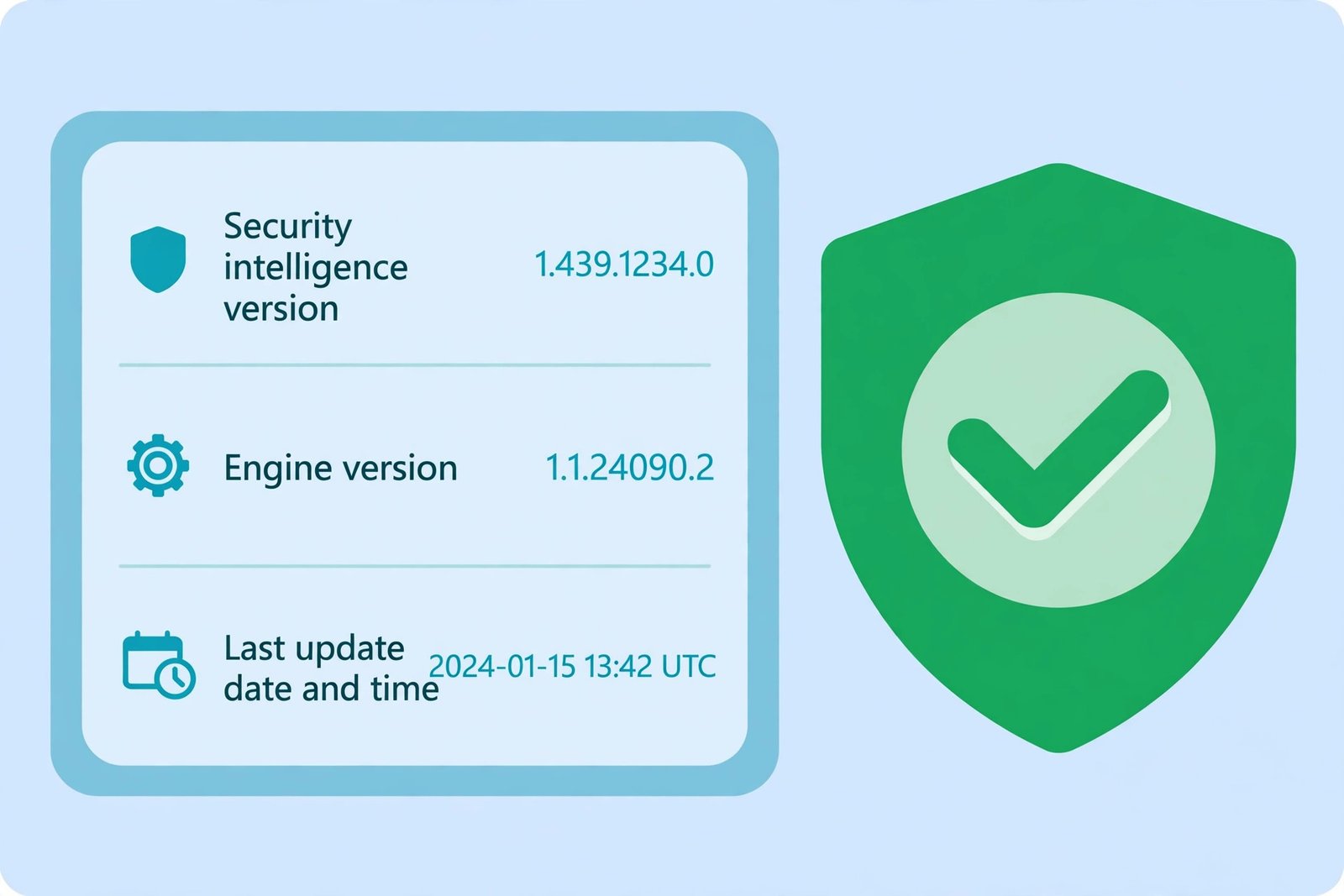
PowerShell gives the same answer in one line, which helps when checking several PCs: Get-MpComputerStatus | Select-Object AntivirusSignatureVersion, AntivirusSignatureLastUpdated. The first value is the installed version, and the second is the time it was last updated.
If the version moved forward but still sits behind Microsoft’s listed version, run Check for updates once more. Definitions ship several times a day, so a PC that was far behind may need two passes to catch up fully.
When the update still fails
A failed definition update usually leaves a visible error in Protection updates or in Windows Update history. The error code points at the cause, and the most common one has a documented fix.
Error 0x80070643, shown in Windows Security as -2147023293, means the definition package downloaded but could not install. A damaged definition cache is the usual cause. Run the cache clear from Method 3, MpCmdRun.exe -removedefinitions -dynamicsignatures followed by MpCmdRun.exe -SignatureUpdate, then check the version again. If that fails too, install the standalone file from Method 2, which skips the damaged cache path entirely.
Restart the PC before trying anything more involved. A pending install or a restart waiting from an earlier update can hold the update service, and a restart clears that block in a way no command can.
Check whether another antivirus product is installed. When a third-party antivirus owns protection, Defender steps aside and its definitions stop updating. Removing the other product, or confirming it is fully uninstalled rather than only disabled, lets Defender take over again.
On a work or school PC, updates may be controlled by policy. If Check for updates is missing or greyed out, or the PC receives updates from a company server, the settings are managed by an administrator. The fix then sits with the IT team, not with the commands in this guide.
If Windows Update itself is the problem, run its troubleshooter: open Settings, select System, then Troubleshoot, then Other troubleshooters, and run the Windows Update troubleshooter. Definitions travel through Windows Update on most home PCs, so a repaired update service often repairs definitions with it.
When malware itself is suspected of blocking the update, run a full scan from Windows Security before trying the update again. A threat that interferes with Defender is exactly the kind of threat fresh definitions are meant to catch, and the scan uses the definitions already installed.
Start with the Check for updates button, use the definition file when the PC has no internet, and reach for PowerShell or MpCmdRun when the app itself fails. Whichever route works, finish by reading the security intelligence version and date. A date from today and a version that matches Microsoft’s listed release means the PC is covered against the latest known threats, and the next automatic update can take over from there.

- How to Manually Update Microsoft Defender Definitions in Windows 11 (3 Ways) - November 23, 2026
- How to Turn Off Sound Recognition on iPhone - November 22, 2026
- How to Turn Off Google Discover on Samsung Galaxy - November 21, 2026