
If you search for how to run Android apps on Windows 11, plenty of older guides still tell you to install the Windows Subsystem for Android. Do not follow them. That route has been dead since March 2025, and the current options are honestly clearer: you just have to pick the one that matches what you want to do.
First, the news nobody wants: WSA is gone
Windows Subsystem for Android, or WSA, was Microsoft’s built-in way to run Android apps on Windows 11 through the Amazon Appstore. Microsoft ended support for WSA and the Amazon Appstore on Windows on March 5, 2025. After that date, the Amazon Appstore listing disappeared from the Microsoft Store for new installations, and WSA stopped receiving security updates, compatibility fixes, and feature updates from Microsoft.
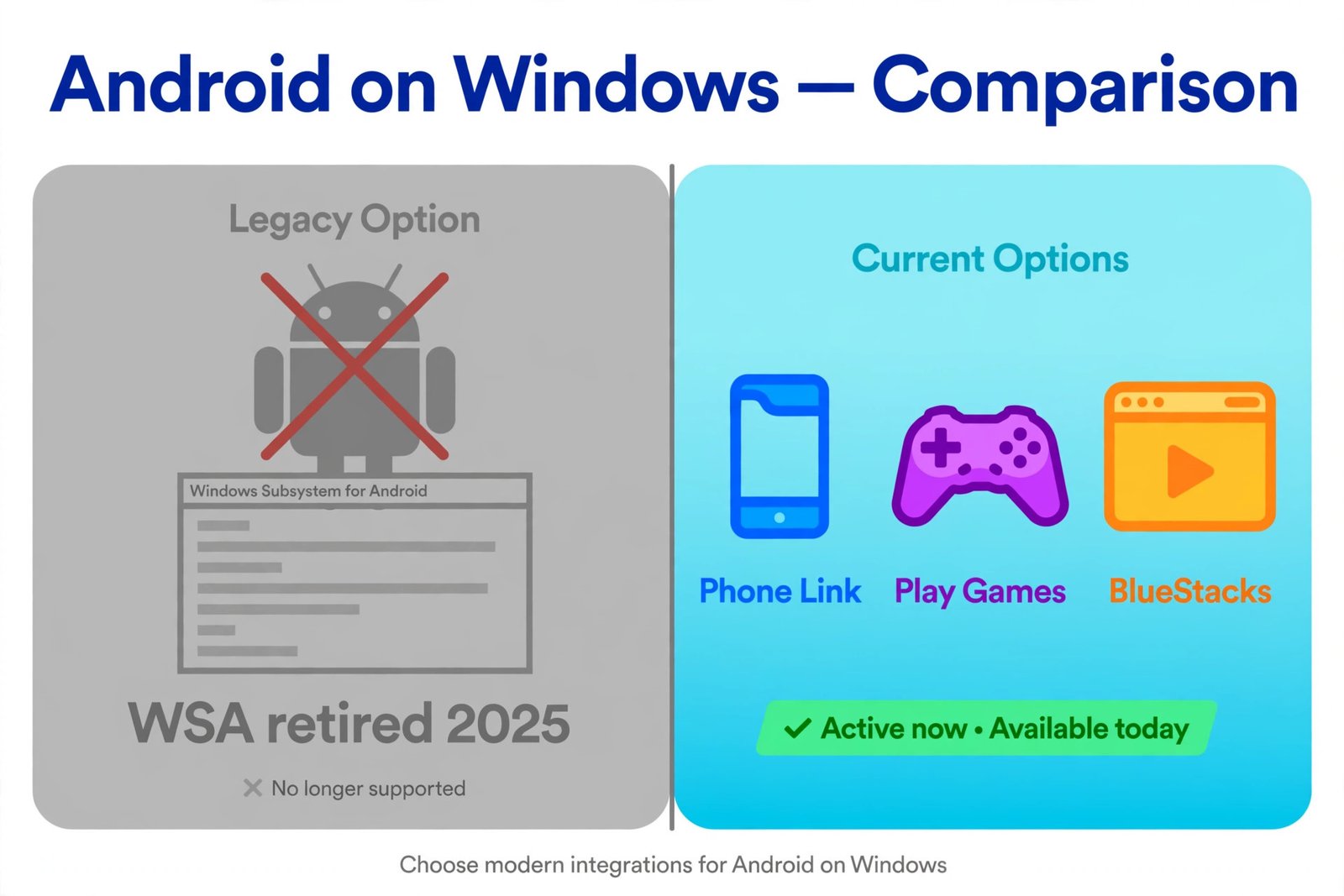
That matters because a huge number of 2026 search results still describe WSA as if it were a live Windows feature, complete with steps about enabling virtualization, installing the Amazon Appstore, and sideloading APKs. Those steps belong to history now. If you already had WSA installed before the shutdown, it may still be sitting on your PC, but treating an unsupported, unpatched subsystem as a platform to build on is a bad idea. If you are catching up on Windows 11 itself, here is our rundown of the 26H2 update and what is actually new in it.
A quick warning about unofficial WSA rebuilds
Steer clear of patched WSA installers and community rebuilds that promise to bring the subsystem back. They are unsupported by Microsoft and Google, they tend to break after Windows updates, and they can be a genuine security risk.
Community-built versions of WSA can technically restore some functionality, including Google Play services, for advanced users. But there is no official support behind them, and a future Windows update can break them without warning. More importantly, you would be running a system-level component, with deep access to your PC, from an unofficial source. If an app handles your accounts, payments, private files, or messages, that is exactly the setup you do not want to trust. The three options below are all cleaner and better supported.
Step back: which of these is your job?
There is no single best way to run Android apps on Windows 11 anymore, because each current method solves a different problem. The fastest way to get this right is to decide what you are actually trying to do before installing anything.
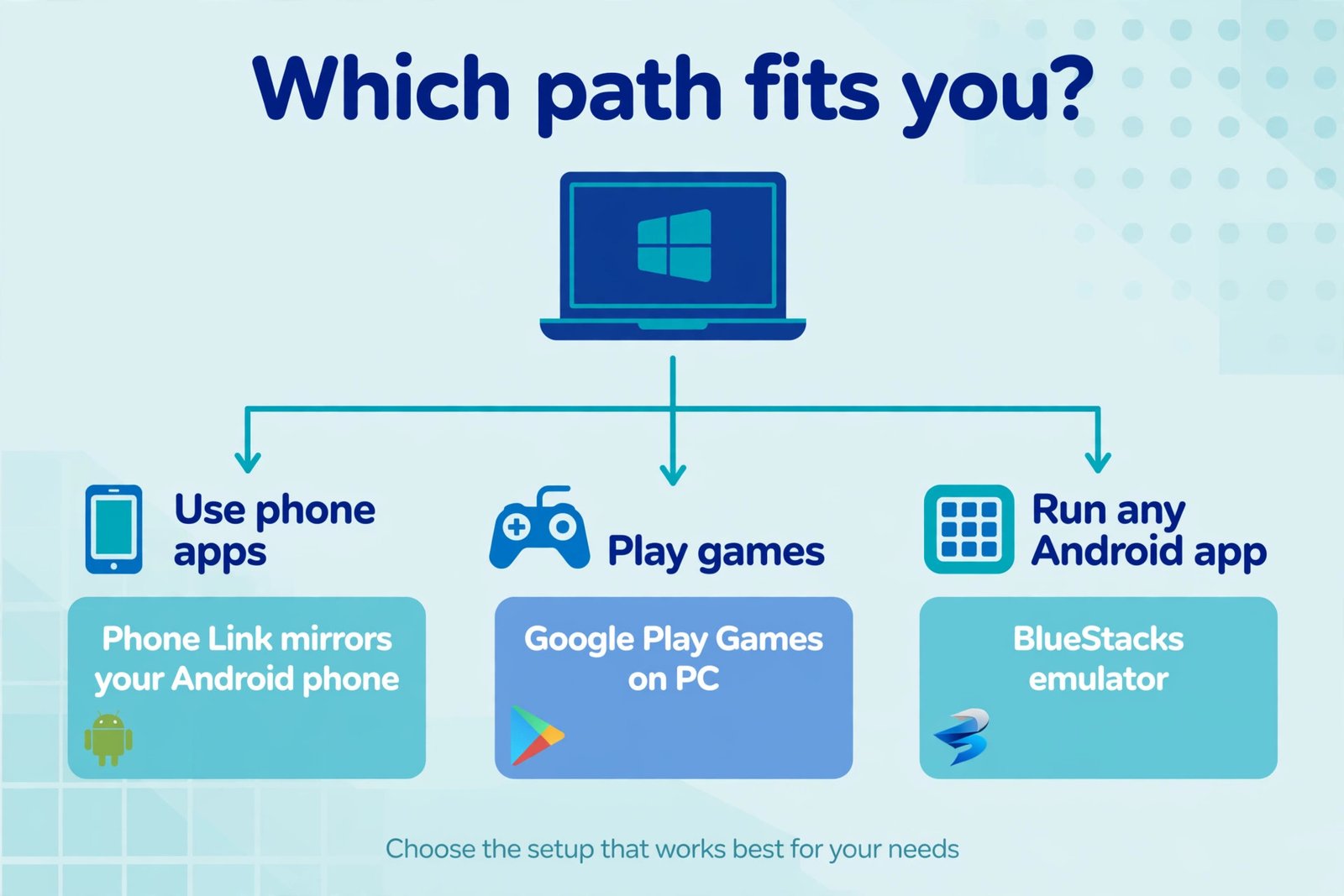
| If you want to | Use this | What you need | Know this first |
|---|---|---|---|
| Use apps already on your phone, on a bigger screen | Phone Link mirroring | An Android phone with the Apps experience supported | The app runs on your phone, not on the PC |
| Play mobile games with a mouse, keyboard, or controller | Google Play Games on PC | A Windows PC that meets Google’s minimum requirements | Games only, and only the games Google lists for PC |
| Run any Android app, including ones with no PC version | BlueStacks | A Windows PC with virtualization enabled | Heavier on your system, and its Android version trails current phones |
Pick the row that matches your job and follow its walkthrough below. If you are torn between two, the honest limits listed under each one usually settle it.
Path 1: mirror your phone’s apps with Phone Link
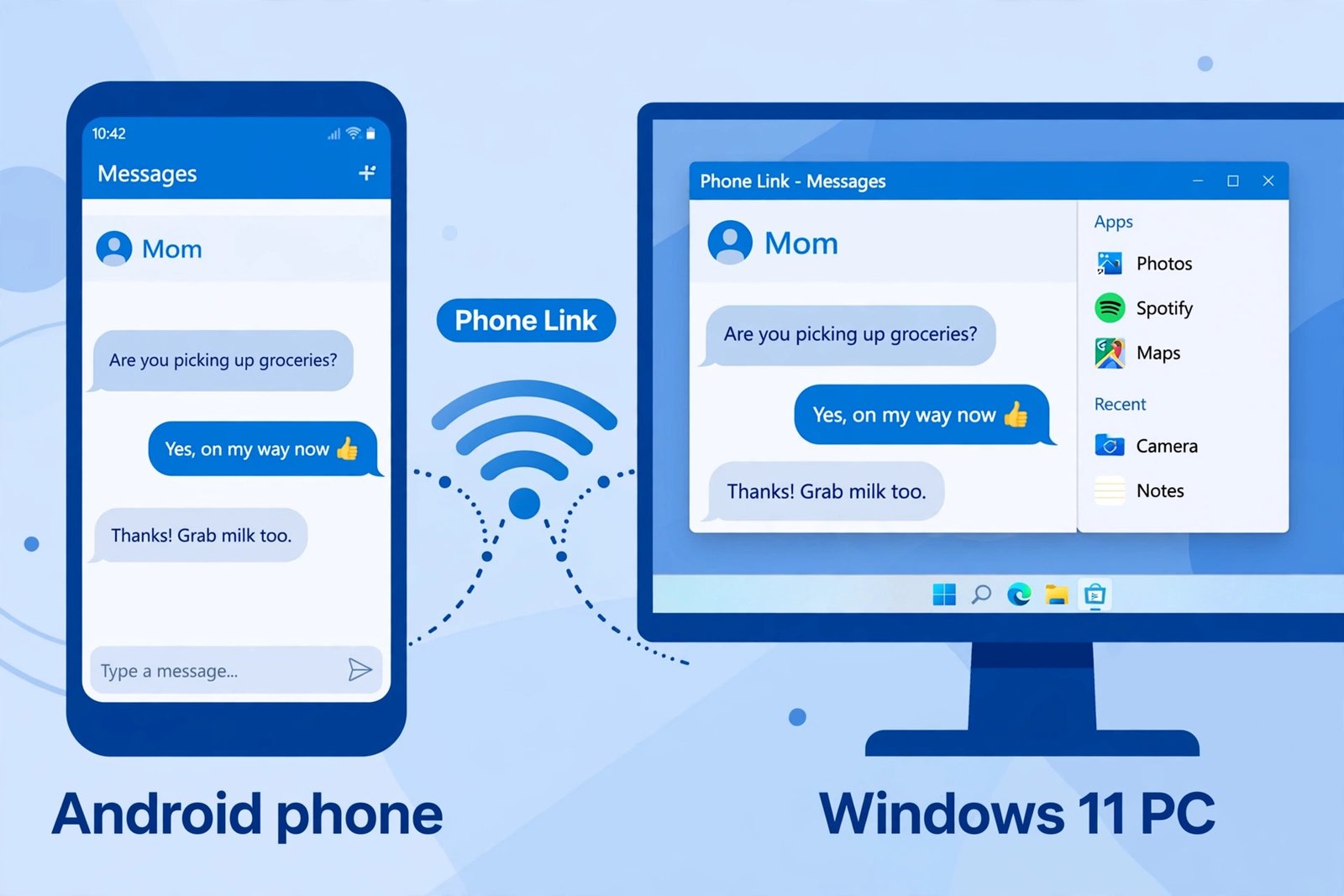
Phone Link is the Microsoft-built option that comes with Windows 11, and it is the closest thing to a WSA replacement for everyday apps. It mirrors apps from your Android phone into separate, resizable windows on your PC desktop. One important detail from Microsoft’s own documentation: the app is not installed on your PC. Whatever appears in that desktop window is actively running on your phone’s processor, streamed over your local Wi-Fi.
You can click, type, and scroll with your PC’s mouse and keyboard, pin Android apps to the Start menu or taskbar, and use them side by side with Windows apps. In January 2026 Microsoft rolled out an “Expanded screen” option that lets mirrored apps fill up to 90 percent of the desktop, which makes this far more usable than the small windows it used to be.
Setting it up
- Open Phone Link from the Start menu on your PC and choose Android as your device type.
- Sign in with the same Microsoft account on both devices, then scan the QR code shown on the PC using the Link to Windows app on your phone.
- Grant the permissions the phone asks for, then open the Apps tab inside Phone Link to see your phone’s app list.
- Click any app to open it in its own window. Right-click an app to pin it to your Start menu or taskbar, or add it to your Phone Link favorites.
- For the smoothest experience, keep both devices on the same Wi-Fi network and the same frequency band, meaning both on 5 GHz or both on 2.4 GHz.
Microsoft’s own support page for using Android apps on your PC walks through the same setup and covers the troubleshooting steps if an app does not behave.
The honest limits
- The Apps experience needs a supported phone: Android 10 or later with Link to Windows preinstalled. Opening several apps at once generally needs Android 11 on select Samsung or HONOR models, and Microsoft recommends at least 8 GB of RAM on the PC. On many other phones you are limited to one app at a time, or just plain phone-screen mirroring.
- Your phone has to be on, nearby, and on the same Wi-Fi network. The apps live on the phone, so they stop being available on the PC the moment the connection drops.
- Everything runs on your phone’s processor, which means mirroring sessions use battery. This is great for messaging, social apps, and light use, but it is not ideal as a gaming rig.
- Some games and touch-heavy apps do not respond well to a mouse and keyboard. For those, you may need a touchscreen on the PC.
This path is best when you already own an Android phone and want your existing apps, logged-in accounts and all, on a bigger screen without reinstalling anything.
Path 2: play mobile games with Google Play Games on PC
If your whole goal is gaming, Google Play Games on PC is the cleanest official route. This is Google’s own Windows client for playing Android games on a computer, with keyboard and mouse controls, controller support, and progress that syncs between your phone and PC through your Google account. The catalog has grown past 200,000 games across more than 130 regions, and Google added Play Pass titles on PC in 2026, so paid games can now unlock on both platforms.
One naming quirk: Google still labels it “Google Play Games Beta on PC” in its documentation even in 2026, but the client is broadly available and gets regular updates. Do not let the beta label put you off; it is a finished, supported product in practice.
What your PC needs
- Windows 10 version 2004 or later, an SSD with at least 10 GB of free space, and 8 GB of RAM.
- A supported Intel or AMD processor, with hardware virtualization enabled in the BIOS.
- A Windows administrator account, since the installer changes system-level virtualization settings.
Setting it up
- Download the installer from the official Google Play Games page. Do not grab installers from third-party download sites.
- Run the installer. If it asks to turn on the Windows Hypervisor Platform, allow the change and restart your PC when prompted.
- Sign in with the same Google account you use on your phone, then browse the catalog and install the games you want.
The honest limits
- This is a games library, not a general Android emulator. It cannot run regular Android apps like messaging, banking, or social apps, and it does not let you sideload APK files. Only games a developer has enabled for PC will appear.
- Turning on the Windows Hypervisor Platform for Google Play Games can conflict with other emulators on the same PC, so plan to run one gaming setup at a time.
- Only the user who installed Google Play Games on the PC can open and play it, so shared computers need the installation under the right account.
If gaming is also your main thing when you are away from the desk, our roundup of the best handheld gaming PCs, from the Steam Deck to the ROG Ally and Legion Go, covers the portable side of the hobby.
Path 3: run Android-only software with BlueStacks
When you need a specific Android app that has no PC version, no good web version, and is not on your phone, an emulator is the answer. BlueStacks is the one most people should start with: it is free, straightforward to set up, and it runs the full Google Play Store rather than a limited games catalog.
The current flagship is BlueStacks 5, with the 5.22 branch receiving updates through 2026. It defaults to an Android 11 engine, and you can create Android 13 instances from the Multi-Instance Manager for apps that demand newer APIs. The core emulator is free and ad-supported, which is worth knowing so the in-app ads do not surprise you.
Setting it up
- Download the installer from the official BlueStacks website only. Third-party mirrors sometimes bundle extra software you did not ask for.
- Install it, launch it, and sign in with your Google account inside the Play Store, exactly as you would on a new phone.
- Install your apps from the Play Store, or sideload an APK directly if the app is not listed. You can also run several apps or accounts at once with multiple instances.
- If apps feel slow, open the emulator’s Settings, go to Performance, and give it more CPU cores and RAM. Leave plenty of headroom for Windows itself; do not assign everything to the emulator.
The honest limits
- An emulator is the heaviest of the three options. It runs a full virtualized Android system, so older or low-spec PCs will feel it. On a modest machine, this is the first path to rule out.
- The default Android 11 engine is several versions behind current phones. Most games and apps work fine, but if an app refuses to install, try spinning up an Android 13 instance before blaming your PC.
- The free tier is ad-supported. A paid Prime membership exists to remove the ads, but it is optional and not required to run anything.
- Like any virtualization-heavy tool, BlueStacks competes for CPU, RAM, and Hyper-V resources, so avoid running it alongside Google Play Games or another emulator at the same time.
The short version
- Want your phone’s apps on your PC? Use Phone Link, as long as your Android phone supports the Apps experience and you are fine with the apps actually running on the phone.
- Want to play mobile games on Windows? Use Google Play Games on PC. It is Google’s own client, your progress syncs, and it is free.
- Need one specific Android app that nothing else covers? Use BlueStacks. It is the broadest option, but also the heaviest.
- Whatever you do, skip the WSA guides. That subsystem ended on March 5, 2025, and anything telling you to install it now is outdated.
Android apps did not leave Windows 11; they just changed shape. Pick your job, install the one tool that fits it, and you will be up and running in less time than it takes to argue about which emulator is fastest.

- How to Run Android Apps on Windows 11 Without WSA in 2026 - October 17, 2026
- iPhone Duo: Should You Buy Apple’s First Foldable? - October 16, 2026
- Best Handheld Gaming PCs in 2026: Steam Deck, ROG Ally, and Legion Go - October 16, 2026