
If you are thinking about switching to Linux, Ubuntu and Linux Mint are usually the first two names you hear. They share the same roots, but they feel very different in daily use. This guide compares them head to head so you can pick the right one for your computer and your comfort level.
Short version: pick Linux Mint 22.3 if you want a desktop that feels like Windows from the first minute and runs well on older PCs. Pick Ubuntu 26.04 LTS if you have a newer computer, want to learn development or Linux administration, or value the longest support window. Both are free, both are beginner friendly, and you cannot really go wrong with either.
Linux Mint vs Ubuntu at a glance
Here is the side-by-side view before we dig into the details.
| Dimension | Linux Mint 22.3 “Zena” | Ubuntu 26.04 LTS “Resolute Raccoon” |
|---|---|---|
| Released | January 2026 | April 2026 |
| Desktop | Cinnamon 6.6 | GNOME 50 |
| Built on | Ubuntu 24.04 LTS base | Canonical’s own current base |
| Supported until | April 2029 | May 2031 (standard); longer with Ubuntu Pro |
| Kernel | 6.14, with newer HWE options available | 7.0 |
| Software store | Software Manager, with Flatpak built in | App Center, with Snap built in |
| Snap packages | Blocked by default, optional | Enabled by default |
| Feels like | Traditional, Windows-like | Modern, streamlined, keyboard-driven |
Desktop feel: familiar vs modern
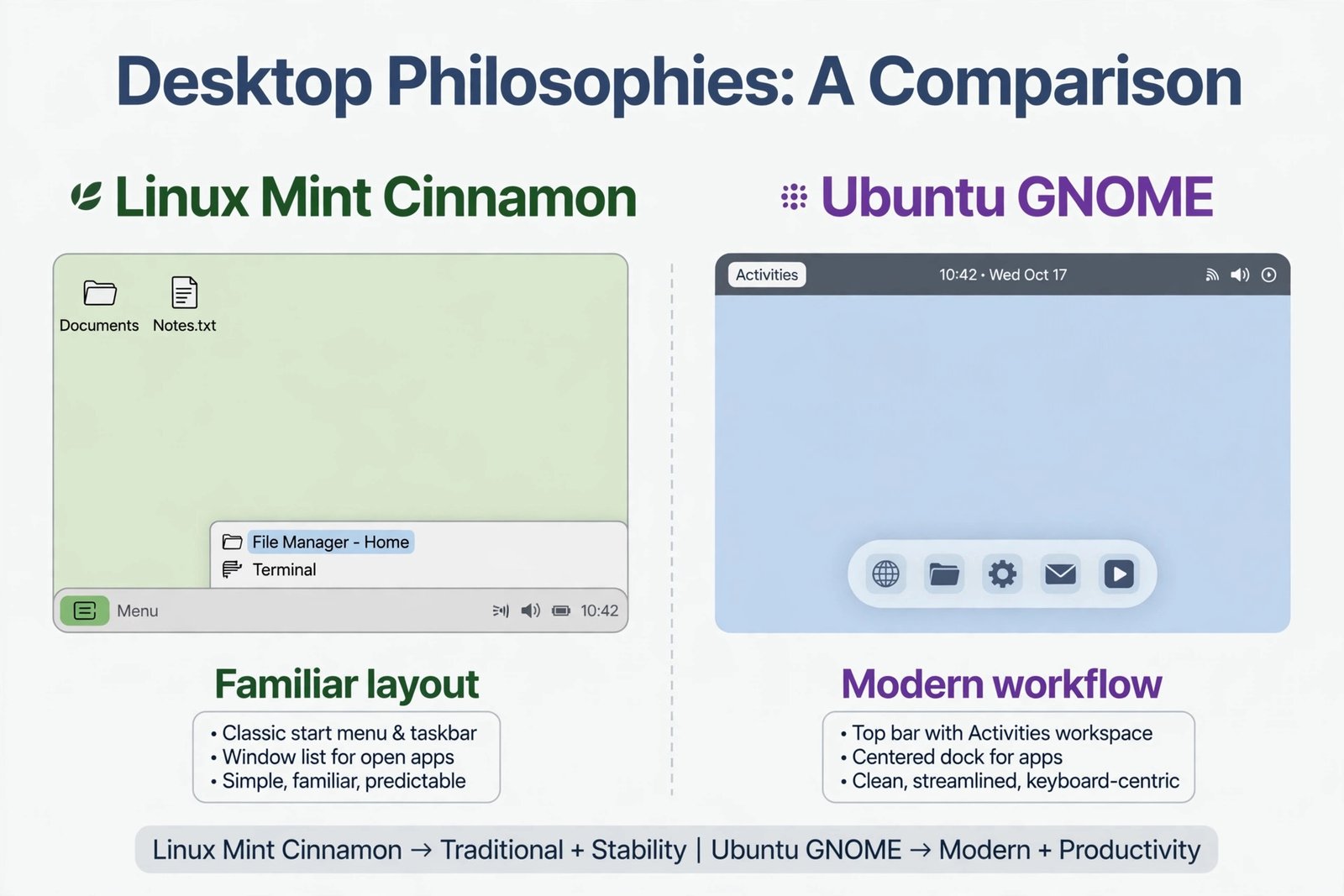
This is the difference you will notice in the first thirty seconds. Linux Mint’s Cinnamon desktop follows the layout most people already know: a panel along the bottom of the screen, a menu button in the corner, open windows listed in a taskbar, and a system tray that behaves the way you expect. If you have used Windows for years, there is almost nothing to relearn.
Ubuntu takes a different approach with GNOME 50. There is a slim top bar, an Activities button that opens an overview of your windows and workspaces, and a dock for your favorite apps. It is clean and modern, and it rewards keyboard shortcuts, but it will feel unfamiliar on day one if your muscle memory is built on Windows. Ubuntu 26.04 also completes the move to Wayland for the GNOME session, with the old X11 session removed, while older apps keep working through a compatibility layer.
Mint, by contrast, still defaults to the classic X11 session, with Wayland support improving but still experimental in Cinnamon 6.6. Full Wayland support is expected with Linux Mint 23, which the Mint team has planned for around December 2026 on an Ubuntu 26.04 base. It is not released yet, so Mint buyers today should judge Mint 22.3 on what it is, not on what is coming.
The deeper point is philosophy. Mint deliberately changes the desktop slowly, so it never shifts under your feet. Ubuntu moves faster and adopts newer technologies sooner. Neither approach is wrong, but if you want your computer to look the same every time you turn it on, Mint’s conservatism is a genuine feature.
Installing software: app stores that think differently
On Ubuntu, the App Center is your one place to install apps, apply updates, and manage software. It handles both traditional packages and Snaps, which are self-contained app packages from Canonical’s Snap Store. Snap support is built in and on by default, so many apps you install through the store will be Snaps.
Linux Mint uses its own Software Manager, and it leans on traditional packages plus Flatpaks, with the Flathub store available out of the box. Mint has blocked Snap by default since 2020, so no Snap packages touch your system unless you deliberately enable them. For most beginners this distinction barely matters day to day, since the same apps (Firefox, VLC, LibreOffice, Spotify) are available on both, just packaged differently.
Where it can matter is app freshness. Snaps and Flatpaks both bundle their own dependencies, so apps stay newer than the versions frozen in a distribution’s base release. On Mint, that job falls to Flatpak; on Ubuntu, it falls to Snap. If a specific app you need is only published as a Snap, Ubuntu is the path of least resistance, and on Mint you can still enable Snap manually if you ever need it.
Updates and support: how long each version lasts
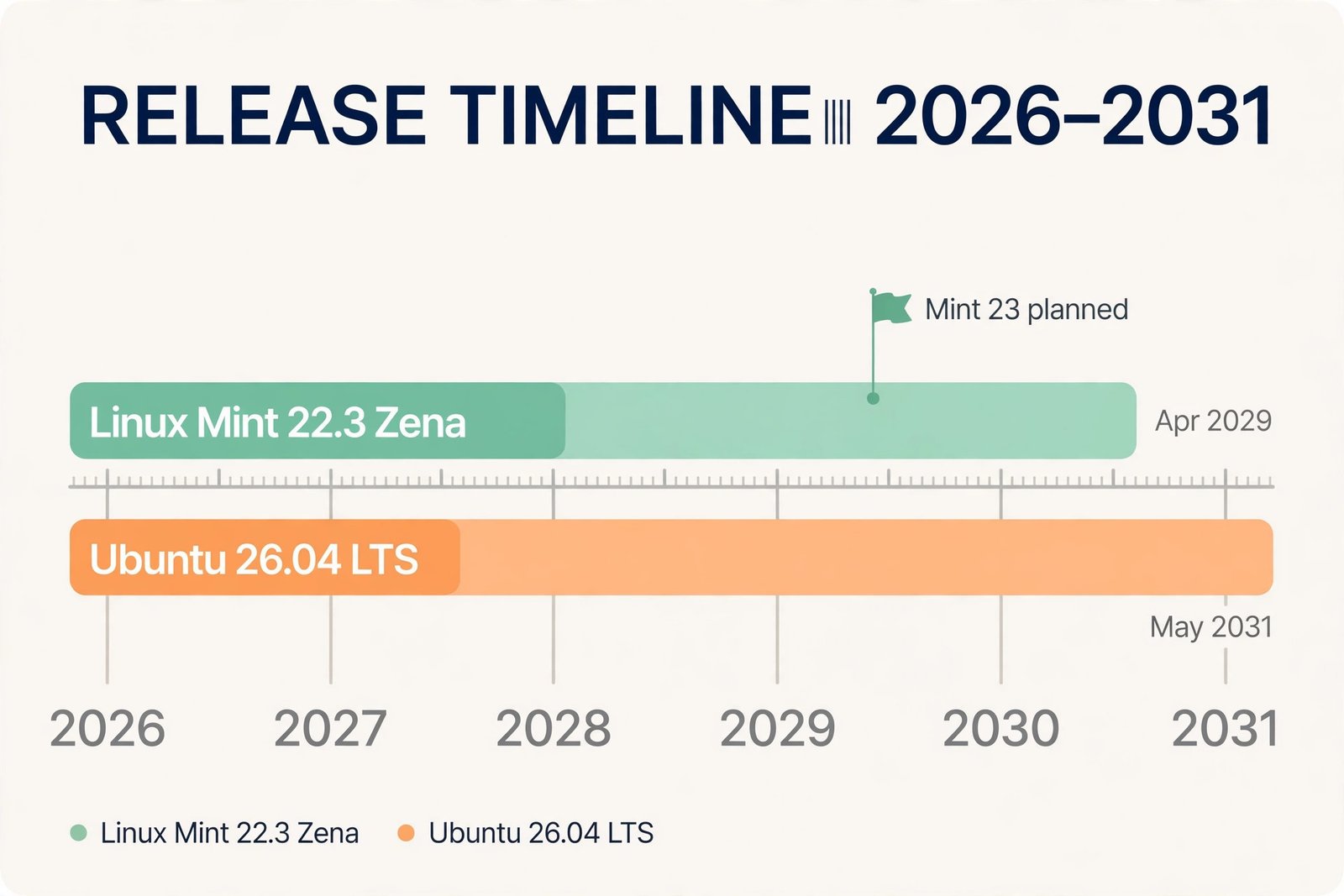
Both are long-term support releases, but their clocks run differently. Linux Mint 22.3 is built on the Ubuntu 24.04 LTS base, so it receives security updates until April 2029. That is more than two and a half years of support from today, which is plenty for a desktop you plan to use rather than tinker with.
Ubuntu 26.04 LTS is the newer release, and its support window runs through May 2031 with standard maintenance, two full years longer than Mint 22.3. On top of that, Ubuntu Pro extends security coverage to ten years, and it is free for personal use on up to five machines. If “install once and forget about it” is your priority, Ubuntu’s longer runway is a real advantage.
The update experience differs too. Mint ships its own Update Manager, which lets you decide when updates are installed, and Timeshift, which takes system snapshots you can roll back to if an update goes wrong. Its Driver Manager installs proprietary graphics drivers in a couple of clicks. Ubuntu handles updates more automatically through the App Center, which suits users who never want to think about maintenance, but gives you less say in the timing.
One more timing note: Linux Mint 23 is planned for around December 2026 and will move Mint onto the newer Ubuntu 26.04 base. As of now it is upcoming, not released, so do not wait for it if your current setup needs replacing. Mint 22.3 is fully supported and a safe install today.
Older PC or newer PC?
Hardware is where the two diverge most clearly. Linux Mint is famously light on resources, with official minimums of 2 GB of RAM and a recommendation of 4 GB for comfortable use. On a laptop or desktop that is five to eight years old, Mint typically feels snappy where heavier systems feel sluggish.
Ubuntu 26.04 aims at modern hardware. It ships the 7.0 kernel with support for the newest processors and graphics, including recent Intel and AMD platforms. If you just bought a new laptop in 2026 and want everything, Wi-Fi, graphics, power management, working perfectly from day one, Ubuntu’s newer stack gives you the best odds. Mint offers periodically refreshed HWE installation images with newer kernels for recent machines, but its default image still targets the older, proven stack.
The rule of thumb is simple: older or modest hardware points to Mint; a brand-new machine points to Ubuntu 26.04. Either way, both distributions let you try the full system from a USB stick before installing, so you can check that your Wi-Fi and sound work before committing.
What about gaming?
Gaming on Linux in 2026 mostly comes down to your graphics drivers and Steam’s Proton compatibility layer, not which of these two distributions you picked. Steam runs on both, and Proton lets a huge library of Windows games run on Linux with little or no setup.
Ubuntu has a small edge here because its newer kernel and graphics stack support the latest GPUs sooner, and game developers and hardware vendors tend to target Ubuntu first when they test on Linux. Mint is perfectly capable for gaming on established hardware, and its Driver Manager makes installing NVIDIA drivers painless, but on a cutting-edge graphics card Ubuntu 26.04 is the safer bet. If portable gaming is your thing, you may also enjoy our roundup of the best handheld gaming PCs, from the Steam Deck to the ROG Ally and Legion Go.
So, which one should you pick?
Use these reader profiles as your decision shortcut.
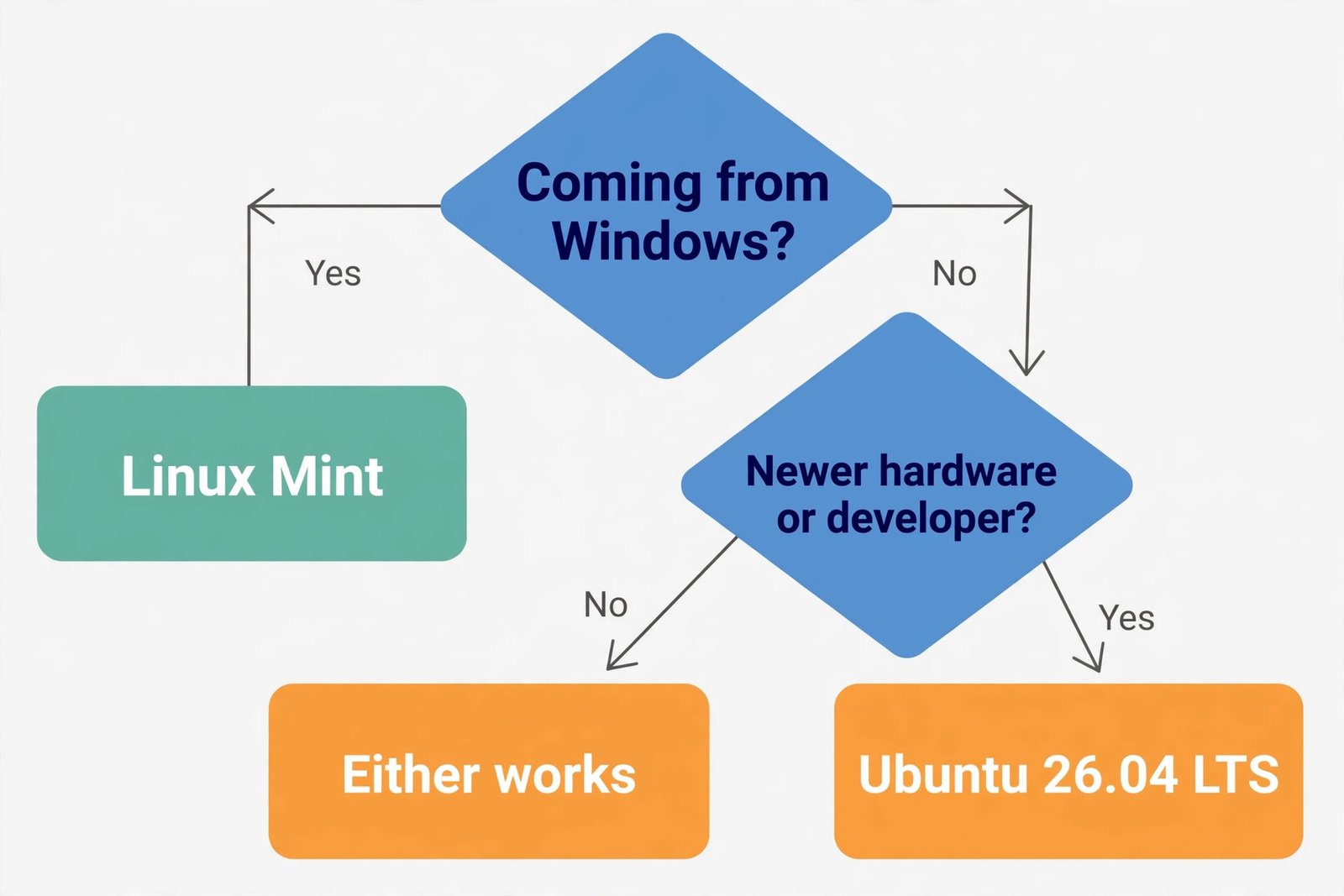
Pick Linux Mint 22.3 if…
- You are switching from Windows and want the familiar menu, taskbar, and system tray layout.
- Your computer is several years old or has modest specs.
- You want updates on your own schedule, with Timeshift snapshots as a safety net.
- You prefer a desktop that changes slowly and predictably.
- You would rather avoid Snap packages unless you choose them yourself.
Pick Ubuntu 26.04 LTS if…
- You have a new computer and want the newest kernel and hardware support.
- You plan to learn programming, system administration, or cloud tools, since most tutorials and employers target Ubuntu.
- You want the longest support window, through May 2031, with optional Ubuntu Pro coverage.
- You like a modern, keyboard-driven workflow and do not mind learning a new layout.
- You want Snap apps and the App Center working out of the box.
Short install notes
Whichever you choose, the process is the same and takes about half an hour. Back up your files first, then download the installer from the official site: linuxmint.com for Mint (grab the Cinnamon edition), or Ubuntu’s official release notes page at documentation.ubuntu.com, which links to the 26.04 downloads. Create a bootable USB stick, boot from it, and try the live session to confirm your Wi-Fi, sound, and trackpad work.
The installer will walk you through partitioning. Most beginners either erase the whole disk or install alongside their existing system to dual-boot. Ubuntu 26.04’s installer has improved disk encryption setup if you want your drive encrypted from the start. If you are moving off Windows 10 specifically, read our guide on the Windows 10 ESU extension and what to do next before you wipe anything.
One last reassurance: this is not a permanent marriage. Both are free, installs are quick, and plenty of people try one for a month and switch. But if you follow the profiles above, most beginners will land on the right one the first time.

- Best Reddit Alternatives in 2026: Where to Go After the RSS and API Shutdown - October 17, 2026
- Linux Mint vs Ubuntu for Beginners in 2026: Which Should You Pick? - October 17, 2026
- Best Wi-Fi 7 Routers in 2026 for Home, Gaming, and Mesh - October 16, 2026