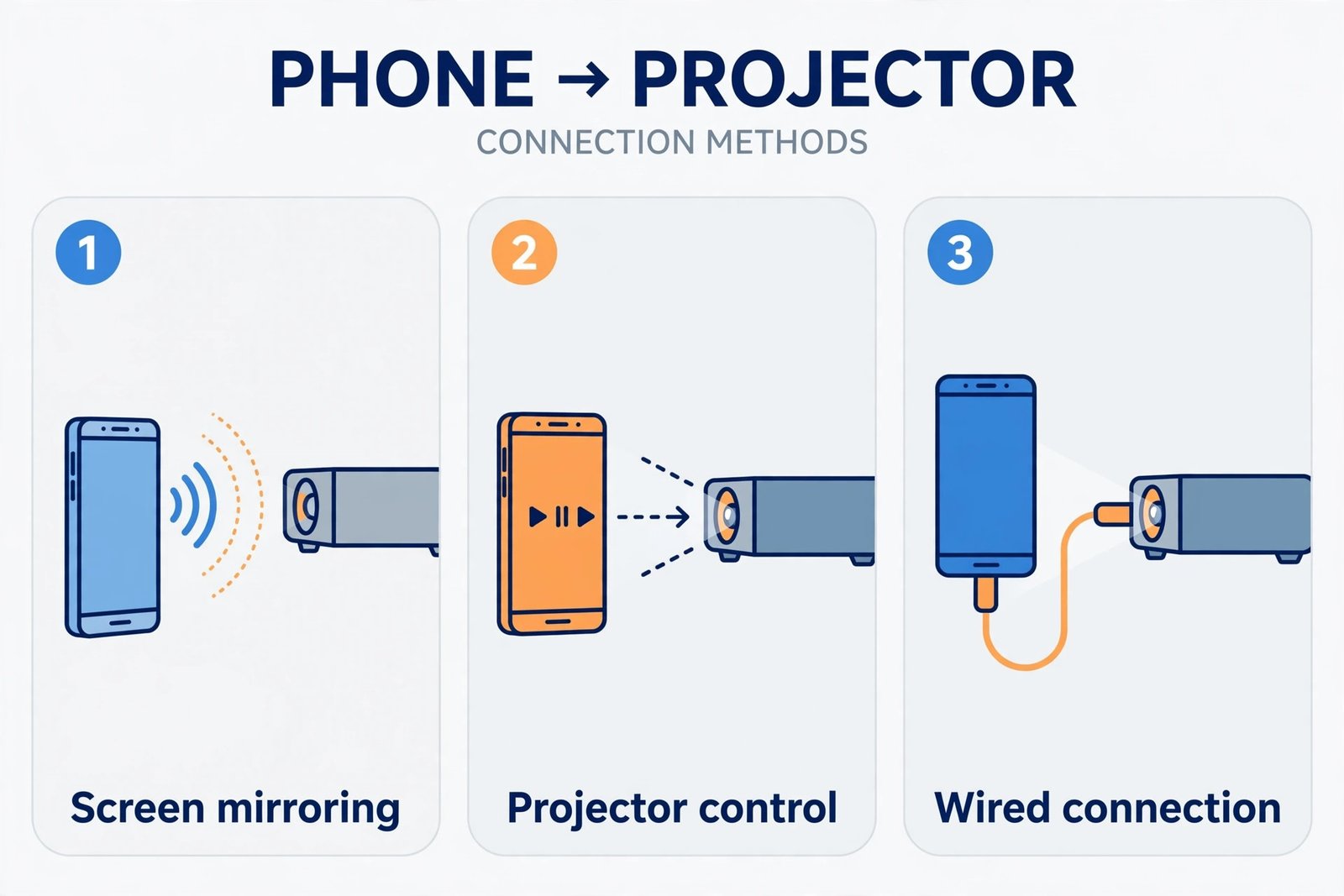
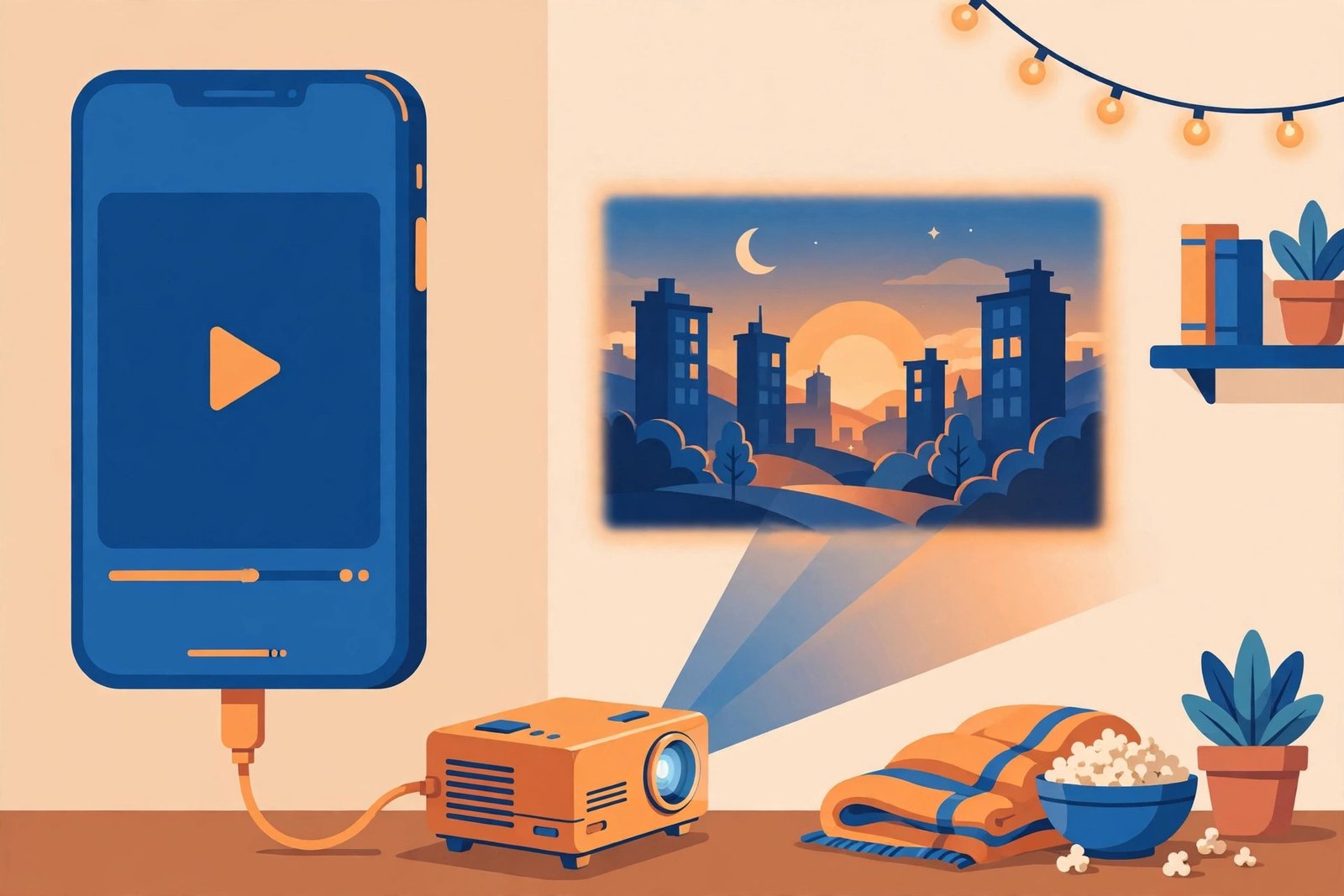
Projector apps are mobile applications that turn your smartphone or tablet into a presentation or entertainment tool. They let you display content from your device onto a bigger screen, wall, or surface. Think of them as a bridge between your pocket-sized device and a larger viewing area.
These apps solve real problems. Maybe you need to give a quick presentation at work without lugging a laptop. Maybe you want to share vacation photos with friends. Maybe you’re teaching and need visual aids. Projector apps make all of this simple.
The best projector apps work in two main ways. Some use your phone’s built-in light and lens to project actual images onto surfaces. Others are specifically designed for wireless casting, turning any wall into a display screen. Both types have genuine value depending on your situation.
How Projector Apps Actually Work
Before diving into specific apps, you need to understand the mechanics. This helps you pick the right one.
Hardware-Based Projection
Some phones have a built-in projector. Samsung Galaxy Beam and a few other models come with this feature. If your phone has a projector, apps like Samsung SmartThings or Samsung Beam app will activate it directly. These use an actual LED projector inside your device to cast real light onto surfaces.
This method works in darker rooms. Brightness matters here. Most phone projectors produce 20 to 50 lumens. That’s lower than standalone projectors, but enough for small rooms.
Wireless Casting Apps
Most phones don’t have built-in projectors. That’s where wireless casting apps come in. These apps send your screen to an external device like a Chromecast, Apple TV, or Smart TV. The external device does the actual projecting.
Apps like Google Cast (built into Android) and AirPlay (built into iOS) are free and work seamlessly with compatible devices. They’re not third-party apps you download. They’re features already in your phone.
Best Projector Apps by Category
For Business Presentations
Microsoft PowerPoint (with Wireless Display)
PowerPoint is the standard for presentations. The app itself doesn’t project. But it works with Microsoft’s wireless display feature and most Smart TVs. You can present slides while controlling them from your phone. Speaker notes stay on your device while slides show on the wall.
Why it works: Everyone knows how to use it. Your slides look professional. You maintain control during the presentation.
Limitation: Needs a compatible external display device.
Google Slides (with Google Cast)
Google Slides is free. It integrates seamlessly with Google Cast on Android and works with Chromecast devices. You can present from anywhere you have internet. Real-time collaboration means others can edit while you present.
Why it works: Free, simple, cloud-based. No software to install on a computer.
Best for: Small meetings, remote work, casual presentations.
Keynote (Apple’s Alternative)
If you use Apple devices, Keynote is powerful. It connects to Apple TV or any AirPlay-compatible display. Your presentation responds to touch, and speaker notes stay private on your device.
Why it works: Smooth animation, beautiful templates, seamless Apple ecosystem integration.
Best for: Mac and iOS users who want design flexibility.
For Home Entertainment
Plex
Plex streams movies, TV shows, and music from your personal media library to any screen. It’s both an app and a server system. You set it up once on a computer or external drive. Then stream to projectors, Smart TVs, or even tablets.
Why it works: One central library you control completely. Works offline with downloaded content. Free version available.
Best for: Families with large media collections, movie nights at home.
Kaleidescape
High-end streaming for movie lovers. Kaleidescape lets you buy digital copies of movies and stream them in pristine quality. It’s premium but worth it if you buy many movies.
Why it works: Best visual quality available. Extensive movie catalog. Curated recommendations.
Best for: Serious movie enthusiasts with good internet.
YouTube TV / Streaming Apps
YouTube, Netflix, Disney+, and other streaming apps work with Chromecast on Android and AirPlay on Apple devices. You don’t need a special app. Just open the service you use and tap the cast button.
Why it works: Already installed on most phones. One-tap connection. Millions of options.
Best for: Daily entertainment, news, tutorials.
For Photo Sharing
Google Photos
Google Photos stores your pictures in the cloud. Cast any album to a compatible display. Perfect for showing vacation photos at family dinners or displaying art at gatherings.
Why it works: Automatic backup of your photos. Simple interface. One-tap casting.
Best for: Casual photo sharing, family events.
Amazon Photos
If you have Prime membership, Amazon Photos gives unlimited photo storage. Cast your library to Fire TV devices or compatible Smart TVs.
Why it works: Unlimited storage with Prime. Integrates with Alexa for voice control.
Best for: Prime members, homes with Amazon devices.
For Interactive Projection
Mirroring360
This paid app mirrors your entire screen to external displays. Works with multiple platforms. Great for demonstrations, tutorials, or showing apps on a big screen.
Why it works: Works across iOS and Android. No dedicated hardware required if you have a Smart TV. Screen mirroring is smooth and lag-free.
Best for: Teachers, trainers, app developers showing work.
AnyDesk
Remote desktop app that displays your phone on another screen. You can control a computer from your phone or vice versa. Multiple devices can connect simultaneously.
Why it works: Professional-grade performance. Works over internet or local network. Free version available.
Best for: Remote work, tech support, controlling presentations from a distance.
Comparing Key Features
Here’s a quick comparison of what matters most.
| App | Free Version | Wireless Only | Works Offline | Best Use |
|---|---|---|---|---|
| Google Slides | Yes | Yes | Limited | Business presentations |
| Microsoft PowerPoint | Partial | Yes | Yes | Professional slides |
| Plex | Yes | Yes | Yes | Home movies |
| Google Photos | Yes | Yes | Limited | Photo sharing |
| Mirroring360 | No | No | Yes | Full screen mirroring |
| YouTube | Yes | Yes | Limited | Entertainment |
| Google Cast | Yes | Yes | No | Quick wireless casting |
How to Set Up Projector Apps on Your Phone
Android Setup
Step 1: Check your device. Most modern Android phones support Google Cast. Go to Settings, then Display, and look for Cast or Screen Mirroring.
Step 2: Make sure your projector or external display supports Chromecast or Miracast. Most Smart TVs do.
Step 3: Connect your phone to the same WiFi network as your display.
Step 4: Open the app you want (Google Photos, YouTube, Google Slides, etc.).
Step 5: Tap the Cast icon (usually a rectangle with WiFi symbol).
Step 6: Select your display from the list.
Step 7: Content appears on the big screen.
iOS Setup
Step 1: Check your device. You need an iPhone or iPad with AirPlay capability.
Step 2: Ensure your Apple TV or compatible Smart TV is on the same WiFi network.
Step 3: Swipe down from the top right corner to open Control Center.
Step 4: Tap Screen Mirroring.
Step 5: Choose your Apple TV or compatible display.
Step 6: Open any app and its content displays on the screen.
For non-Apple displays, use third-party apps like Mirroring360 or Air Beam. These replicate AirPlay functionality on other devices.
Common Problems and Real Solutions
The App Connects But Content Doesn’t Display
This usually means a compatibility issue or network problem.
Check one: Are your devices on the same WiFi network? If not, they can’t communicate.
Check two: Is your external display compatible with the casting standard? Google Cast works with Chromecast and many Smart TVs. AirPlay works with Apple TV and some brands.
Check three: Does your internet connection have enough bandwidth? Stream quality drops on slow networks.
Solution: Restart both devices. Forget the WiFi network on your phone and reconnect. Update all apps to their latest versions.
Video Lags or Audio Syncs Incorrectly
Lag happens when your network is congested or too far from the router.
Solution: Move closer to the WiFi router. Disconnect other devices. Switch to 5GHz WiFi if available. It’s faster than 2.4GHz.
For audio sync issues, pause and resume playback. If the problem persists, try a different app. Some streaming services handle audio better than others.
App Crashes When Casting
Out-of-date apps cause crashes.
Solution: Update all apps. Go to the App Store or Google Play, find each app, and tap Update.
If crashes continue, clear the app’s cache. On Android: Settings, Apps, select the app, Storage, Clear Cache. On iOS: Delete and reinstall the app.
Your Phone Gets Too Hot
Casting for long periods generates heat.
Solution: This is normal. Remove your phone’s case if possible. Reduce screen brightness. Take breaks between sessions.
If your phone overheats and shuts down, let it cool before using it again. If this happens repeatedly, your battery may be degrading.
Projector App Tips That Actually Work
Choose the Right Room
Darker rooms work better for phone projectors. Bright rooms need external displays. Know what you’re working with.
Use Quality Cables and Connections
Wireless casting is convenient but sometimes unpredictable. If you’re presenting something important, have a backup. Bring an HDMI adapter or second casting device.
Test Before You Present
Always do a dry run. Connect your devices 15 minutes early. Check that content displays correctly. Troubleshoot minor issues before your audience arrives.
Optimize Your Content for Big Screens
Text needs to be large. Images should be high resolution. Videos should be at least 720p, ideally 1080p. What looks fine on your phone might look blurry on a 10-foot screen.
Manage WiFi Bandwidth
Close background apps using the internet. Stop downloads. Disable Bluetooth if you’re not using it. Every bit of network speed matters when casting.
Keep Your Phone Plugged In
Casting drains battery fast. Connect to a power source during presentations or long viewing sessions.
Use Landscape Mode
Most projections display better in landscape orientation. Your content will fill the screen properly.
Choosing Between Built-In Features and Third-Party Apps
Google Cast, AirPlay, and screen mirroring come built into your phone. You don’t download them. They’re free. They work well for most situations.
Third-party apps like Plex or Mirroring360 offer specific features built-in options don’t. Plex excels at media libraries. Mirroring360 is better for full-screen sharing with custom controls.
For most people: Start with built-in features. They handle 90% of real-world needs. Add specialized apps only when you have specific requirements.
The Reality of Phone Projectors vs. Real Projectors
Phone projectors built into devices are fun. But they’re not replacements for actual projectors.
Real projectors produce 3,000+ lumens. Phone projectors produce 20 to 50 lumens. The difference is massive in bright rooms.
Real projectors have larger lenses that produce clearer images. Phone projectors are limited by their tiny optics.
Real projectors cost more money upfront but deliver professional results. Phone projectors are convenient for casual use.
Use phone projector apps when convenience matters more than image quality. Use real projectors when image quality is the priority.
Summary
Projector apps turn your phone into a presentation or entertainment device. The best choice depends on your specific need.
For presentations: Use Google Slides (free), Microsoft PowerPoint (professional), or Keynote (Apple ecosystem).
For entertainment: Use Plex (your library), YouTube (on-demand), or streaming services (Netflix, Disney+).
For photo sharing: Use Google Photos (simple) or Amazon Photos (with Prime membership).
For screen mirroring: Use built-in Google Cast or AirPlay. Add Mirroring360 only if you need advanced features.
Most people succeed with built-in casting features and one or two specialized apps. You don’t need to download everything.
Set up your devices properly. Test before important events. Optimize your content for big screens. Keep your phone charged.
The technology works better than it did five years ago. WiFi is faster. Devices are more compatible. Apps crash less often. Use these tools confidently.
Pick the app that solves your actual problem. Don’t get lost trying features you’ll never use. Start simple. Add complexity only when you need it.
Frequently Asked Questions
How can I project my phone without WiFi?
Most modern projector apps require WiFi or Bluetooth to work. However, if your phone has a built-in projector (like some Samsung models), it projects light directly without WiFi. Alternatively, you can use a USB-C or Lightning adapter to connect to an HDMI projector directly, though this isn’t technically an app-based solution.
What’s the difference between casting and mirroring?
Casting sends specific content from one app to your display (like casting YouTube to your TV). Mirroring duplicates your entire phone screen. Casting is more efficient and uses less battery. Mirroring is useful when you want to show everything on your phone.
Can I use projector apps on any smartphone?
Nearly all modern smartphones support wireless casting. Android devices use Google Cast. iPhones and iPads use AirPlay. You’ll need a compatible external display device unless your phone has a built-in projector. Very old phones (more than 5 years old) might not support these features.
Is it safe to use third-party projector apps?
Stick with apps from reputable companies. Google, Apple, Microsoft, and Plex are trustworthy. Before downloading any app, check user reviews and permissions it requests. Avoid apps asking for unnecessary access to your contacts, messages, or location.
Why does my projected image look blurry?
Blurriness usually comes from one of three sources: your phone’s camera quality (if using a physical projector), the distance between projector and screen, or network issues causing quality reduction during casting. Move your projector closer to the screen. For wireless casting, improve your WiFi signal by moving closer to the router.
- How to Reset Your Spotify Password: Guide for 2026 - January 9, 2026
- Fix Roblox Error Code 523: Guide to Solving Connection Problems - January 9, 2026
- How to Delete Your Google Account Permanently - January 9, 2026