
You may have noticed a little card on your Samsung lock screen greeting you in the morning, recapping your calendar, or reminding you about the weather. That is Now Brief, Samsung’s AI briefing feature. This guide explains what it is, where it shows up, and how to turn it off or hide it completely on One UI 8.
Key takeaways
- Now Brief is a Galaxy AI feature that builds personal daily briefings (calendar, weather, health, news, travel) from your routine and shows them on the lock screen, in the Now Bar, and as a widget.
- To stop it, open Settings > Galaxy AI > Now brief and switch it off. To clear your lock screen too, open Settings > Lock screen and AOD > Now bar and switch Now brief off there.
- Samsung offers no single kill switch: turning it off in Galaxy AI stops the briefings, but you also need to remove the Now Bar entry and the home screen widget to make it vanish everywhere.
What Is Now Brief?
Now Brief is a personalised briefing feature from Samsung’s Galaxy AI suite. It looks at your daily routine and the interests you select, then shows useful content and suggested actions as cards: schedules and reminders, health and wellness, weather, news, music and podcasts, travel, SmartThings, and Wallet. This is Samsung’s own description of the feature on its official support page.
Now Brief arrived with the Galaxy S25 series and One UI 7 in January 2025, and it has since spread to other models like the Galaxy S24 series through software updates. On One UI 8 (built on Android 16), it is a standard part of the Galaxy AI package. Think of it as Samsung’s answer to Google’s At a Glance widget: an AI-written summary of your day that pops up a few times, usually morning, midday, and evening.
You can open a Now Brief from the lock screen, from a home screen widget, or from the Edge panel, according to Samsung. It can even read the briefing aloud if you leave the Audio brief switch on. Useful for some people, noisy for everyone else, which is why turning it off is such a popular search.
Where Now Brief Shows Up on Your Phone
Before you start switching things off, it helps to know that Now Brief does not live in one place. It has three surfaces:
| Where you see it | What it looks like | How to remove it |
|---|---|---|
| The Now Bar on the lock screen | A pill-shaped card near the bottom of the lock screen | Settings > Lock screen and AOD > Now bar > switch Now brief off |
| A home screen widget | A larger briefing card on your home screen | Long-press the widget > Remove |
| The feature itself (Galaxy AI) | The engine that builds the briefings | Settings > Galaxy AI > Now brief > switch off |
This is the part that trips most people up. As Samsung Community users discovered, you cannot delete Now Brief as a feature with one tap: you stop the engine in the Galaxy AI settings, then hide each surface where it appears. Do all three and it is effectively gone.
How to Turn Off Now Brief in Galaxy AI Settings
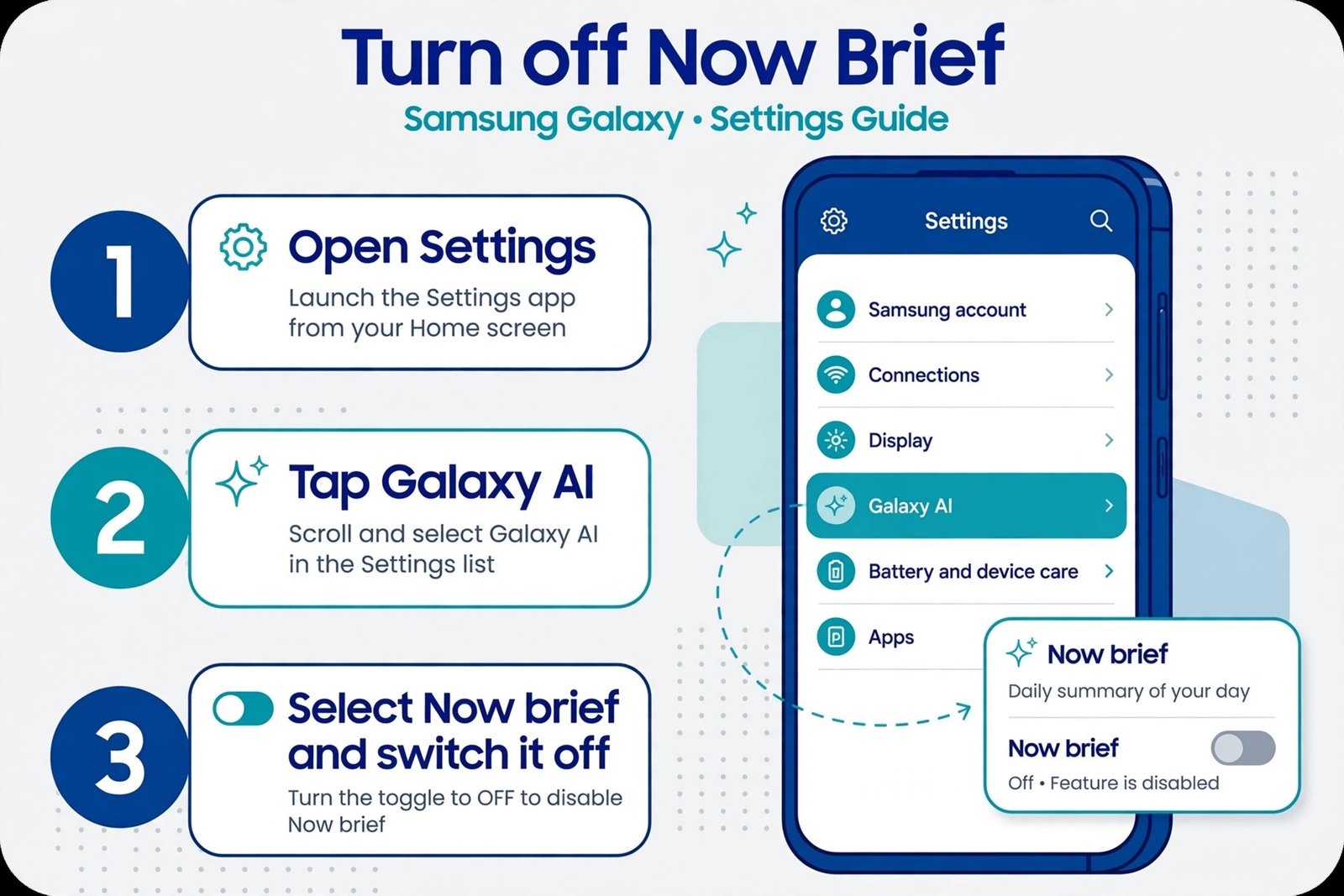
This is the main method. It stops Now Brief from generating briefings at all:
- Open Settings on your Galaxy phone.
- Tap Galaxy AI. (If you do not see it, use the search bar at the top of Settings and type “Galaxy AI”.)
- Tap Now brief in the list.
- Switch Now brief off, and also switch off Show Now brief while phone is locked if you see it.
Once this is off, Samsung stops building briefings from your data. You will also find Audio brief, Content to include, and Manage personal data on this same screen, which brings us to the softer option below.
If you only want to quiet it instead
If you like the idea of Now Brief but not the execution, you do not have to turn it off entirely. On the same Galaxy AI > Now brief screen, tap Content to include and uncheck the categories you do not care about (for example, News or Smart home), and switch Audio brief off so it stops reading summaries aloud. This is the middle ground: fewer cards, no spoken briefings, less noise.
How to Remove Now Brief from the Now Bar and Lock Screen
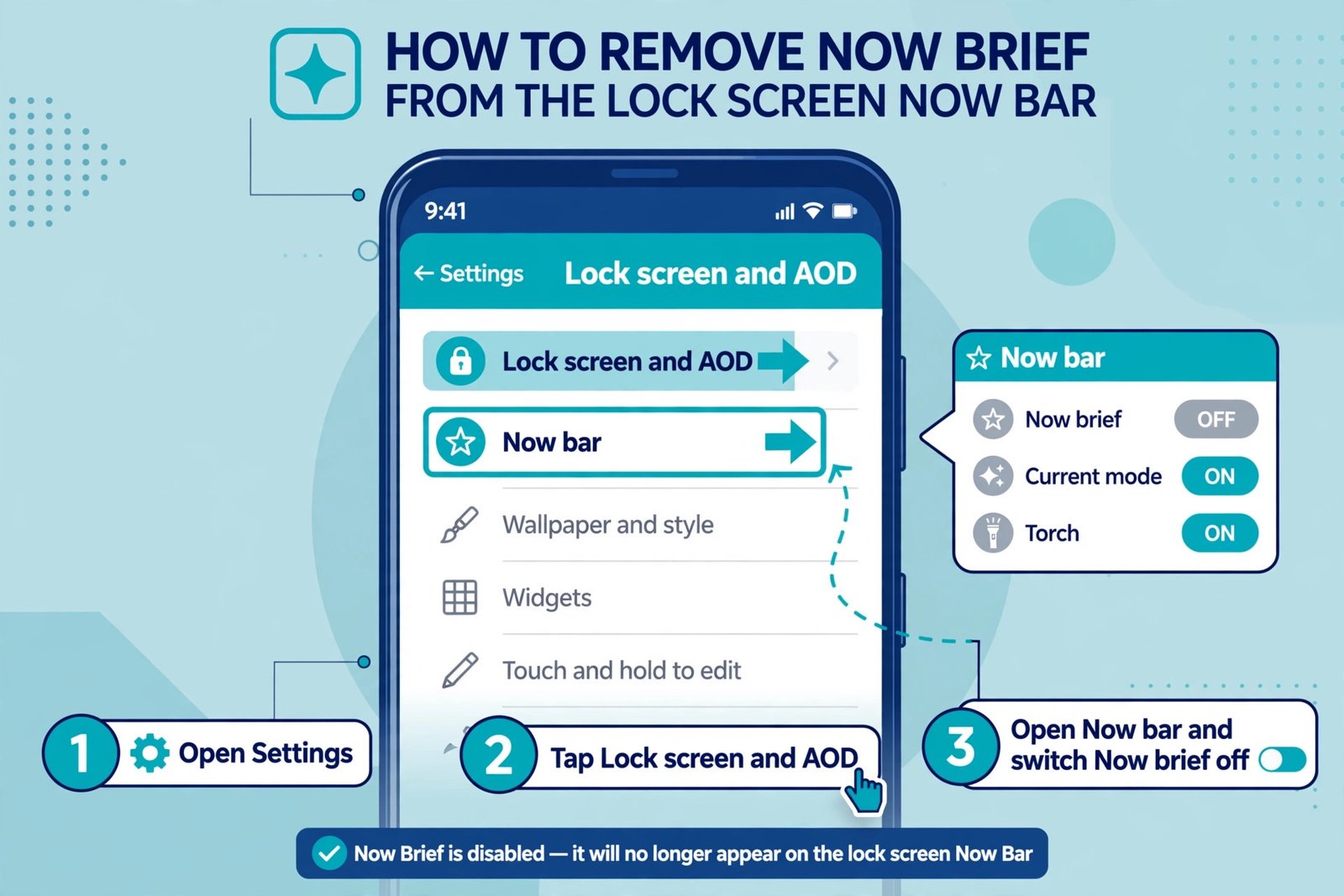
For most people, the annoying part is the Now Bar pill sitting on the lock screen, sometimes covering music controls. Even after switching Now Brief off in Galaxy AI, remove it from the Now Bar to be sure it never pops up on the lock screen again. Samsung’s own support page (updated September 2026) lists Now brief as one of the options on this screen, alongside Current mode, Do not disturb, and Torch:
- Open Settings, then tap Lock screen and AOD.
- Tap Now bar.
- Scroll to the options list and switch Now brief off.
The briefing card will stop appearing in the Now Bar on your lock screen. Everything else on the Now Bar, like music controls and timers, keeps working as before. Note that the Now Bar screen is also where Samsung puts the Do not disturb toggle, and if a generally quieter phone is the goal, our guide on how to use Do Not Disturb mode on Android walks through silencing calls and alerts properly.
How to Remove the Now Brief Home Screen Widget
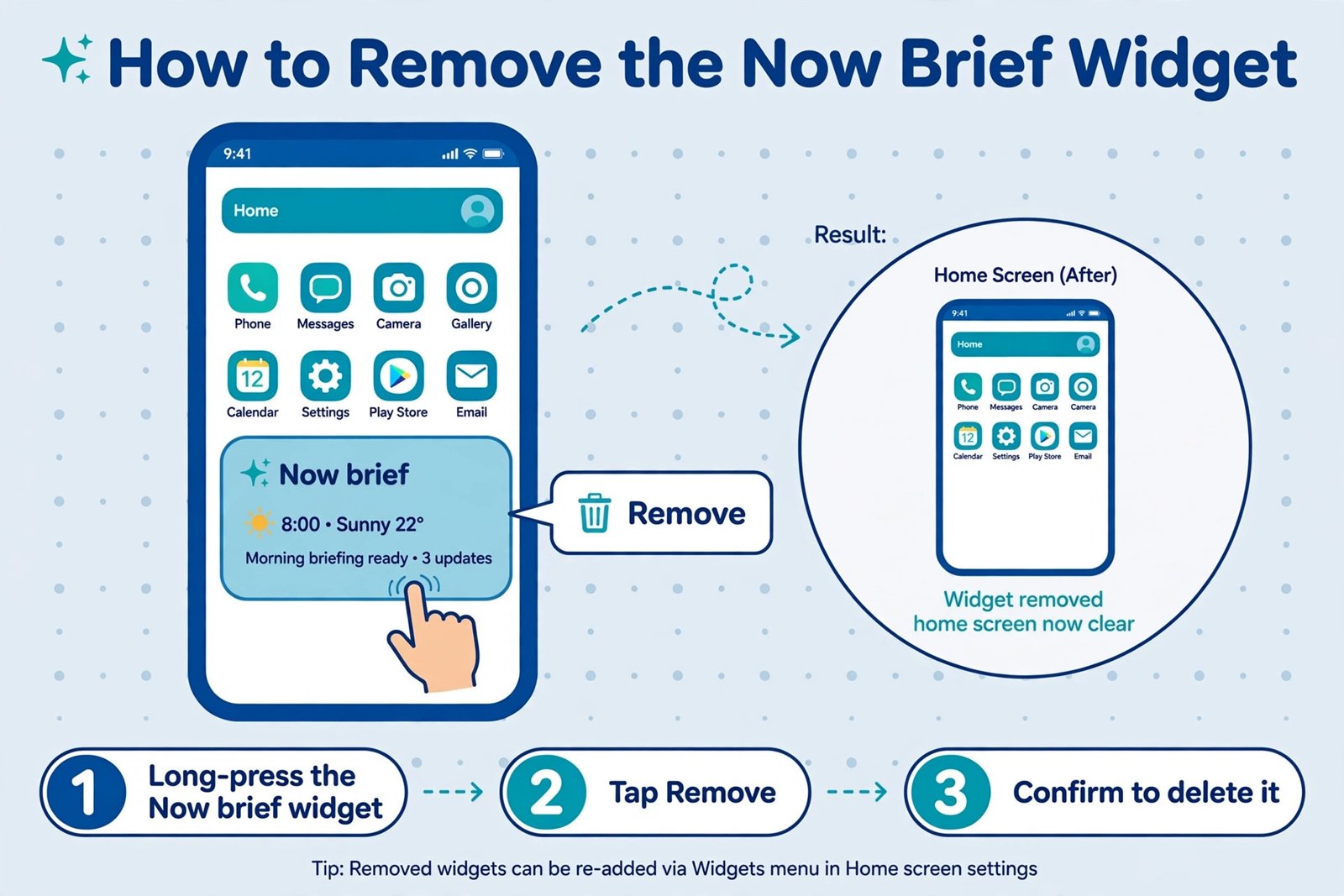
Turning the feature off and hiding it from the Now Bar leaves one possible surface: the home screen widget. Samsung Community users have confirmed that Now Brief can still be opened from a widget even after it is removed from the Now Bar. If you added one, or if your phone shipped with one, remove it like this:
- Long-press the Now brief widget on your home screen.
- Tap Remove (or Delete, depending on your model).
- Confirm if asked. The widget disappears; nothing else is affected.
That is the last of the three surfaces. With the Galaxy AI switch off, the Now Bar entry off, and the widget removed, Now Brief is effectively gone from your phone. If your lock screen still feels busy for other reasons, see how to turn off Notification Cooldown on Android, which covers another lock screen noise source.
What Turning It Off Actually Does
A few honest notes so you know exactly what you have changed:
- Turning it off stops the briefings, it does not uninstall anything. Now Brief is a system feature, so there is no app to delete. Switching it off in Galaxy AI > Now brief and hiding its surfaces is as “off” as it gets, and that is enough in practice.
- Your calendar, weather, and health data stay where they are. Turning off Now Brief only stops Samsung from assembling them into briefings. It does not delete or affect the underlying apps.
- You can bring it back in seconds. Revisit Settings > Galaxy AI > Now brief and switch it on again, then re-add the widget from the Widgets menu if you want it.
- Nothing about this voids a warranty or breaks the phone. These are ordinary user-facing settings, fully reversible.
Our Take
Now Brief is one of those features that reads well in a product launch and annoys in daily life. The most common complaint we have seen, echoed across Samsung’s own community forums, is placement: a briefing card that covers music controls or crowds the lock screen is worse than no briefing at all. If that is your experience, turn it off without guilt. A phone that stays quiet until you ask it something is the better default.
Who should keep it? If you live in your calendar and like glancing at weather and schedule together first thing, the quieted-down version, with fewer content categories and Audio brief off, is genuinely pleasant. Who should switch it off? Anyone privacy-conscious about routines being analysed, anyone who finds the lock screen card intrusive, and anyone who simply never opened a briefing on purpose. If you are on a broader quiet-all-the-AI mission, our guide on how to turn off Google AI Mode and AI Overviews covers Google’s side of the noise too.

- What Is Now Brief on Samsung Galaxy Phones and How to Turn It Off - October 20, 2026
- How to Turn Off Notification Cooldown on Android - October 19, 2026
- Best External SSDs for Backup in 2026 - October 18, 2026