
Backups are one of those things everyone means to get around to. If your photos, work documents, and family videos live on exactly one drive right now, an external SSD is the simplest fix. The good news is that you do not need to overthink speed here. For backups, the right drive is about capacity, reliability, and a sensible price, in that order.
Capacity First, Speed Second: The Buying Logic for Backups
Most buying guides rank external SSDs by speed. For backups, that is the wrong order. A backup job usually runs in the background, often overnight or while you work, so the difference between 1,000 and 2,000 MB/s barely registers. What matters is having enough room, buying from a manufacturer with a real track record, and turning on encryption so a lost drive does not become a privacy problem.
Timing matters too. Windows 10 reached end of support in October 2025, and the Windows 10 ESU extension program is carrying holdout PCs into 2026, which means a wave of migrations and fresh installs is ahead. The Windows 11 26H2 update is rolling out as well. Every major OS change is a moment when things go wrong, and a full backup made before you click install is the cheapest insurance you will ever buy.
The best backup drive is the one with enough space that you never have to think about it.
How Much Capacity Do You Need?
This is the question that decides the purchase. Buy too little and the backup software starts complaining within a year. Buy far too much and you paid for space you will not touch for a long time.

A simple sizing formula
Add up the three biggest piles of data most people have:
- Your photo and video library: check your phone and computer. Many people sit between 200GB and 1TB here, and it only grows.
- Documents, downloads, and projects: usually 50 to 200GB for a typical household or freelancer.
- The system itself: a Windows install with programs lands around 150 to 250GB, and you want the whole machine restorable, not just the files.
The total is the minimum drive size that holds one full backup.
The 2x rule for backups
One full backup is not a backup strategy. You want room for the original backup, the changes that pile up over time, and at least one older version to roll back to if a file gets corrupted or deleted. The practical rule: buy roughly twice the amount of data you need to protect. Protecting 1TB of stuff? Get a 2TB drive. Sitting on 2TB of photos and video? Get 4TB. Libraries grow every year, and a backup drive that fills up is a backup that quietly stops working.
The 5 Best External SSDs for Backup in 2026
These picks are organized by what they are for, not by a speed leaderboard. Every drive here comes from an established manufacturer that stands behind a five-year warranty, which is exactly what you want when the job is keeping your data safe.
| Use case | Pick | Rated speed | Capacities |
|---|---|---|---|
| Best overall | Samsung T9 | Up to 2,000 MB/s | 1TB, 2TB, 4TB |
| Best rugged | Samsung T7 Shield | Up to 1,050 MB/s | 1TB, 2TB, 4TB |
| Best value | Crucial X9 | Up to 1,050 MB/s | 1TB, 2TB, 4TB |
| Best for large photo and video libraries | Samsung T5 EVO | Up to 460 MB/s | 2TB, 4TB, 8TB |
| Compact travel pick | Sandisk Extreme Portable SSD (V3) | Up to 2,000 MB/s | 1TB to 4TB |
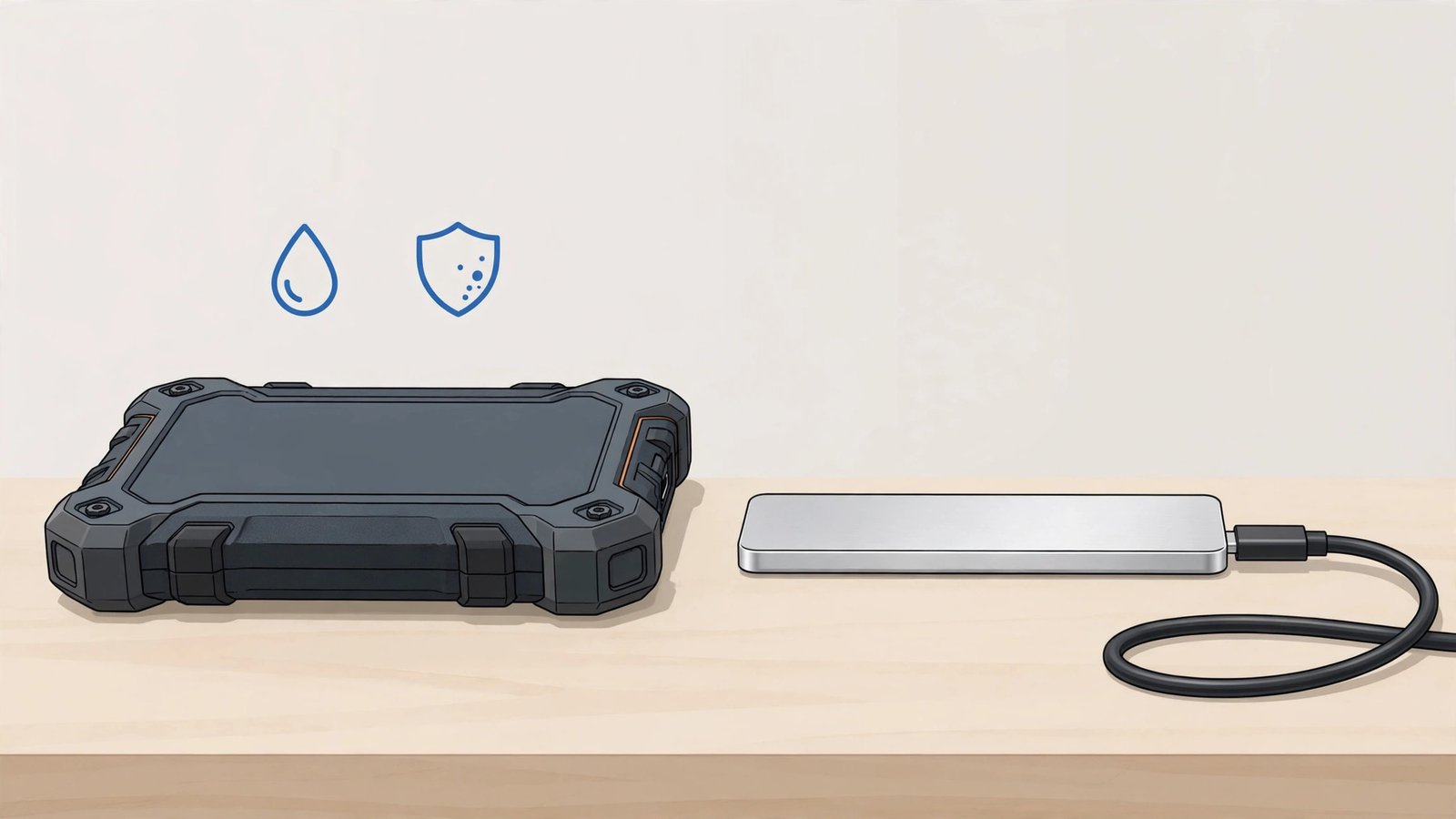
Best overall: Samsung T9
The T9 is the drive to buy if you want one external SSD and never want to think about it again. It moves data at up to 2,000 MB/s over USB 3.2 Gen 2×2, comes in 1TB, 2TB, and 4TB sizes, and includes AES 256-bit hardware encryption so a lost drive does not become a privacy disaster. Samsung rates it for drops of up to 3 meters, and it carries a five-year warranty. Samsung launched a faster USB4 P-series in September 2026, but for scheduled backups the T9 is the sweet spot of price, proven reliability, and speed you can actually use on most PCs.
Best rugged: Samsung T7 Shield
If your backup drive lives in a bag, a car, or a workshop, the T7 Shield is the safer bet. It trades some speed (up to 1,050 MB/s read and 1,000 MB/s write) for a rubberized shell with IP65 dust and water resistance and a 9.8-foot drop rating, as listed on Samsung’s official T7 Shield page. It uses standard USB 3.2 Gen 2, which means it reaches its full speed on far more computers than the faster drives that need a specific 20Gbps port. Available in 1TB, 2TB, and 4TB.
Best value: Crucial X9
For a straightforward backup drive at a lower price, the Crucial X9 covers the essentials: 1TB, 2TB, or 4TB of storage, up to 1,050 MB/s transfers over USB-C, and drop protection up to 7.5 feet. It is engineered by Micron, one of the handful of companies that actually makes the flash memory inside SSDs, which is reassuring when reliability is the point. It skips the hardware encryption of the pricier picks, so turn on BitLocker or your operating system’s encryption if the drive will leave the house.
Best for large photo and video libraries: Samsung T5 EVO
When the problem is sheer volume, the T5 EVO is the answer. It is the only mainstream portable SSD that goes up to 8TB, at a much lower cost per terabyte than the faster drives. The trade-off is speed: up to 460 MB/s over USB 3.2 Gen 1. For a scheduled overnight backup of a multi-terabyte photo archive, that is completely fine; you will never sit and watch it. If your library is outgrowing 4TB drives, this is the one.
Compact travel pick: Sandisk Extreme Portable SSD (V3)
Sandisk refreshed this line in early 2026, and the new V3 is a strong travel companion: up to 2,000 MB/s, 1TB to 4TB capacities, IP65 dust and water resistance, 3-meter drop protection, and 256-bit AES encryption, all in a drive that weighs under 50 grams. It is the drive for emptying a camera or phone of 4K video at the end of a trip without waiting on hotel Wi-Fi. Note the branding: the company now styles itself Sandisk, and this V3 replaces the older Extreme models, so make sure you are buying the current generation.
Backup Workflow Basics: The 3-2-1 Rule in Plain English
A drive is only half the backup. The other half is the habit. The 3-2-1 rule is the simplest framework that actually works:
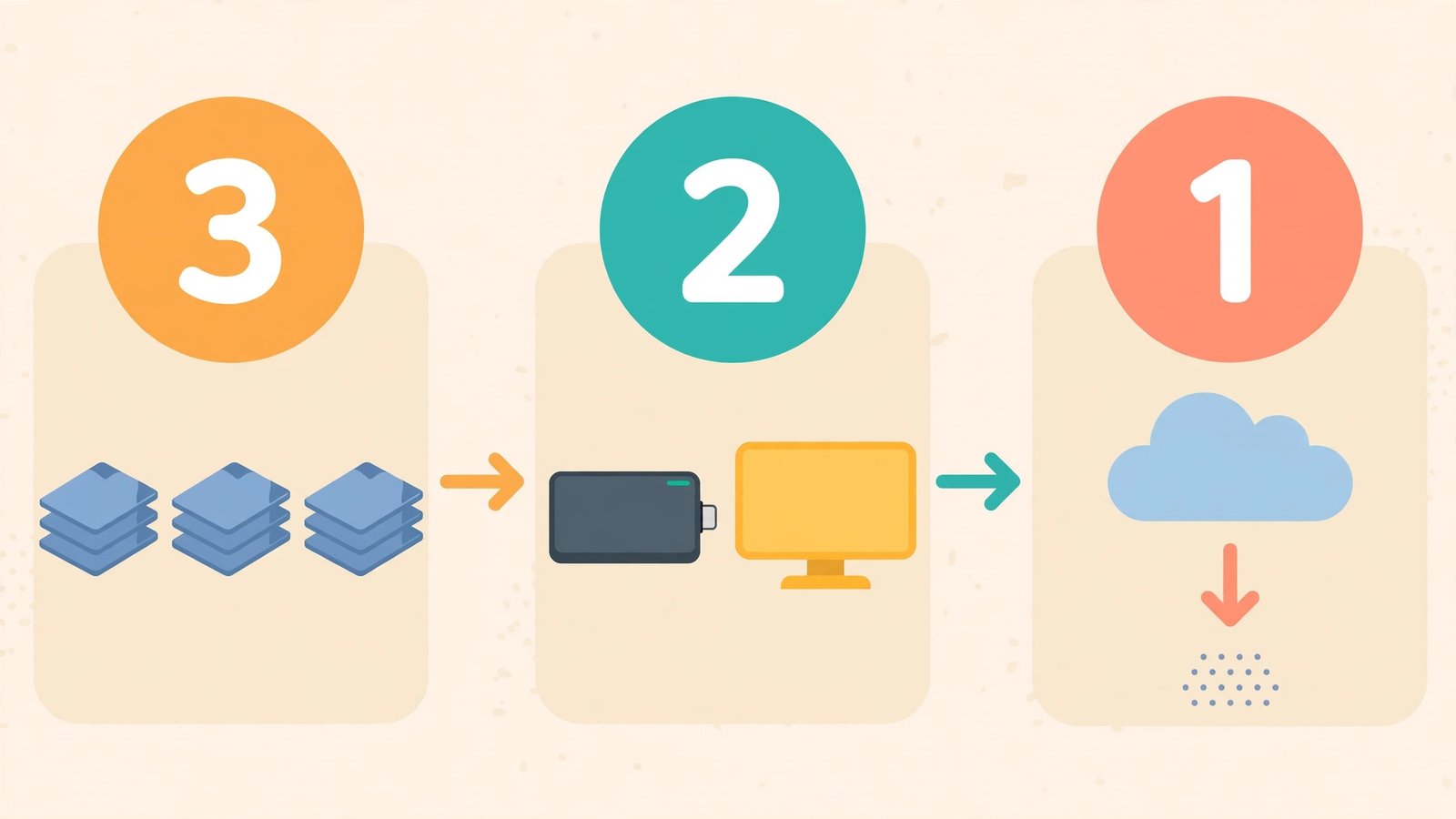
- 3 copies of anything important: the original on your computer, plus two backups.
- 2 different kinds of storage: your external SSD plus a second place, like another drive or cloud storage.
- 1 copy offsite: cloud storage, or a second drive kept at a different address. Fire and theft do not care about your desk drawer.
Make it automatic
Manual backups fail because people forget. On Windows, turn on File History for continuous copies of your files, or use the built-in Windows Backup to keep a system image plus cloud sync. Point it at the SSD, plug the drive in on a schedule (weekly at minimum), and let it run. Once a quarter, spot-check that you can actually open a file from the backup. A backup you have never tested is a hope, not a plan.
First-use tip: most portable SSDs arrive formatted as exFAT, which works on both Windows and Mac out of the box. If you only use Windows, NTFS is fine too. On a Mac, if the drive does not appear when you plug it in, the fix is usually simple.
What to Avoid When Buying a Backup SSD
- Fake-capacity drives: if a marketplace listing offers a “2TB” drive from a brand you have never heard of for the price of a pizza, it is a small drive doctored to lie about its size. Your files will corrupt once you pass the real capacity. Buy from the manufacturer or a reputable retailer.
- Too-cheap no-name sticks: a backup is the worst place to gamble on quality. Stick with makers that build the flash themselves or have long track records: Samsung, Sandisk, Crucial (Micron), and WD.
- One drive as the only copy: an SSD in your bag is one drop, one theft, or one failure away from nothing. That is storage, not backup. See the 3-2-1 rule above.
- Skipping encryption: an unencrypted backup drive holds your entire digital life. Turn on the drive’s hardware encryption or BitLocker from day one.
- Paying for speed your computer cannot use: a 20Gbps or USB4 drive plugged into a basic USB-C port runs far below its rating. Match the drive to your ports, and put the savings toward more capacity.
FAQ
Is an external SSD better than an external hard drive for backups?
For most people, yes. SSDs have no moving parts, survive drops far better, and finish backups much faster. Hard drives still win on cost per terabyte for very large archives, but for the 1 to 4TB most backups need, an SSD is the better tool.
How long do SSDs last as backup drives?
A quality SSD from a major brand is built for years of normal use and carries a five-year warranty. One caveat: SSDs left unpowered for a year or more can slowly lose data, so plug in archival drives every few months, or keep truly long-term archives on a hard drive or in the cloud too.
Should I leave the backup SSD plugged in all the time?
For a desktop that runs scheduled backups, yes, that is fine. For a laptop, plugging in weekly and letting the backup run is enough. Either way, remember the offsite copy: ransomware and power surges can reach a drive that is always connected.
Do I need to encrypt my backup drive?
Yes. A backup holds everything: photos, documents, tax files. Use the drive’s built-in hardware encryption where available, or BitLocker on Windows. It costs nothing and protects everything if the drive is lost or stolen.
The Short Version
Buy twice the capacity you think you need, from a brand with a track record, and set the backup to run on its own. The Samsung T9 is the best all-around choice for most people, the T7 Shield is the one for rough treatment, and the T5 EVO is how you back up a truly large library without overspending. Then follow the 3-2-1 rule and stop worrying.

- Best External SSDs for Backup in 2026 - October 18, 2026
- What Is Google Gemini Agent? What It Does and Who Gets It - October 17, 2026
- What Happened to ChatGPT Atlas? And What to Use Instead in 2026 - October 16, 2026