
Key facts
- Private Space has no “Forgot PIN” recovery. Google states that if you forget the unlock factor, you cannot access the space.
- The only supported reset path: delete the space via Settings > System > Reset options > Delete private space with your device PIN, then set it up again.
- Deletion wipes everything inside; device backups exclude Private Space. Only cloud-synced data survives.
- First confirm which feature you are locked out of. Private Space, Samsung Secure Folder, and work profiles each have different recovery paths.
Forgot the PIN for Android’s Private Space? There is no way to recover the lock: the official answer is to delete the space and create it again. This guide explains how to confirm you are locked out of Private Space and not a lookalike feature, the exact delete-and-recreate steps, what happens to your data, and how to never get locked out again.
Private Space, Secure Folder, and Work Profile Are Three Different Things
Mixing them up means following the wrong recovery path. Here is how they differ.
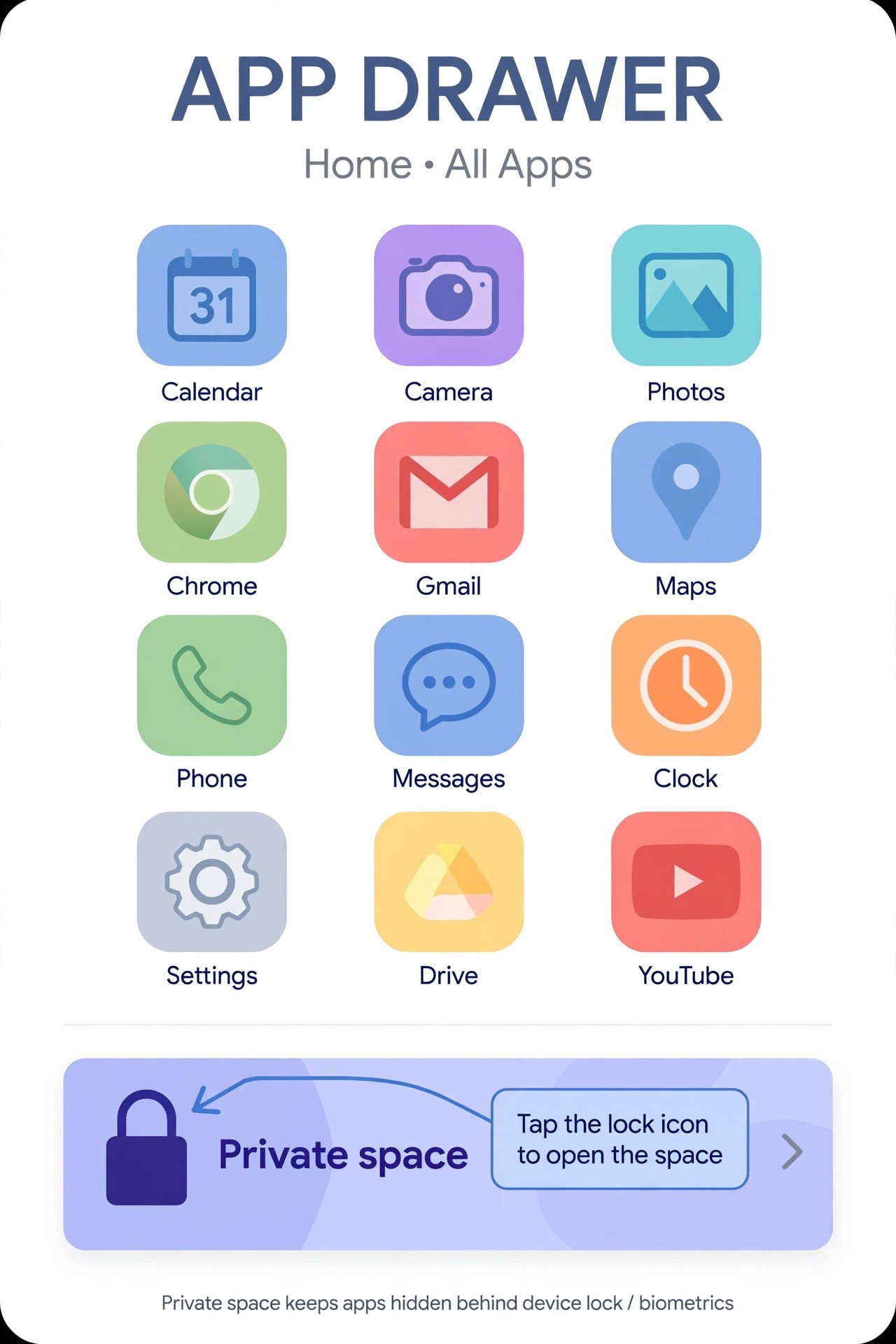
Private Space is the built-in Android feature, available on any phone running Android 15 or later, including Pixel, Samsung, OnePlus, and Xiaomi devices. It creates a separate, sealed-off profile on your phone that lives at the bottom of your app drawer, hidden behind its own lock. Apps inside it stop running entirely when the space is locked, and their notifications never appear.
Samsung Secure Folder is Samsung’s own, older version of the same idea, available only on Galaxy phones and protected by Samsung Knox. Unlike Private Space, it offers account-based recovery: if “Reset with Samsung account” was enabled at setup, a wrong PIN shows a Forgot option that resets the lock via your Samsung account. Without that option, you uninstall and recreate it, losing the data. On newer Samsung phones running One UI 8 (Android 16), Samsung is rebuilding Secure Folder on top of Android’s Private Space tech, so the lines are blurring on the newest Galaxy devices.
A work profile is not a privacy feature at all. It is a managed area set up by your employer through a work account or device-management app, marked with a briefcase badge on work apps. If your lockout is in a work profile, your IT admin owns the policies and the recovery path, not you.
| Feature | Available on | Locked out? Recovery path | Where it lives |
|---|---|---|---|
| Private Space | Any phone on Android 15 or later | No recovery; delete and recreate the space | Bottom of the app drawer; can be fully hidden |
| Samsung Secure Folder | Samsung Galaxy only | Samsung account reset if enabled; otherwise uninstall and recreate | Secure Folder app on the Apps screen |
| Work profile | Any Android phone, set up by an employer | Contact your IT admin | Apps marked with a briefcase badge |
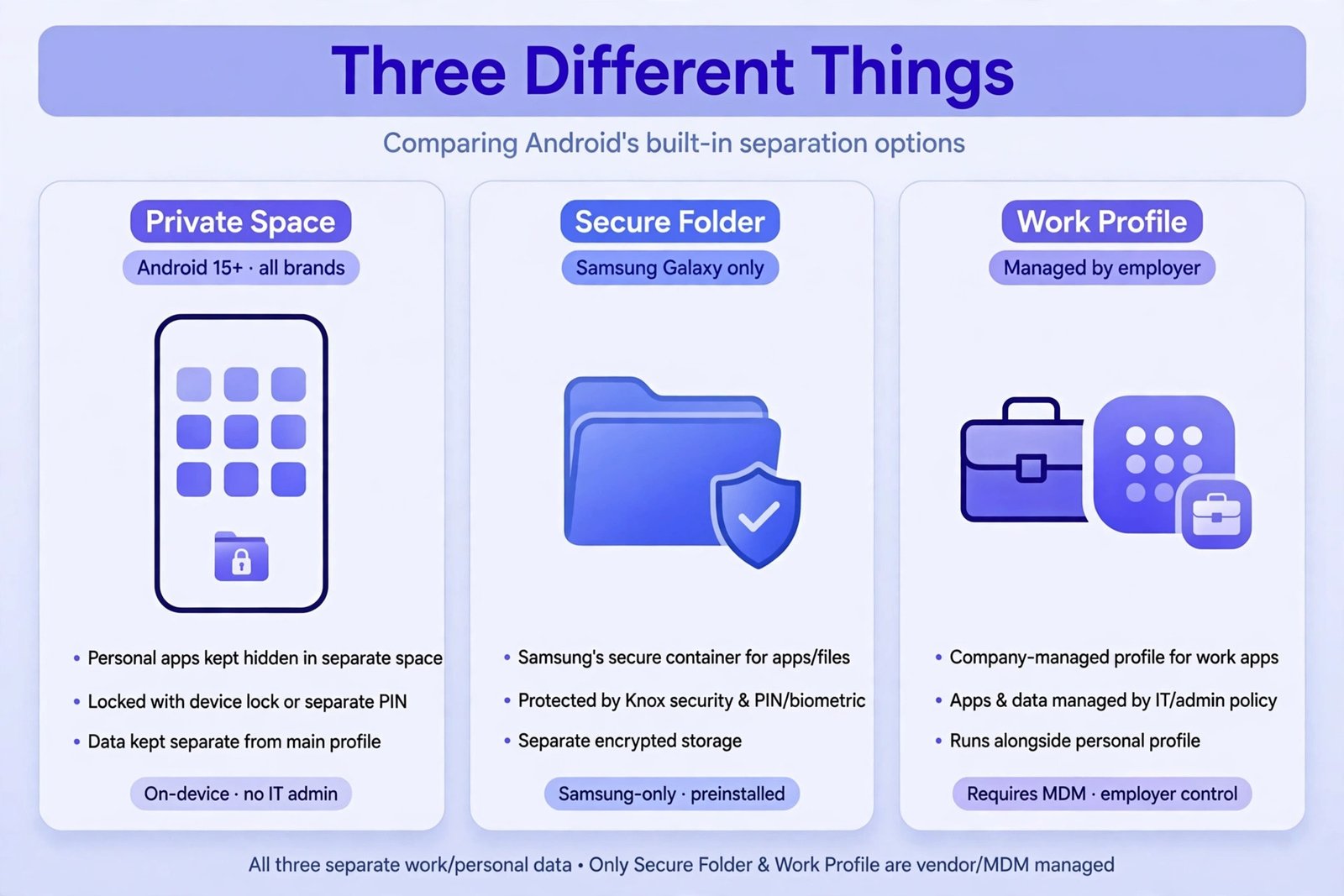
Quick tip: if you are on a Samsung phone and the thing asking for a PIN is the Secure Folder app rather than the container at the bottom of your app drawer, follow Samsung’s official Secure Folder recovery instead. The rest of this guide covers only Android’s built-in Private Space.
Before You Delete Anything: Two Quick Checks
Two situations feel like a forgotten PIN but are not. Check both first.
1. Did you pick “Use device screen lock” at setup?
When you first set up Private Space, Android offered two choices: Use device screen lock or Choose new lock. If you picked the first option, there is no separate Private Space PIN to forget. The space opens with the same PIN, pattern, or password you use to unlock your phone. Try your normal phone lock before doing anything else.
2. Is a fingerprint enrolled for the space?
If you added your fingerprint as an unlock method during setup, use it to open the space now, even if the PIN has slipped your mind. Once inside, open the Private Space settings and change the lock to something you will remember.
Quick tip: some third-party guides describe a hidden “Google account verification” trick for the Private Space lock. Google’s official help page documents no such option, so do not count on it. The supported path below is the reliable one.
The Only Official Reset Path: Delete the Space and Set It Up Again
Google gives exactly one answer for a forgotten Private Space lock: delete the space and recreate it. Two delete paths exist, but only one works when the lock is lost, because the other asks for the lock you forgot.
Delete Private Space using your device PIN (the one that works)
- Open Settings.
- Tap System, then Reset options.
- Tap Delete private space. The entry shows even if you never created a space, so it reveals nothing to anyone browsing your settings.
- Enter your device PIN when asked, then tap Delete to confirm.
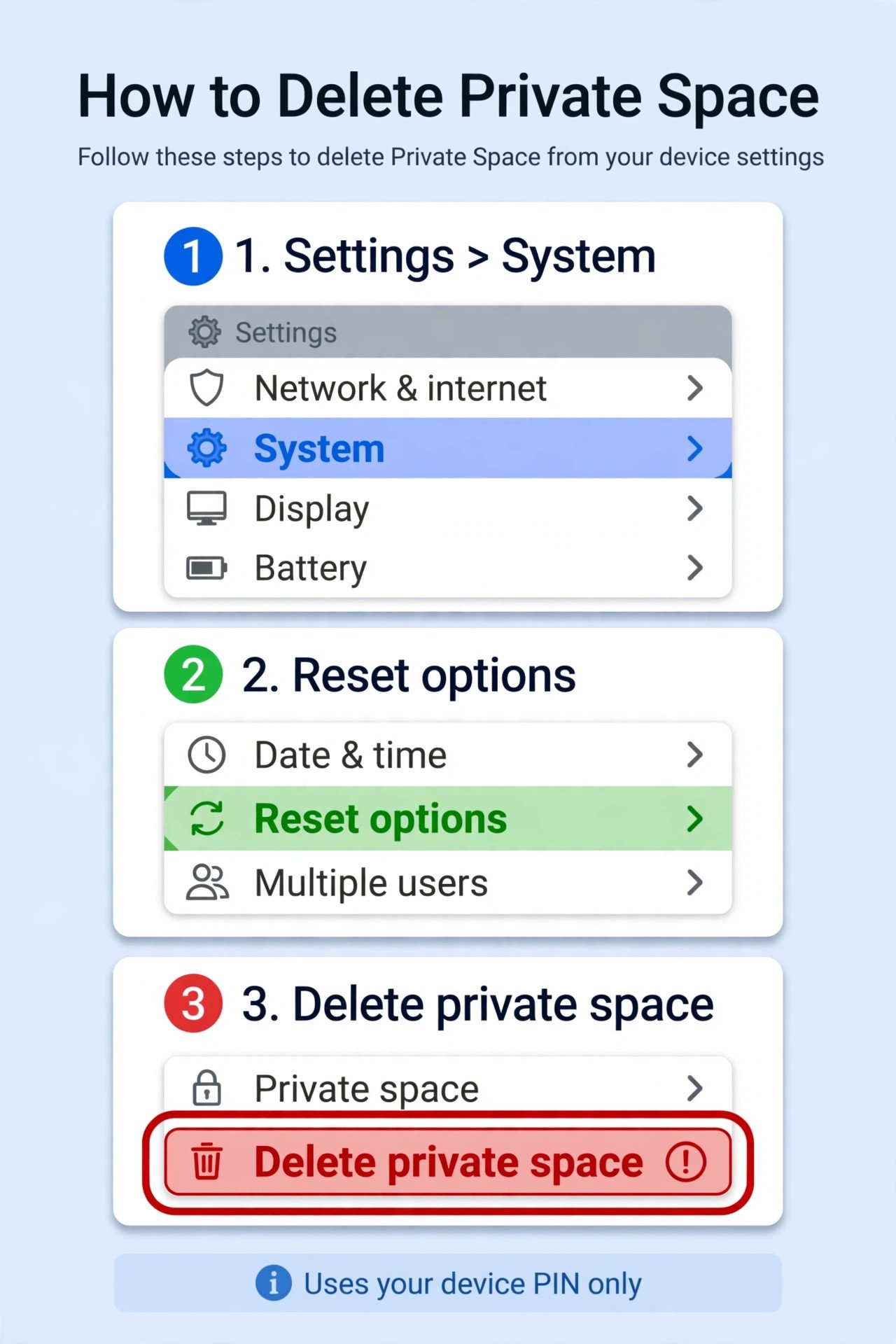
For completeness: deleting from the Private Space settings screen itself (Settings > Security & privacy > Private space > Delete private space) requires you to authenticate with the private space lock first, so it does not help here. Google’s official Private Space help page confirms the system-settings route is the one to use when you forget the lock.
Set up Private Space again
- Open Settings, tap Security & privacy, then Private space under Privacy. You may need to authenticate with your device screen lock to enter this menu.
- Tap Set up, then Got it.
- Optionally sign in to a Google Account. Google recommends a dedicated account so private data does not leak into your main profile.
- Choose your lock: Use device screen lock to avoid a second PIN entirely, or Choose new lock for a separate PIN, pattern, or password. Add your fingerprint either way.
- Tap Done. Your fresh, empty Private Space now appears at the bottom of the app drawer.
Quick tip: “Use device screen lock” means one fewer lock to forget, at the cost that anyone who can unlock your phone can also open your space. If you pick a separate lock, write it down the moment you create it.
What Happens to Your Data When You Reset Private Space
Deleting Private Space deletes every app and file inside it, with no backup. Google states that on-device data for Private Space is not backed up, and restoring your phone from a device backup will not bring Private Space back.
What survives depends on where your data lives:
- Apps that sync to the cloud (email, messaging, banking, cloud photo services): reinstall them in the new space and sign in again. Your data comes back from the service.
- Photos, files, or downloads stored only inside the space: gone, unless you previously copied or moved them out to your main storage.
- App data for apps that do not sync: gone with the space.
If your fingerprint still opens the space, move anything important out first: copy files back to your main storage or let cloud sync finish before you change or reset the lock. Once you tap Delete, there is no undo.
How to Avoid Getting Locked Out Again
- Enroll your fingerprint. It is the fastest unlock and your escape hatch if the PIN slips your mind.
- Consider using your device screen lock for the space. One lock to remember instead of two is genuinely the most practical choice for most people.
- If you insist on a separate lock, write it down. A PIN in a password manager beats a locked vault every time.
- Remember the space does not back up. Keep copies of anything irreplaceable outside the space, or make sure the apps inside it sync to the cloud.
- Do not rely on hiding the space as a substitute for the lock. Hiding only removes the container from the app drawer when locked; the lock is still what protects the contents.
Our Take: The Honest Verdict on Private Space Lock Recovery
Here is the honest summary, because this is the point most search results dance around: there is no recovery for a forgotten Private Space lock. Google designed the space so that even Google cannot open it for you, and the only supported move is the delete-and-recreate path in Settings, System, Reset options. If your data inside the space exists nowhere else, it is unrecoverable. That is the tradeoff of a genuinely sealed vault, and it is working as designed.
The right move depends on your situation. If your fingerprint still works, get in now, rescue your files, and reset the lock while you are inside. If you are fully locked out and the contents were synced to the cloud, delete the space and rebuild it in a few minutes. If the contents were not synced anywhere, accept the loss, rebuild, and set up sync this time so it never happens again. And if your lockout is actually Samsung Secure Folder, you have one more card to play: the Samsung account reset, which Private Space deliberately does not offer. Choose the path that matches your actual feature, protect the next space with a fingerprint, and the problem stays solved.

- How to Reset Your Private Space PIN on Android If You Forgot It - October 22, 2026
- How to Turn Off Hot Corners on a Mac - October 21, 2026
- How to Stop AirPods From Automatically Switching Between iPhone and Mac - October 20, 2026