
Key takeaways
- A clock that is off by whole hours almost always means the time zone is wrong, not the time itself. Check the zone first, before touching anything else.
- When the clock keeps changing or refuses to sync, the usual culprits are the Sync now button, the Windows Time service, and the internet time server.
- If a desktop PC resets its clock every time it is unplugged, the motherboard’s CMOS battery is the likely cause. No Windows setting can fix that.
A wrong clock on Windows 11 is more than an annoyance. Websites can throw certificate errors, sign-ins can fail, and your files can get the wrong timestamps. The six fixes below are ordered by how likely each one is to solve the problem, so start at the top and stop as soon as the taskbar clock shows the right time.
Start with the quick checks
A few basics are worth ruling out before you change settings, since each one takes less than a minute.
- Restart the PC. A plain restart clears temporary states nothing else can, and Windows re-syncs the clock at startup.
- Make sure the PC is online. Automatic time comes from the internet, so no connection means no sync. Open a web page to confirm you are connected.
- Confirm Set time automatically is on. Right-click the taskbar clock, choose Adjust date and time, and check that Set time automatically is turned on.
Fix 1: Check the time zone and the automatic settings
When this works: the minutes look right but the hour is off, by one hour or by several. That pattern means Windows is showing the right moment in the wrong zone.
- Right-click the taskbar clock and choose Adjust date and time to open Time & language > Date & time in Settings.
- Make sure Set time automatically is turned on.
- Look at the Time zone row. If the zone is wrong, turn off Set time zone automatically, then pick your zone from the Time zone dropdown; the clock updates immediately. Microsoft’s own walkthrough of these date, time, and time zone settings covers the same page and its daylight saving controls.
- If Windows keeps picking the wrong zone automatically, check that location is on at Settings > Privacy & security > Location, since Windows uses your location to pick the zone.
- If you set the zone manually, make sure Adjust for daylight saving time automatically is on, or the clock will be an hour off for part of the year.
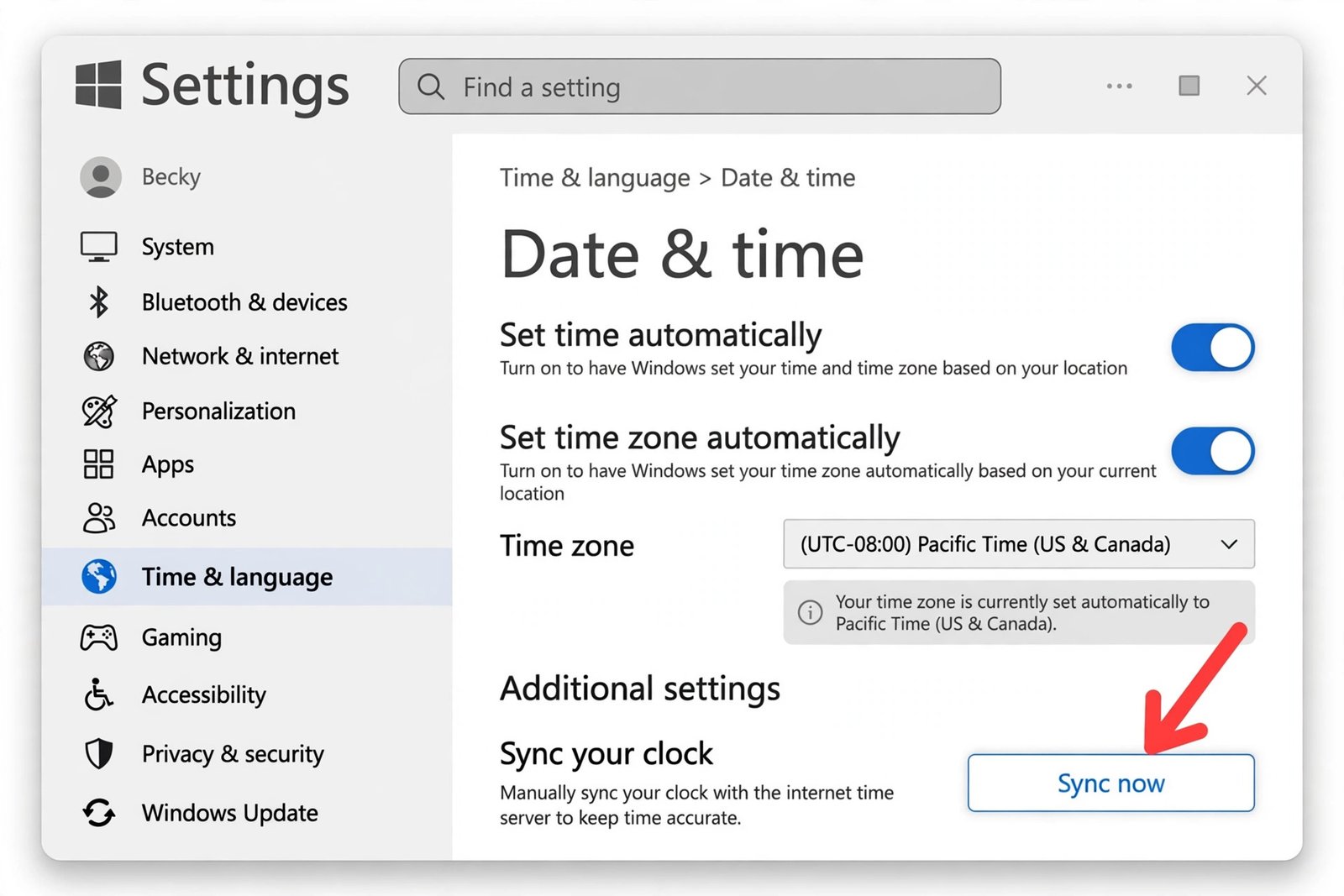
You should now see: the taskbar clock shows the correct local time, and the zone next to Time zone matches where you are.
Fix 2: Force a sync with the Sync now button
When this works: the zone is right but the minutes are drifting, or the clock keeps changing on its own. Windows syncs on a schedule in the background, and one manual sync can pull it back in line.
- Right-click the taskbar clock and choose Adjust date and time.
- Scroll down to Additional settings and click Sync now.
- Wait a few seconds while Windows contacts the configured time server. The page notes when the last sync succeeded.
- If the sync fails, confirm the PC is online and try once more; if it keeps failing, move on to Fix 4 and switch the time server.
You should now see: the correct time on the taskbar, with the clock staying put.
Fix 3: Restart the Windows Time service
When this works: Sync now does nothing or errors out, or the clock drifts again right after a successful sync. The Windows Time service, called w32time, runs the background syncing. If it is stuck or disabled, nothing in Settings will stick.
- Press Windows key + R, type services.msc, and press Enter.
- Scroll the list to find Windows Time.
- Right-click it and choose Restart.
- If Restart is grayed out, the service is stopped: right-click it, choose Properties, set Startup type to Automatic, click Start, then OK. Microsoft’s Windows Time Service reference documents the service’s commands if you ever need to script the fix.
- Close the Services window and press Sync now once more, as in Fix 2.
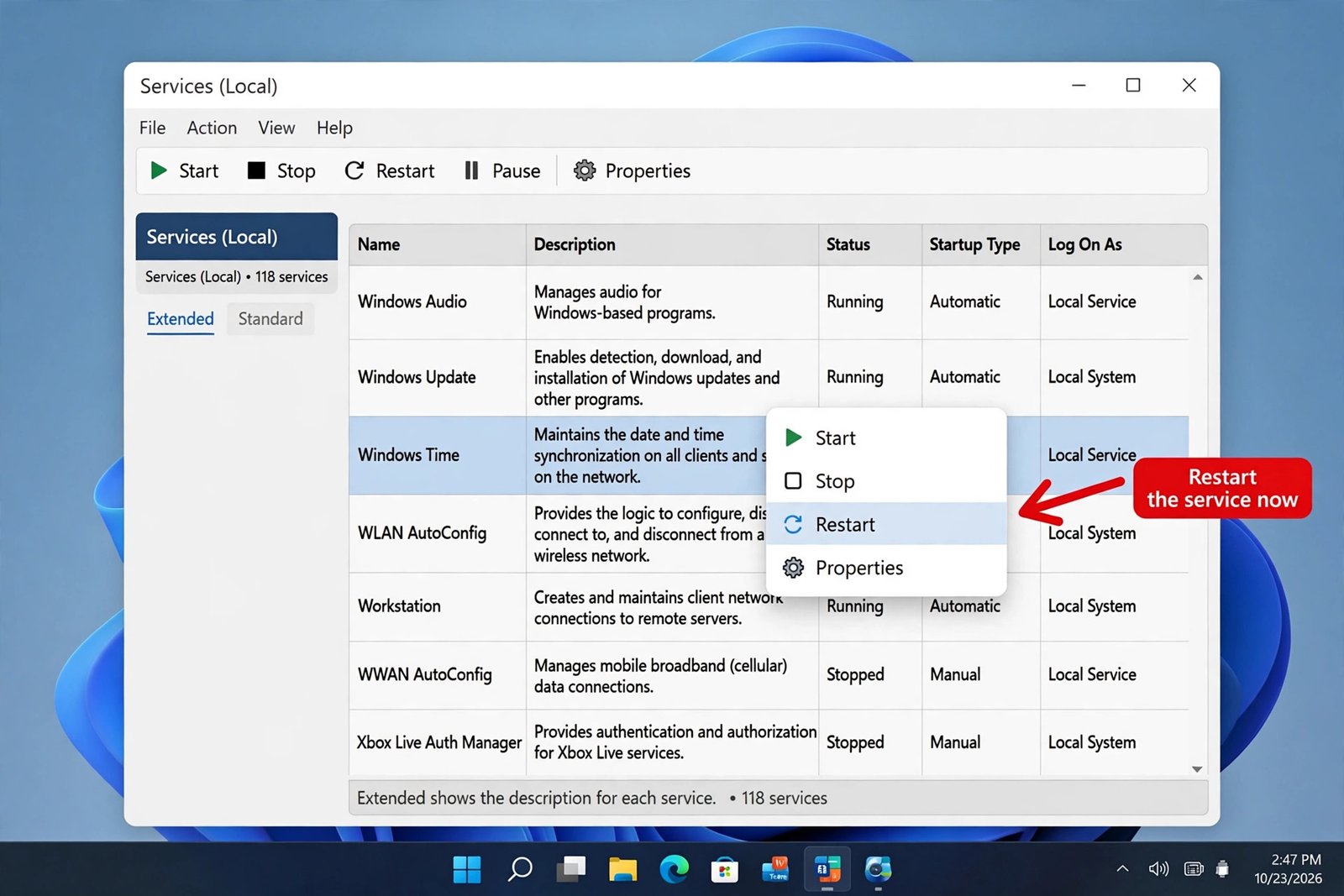
You should now see: the service running with a Startup type of Automatic, and Sync now completing without errors.
Fix 4: Switch to a different internet time server
When this works: syncing still fails after restarting the service, or the error says the time server is unreachable. Windows uses time.windows.com by default, and another server can fix a stubborn sync when the default is not responding.
- Press Windows key + R, type timedate.cpl, and press Enter to open the classic Date and Time dialog.
- Go to the Internet Time tab and click Change settings. Approve the admin prompt if it appears.
- Make sure Synchronize with an Internet time server is checked.
- In the Server box, pick or type an alternative, such as time.nist.gov or pool.ntp.org. The default is time.windows.com.
- Click Update now, wait for the success message, then click OK.
- On some work PCs the Internet Time tab is missing because the organization sets the clock itself; do not change the server there without asking your IT department first.
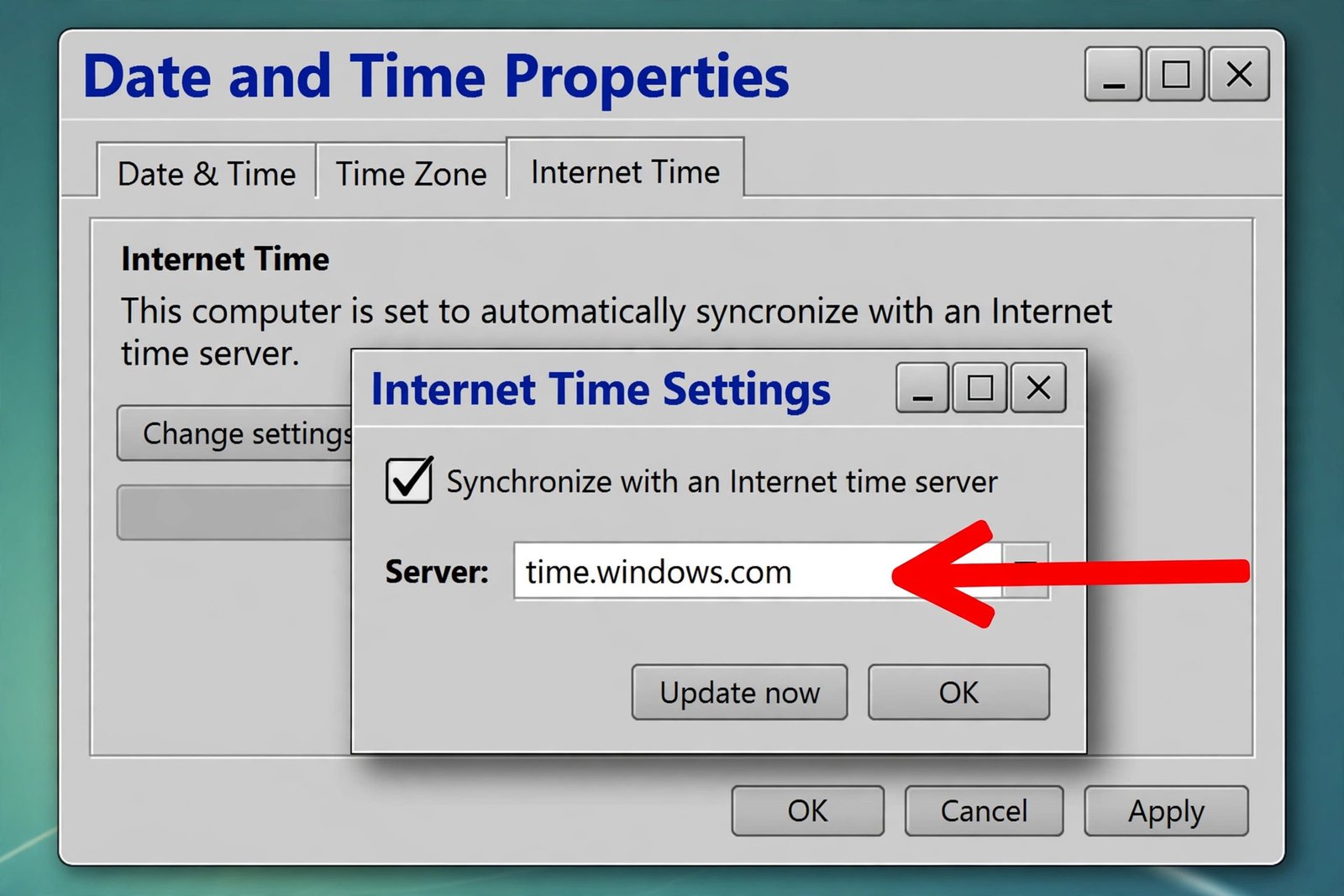
You should now see: a success message saying the clock was synchronized, and the correct time on the taskbar.
Fix 5: Fix the time clash on a Windows and Linux dual-boot PC
When this works: the clock is wrong only in Windows after you have booted Linux, or the other way round, usually off by a few hours. Windows reads the motherboard’s hardware clock as local time while Linux reads it as UTC, so each one shifts the time the other set.
- Press Windows key + R, type regedit, and press Enter, then approve the admin prompt.
- Navigate to HKEY_LOCAL_MACHINE\SYSTEM\CurrentControlSet\Control\TimeZoneInformation.
- Right-click in the right pane, choose New, then DWORD (32-bit) Value, and name it RealTimeIsUniversal.
- Double-click the new value, set it to 1, and click OK.
- Close the Registry Editor and restart. Windows now treats the hardware clock as UTC, matching Linux, and both systems agree.
Warning: follow the path above exactly. Editing the wrong registry keys can cause serious problems, so change nothing else in the Registry Editor.
You should now see: the same correct time in both Windows and Linux, with no jumping when switching between them.
Fix 6: Check the CMOS battery if a desktop loses time when unplugged
When this works: the clock resets after a full shutdown or unplugging the power cable, often back to a default date years in the past. You may also lose BIOS settings between sessions or see a CMOS checksum error or CMOS battery low message at startup. This is a hardware problem: a small coin-cell battery on the motherboard, almost always a CR2032, keeps the hardware clock running when the power is off. When it dies, the clock stops with it, and no Windows setting can fix that.
Test it before opening the case: shut the PC down completely, pull the power cable, wait 10 to 15 minutes, plug it back in, and power on. If the time reset or BIOS settings were lost, the battery needs replacing.
- Shut down the PC, unplug it, and ground yourself by touching the metal case before touching any components.
- Open the side panel and find the round silver battery holder on the motherboard.
- Press the small clip to pop out the old battery, then insert the new CR2032 with the printed side facing up.
- Reassemble and boot. Enter the BIOS setup, usually by pressing Delete or F2, and set the correct date and time there, not just in Windows. Restart once more and check whether the time held.
This mostly affects desktops. Laptops keep time from their main battery, so a laptop that loses time only when fully drained is a rarer, separate case.
You should now see: the clock holding the correct time across full shutdowns and unplugged restarts.
Match your symptom to the fix
| What you notice | Most likely fix |
|---|---|
| Off by whole hours, minutes look correct | Fix 1: Check the time zone |
| Clock drifts or keeps changing on its own | Fix 2: Sync now, or Fix 3: Restart the Windows Time service |
| Sync fails or the time server is unreachable | Fix 4: Switch to a different time server |
| Wrong only in Windows after booting Linux | Fix 5: Fix the dual-boot time clash |
| Clock resets after unplugging a desktop PC | Fix 6: Check the CMOS battery |
Most wrong-clock problems on Windows 11 end at the first two fixes: the zone was off, or the clock just needed one manual sync. If you had to go deeper, the table above tells you which fix matched your symptom. The one case you should not chase with settings is the dead battery: a CR2032 coin cell costs little and the swap takes minutes.

- How to Fix Windows 11 Clock Showing the Wrong Time - October 23, 2026
- How to Fix File Explorer Slow to Open in Windows 11 - October 22, 2026
- How to Fix a Printer Showing Offline in Windows 11 - October 21, 2026