
Dynamic Lighting is Windows 11’s built-in way to control RGB lights on keyboards, mice, and case lighting from one place in Settings. It is handy if you want one app for every brand, and unwelcome if you prefer your gear’s own software, or no light show at all. Turning it off takes about thirty seconds. The catch is that switching it off does not always switch the lights off, because something else may still be driving them. This guide covers the switch first, then the follow-through that actually gets you a dark keyboard.
Turn off Dynamic Lighting
- Press Win + I to open Settings.
- Click Personalization in the left-hand menu.
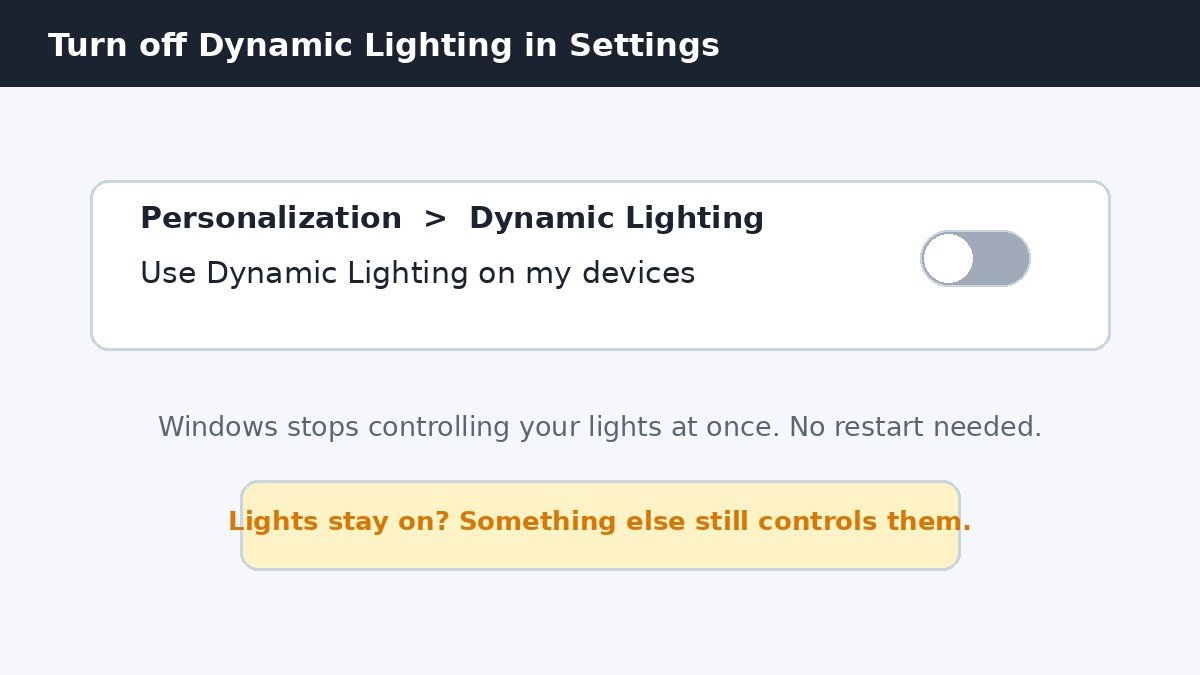
- Click Dynamic Lighting. If you do not see this tile, your Windows build is probably too old: run Windows Update, restart, and check again. Dynamic Lighting needs a recent Windows 11 build.
- Switch off Use Dynamic Lighting on my devices. The change takes effect at once, with no restart.
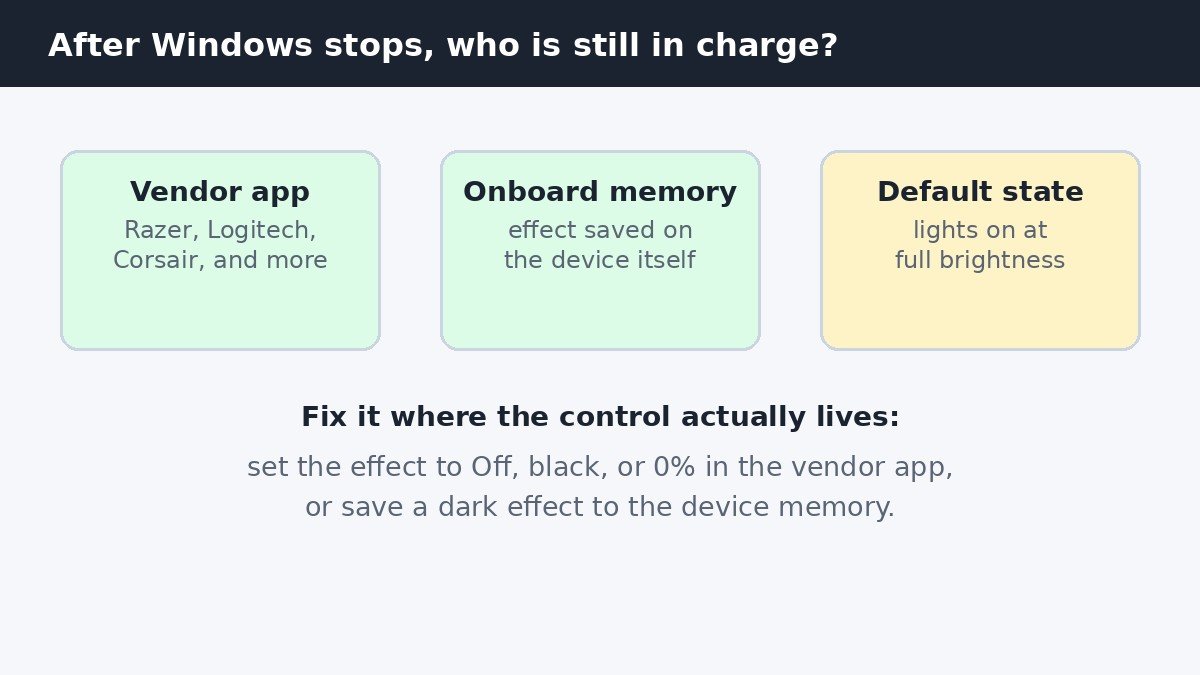
With the switch off, Windows stops sending lighting commands. Your devices fall back to whatever they, or their own software, would do without Windows in charge. That fallback is where most people’s confusion starts.
What happens to your lights after you switch it off
Turning off Dynamic Lighting is not the same as turning off the lights. Windows hands control back, and the result depends on what takes over. Use this table to read your own setup.
| What you see after switching off | What is controlling the lights | What to do |
|---|---|---|
| Lights return to your old effect | The vendor app, such as Razer Synapse or Logitech G Hub | Nothing, unless you also want that effect gone |
| Lights stay on a fixed color or pattern | An effect saved in the device’s own memory | Open the vendor app and save a dark effect to the device |
| Lights stay at full brightness, unchanged | The device’s default state with no app running | Set the effect to Off, black, or 0% brightness in the vendor app |
| Lights go dark | Nothing is driving them | Done, this is the result you wanted |
If the lights stay on, check the vendor app
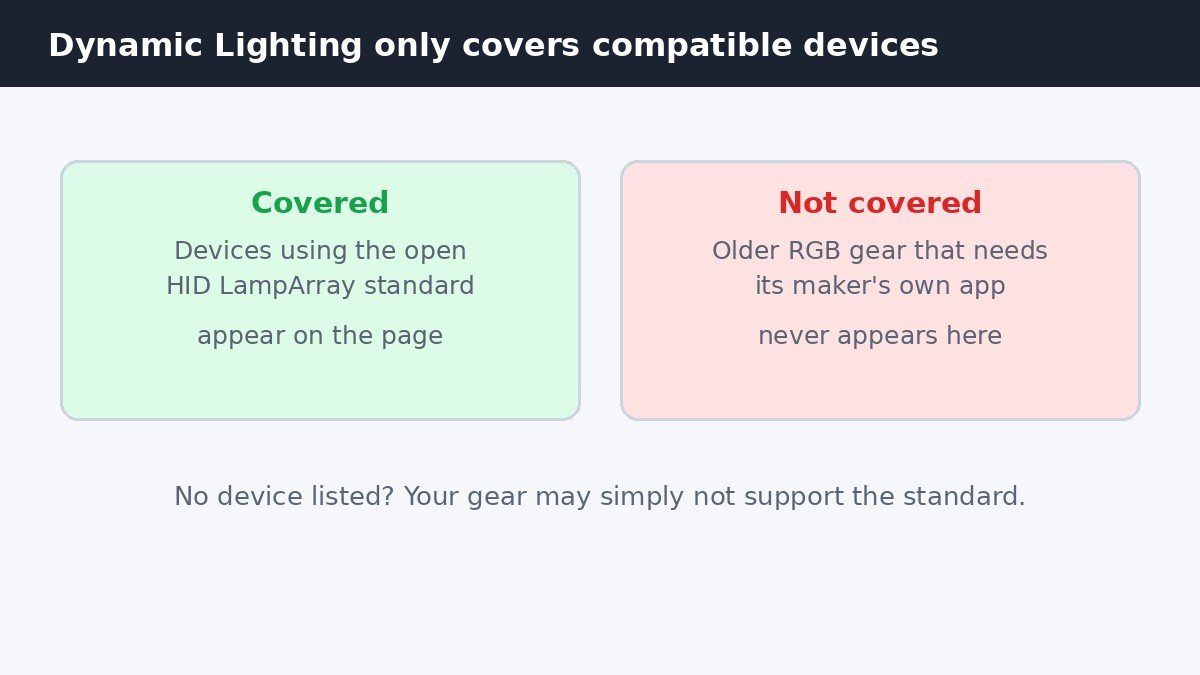
This is the step most guides skip, and it is the one that actually finishes the job. Dynamic Lighting only covers devices that support the open HID LampArray standard. Older RGB gear never appears on the Dynamic Lighting page at all, and it answers only to its maker’s software. Even for compatible devices, the vendor app can keep running its own effect in the background once Windows steps aside. Open the app for your keyboard or mouse, find its lighting or effects section, and set the effect to Off. If there is no plain Off option, choose a solid black color, or drag brightness to 0%. If your device has onboard memory, save that dark effect to the device so it survives restarts and works even when the app is closed.
Which devices Dynamic Lighting can control at all
Before you spend time troubleshooting, check whether your gear is even in scope. Compatible devices show up as cards at the top of the Dynamic Lighting page, and you can also switch individual devices on or off from those cards. If the page is empty, or your keyboard is missing from it, the device almost certainly does not support the HID LampArray standard, and the vendor app is the only control you have. That is normal for older RGB hardware, and no Windows setting will change it. When no compatible device is attached, recent Windows builds show a placeholder message on the page and grey out the brightness and effects controls.
Registry fallback for advanced users
If the Settings switch does not hold, for example on a PC where the setting keeps reverting, the same preference lives in the registry. This is optional, and only for people comfortable editing the registry. Back up the key or set a restore point first.
- Press Win + R, type regedit, and press Enter.
- Go to HKEY_CURRENT_USER\Software\Microsoft\Lighting. If the Lighting key does not exist, create it under Microsoft.
- Double-click AmbientLightingEnabled, or create it as a DWORD (32-bit) value if it is missing.
- Set the value data to 0 to disable Dynamic Lighting, then click OK.
- Restart your PC to apply the change. A full restart, not just a shutdown, is the reliable way to apply it.
The honest summary is this: the Settings switch is the whole job when your gear is fully Windows-managed, and only the first step when it is not. If the lights are still glowing after you switch Dynamic Lighting off, the answer is sitting in the vendor app or the device’s own memory, not in another Windows menu.

- How to Turn Off Dynamic Lighting in Windows 11 - November 2, 2026
- How to Turn Off the Mac Startup Sound (Startup Chime) - November 1, 2026
- How to Turn Off Edge Panels on Your Samsung Galaxy Phone - October 31, 2026