
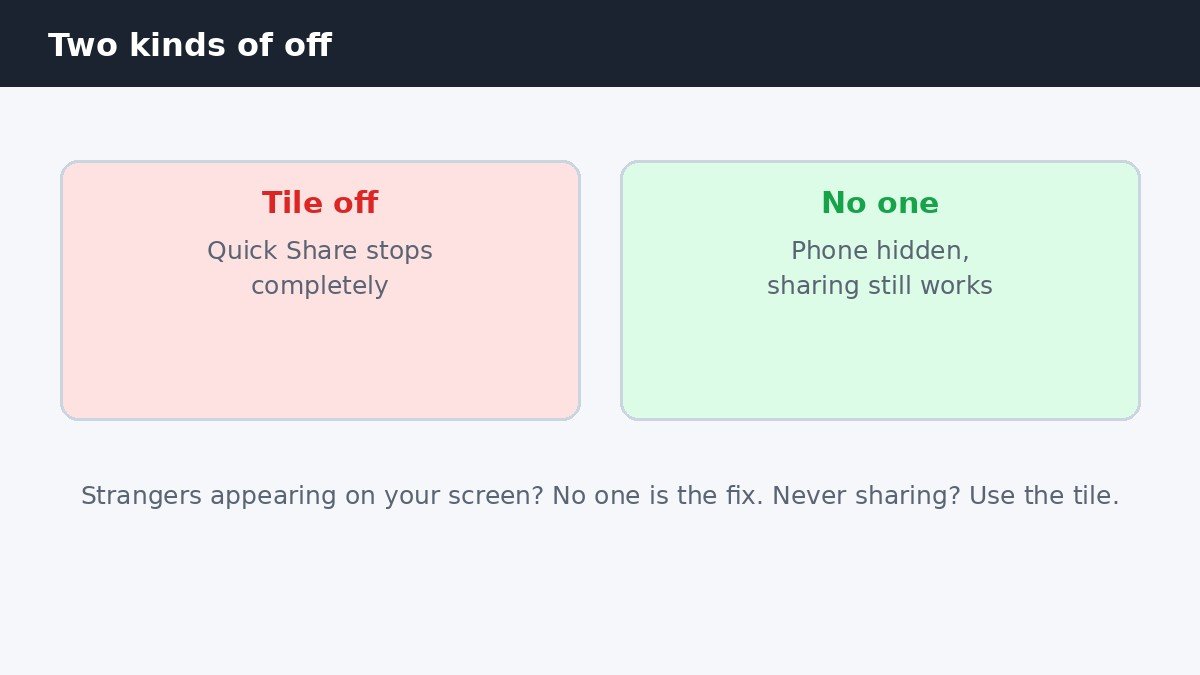
Turning off Quick Share on a Samsung Galaxy phone takes one tap, but there are two different kinds of off, and picking the wrong one is the usual confusion. Tapping the Quick Share tile in Quick Settings turns the feature off entirely, so the phone stops sending and receiving. Setting Who can share with you to No one leaves Quick Share on but hides the phone, so nobody nearby can see it while you can still share files out. If strangers keep appearing on your sharing screen, No one is the fix you want. If you want the feature gone completely, use the tile.
The fastest way: the Quick Settings tile
- Swipe down twice from the top of the screen to open the full Quick Settings panel.
- Find the Quick Share tile. Swipe sideways if it sits on a later page.
- Tap the tile once to turn Quick Share off. A lit tile means it is on, a grey tile means it is off.
- To turn it back on later, tap the same tile again.
If the tile is not on any Quick Settings page, tap the pencil or edit icon on the panel and add it from the list of available buttons. Samsung’s own moderator guidance recommends Settings search as the backup route when the tile cannot be found, which is covered in the Settings section below. Do not judge the tile by colour alone: the exact shade varies by software version, so read the label and check whether the tile looks active or greyed out.
The three visibility levels
Visibility controls who can see your phone when Quick Share is on. It does not turn the feature off, and it does not stop you from sending files. Long-press the Quick Share tile, or open Quick Share in Settings, and tap Who can share with you to see the choices. The exact list varies a little by model and software version, but the three levels below are the ones Samsung lists for Galaxy phones.
| Visibility | Who can find your phone | Best for |
|---|---|---|
| No one | Nobody at all | Hiding the phone while keeping sharing available |
| Contacts only | People in your contacts with Samsung accounts | Everyday use, sharing with people you know |
| Everyone (10 minutes) | Anyone nearby, for 10 minutes only | Sharing once with a stranger, then auto-hiding |
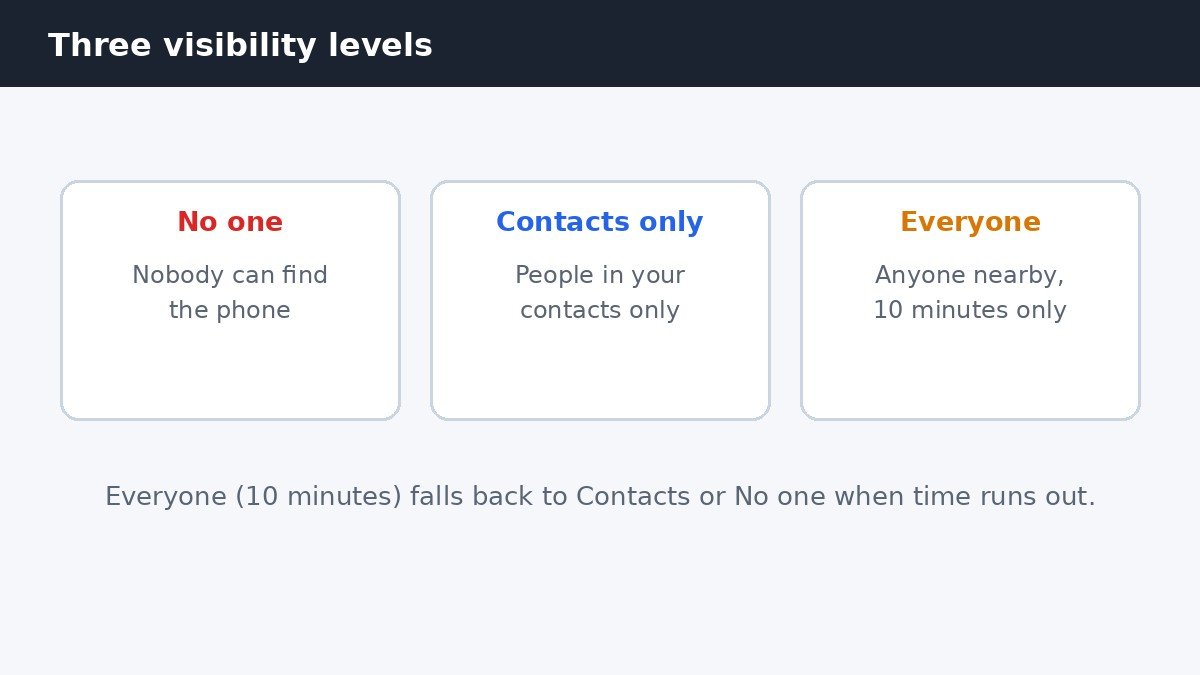
Everyone for 10 minutes is the useful middle ground: it opens the phone to anyone nearby just long enough for one transfer, then falls back to Contacts if you are signed in to a Samsung account, or to No one if you are not. Some models also show a Your devices level for your own devices. Devices signed in to the same Samsung account can always share with each other, so No one never blocks your own tablet or laptop.
Find Quick Share in Settings when the tile is missing
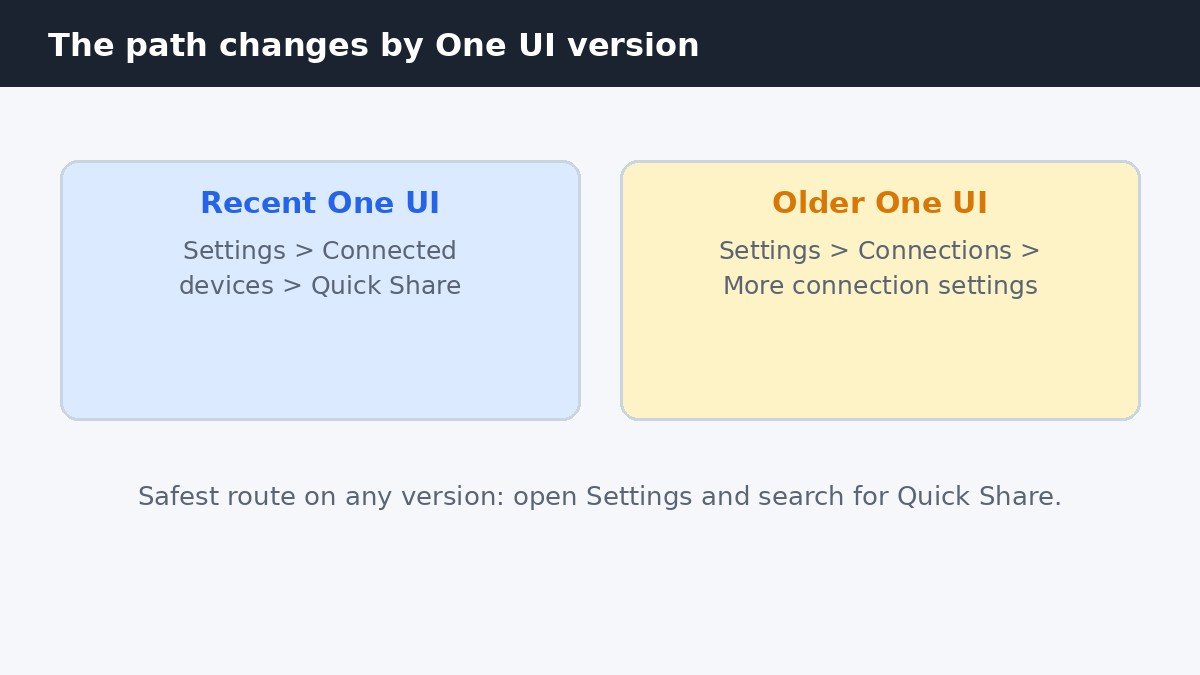
The Settings path for Quick Share changes with the One UI version, so there is no single path that works on every Galaxy phone. The reliable route is Settings search: open Settings, tap the search box at the top, type Quick Share, and tap the result. That lands on the right screen whatever your version is. If you prefer to navigate by hand, the two paths below cover the current versions. On recent One UI versions, go to Settings, then Connected devices, then Quick Share. On older One UI versions, the same screen sits under Settings, then Connections, then More connection settings, then Quick Share. Samsung’s 2026 support page gives the Connected devices path for the Share with Apple devices toggle.
Once you are on the Quick Share screen, the same controls appear as on the tile route: a master switch at the top and the Who can share with you list underneath. Samsung documents the visibility choices on its send and receive files with Quick Share support page, which lists the same No one, Your devices, Contacts, and Everyone options. If a path in an older guide does not match your phone, trust what you see on your own screen over the guide: Samsung moves this screen between One UI releases.
Turn off sharing with Apple devices separately
Newer Galaxy phones can share directly with iPhones, and that switch is separate from the main Quick Share switch. On phones that offer it, go to Settings, then Connected devices, then Quick Share, and turn off Share with Apple devices. Turning that off stops Apple-device sharing only: Galaxy-to-Galaxy sharing keeps working as before. It is available on the Galaxy S26 series first and is expanding to other flagship models, so if the toggle is not on your phone, your model does not have the feature yet and there is nothing to turn off.
What turning it off does not do
Quick Share cannot be uninstalled, because it is built into One UI rather than installed as a separate app. Turning it off only stops it running: the tile, the Settings screen, and the share-sheet entry stay where they are, ready to turn back on. It also does not remove Quick Share from the share sheet entirely: when you tap Share in an app, the sheet may still suggest apps and contacts, which is a separate Samsung behaviour. Our guide to stopping Samsung suggesting apps in the share menu covers that one. Finally, Wi-Fi is now required, and Samsung notes it may turn itself on when you pick Everyone for 10 minutes, so do not be surprised if the Wi-Fi icon lights up.
For most people, No one is the right setting to leave on: the phone stays invisible to strangers, sharing still works when you need it, and nothing has to be switched back on before the next transfer. Only turn the tile off completely if you never share files with nearby phones and want the feature silent. Either choice takes seconds, and either one can be undone with the same tap.

- How to Turn Off Quick Share on a Samsung Galaxy Phone - November 5, 2026
- How to Turn Off iPhone Keyboard Clicks and Haptic Feedback - November 4, 2026
- How to Turn Off AirDrop Receiving on iPhone - November 3, 2026