
Newer Windows 11 keyboards have a Copilot key where Right Ctrl used to sit, and one stray press opens the Copilot app. You can point that key somewhere useful, make it do nothing, or turn it back into an ordinary key. The route depends on what you want the key to do and which edition of Windows you run. This guide covers the three ways to change it, and the one job people confuse with remapping: uninstalling Copilot itself.
Remapping the key is not the same as removing Copilot
Two different complaints get mixed up here. If the key annoys you, remap it and Copilot stays installed for the times you want it. If you never want Copilot on the PC at all, uninstall the app from Settings, then Apps, then Installed apps, by opening the three-dot menu next to Copilot and choosing Uninstall. Uninstalling the app does not remap the key, and remapping the key does not remove the app. Decide which job you are doing first, because the steps are completely different.
| Method | What it can do | What it cannot do |
|---|---|---|
| Settings | Open Copilot, Search, or a chosen app | Launch any program you like |
| PowerToys | Launch any program or shortcut | Change the key for other accounts |
| Group Policy | Set the key for every account | Run on Windows 11 Home |
Settings is the right start for almost everyone: it is built in, it takes a minute, and it is easy to undo. PowerToys is the answer when the app you want is not on the approved list. Group Policy is for PCs with several accounts, or for an administrator who wants every account to use the same key.
Remap the key in Settings
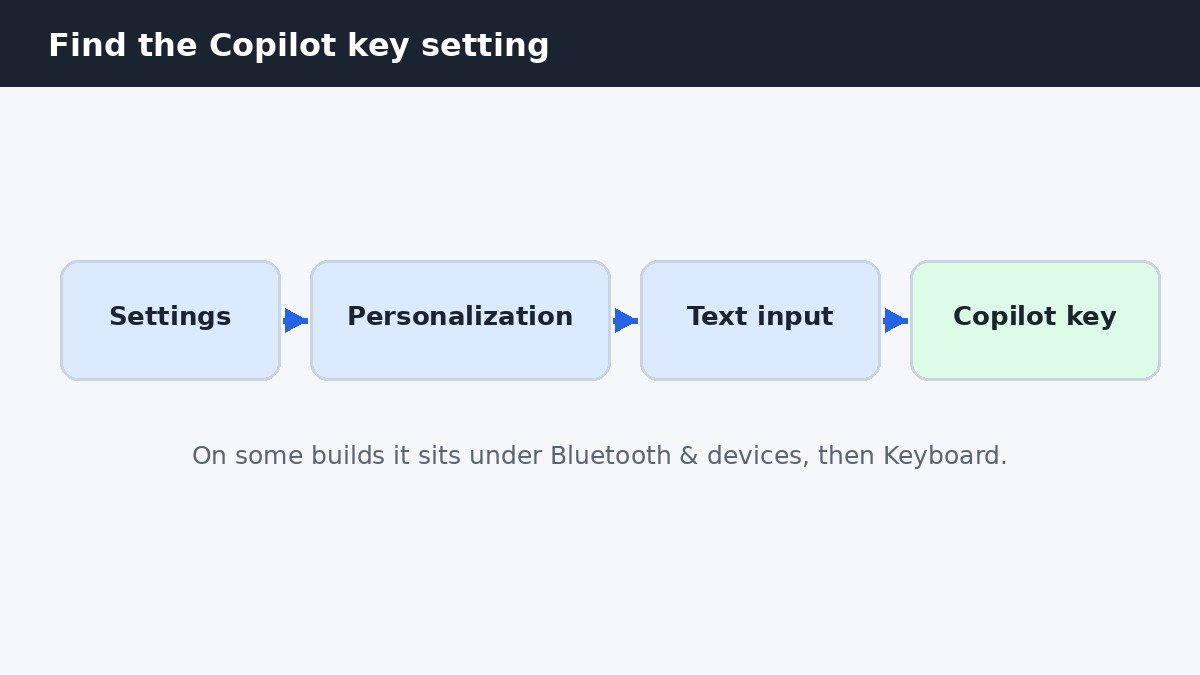
- Open Settings, then go to Personalization, then Text input.
- Find Customize Copilot key on keyboard.
- Choose Copilot to keep the default, Search to open Windows Search, or Custom to pick another app.
- If you chose Custom, click Select and pick an app from the list, then close Settings.
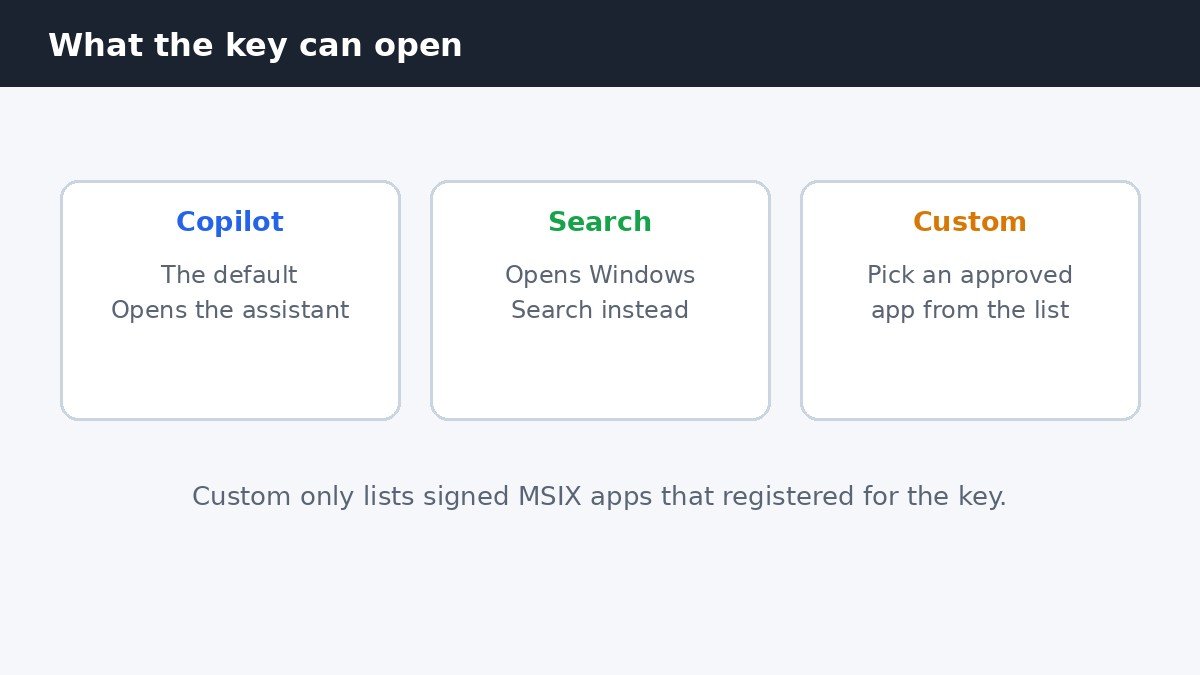
The Custom picker only lists apps that are signed and packaged as MSIX and that registered as a Copilot key provider, so most desktop programs never appear there. A missing app is not a bug and reinstalling it will not help: the app has to support the key. If the app you want is not listed, skip to the PowerToys method below. On some builds and accounts the same setting sits under Bluetooth and devices, then Keyboard, instead of Text input, so check there if Text input shows nothing.
Turn it into Right Ctrl or the Context Menu key
Windows 11 26H2 adds two more remap targets: Right Ctrl and the Context Menu key. If your keyboard lost Right Ctrl to make room for the Copilot key, this gives it back. Open Settings, then Bluetooth and devices, then Keyboard, and look for the Copilot key options there. Choose Right Ctrl if you use Ctrl shortcuts with your right hand, or the Context Menu key if you miss the old menu key. This is the cleanest option if you never want the key to open anything at all, because the key simply becomes an ordinary key again.
Remap it to any program with PowerToys
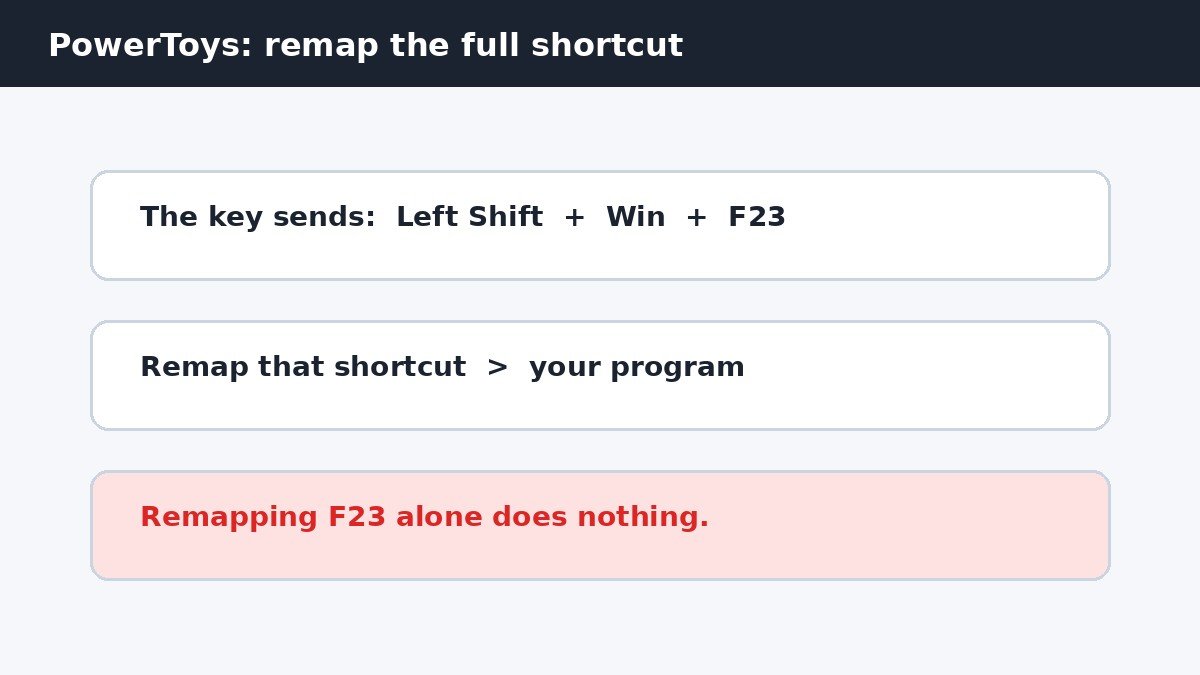
PowerToys is a free Microsoft utility, and its Keyboard Manager can point the Copilot key at any program, which Settings cannot do. Install PowerToys from the Microsoft Store, open it, and go to Keyboard Manager, then Remap a shortcut. The key sends the shortcut Left Shift plus Win plus F23, or Win plus C on some keyboards, so remap that full shortcut to the program you want. Remapping F23 on its own does nothing, because the key never sends F23 by itself. Pick the program, save the remap, and press the key once to test it. PowerToys has to keep running in the background for the remap to work, so leave it set to start with Windows.
PowerToys remaps the key only for your account, and only while PowerToys is running. If the key stops working after a restart, check that PowerToys is still set to run at startup before changing anything else.
Set the key for every account with Group Policy
Group Policy sets the key for every account on the PC, and it can point the key at any installed app by its application ID, which gets around the approved list in Settings. It needs Windows 11 Pro, Enterprise, or Education: Home does not include the Group Policy Editor. Press Win plus R, type gpedit.msc, and press Enter. Go to User Configuration, then Administrative Templates, then Windows Components, then Windows Copilot, and open Set Copilot Hardware Key. Choose Enabled, enter the app AUMID in the options box, then click Apply and OK. The policy applies to every account that signs in, so note down the value you set in case you need to undo it later.
If the setting is missing
The setting only exists on keyboards with a physical Copilot key. If your keyboard has no Copilot key, there is nothing to remap, and no update will add the setting. If the key is there but the setting is not, install Windows updates until you have KB5044380 or later, because that update added the remap option. If the setting is greyed out, a policy from your organization is controlling the key, and only your administrator can change it. If the key is not the only shortcut getting in your way, Windows has a few other popups that interrupt typing at the worst moment: our guide to turning off the Sticky Keys shortcut popup in Windows 11 covers the classic one. The Windows Club documents the Settings and Group Policy routes in its guide to changing the Copilot key action in Windows 11.
Most people only need the Settings route: pick Search or a Custom app, press the key once to check it, and move on. Reach for PowerToys when the app you want is not on the approved list, and Group Policy when the key has to behave the same way for everyone who uses the PC.

- How to Remap or Turn Off the Copilot Key in Windows 11 - November 6, 2026
- How to Turn Off Lock Screen Tips in Windows 11 - November 5, 2026
- How to Turn Off Snap Assist in Windows 11 - November 4, 2026