
Copilot has no single off switch in Windows 11. It appears in several separate places, and each one needs its own step. The quick answer: uninstall the Copilot app, hide the Copilot button in Microsoft Edge, and turn Copilot off inside each Microsoft 365 app you use. On Windows 11 Pro, Enterprise, or Education, a Group Policy setting can also stop the app coming back.
Copilot is not one switch
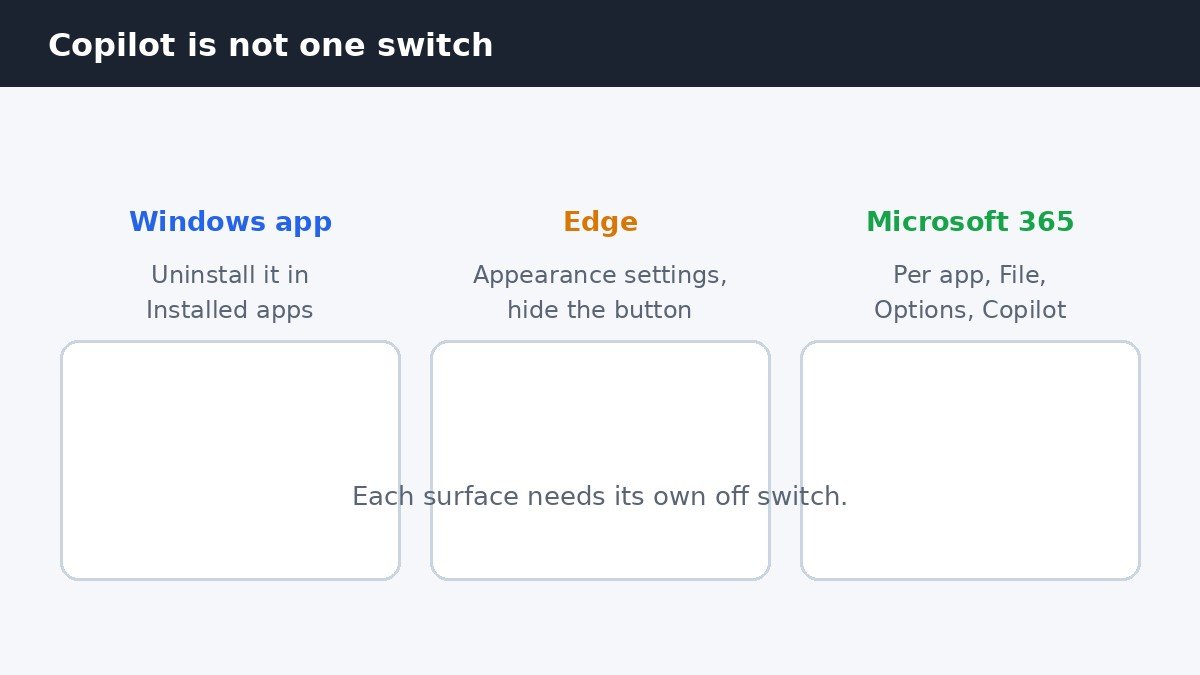
Many people turn Copilot off in one place and then wonder why it is still there. That is because Copilot is not one feature with one switch. It is the same assistant in different apps, and each app keeps its own setting. The Copilot app in Windows, the button in Edge, and the features inside Word, Excel, and PowerPoint are all separate, so turning one off leaves the others where they were.
So the job is a short checklist, not a single setting. Work through the places where you actually see Copilot and skip the ones you never use. The table below shows the whole picture.
| Where Copilot appears | How to turn it off | What it does |
|---|---|---|
| Copilot app in Windows | Uninstall it in Settings | Removes the app from Windows |
| Microsoft Edge | Hide the Copilot button in Settings | Hides the button in Edge only |
| Word, Excel, PowerPoint | Clear the Copilot checkbox in each app | Off in that app, on that PC |
| Copilot key | Remap the key | Stops the key opening Copilot |
Uninstall the Copilot app in Windows
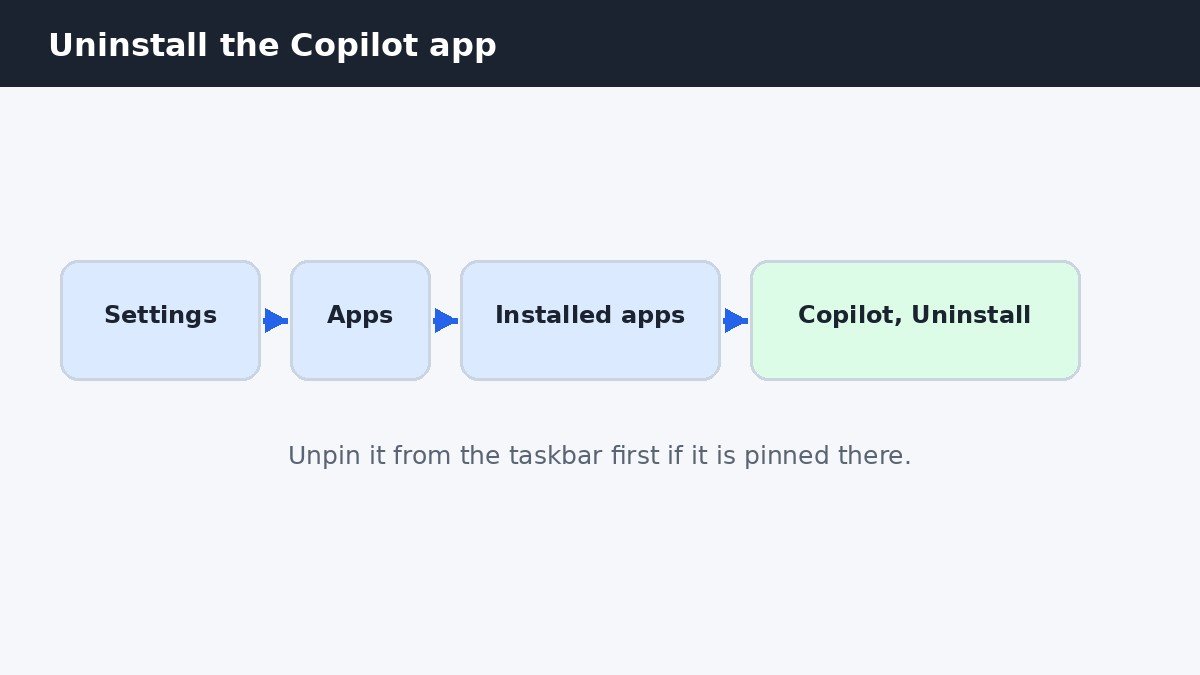
The main Copilot app in Windows uninstalls like any other app. Open Settings, then go to Apps and select Installed apps. Find Copilot in the list, select the three dots next to it, and choose Uninstall. Confirm when Windows asks, and the app is gone.
If Copilot is pinned to your taskbar, unpin it first so you are not left with a dead icon: right-click the icon and select Unpin from taskbar. One honest warning: a Windows update can bring the app back, so uninstalling alone does not stop it returning later. The next section covers the setting that tries to stop that happening.
Keep Copilot off with Group Policy or the registry
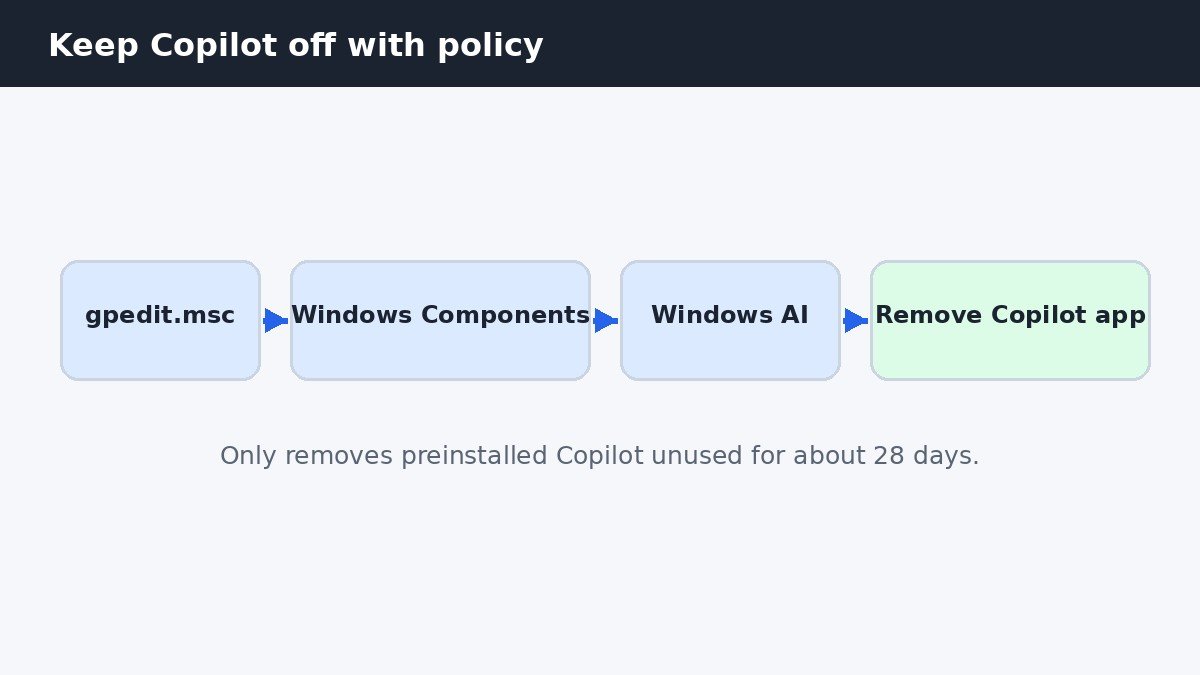
On Windows 11 Pro, Enterprise, or Education, Microsoft added a policy in the April 2026 update called Remove Microsoft Copilot app. It removes the app and tries to keep it that way. Press Win plus R, type gpedit.msc, and press Enter. Go to User Configuration, then Administrative Templates, then Windows Components, then Windows AI. Double-click Remove Microsoft Copilot app, select Enabled, and click OK. Then run gpupdate /force in a command prompt, or restart your PC.
Windows 11 Home has no Group Policy Editor, so Home users need the registry instead. Press Win plus R, type regedit, and press Enter. Go to HKEY_CURRENT_USER\Software\Policies\Microsoft\Windows\WindowsAI, creating the keys if they do not exist. Add a DWORD (32-bit) value named RemoveMicrosoftCopilotApp and set it to 1, then sign out and back in or restart your PC. Microsoft’s policy reference for the Remove Microsoft Copilot app setting lists the setting and its details if you want to check the official wording.
Know the limits. The policy only removes the app when it was preinstalled by Windows, not when you installed it yourself, and only when it has not been launched in about 28 days. Users can also reinstall it afterwards, so this is a nudge rather than a lock. It also leaves the Copilot inside Edge and Microsoft 365 apps alone, which still need their own steps below.
Avoid the older policy called Turn off Windows Copilot, with its TurnOffWindowsCopilot registry value. It targeted the original docked Copilot sidebar and does not reliably control the current app-based Copilot, so do not use it as the fix. The Remove Microsoft Copilot app policy above is the current one.
What about the Copilot key?
Some keyboards have a dedicated Copilot key, and uninstalling the app does not stop that key from doing something. Pressing it may reopen Copilot or do nothing useful, depending on your PC. The fix is to remap the key so it opens something else or does nothing at all. The steps depend on your keyboard and Windows version, so they are covered in full in our guide to remapping the Copilot key. Follow it once the app is gone, and the key will stop getting in your way.
Turn off Copilot in Word, Excel, and PowerPoint
Each Microsoft 365 app carries its own Copilot setting, per app and per device. Turning it off in Word does not turn it off in Excel, and turning it off on one PC does not turn it off on another. The steps are the same in each app. Open Word, go to File, then Options, and select Copilot. Clear the checkbox labelled Enable Copilot, click OK, and restart the app. Then repeat the steps in Excel and PowerPoint.
Two details are worth knowing. First, this checkbox only appears for personal Microsoft accounts. With a work account you may not see it at all, because your administrator controls Copilot for the organisation. Second, clearing the checkbox is not the same as hiding the ribbon button. The checkbox turns the Copilot features off, while the ribbon button is a separate display choice, so the button may still be visible after you clear the box.
Turn off Copilot in Microsoft Edge
Removing the Windows app does nothing to the Copilot button in Edge, which has its own copy. Open Microsoft Edge, select the three dots menu in the top right, and open Settings. Go to Appearance, then find the Copilot and Sidebar section. Turn off Show Copilot button on the toolbar.
The button disappears from the toolbar straight away. Be clear about what this does: it hides the Copilot button in Edge only. It does not remove Copilot from Windows, and it does not touch the Copilot features inside Microsoft 365 apps. If you only ever see Copilot in Edge, this one step may be all you need.
Turning off Copilot in Windows 11 is a short checklist rather than a single switch. Uninstall the app, use the policy or registry setting to help it stay gone, hide the button in Edge, clear the Copilot checkbox in each Microsoft 365 app, and remap the Copilot key if your keyboard has one. Work through the places where you see Copilot, and it will stay quiet everywhere you use your PC.

- How to Turn Off Copilot in Windows 11 - November 9, 2026
- How to Turn Off Live Captions in Windows 11 - November 8, 2026
- How to Turn Off Most Used Apps in the Windows 11 Start Menu - November 7, 2026