
When the keyboard light on a Windows 11 laptop stops working, typing in a dim room turns into guesswork. The fix is usually simple: the light is switched off, a BIOS setting blocks it, or another program has taken control of it.
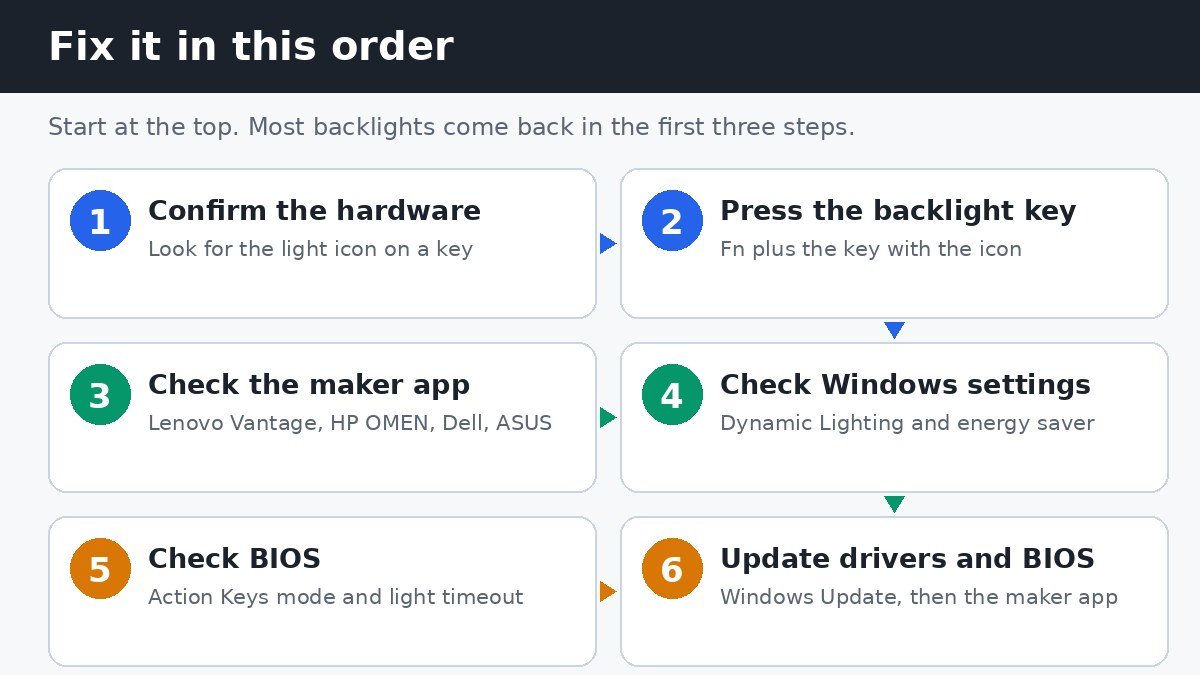
Start with the quick answer: press the key that carries a small backlight icon, usually while holding Fn, then press it again to step through the brightness levels. If nothing happens, work through the checks below, from the most common cause to the least common one. This guide covers how to fix a laptop keyboard backlight not working in Windows 11, whatever the brand.
Windows 11 has no universal switch for a plain white keyboard backlight. The key, the maker’s app, or a BIOS setting controls it. Windows only takes charge of colour RGB keyboards, through Dynamic Lighting, so the steps below start at the keyboard itself.
First, check whether your laptop has a backlit keyboard
Some laptops have no backlit keyboard, and no setting, driver, or app can add one. Budget models often leave the lighting out, and one version of a line can have it while another does not. Confirm the hardware is there before changing anything.
- Look at the top row of keys and the Spacebar for a small icon that looks like a keyboard with light rays.
- If no key carries the icon, check the specifications. Press Win + R, type msinfo32, press Enter, and note the System Model entry, then search the maker’s site for that model and look for the words backlit keyboard.
- If the specifications do not list one, the laptop has no backlit keyboard, and a plug-in USB keyboard with its own backlight is the practical workaround.
Press the keyboard backlight key
On most laptops the backlight key does the whole job without Windows, which is why this step fixes the problem more often than any setting.
- Find the key with the backlight icon.
- Press it once and watch the keys, then again to move to the next level. Many laptops cycle through off, low, and high.
- If nothing happens, hold Fn and press the backlight key. Some laptops need Fn, others do not.
- If the top-row keys act as volume or media controls, Fn Lock is flipped. Press Fn + Esc to toggle it, then try the backlight key again.
| Brand | Backlight key | What to know |
|---|---|---|
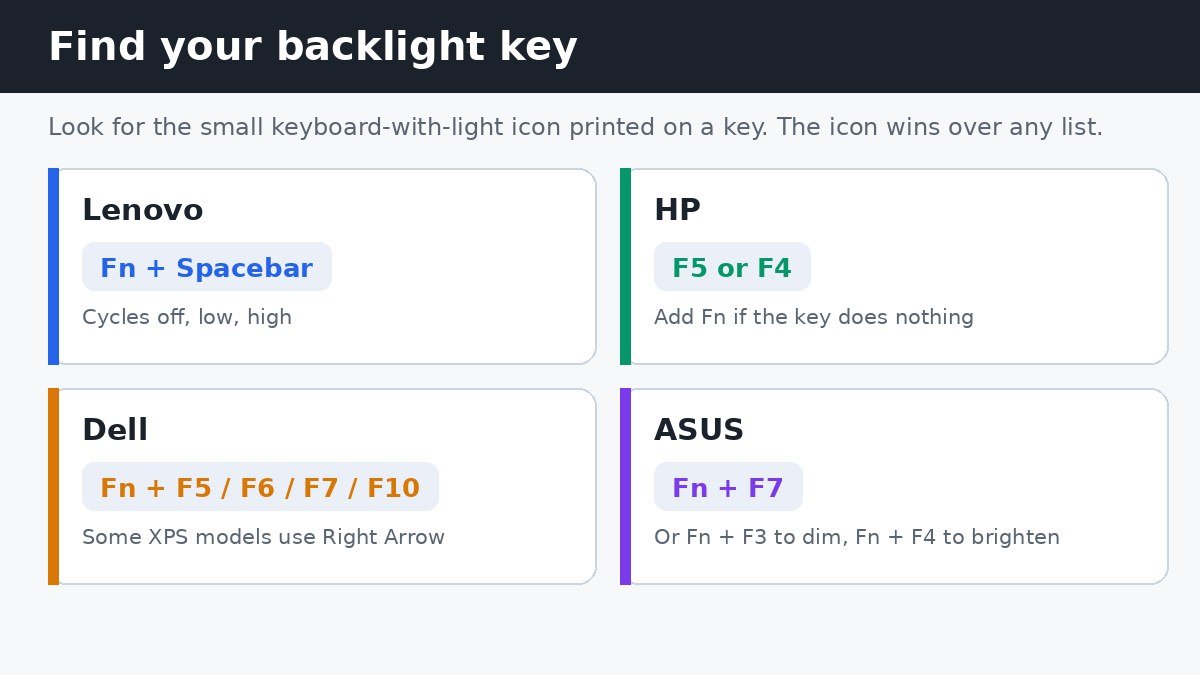
| Lenovo | Fn + Spacebar | Cycles off, low, high. |
| HP | F5 or F4, with Fn if needed | Press repeatedly for high, low, off. |
| Dell | Fn + F5, F6, F7, or F10 | Some XPS models use the right arrow key. |
| ASUS | Fn + F7, or Fn + F3 to dim and Fn + F4 to brighten | The key varies by model line. |
Treat the printed icon as the final word: if it sits on a different key than the table lists, use that key.
Check your laptop maker’s control app
Each maker ships an app that can switch the backlight on and set its brightness or timeout. If the key does nothing, the app may have it switched off.
- Lenovo Vantage: open it from the Start menu and look under Device, then Input and Accessories.
- HP OMEN Gaming Hub: controls lighting on OMEN and Victus laptops. HP Support Assistant handles driver and BIOS updates on other HP laptops.
- Dell SupportAssist: installs BIOS and driver updates. On Alienware laptops, Alienware Command Center controls the lighting.
- ASUS MyASUS: manages system settings and updates. On ROG and TUF laptops, Armoury Crate controls RGB lighting effects and colours.
If the app is not installed, get it from the Microsoft Store or the maker’s support page for your exact model. Avoid third-party lighting tools from unfamiliar sites, which cannot add the hardware and can install unwanted software.
Fix Dynamic Lighting and energy saver conflicts
Two Windows features can fight with the backlight: Dynamic Lighting on RGB keyboards, and energy saver on battery power.
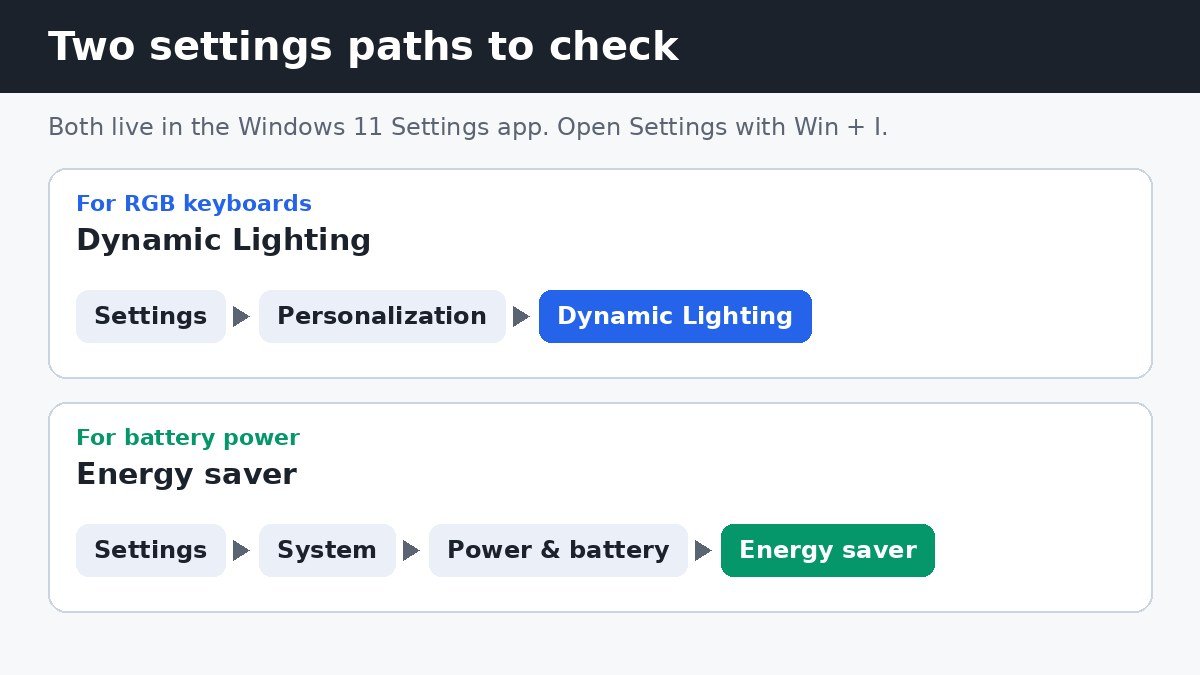
With a coloured RGB keyboard, Windows 11 may have taken control of it through Dynamic Lighting. Open Settings, then Personalization, then Dynamic Lighting. If your keyboard appears, switch on Use Dynamic Lighting on my devices and set the brightness, or switch it off to hand control back to the maker’s app. If a game or app keeps changing the colours, turn off Compatible apps in the foreground always control lighting. Microsoft explains the full page in its Dynamic Lighting guide.
If your keyboard does not appear on the page, it does not support Dynamic Lighting. That is normal for plain white backlights, so use the key or the maker’s app instead.
Energy saver dims the screen and limits background activity to stretch the battery, and on some laptops it also dims the keyboard light. Plug in the charger, then open Settings, System, Power and battery, Energy saver, and switch it off. Older builds call it Battery saver. Press the backlight key again afterwards. Microsoft’s battery saving tips page has the current steps.
Energy saver dims the screen, not the keyboard. If the brightness slider itself is missing, that is a separate screen problem.
Some laptops change the keyboard light with the room light. An ambient light sensor can dim the keys in a bright room or switch them on in a dark one, which looks like a fault when it is working as designed. Try the key in a darker room, or turn off the sensor setting in BIOS (next section). Windows can also dim the screen on its own when the light changes, which is separate from the keyboard light.
Check Action Keys mode and the backlight timeout in BIOS
If the backlight key does nothing at all, the light may be switched off in BIOS, which sits below Windows and overrides every key press and app.
- On HP laptops, shut down, turn the laptop on, and press F10 repeatedly until BIOS Setup opens. Under System Configuration, make sure Action Keys Mode is enabled. With it off, the top-row keys need Fn for every action.
- On Dell laptops, press F2 repeatedly as soon as the Dell logo appears, open the Keyboard section, and set Keyboard Illumination to Dim or Bright instead of Disabled.
- While in BIOS, check the timeout. HP calls it Backlit keyboard timeout, Dell calls it Keyboard Backlight Timeout. Both set how long the light stays on after the last key press. HP laptops switch it off after 30 seconds of no typing, and any key press or touchpad tap wakes it again. Always On, where offered, keeps it on.
Change only the backlight settings, save, and leave BIOS.
Update drivers, Windows, and BIOS
Restart first. It reloads the hotkey service that reads the backlight key and clears glitches left by updates.
- Open Settings, then Windows Update, and select Check for updates. Install what is offered, then restart.
- Right-click Start, open Device Manager, expand Keyboards, right-click the keyboard, select Update driver, then Search automatically for drivers.
- Update the BIOS from the maker’s own app or support page: Lenovo Vantage, HP Support Assistant, or Dell SupportAssist. Plug the charger in first, and do not switch off the laptop while it runs.
If the light worked before and stopped after an update, a newer BIOS or driver often fixes it. If the key, the app, the Windows settings, and BIOS all check out and the light still stays dark, the backlight itself has likely failed. Contact the maker’s support team or a repair shop for a hardware check.
Most keyboard backlights come back with one of these steps, in this order: the key first, then the maker’s app, then Windows settings, then BIOS, then updates. A light that never turns on anywhere points to missing hardware or a failed backlight, which is a repair question, not a settings question.

- How to Fix Laptop Keyboard Backlight Not Working in Windows 11 - November 14, 2026
- How to Turn Off Require Sign-In After Sleep in Windows 11 - November 13, 2026
- How to Turn Off Clipboard History in Windows 11 - November 12, 2026