
A keyboard that slides up over the screen every time you tap a text box is one of the most annoying things Windows 11 can do, especially on a laptop with a good physical keyboard. The fix is usually quick, but only if you change the right setting. Windows 11 has three different on-screen keyboards, and each one is controlled by a different switch. Change the wrong one and the popup keeps coming back.
First, work out which keyboard is appearing, then follow the matching fix: the touch keyboard, the Accessibility on-screen keyboard, or the sign-in screen keyboard.
Work out which keyboard is popping up
Look closely at the keyboard on your screen first. The three look different, appear at different times, and switch off in different places.
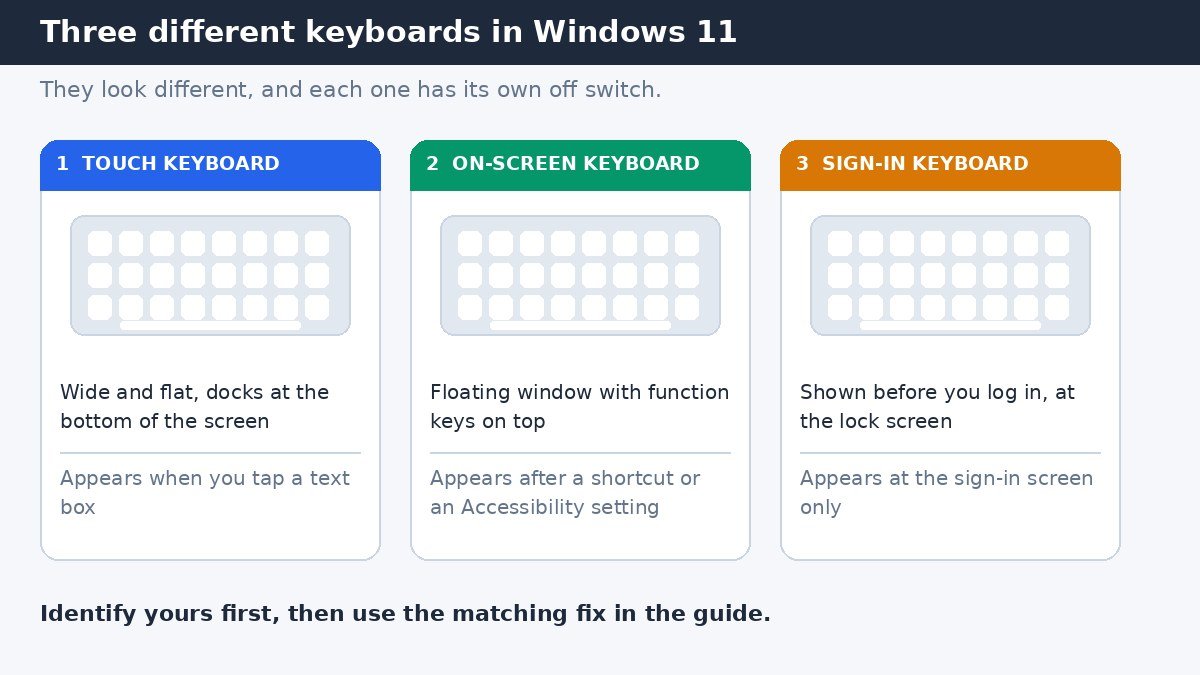
The touch keyboard is the wide, flat keyboard that slides up from the bottom of the screen when you tap a text box on a touchscreen device. It has large keys and a small gear icon in the upper-left corner for changing layouts.
The Accessibility on-screen keyboard, often called OSK, floats in its own window and looks more like a full desktop keyboard, with function keys along the top. It can appear even on a PC with no touchscreen at all, which is a useful clue.
The third keyboard only appears before you sign in, on the lock screen or the sign-in screen. It shows up when you tap the password or PIN box, or when the Accessibility button in the lower-right corner has been used to turn it on.
| Keyboard | What it looks like | When it appears |
|---|---|---|
| Touch keyboard | Wide, flat, docks at the bottom | When you tap a text box |
| Accessibility on-screen keyboard (OSK) | Floating window with function keys | After a shortcut or a setting change |
| Sign-in screen keyboard | Touch keyboard or OSK before login | At the sign-in screen only |
Stop the touch keyboard from opening on its own
If the wide touch keyboard is the one popping up, its setting lives in the Typing section of Settings. This is the fix most people need.
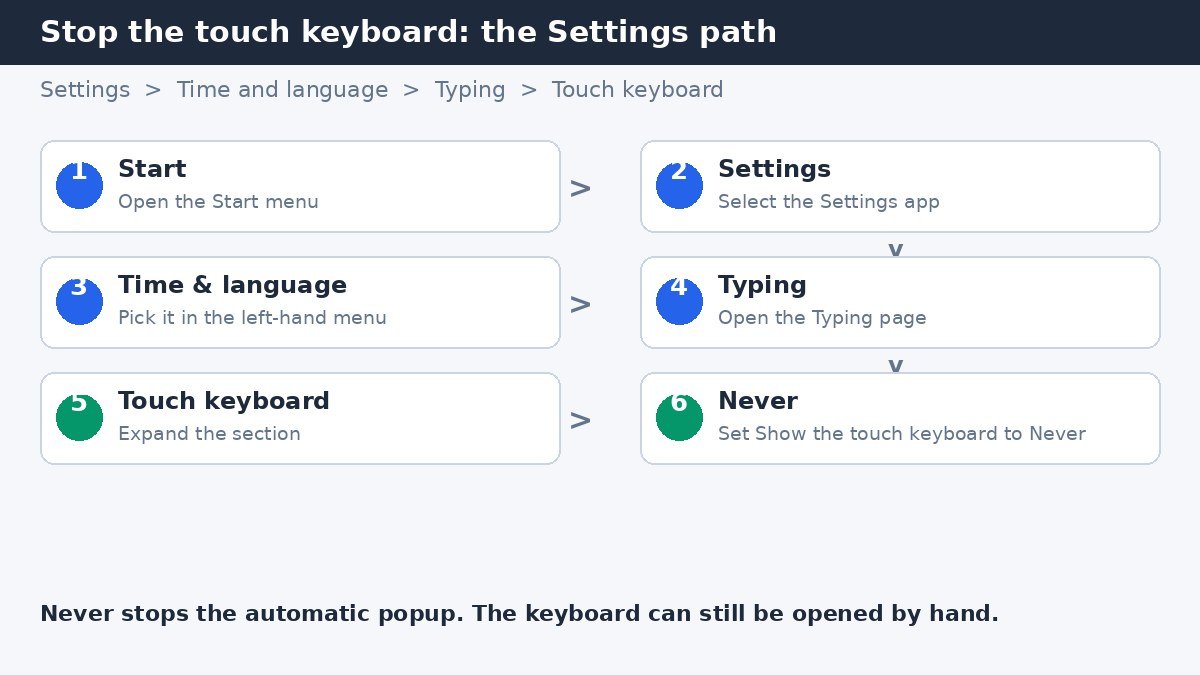
- Select Start, then select Settings.
- Select Time & language in the left-hand menu, then select Typing.
- Select Touch keyboard to expand that section.
- Next to Show the touch keyboard, select Never.
The three choices in that dropdown do exactly what their names say. Never stops the touch keyboard from opening automatically, even when no hardware keyboard is attached. When no keyboard attached lets Windows show the keyboard only when it cannot detect a physical keyboard, which suits a tablet. Always makes the keyboard appear whenever you tap a text field. If your goal is to stop the popups, Never is the setting to pick.
This setting only stops the keyboard from opening on its own. It does not remove the touch keyboard, and you can still open it by hand any time. Microsoft explains the layouts and settings in its own guide to the touch keyboard: Get to know the touch keyboard.
Hiding the taskbar icon is a separate setting. Open Settings > Personalization > Taskbar, look under System tray icons, and set Touch keyboard to Never. While you are tidying up typing, you may also want to turn off autocorrect in Windows 11 if the keyboard keeps changing your words: how to turn off autocorrect in Windows 11.
Turn off the Accessibility on-screen keyboard
If the keyboard on your screen is the floating Accessibility on-screen keyboard, the Typing setting above will not help, because this is a completely different tool. It is designed for typing with a mouse when a physical keyboard is hard to use, and a shortcut that is easy to press by accident can switch it on.
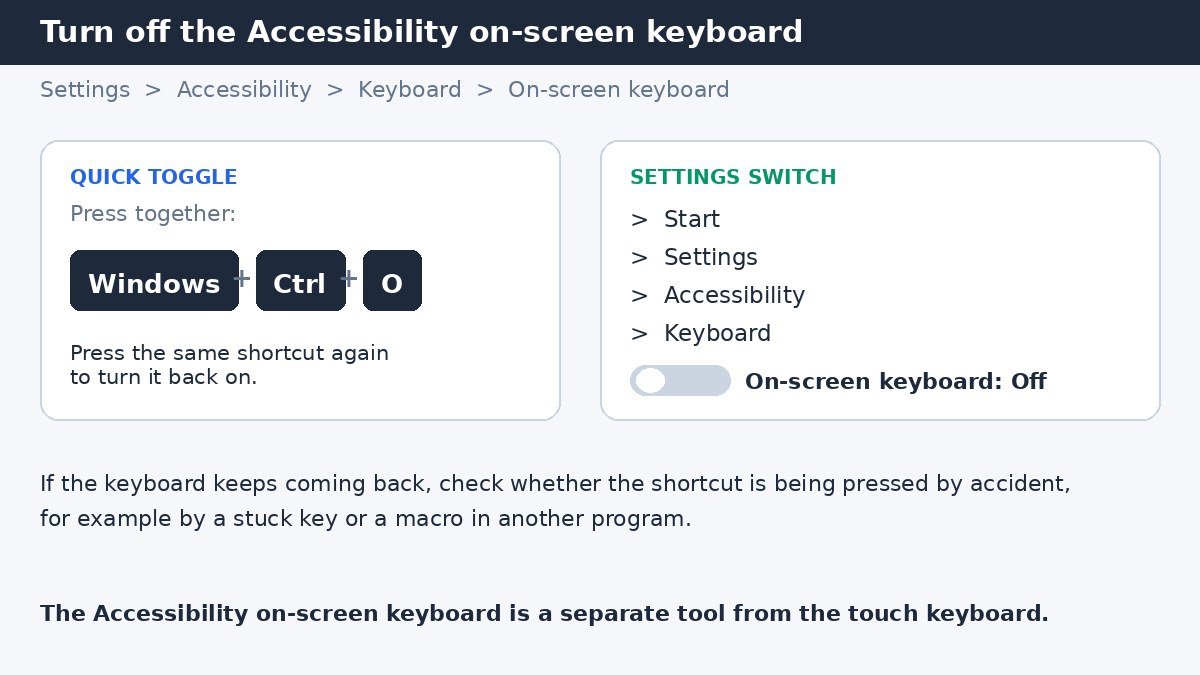
The fastest way to close it is the shortcut that toggles it: press the Windows key + Ctrl + O together. Pressing the same shortcut again turns it back on, so if the keyboard reappears later, check whether those keys are being pressed accidentally.
To make sure it stays off, check the switch in Settings as well:
- Select Start, then select Settings.
- Select Accessibility in the left-hand menu, then select Keyboard.
- Turn off the On-screen keyboard switch.
Once that switch is off, the on-screen keyboard should not open on its own again. Microsoft describes how it works in its guide to using the On-Screen Keyboard: Use the On-Screen Keyboard (OSK) to type.
The Accessibility Keyboard page holds a few other features that can pop up unexpectedly. Sticky Keys, for example, shows a prompt when the Shift key is pressed five times in a row. If that popup has been bothering you too, see our guide on how to turn off the Sticky Keys shortcut popup in Windows 11.
Stop the keyboard at the sign-in screen
A keyboard that appears before you sign in is a separate case. On the sign-in screen, select the Accessibility button in the lower-right corner, then select On-Screen Keyboard to turn it off again. That button is the same one used to turn the keyboard on at sign-in, so if someone enabled it there once, it can keep appearing at every sign-in until it is switched off the same way. After signing in, also check the Settings > Accessibility > Keyboard switch from the previous section, since the two share that setting.
When the popup is normal: tablets and 2-in-1 laptops
Not every touch keyboard popup is a fault. On a tablet, or on a 2-in-1 laptop with the keyboard folded back or detached, the touch keyboard is the only way to type, so Windows shows it automatically when you tap a text box. That is the behaviour the When no keyboard attached setting exists for, and turning it to Never on a tablet means opening the keyboard by hand every time.
The same logic applies when Windows cannot tell that a keyboard is attached. A Bluetooth keyboard that has gone to sleep, a keyboard cover that is not seated properly, or a detachable keyboard with a loose connection can all make Windows think no keyboard is present. Before changing settings on a 2-in-1, reattach the keyboard cover firmly and wake the Bluetooth keyboard by pressing a key.
On a regular laptop or desktop with a keyboard that is always connected, the popup has no good reason to appear, and the Never setting is the right fix. The rule of thumb is simple: if the device is used as a tablet, keep the automatic keyboard; if it is used as a normal PC, turn it off.
If the keyboard still keeps appearing
If the keyboard still pops up, work through these checks in order.
- Check for the other keyboard. If you turned off the touch keyboard but a floating keyboard still appears, that is the Accessibility on-screen keyboard, and it needs the Windows key + Ctrl + O shortcut or the Accessibility switch to stop it.
- Restart the PC. A setting change sometimes needs a restart before it takes full effect, especially if the keyboard is already open.
- Check the keyboard connection. A loose detachable keyboard, a sleeping Bluetooth keyboard, or a USB keyboard in a faulty port can make Windows think no keyboard is attached.
- Check for a stuck key. A key that is physically stuck down can send repeated input that triggers the keyboard or its shortcut.
- Update Windows. Open Settings > Windows Update and install any pending updates.
Most of the time, the answer is one of the two switches in this guide: Never under Show the touch keyboard, or the Off position on the On-screen keyboard switch. Once the right one is set, the popups stop and the screen stays clear for the work you opened it to do.

- How to Disable the Touch Keyboard Popup in Windows 11 - November 14, 2026
- How to Turn Off Nearby Sharing in Windows 11 - November 13, 2026
- How to Stop Microsoft Teams From Opening on Startup in Windows 11 - November 12, 2026