
Video Call Effects is Samsung’s built-in tool for changing how you look on video calls. It can blur the room behind you, replace it with a solid colour or a photo, and clean up background noise. It works in video calling apps such as WhatsApp, Zoom and Google Meet, and it switches itself on for some people after a software update. That is when the trouble starts: the blurred background or coloured backdrop stays on for every call, and the switch that used to turn it off is gone from Settings.
The short version: start a video call, swipe down twice from the top of the screen to open the full quick panel, tap the Video Call Effects tile, and set Background to None. The change carries over to your other calling apps, so you only need to do it once. If that tile never shows up, the rest of this guide covers the Settings switch on older builds, the Reset all option, and what to try when nothing else works.
Turn it off during a call
On phones running One UI 6.1 and later, Samsung moved Video Call Effects out of Settings and into the quick panel that appears while you are on a call. Samsung’s own One UI 6.1 feature notes say the effects and Mic mode now appear in the quick panel during voice and video calls, so you can change how others see and hear you without leaving the call. That is why the Settings page no longer helps on these phones: the control now lives inside the call itself.
- Start a video call in any app, for example WhatsApp or Zoom. You can call a friend, or start a meeting with only yourself in it.
- Swipe down twice from the top of the screen to open the full quick panel. The first swipe shows notifications, and the second swipe shows the full set of tiles.
- Look for the Video Call Effects tile near the top of the panel, then tap it to open the effects panel.
- Tap Background, then choose None, or the option that turns the background off. If you see Blur, Colour and Image choices, None sits at the start of the list.
- End the call. The setting carries over to your other video calling apps, so make one more call afterwards to confirm the background is back to normal.
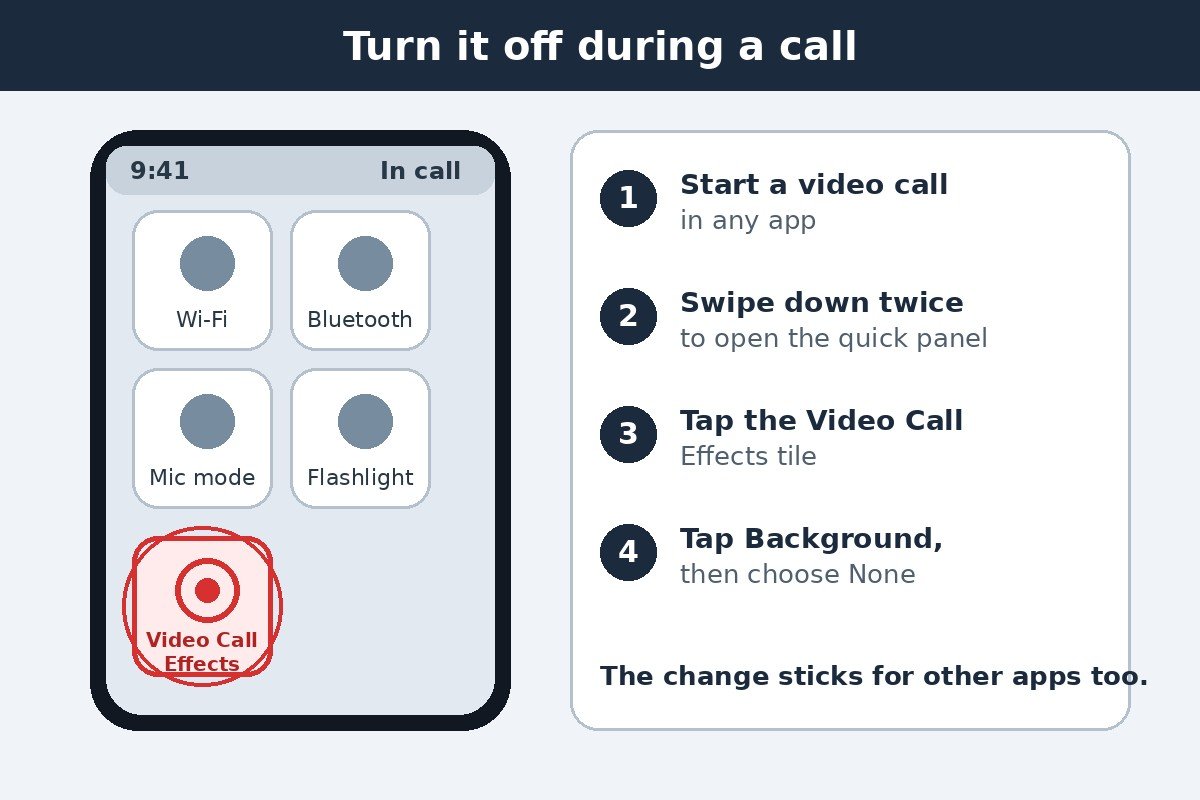
If the tile is missing from the panel, tap the edit or pencil button in the quick panel and look for Video Call Effects among the buttons you can add, then add it. On some phones the tile only appears while a call is active, so do not look for it when no call is running. Mic mode sits in the same panel, and it is a separate control: turning the background off leaves your microphone setting alone.
Use the Settings switch if your phone still has it
On older builds, before One UI 6.1, the switch still sits in Settings. Samsung’s support page describes this path, and it is still the right first stop if your phone has not had the 6.1 update. The page was last updated on 1 October 2024 and says the feature is available in One UI 5.1 and later versions.
- Open Settings.
- Tap Advanced features.
- Tap Video call effects.
- Turn the switch off.
If you open that page and there is no switch, only colour and image choices, your phone has the newer layout and the switch is gone. Do not keep looking for it: go back to the during-call method above, which is the one that works on these phones. Samsung explains the older Settings path on its support page for changing video call backgrounds, and the page still shows the older layout, so a missing switch is a change in the software, not a fault with your phone.
Reset everything and delete saved background images
Turning the background off is sometimes not enough, because a saved colour or photo can keep coming back on the next call. Samsung’s Galaxy user manual describes a Reset all option in the effects panel during a call, which returns every video call setting to its starting point.
- During a video call, open the Video Call Effects panel from the quick panel tile.
- Tap Reset all. Background, auto framing and mic mode all return to their defaults.
- End the call, then make a test call to check the background is clear.
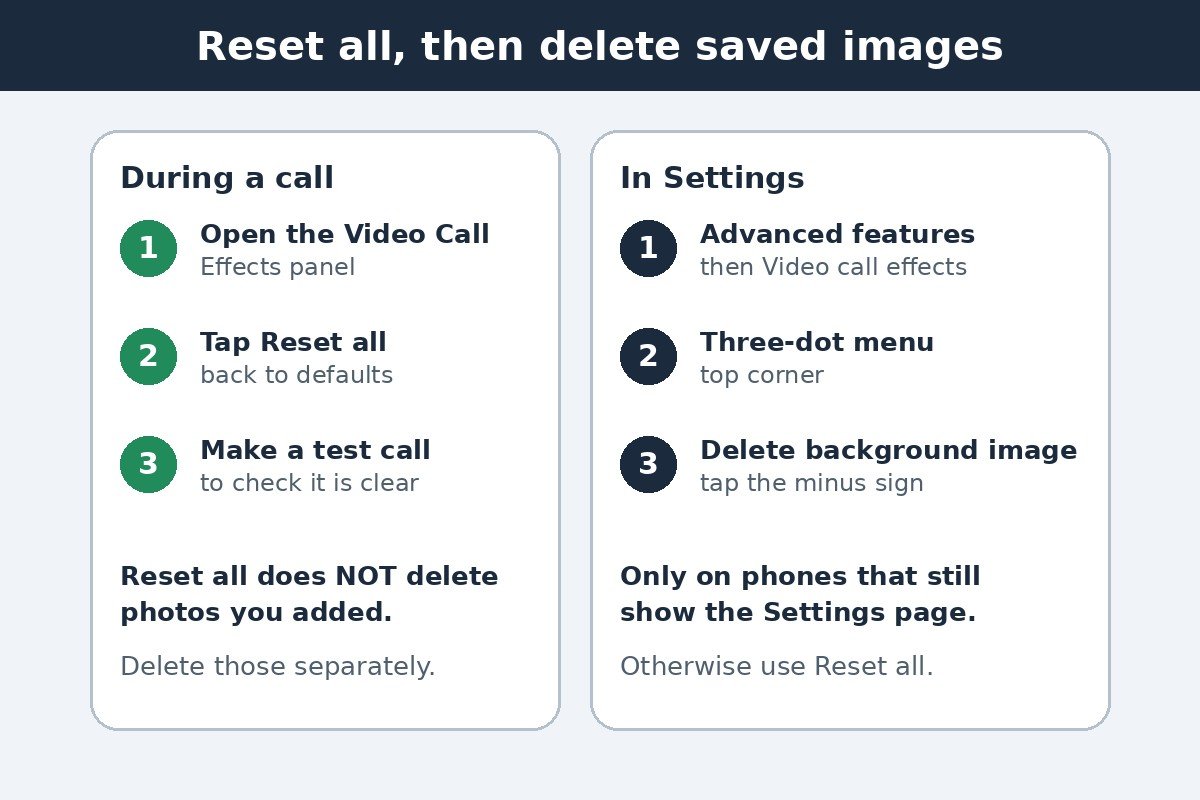
Reset all does not delete photos you added as backgrounds. If a saved photo keeps reappearing, open Settings, tap Advanced features, then Video call effects, and look for the three-dot menu in the top corner. On phones that still show this page, the menu holds a Delete background image option: tap it, then tap the minus sign next to each image you want to remove. Samsung’s support page does not describe this step, so if the menu is not there on your phone, use the during-call reset above and skip the rest of this section.
Why the switch disappeared
The short story is that Samsung redesigned how the feature is reached. Before One UI 6.1, Video Call Effects was a setting you switched on or off in advance, and a small floating icon appeared during calls. With One UI 6.1, Samsung put the controls in the quick panel during calls instead, and the old on/off switch went away on many models. Owners of Galaxy S23, S22 and A series phones reported the missing switch in Samsung’s own community forums within weeks of the update, some finding a coloured background they had tried once now stuck on every call.
| One UI version | Where to turn it off | What to expect |
|---|---|---|
| Up to One UI 6.0 | Settings, Advanced features, Video call effects | A switch turns the whole feature off |
| One UI 6.1 | Quick panel tile during a call | Settings switch removed on many models |
| One UI 7 and One UI 8 | Quick panel tile during a call | No Samsung note says the Settings switch returned |
That last row is the honest limit of what can be confirmed today. Samsung’s published support pages do not say whether One UI 7 or One UI 8 brought the switch back, and the One UI 8 feature pages do not mention Video Call Effects at all. The during-call method is the one Samsung documents for the current layout, in its One UI 6.1 feature notes, so this guide leads with it and treats the Settings switch as a bonus for older phones rather than the main fix.
When the quick panel tile never appears
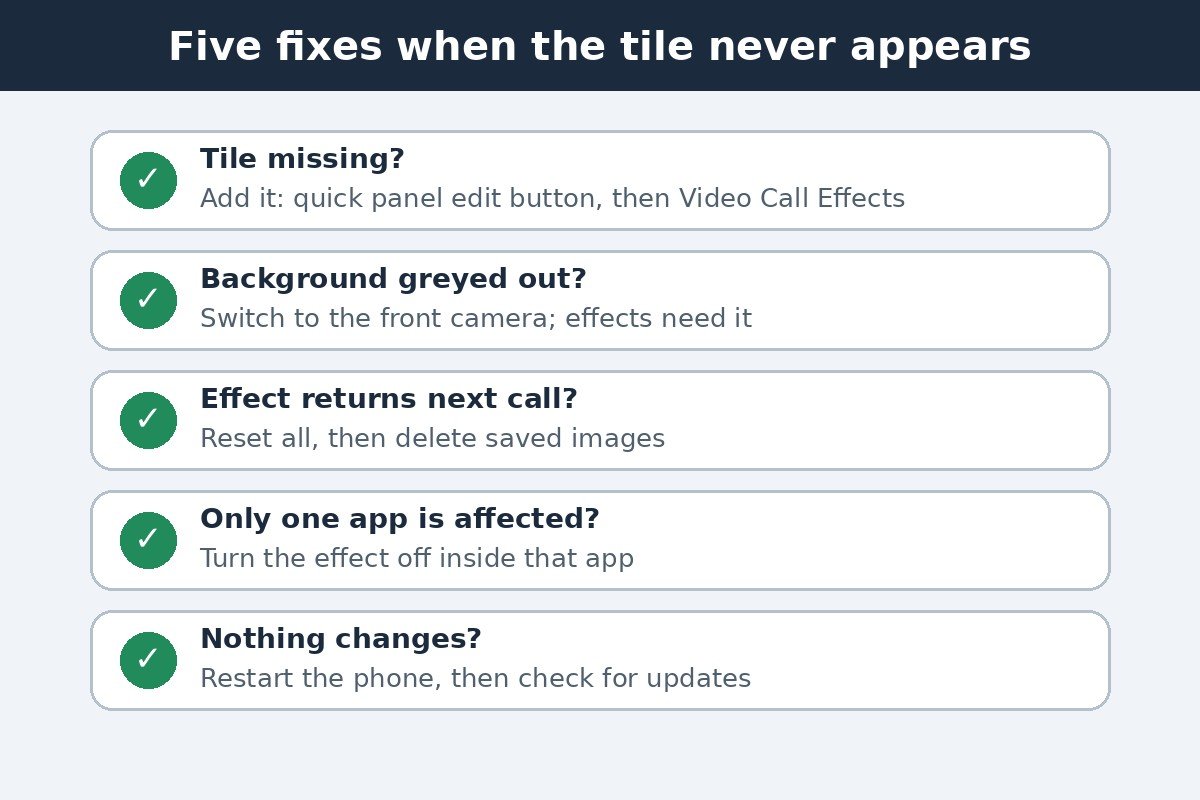
A few owners report that the tile does not show up even during a call. Work through these in order, and check with a test call after each one.
| Problem | Likely cause | Try this |
|---|---|---|
| No Video Call Effects tile during a call | Tile not added to the quick panel | Tap the edit button in the quick panel and add it |
| Tile appears but Background is greyed out | Rear camera is in use | Switch to the front camera, since effects only work with it |
| Background returns on the next call | A saved colour or image is still set | Use Reset all during a call, then delete saved images |
| Effect shows in one app only | The app sets its own background | Turn the effect off inside that app’s own settings |
| Nothing changes after the fix | The effects service is stuck | Restart the phone, then check for a software update |
One thing that is easy to mistake for Video Call Effects is the coloured glow around the screen edges when a call or notification arrives. That is Edge Lighting, a separate Samsung feature with its own switch. Our guide to turning off Edge Lighting on Samsung Galaxy walks through it.
Two workarounds circulate in user forums for phones where none of the above works. Some owners report that force stopping the Video Call Effects system app under Settings, then Apps, clears a stuck effect until the next call. Others report replacing a saved background with a tiny transparent image file. Neither step comes from Samsung’s own documentation, so treat them as last resorts, and check for a software update first: Samsung has fixed parts of this feature in updates before, and an update is the only fix that comes from Samsung itself.
Stop it coming back
Once the background is off, it should stay off. Three habits keep it that way. First, do not tap a colour or image in the effects panel just to see what it looks like, because on phones without the Settings switch that choice can stick and leave you hunting for the off control again. Second, check the effect in each calling app once, since some apps keep their own background setting and Samsung’s switch does not override it. Third, after a major One UI update, make one test call before an important meeting: updates have switched the effect back on before, and a thirty second test call is cheaper than finding out live.
Video Call Effects is a useful feature when you want it, and a nuisance when it switches itself on. The fix is quick once you know where Samsung moved it: during the call, not in Settings. Open the quick panel, set the background to None, and your next call should show the room as it really is.

- How to Turn Off Video Call Effects on Samsung Galaxy - November 17, 2026
- How to Turn Off Edge Lighting on a Samsung Galaxy Phone - November 16, 2026
- How to Turn Off Tap to Wake on iPhone - November 15, 2026