
Windows 11 shows short tips while you work, such as a hint about a feature you have not tried or a reminder to try a Microsoft service. These pop-ups appear in the bottom right corner of the screen, and they can break your focus. One checkbox turns them off, and it takes less than a minute to clear it.
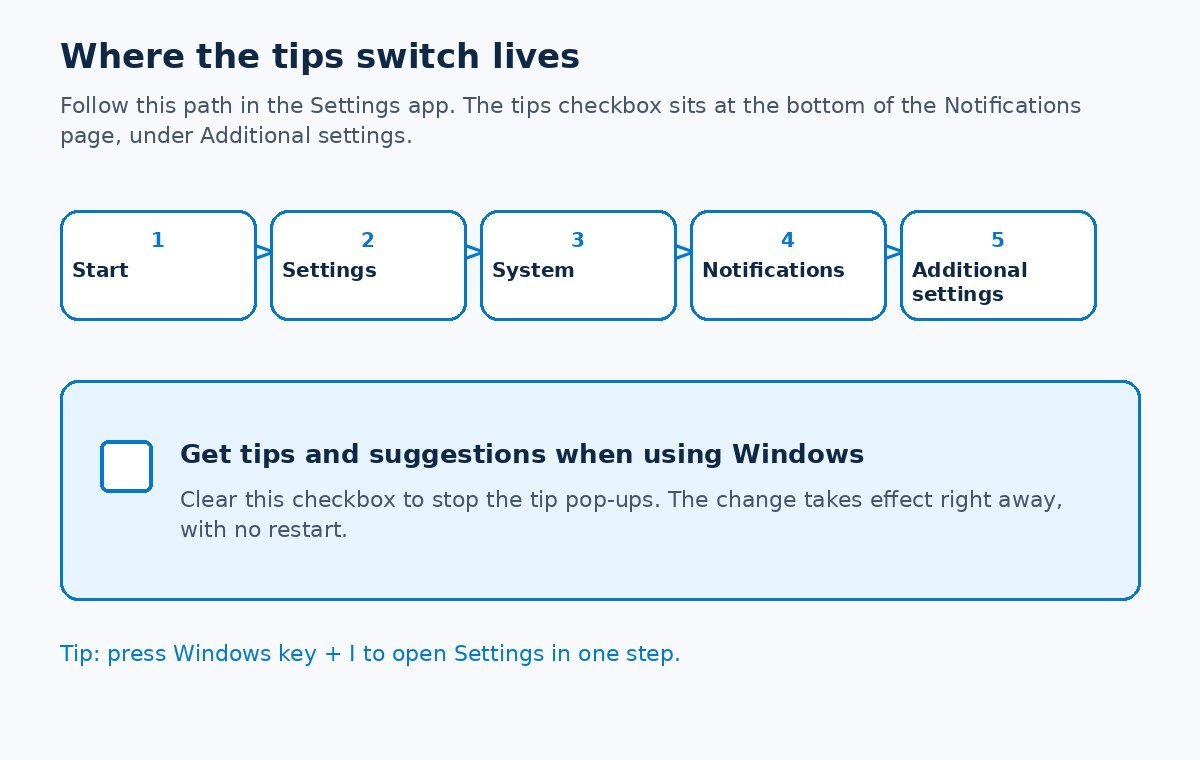
The quick answer: press Windows key + I to open Settings, go to System, then Notifications, scroll to the bottom, expand Additional settings, and clear the checkbox labelled Get tips and suggestions when using Windows. If tips still appear after that, the cause is almost always one of the two checkboxes sitting next to it, and this guide untangles all three.
Turn off tips and suggestions in under a minute
Follow these steps, and check the wording on your screen as you go. Microsoft uses the same path on current builds of Windows 11, including 26H2.
- Press Windows key + I to open the Settings app. You can also click Start and then the gear icon.
- Click System in the left hand menu.
- Click Notifications on the right hand side. The page shows the main Notifications switch at the top and a list of apps below it.
- Scroll all the way to the bottom of the Notifications page.
- Click Additional settings to expand the section. A short list of checkboxes appears.
- Clear the checkbox next to Get tips and suggestions when using Windows. The box should now be empty.
That is the whole fix for the tip pop-ups themselves. Close Settings and carry on with your work. If a tip appears later, read the next section first, because the message probably came from a different checkbox in the same list.
Why the tips keep coming back after you turn the checkbox off
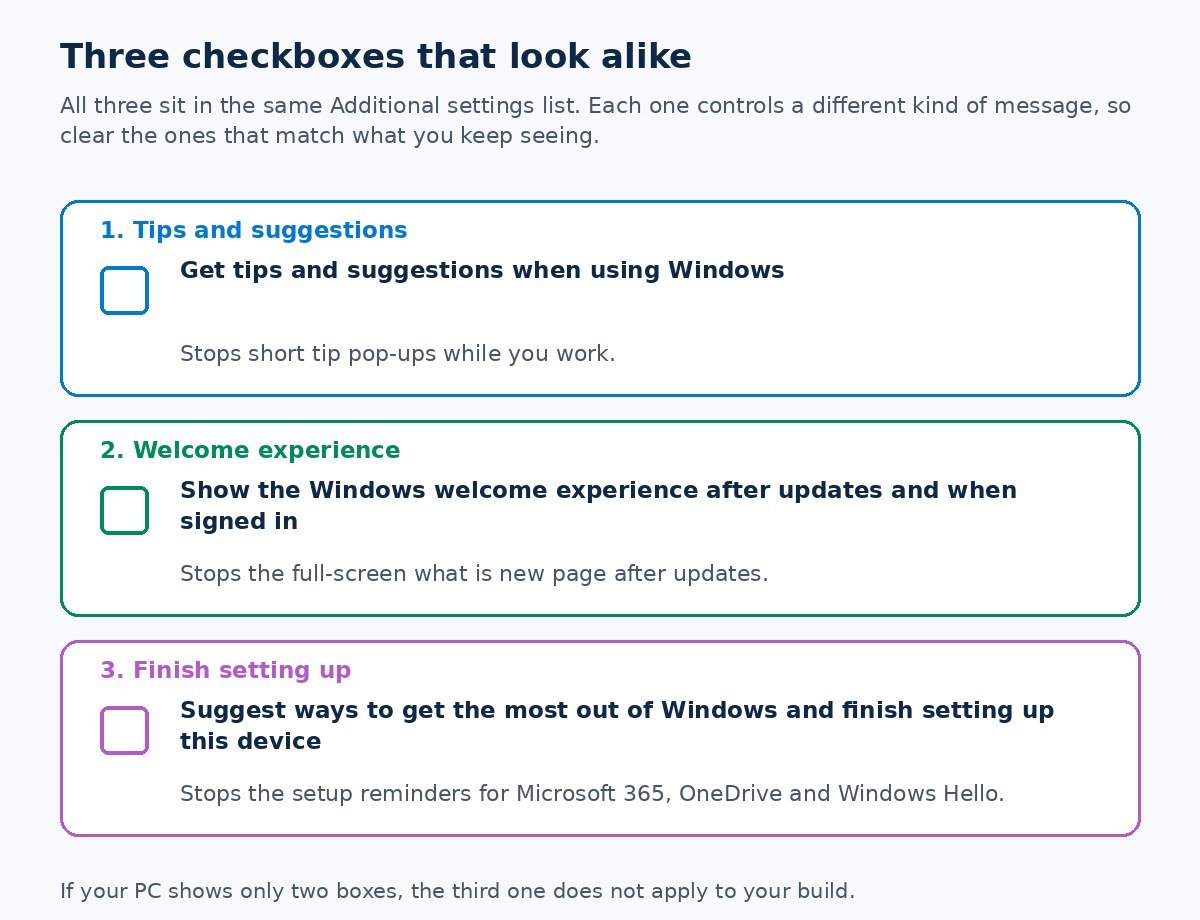
Most guides stop after the one checkbox above, and that is why so many readers say the fix did not work. The Additional settings list holds three checkboxes that sound alike, and each one controls a different kind of message. Clearing only the tips box stops the small pop-ups, but it does nothing about the full screen welcome page after an update or the setup reminders. When one of those appears, it feels as if the tips came back, even though the tips checkbox is still off.
The table below separates the three options so you can match each one to the message you actually see. Microsoft documents the first two, and the third appears on many current builds alongside them. If your PC shows only two boxes, the third one simply does not apply to your build.
| Checkbox in Additional settings | What it controls | Clear it if you see |
|---|---|---|
| Get tips and suggestions when using Windows | Short tip pop-ups in the bottom right corner while you work | Hints about features, shortcuts, or services you have not tried |
| Show the Windows welcome experience after updates and when signed in to show what is new and suggested | The full screen page about new features that appears after an update or a sign in | A what is new screen that takes over the display after Windows updates |
| Suggest ways to get the most out of Windows and finish setting up this device | Reminders to finish setting up the device, such as Microsoft 365, OneDrive, or Windows Hello | A prompt that asks you to finish setup, sometimes with a remind me later button |
Clearing all three boxes is the simplest choice if you want Windows to stop interrupting you altogether. Each checkbox can be turned back on later by returning to the same page, and none of the changes needs a restart.
Turn off the welcome experience as well
The welcome experience is the full screen page that appears after a feature update to show what is new and what Microsoft suggests you try next. It is easy to mistake for a tip, because it arrives without warning. It has its own checkbox in the same list, and Microsoft lists it alongside the tips checkbox on its notifications help page.
- Open Settings, go to System, then Notifications, and expand Additional settings at the bottom.
- Clear the checkbox labelled Show the Windows welcome experience after updates and when signed in to show what is new and suggested.
- Close Settings.
Turn off the finish setting up reminders
The third checkbox covers the setup reminders. These are the prompts that ask you to finish setting up the device, usually by signing in to Microsoft 365, turning on OneDrive backup, setting up Windows Hello, or choosing Edge as the default browser. The prompt often offers only a remind me later button, so it returns after a few days.
- Open Settings, go to System, then Notifications, and expand Additional settings.
- Look for the checkbox labelled Suggest ways to get the most out of Windows and finish setting up this device. If your build does not show it, skip this section, because your PC does not use this prompt.
- Clear the checkbox and close Settings.
Clearing this box stops the setup reminders, but it does not change anything you already set up. OneDrive, Windows Hello, and your Microsoft account keep working as before. The checkbox controls only the reminders, not the services themselves.
What this switch stops, and what it does not stop
Turning off tips and suggestions is a narrow fix, and knowing its limits saves frustration. The checkbox stops messages that Windows itself generates about features and services. It does not silence your apps, and it does not remove suggestions that live in other parts of the system. Each of those has its own switch, in a different place.
The lock screen is another common source of confusion. The fun facts and tips that appear over the lock screen picture are controlled under Settings, Personalization, Lock screen, and they stay on even after you clear the tips checkbox. If that is the message bothering you, our guide to turning off lock screen tips and fun facts in Windows 11 walks through it step by step. Suggested content inside the Settings app itself is also separate, controlled under Settings, Privacy and security, General, or on newer builds under Recommendations and offers.
| Where the message appears | What to change |
|---|---|
| Small tip pop-up in the bottom right corner while working | Notifications, Additional settings: Get tips and suggestions when using Windows |
| Full screen what is new page after an update | Notifications, Additional settings: Show the Windows welcome experience |
| Finish setting up prompt after signing in | Notifications, Additional settings: Suggest ways to get the most out of Windows and finish setting up this device |
| Recommended apps and tips in the Start menu | Personalization, Start: recommendations option |
| Fun facts and tips on the lock screen | Personalization, Lock screen: Get fun facts, tips, tricks, and more on your lock screen |
| Suggested content inside the Settings app | Privacy and security, General or Recommendations and offers: suggested content option |
| Alerts from one app, such as Outlook or Teams | Notifications, Notifications from apps and other senders: turn off that app only |
One more distinction is worth knowing. Do not disturb is not a replacement for these checkboxes. It silences notifications for a while, and the silenced messages wait in Notification Center, but it does not change any setting. When Do not disturb turns off, the tips return. Use it when you need quiet for an hour, and use the checkboxes above when you want the messages gone.
Turn tips off for every user on the PC
The Settings checkbox affects only the account you are signed in to. On a shared family PC, each person has to clear it on their own account. If you manage the PC and you want the change to apply to every user, use Group Policy or the registry instead. Both routes do the same job, and the right one depends on which edition of Windows 11 the PC runs.
Use Group Policy on Pro, Enterprise, and Education
The Local Group Policy Editor is included with Windows 11 Pro, Enterprise, and Education. It is not included with Windows 11 Home. The policy that controls tips is called Do not show Windows tips, and it sits under Cloud Content. Microsoft confirms the policy name and location in its Shared PC technical reference, which lists Windows Components, Cloud Content, Do not show Windows tips among the settings it configures.
- Press Windows key + R to open the Run box, type gpedit.msc, and press Enter.
- In the left hand pane, open Computer Configuration, then Administrative Templates, then Windows Components, then Cloud Content.
- Double click Do not show Windows tips in the right hand pane.
- Select Enabled, then click Apply and OK. Enabled here means the policy is active, so tips are blocked.
- Restart the PC so the policy takes effect for every user.
To undo the change later, return to the same policy, select Not Configured, click Apply and OK, and restart.
Use the registry on Home
Windows 11 Home has no Group Policy Editor, so the registry is the way to apply the same change to every user. The registry holds low level settings for Windows, and a wrong edit can cause problems, so follow the steps exactly and change nothing else. Back up the registry before you start.
- Press Windows key + R, type regedit, and press Enter.
- In Registry Editor, click File, then Export, and save the backup. Keep this file, because double clicking it later restores the registry.
- Go to this location: HKEY_LOCAL_MACHINE\SOFTWARE\Policies\Microsoft\Windows\CloudContent. You can paste the path into the address bar at the top of Registry Editor and press Enter.
- If the CloudContent key is missing, right click the Windows folder, choose New, then Key, and name it CloudContent.
- Click the CloudContent folder, right click an empty space on the right hand side, choose New, then DWORD (32-bit) Value, and name it DisableSoftLanding.
- Double click DisableSoftLanding, type 1 in the Value data box, and click OK.
- Close Registry Editor and restart the PC.
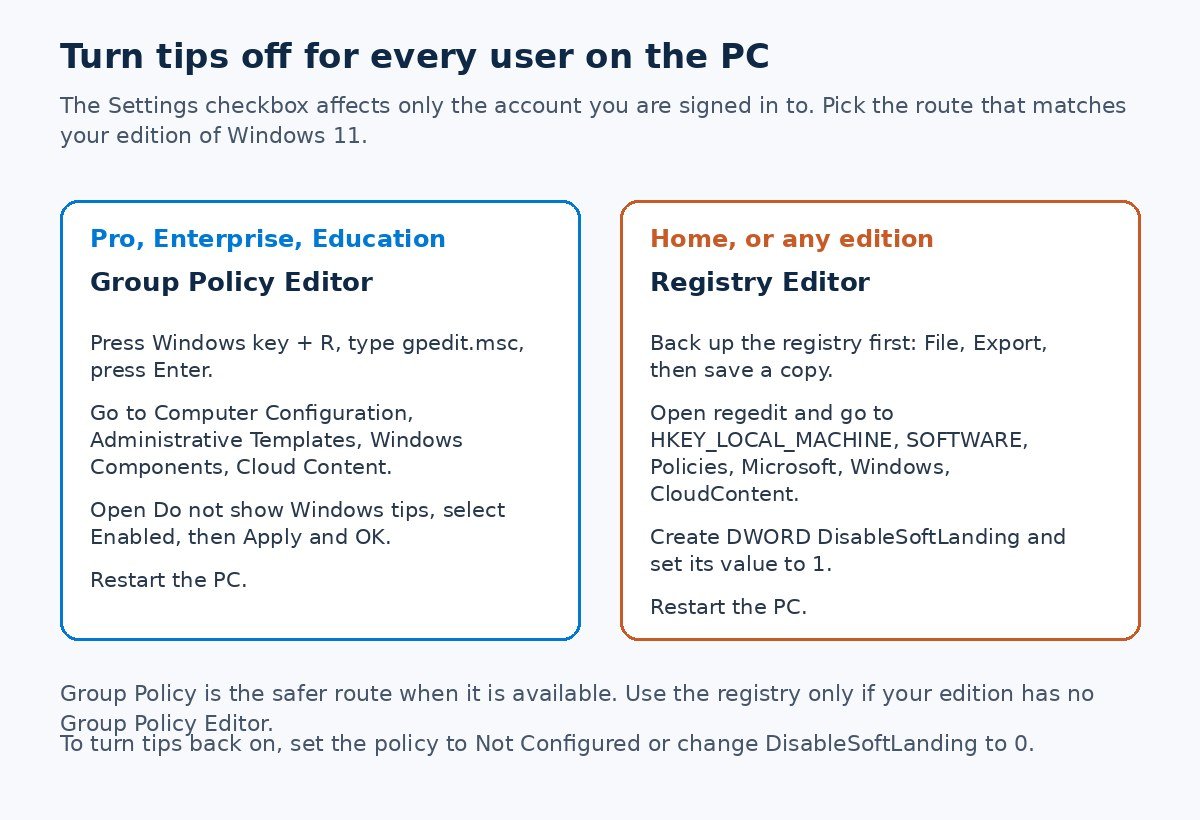
To turn tips back on after a registry change, return to the same location and change the value of DisableSoftLanding to 0, or delete the DisableSoftLanding entry entirely, then restart. Do not mix the two routes on the same machine. Pick one, because a policy setting can override the registry value and leave you wondering why a change had no effect.
How to turn tips back on
Turning the tips back on is the same process in reverse. Return to Settings, System, Notifications, Additional settings, and tick the checkbox next to Get tips and suggestions when using Windows. If you also cleared the welcome experience or the finish setting up boxes, tick those back on too if you want those messages again.
If the checkbox is greyed out or missing
A greyed out checkbox usually means the PC is managed by a work or school account, and an administrator has already set a policy for tips. On a work PC, ask the IT team before changing anything, because a policy can undo a local change at the next sign in. On a personal PC, check whether a Group Policy or registry value from an earlier change is still in place, using the sections above, and remove it before trying the Settings checkbox again. A missing checkbox is usually a build difference, not a fault. The wording of these options changes between Windows 11 builds, and some builds show two boxes where others show three. Look for anything in Additional settings that mentions tips, suggestions, the welcome experience, or finishing setup, and clear the ones that match the message you see.
Tips that return after a feature update have a simple explanation. A feature update can reset some notification settings, or it can introduce a new suggestion checkbox that did not exist before. When that happens, return to the Additional settings list, check all three boxes, and clear any that the update turned back on.
Common questions
Does turning off tips and suggestions affect Windows Update? No. The checkbox controls only tip messages, and Windows Update keeps working as before.
Does it stop all notifications? No. App notifications, calendar reminders, and security alerts keep working. Only the tip and suggestion messages stop. If you want total quiet for a while, turn on Do not disturb instead, and remember that it is temporary.
Do I need to restart after clearing the checkbox? No restart is needed for the Settings checkbox. The change takes effect as soon as you clear it. A restart is needed only for the Group Policy and registry routes, because those apply to every user.
Will the tips come back after the next Windows update? They can, because a feature update sometimes resets notification settings or adds a new suggestion option. After a feature update, open the Additional settings list and check that all three boxes are still clear.
The fix itself is simple, and the confusion around it comes from the three checkboxes sharing one small section of Settings. Clear the tips box to stop the pop-ups, clear the welcome experience box to stop the full screen page after updates, and clear the finish setting up box to stop the setup reminders. Match each box to the message you see, and Windows will stay quiet while you work.

- How to Turn Off Get Tips and Suggestions in Windows 11 [Fix] - November 24, 2026
- How to Change Mouse Scroll Settings on Windows 11 (Step-by-Step Guide) - November 23, 2026
- How to Turn Off Filter Keys on Windows 11 (and Stop It Turning Back On) - November 22, 2026