
How to Fix a Black Screen With Cursor After Login on Windows 11 (5 Fixes)
You type your password, Windows accepts it, and then nothing. The screen stays black, but the mouse cursor moves when you move the mouse. Your files are almost certainly still there, and Windows is still running. What failed is the part that draws the desktop, and that narrows the problem down a lot.
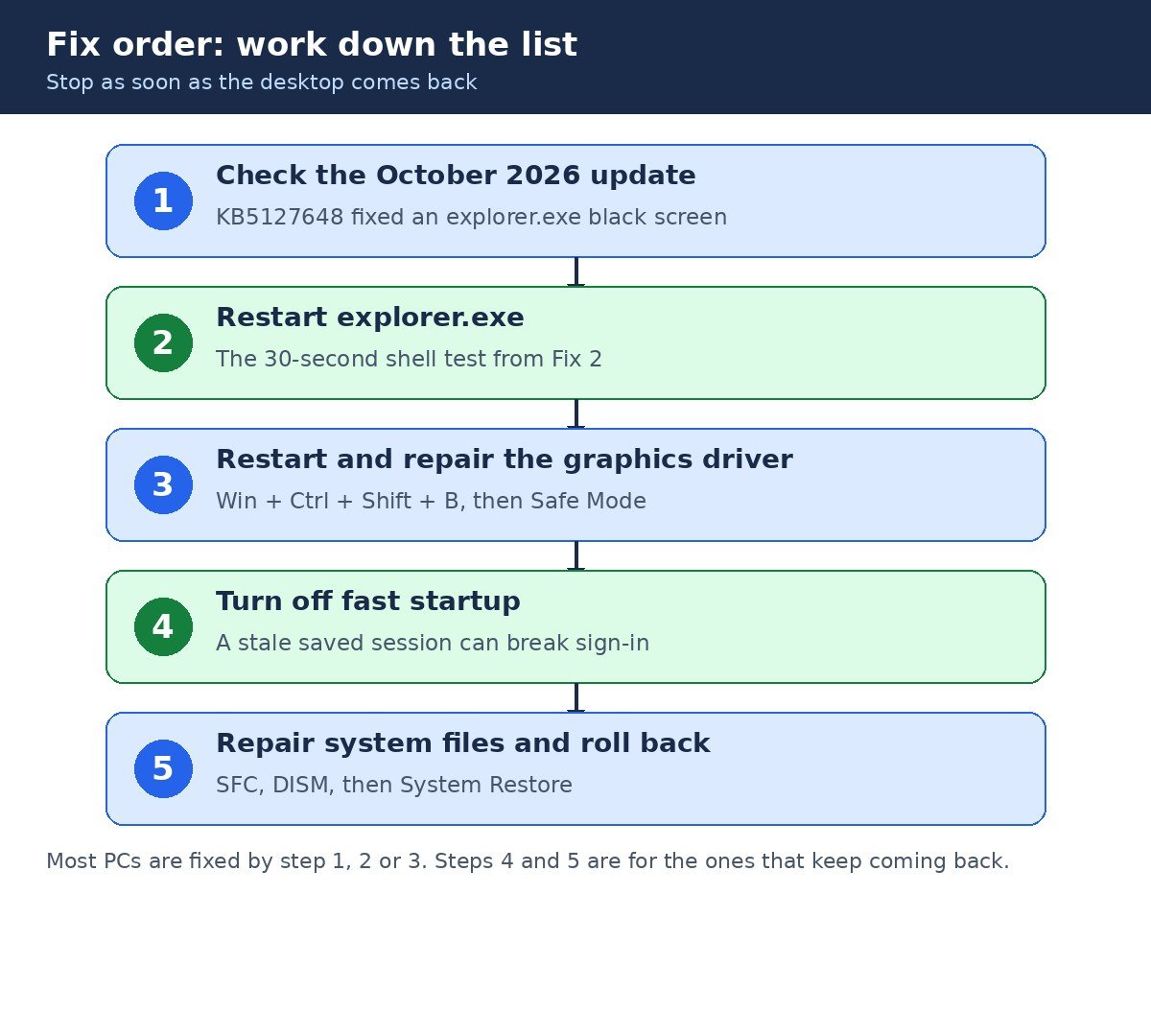
Work through these five fixes in order. The first one matters most if the problem started after a Windows update in late 2026, because Microsoft has confirmed a known issue behind exactly this symptom and fixed it in the October 13, 2026 update. The rest cover the other common causes: a stalled desktop shell, a bad graphics driver, fast startup, and damaged system files.
What a moving cursor tells you
A cursor that responds to the mouse means Windows finished signing you in and the graphics card is sending a picture to the monitor. The missing piece is the desktop shell, the explorer.exe process that draws the taskbar, the desktop icons, and the Start menu. When explorer.exe fails to start, or crashes right after sign-in, you get a black screen with a working cursor.
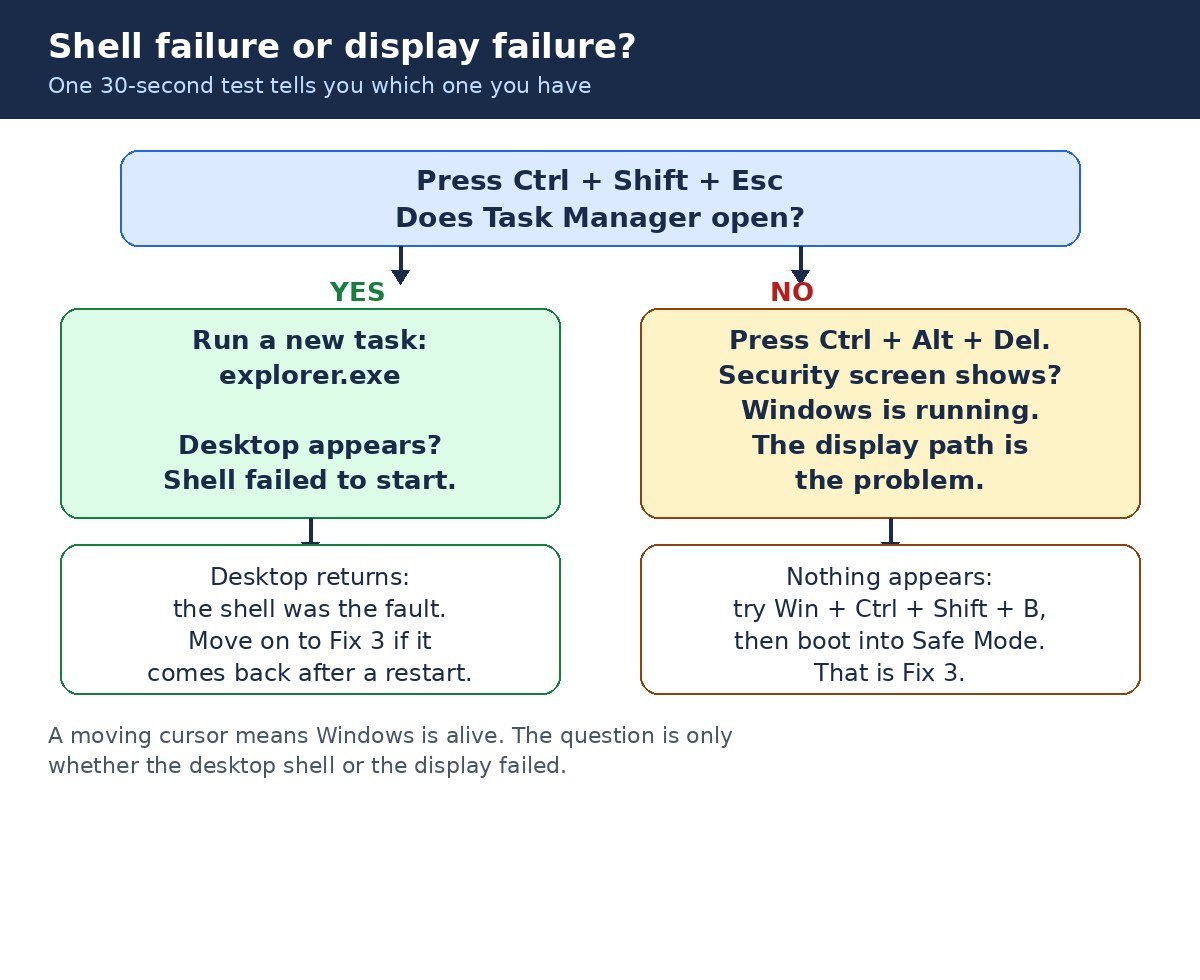
That is a different problem from a screen that is black from the moment you press the power button, which points at hardware or the monitor. Keep the split in mind, because it decides which fix to try first. If the shell is the problem, restarting it takes 30 seconds. If the display path is the problem, the driver and fast startup fixes are the ones that matter.
Fix 1: Check the October 2026 update first
Start here if the black screen appeared after a Windows update in August, September, or October 2026. Microsoft has documented a known issue in which explorer.exe fails to start or keeps crashing right after sign-in, leaving a black screen. The issue was introduced by the August 2026 preview updates and carried through the September cumulative updates. It was fixed in the October 13, 2026 cumulative update, KB5127648. Microsoft lists the fix in the release notes for KB5127648, under the heading for Windows Explorer.
One honest note before you check: Microsoft documented this issue mainly in multi-user environments, such as Azure Virtual Desktop hosts using FSLogix profile containers. On a home PC the same symptom usually has a different cause, and the fixes below still apply. But if your black screen started right after one of those late 2026 updates, this two minute check is still the right first move.
How to check whether you have the fix
You need a working screen for this check, so get the desktop back for a moment with Fix 2 below, or boot into Safe Mode with Networking using the steps in Fix 3.
- Press Windows key + R, type
winver, and press Enter. The About Windows box shows your version and OS build. - Compare your build with the table below. If your build is at or above the fixed build for your version, the known issue fix is already installed.
- If your build is lower than the fixed build, open Settings, then Windows Update, and select Check for updates. Install everything offered, then restart.
| Windows 11 version | Fixed in OS build | Update |
|---|---|---|
| 24H2 | 26100.9711 | KB5127648, October 13, 2026 |
| 25H2 | 26200.9711 | KB5127648, October 13, 2026 |
| 26H2 | 26300.9711 | KB5127648, October 13, 2026 |
Any cumulative update released on or after October 13, 2026 contains the fix, so a later update works just as well as KB5127648 itself. Later updates released on October 28, 2026 (KB5127936) and November 10, 2026 (KB5132061) also include it.
Windows 11 version 24H2 Home and Pro reached the end of updates with the October 2026 monthly security update, which is the last update those editions receive. If winver shows version 24H2, Microsoft recommends upgrading to the latest version of Windows 11.
Fix 2: Restart Windows Explorer and find out what failed
This is the fastest test in the guide, and the one that tells you what kind of failure you have. Windows Explorer is the process that draws the desktop. If it failed to start after sign-in, starting it by hand brings the whole desktop back in seconds. If it does not, you have learned the problem sits in the display path instead, and Fix 3 is next.
- Press Ctrl + Shift + Esc. If Task Manager opens, Windows is running normally behind the black screen.
- Select File in the menu bar, then Run new task.
- Type
explorer.exein the box, tick the box labelled Create this task with administrative privileges, and select OK. - Wait a few seconds. If the taskbar and desktop icons appear, the shell was the problem.
If Task Manager does not open, press Ctrl + Alt + Del. If the blue security screen appears, select Task Manager from it and repeat the steps above. If nothing appears at all, skip to Fix 3.
| What happens | What it means | What to do next |
|---|---|---|
| Desktop appears after explorer.exe | The shell failed to start after sign-in | Check Fix 1, then Fix 4 if it returns |
| Task Manager opens but the desktop stays black | Explorer starts but cannot draw the desktop | Go to Fix 3 |
| Neither Task Manager nor the security screen appears | Windows may not be responding, or the display path has failed | Try Win + Ctrl + Shift + B, then Fix 3 |
If the desktop comes back but the black screen returns at the next sign-in, the restart was a workaround, not a cure. Run Fix 1 to confirm the update is installed, then Fix 4.
Fix 3: Restart and repair the graphics driver
A graphics driver that crashes, or loads in a bad state, can leave you with a black screen and a cursor after sign-in. This fix has two parts: a ten second reset you can try right now, and a proper driver repair from Safe Mode if the reset does not hold.
Restart the driver with a keyboard shortcut
Press Windows key + Ctrl + Shift + B. You should hear a short beep and see the screen flicker or flash as Windows stops and restarts the graphics driver. Wait a few seconds. If the desktop appears, the driver had stalled, and you are back in. Because a driver that stalls once often stalls again, still update the driver using the steps below, even if the shortcut worked. These are the same recovery steps Microsoft lists in its blank screen troubleshooting guide.
While you are here, press Windows key + P, then tap P again and press Enter. That cycles the display mode between PC screen only, Duplicate, and Extend. If Windows is sending the picture to a monitor that is not there, this brings it back to the screen in front of you.
Update or roll back the driver from Safe Mode
If the shortcut does not bring the desktop back, or the problem returns, the driver itself needs attention. Safe Mode loads Windows with a basic display driver, which gives you a working screen to fix the real one.
- Force the PC off by holding the power button for about 10 seconds.
- Turn it on again, and as soon as the Windows logo or the spinning dots appear, hold the power button to force it off again.
- Repeat that interrupt two or three times. Windows should open the recovery screen.
- Select Troubleshoot, then Advanced options, then Startup Settings, then Restart.
- After the restart, press F5 to choose Safe Mode with Networking.
Once Safe Mode loads, open Device Manager. You can find it by right-clicking Start, or by searching for it in the Start menu. Expand Display adapters, right-click your graphics card, and choose Update driver, then Search automatically for drivers. If the black screen started right after a driver update, choose Properties instead, open the Driver tab, and select Roll Back Driver. Restart normally after either change and check whether the desktop loads. If you want the full walkthrough, our guide to updating drivers manually on Windows 11 covers each step in detail.
Fix 4: Turn off fast startup
Fast startup saves part of the system state to disk when you shut down, so the next start is quicker. That saved state includes the graphics driver, and if the saved state is damaged or stale, the driver can load in a broken condition at every sign-in. Turning fast startup off forces a full shutdown, which clears the saved state and often ends a black screen that appears after every restart but not after a cold boot.
You need a working desktop for this one, so use Fix 2 to get it back first, or do it from Safe Mode.
- Open Control Panel. The quickest way is to press Windows key + R, type
powercfg.cpl, and press Enter, which opens Power Options directly. - Select Choose what the power buttons do on the left.
- Select Change settings that are currently unavailable at the top. You need an administrator account for this step.
- Under Shutdown settings, clear the box next to Turn on fast startup (recommended).
- Select Save changes.
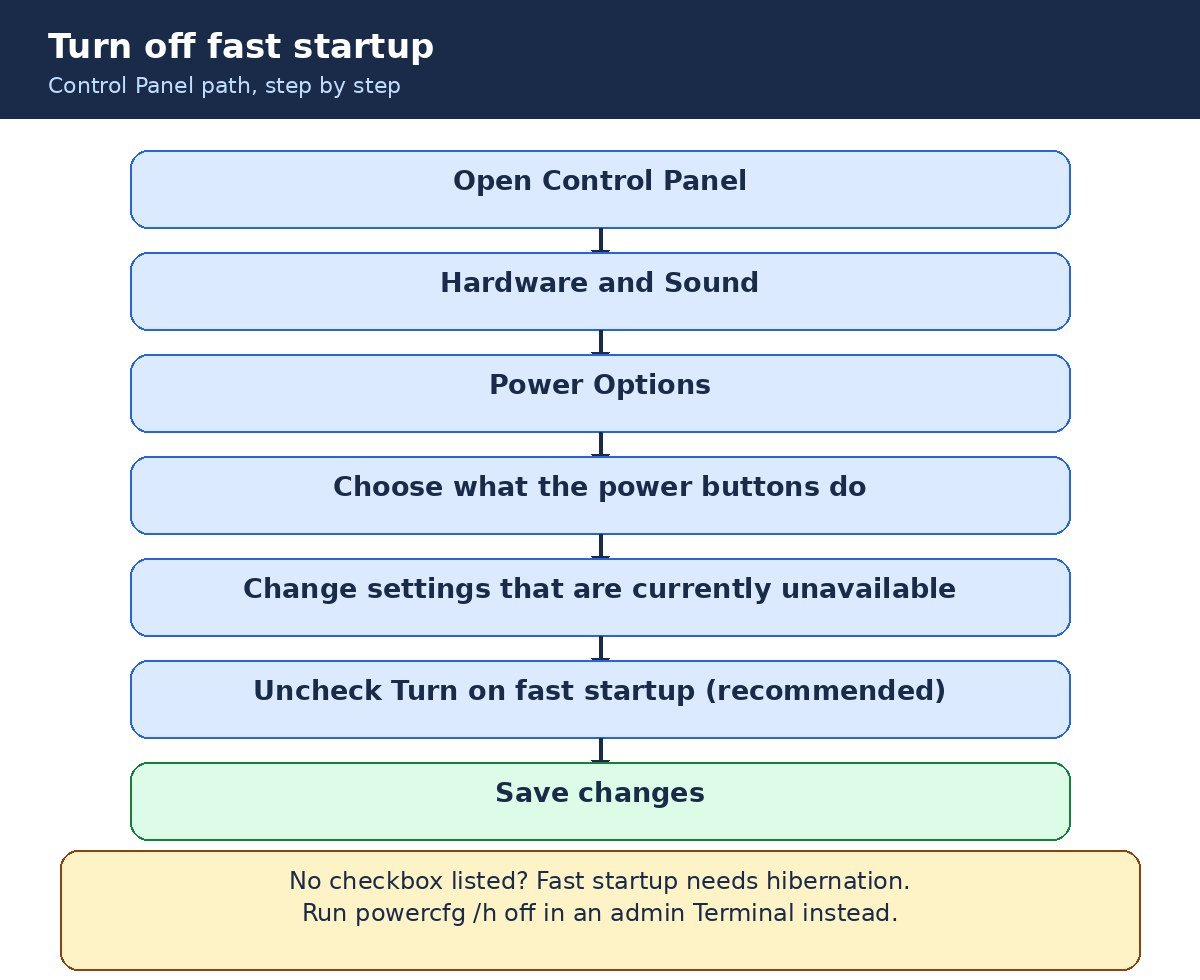
Shut the PC down fully, wait a few seconds, and turn it on again. A restart alone is not the same test here, because fast startup only affects shutdowns. If the checkbox is missing entirely, hibernation is off on the PC, and fast startup cannot run anyway. You can also switch it off from an admin Terminal with the command powercfg /h off, which turns hibernation off and takes fast startup with it. Our guide to turning off fast startup in Windows 11 walks through the same Control Panel path step by step.
Fix 5: Repair system files and roll back to a working state
If the first four fixes have not helped, the cause may be damaged system files, or a recent change that needs undoing. Both are fixed from Safe Mode or the recovery screen.
Check and repair system files
Open Terminal as administrator. Right-click Start, select Terminal (Admin), and accept the permission prompt. Then run these two commands, one at a time, waiting for each to finish:
sfc /scannowDISM /Online /Cleanup-Image /RestoreHealth
The first command scans protected Windows files and replaces any it finds damaged. The second repairs the component store the first command draws from. Restart normally when both have finished.
Use System Restore to undo a recent change
If the black screen started after a specific update, driver install, or software install, System Restore can take Windows back to how it was before that change without touching your personal files.
- Boot into the recovery screen using the interrupt method in Fix 3, or from Safe Mode.
- Select Troubleshoot, then Advanced options, then System Restore.
- Pick a restore point dated before the black screen started, and follow the prompts.
- Let the restore finish and restart. Windows keeps your documents, photos, and other personal files, but programs and drivers installed after the restore point are removed.
If no restore point exists, Windows may not have had System Protection turned on. In that case this fix is not available, and the next section is the better next step.
If nothing has worked yet
A few last checks before calling it a hardware problem. First, try a different user account, or create a new local account from Safe Mode. If the new account signs in to a normal desktop, the old user profile is damaged, and moving your files to the new account is the fix. Second, if you use an external monitor, check the cable and the monitor input, and try a different cable or port. Third, remove any recently added hardware, such as a new graphics card or a USB dock, and try again.
If the PC is a work machine on a company network, or it uses a virtual desktop with FSLogix profiles, tell your IT team about the October 2026 update in Fix 1. That known issue was documented mainly in those environments, and the fix may need to be applied to the shared image rather than to your PC alone.
Common questions
Will I lose my files?
No. A black screen with a cursor is a display or shell problem, not a disk problem. Your files stay where they are while you work through these fixes, and System Restore also keeps personal files. The only step in this guide that can remove anything is a factory reset, which is not one of these fixes.
Why did this start right after a Windows update?
Updates replace system files and drivers, and a mismatch between the new files and the old saved state is the usual trigger. In late 2026 there was also the documented explorer.exe issue fixed in KB5127648, which is why Fix 1 checks the update first.
Is a black screen with a cursor a virus?
Almost never. Malware can cause display problems, but a black screen after sign-in is far more often a driver, update, or shell failure. Run a full scan with Windows Security once the desktop is back, for peace of mind, but do not start there.
Start with the update check, then the 30 second explorer restart. Those two steps settle most cases in a few minutes, and the test in Fix 2 tells you whether the shell or the display is at fault. If the black screen keeps returning after every sign-in, turn off fast startup and repair the system files before assuming the hardware has failed.

- How to Fix a Black Screen With Cursor After Login on Windows 11 (5 Fixes) - November 26, 2026
- How to Check If Windows 11 Is Activated (3 Ways) - November 24, 2026
- How to Manually Update Microsoft Defender Definitions in Windows 11 (3 Ways) - November 23, 2026