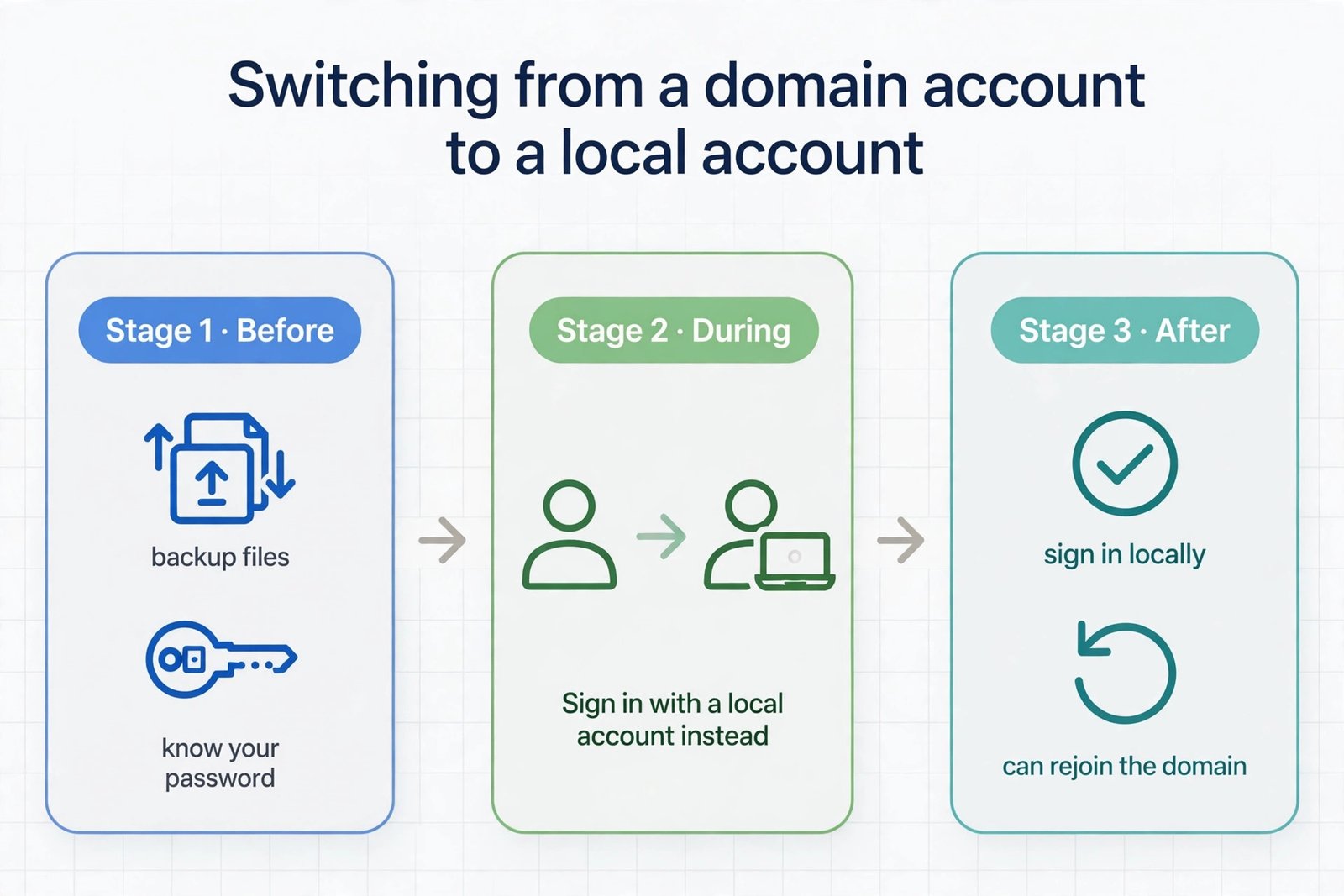
You can switch from a domain account to a local account on Windows. This means you’ll stop using your company or organization’s network credentials and instead use an account stored directly on your computer. Most people do this when they leave a job, don’t have network access anymore, or simply prefer more control over their device.
The process takes about 10 to 15 minutes. You have two main paths: create a new local account first, or convert your existing domain account. Both work, but which one you choose depends on your situation.
Why You Might Want a Local Account Instead of Domain Account
A domain account connects your computer to your workplace network. This is useful when you need shared resources and your IT department manages security. But there are times when a local account makes more sense.
You’ll want to switch to a local account if:
- You no longer work at the organization
- Your company removed your domain access
- You want to use Windows without network requirements
- Your domain server isn’t available or reachable
- You prefer full control over your device settings
- You’re troubleshooting network connection problems
A local account stores everything on your computer. You don’t need an internet connection to log in. You won’t need IT approval to install software or change settings. Your files stay on your device unless you explicitly back them up elsewhere.

Understanding the Difference Between Local and Domain Accounts
Before you switch, it helps to understand what makes these accounts different.
Domain Account
A domain account is managed by your network administrator. Your credentials live on a server, not your computer. When you log in, Windows checks the domain server to verify you’re allowed access. This means your IT department can enforce security policies, manage which software you can use, and control what you can do on your device.
Your domain account syncs with Microsoft services if your organization uses Microsoft Entra ID (formerly Azure AD). This allows single sign-on across multiple services. If your organization uses OneDrive or Microsoft 365, your domain account connects to these automatically.
Local Account
A local account lives only on your computer. Windows stores your username and password locally. You don’t need a server to log in. You have full control over what software you install and how you configure your system.
The trade-off is that a local account won’t sync settings across devices. If you use multiple computers, you’ll need to set up each one separately. Cloud services like OneDrive and Microsoft 365 still work, but you’ll log in separately to each one.
Method 1: Create a New Local Account (Safest Approach)
This method is the safest because you create a new account while keeping your domain account. You can test everything before deleting the old account. This gives you a recovery option if something goes wrong.
Step-by-Step Process
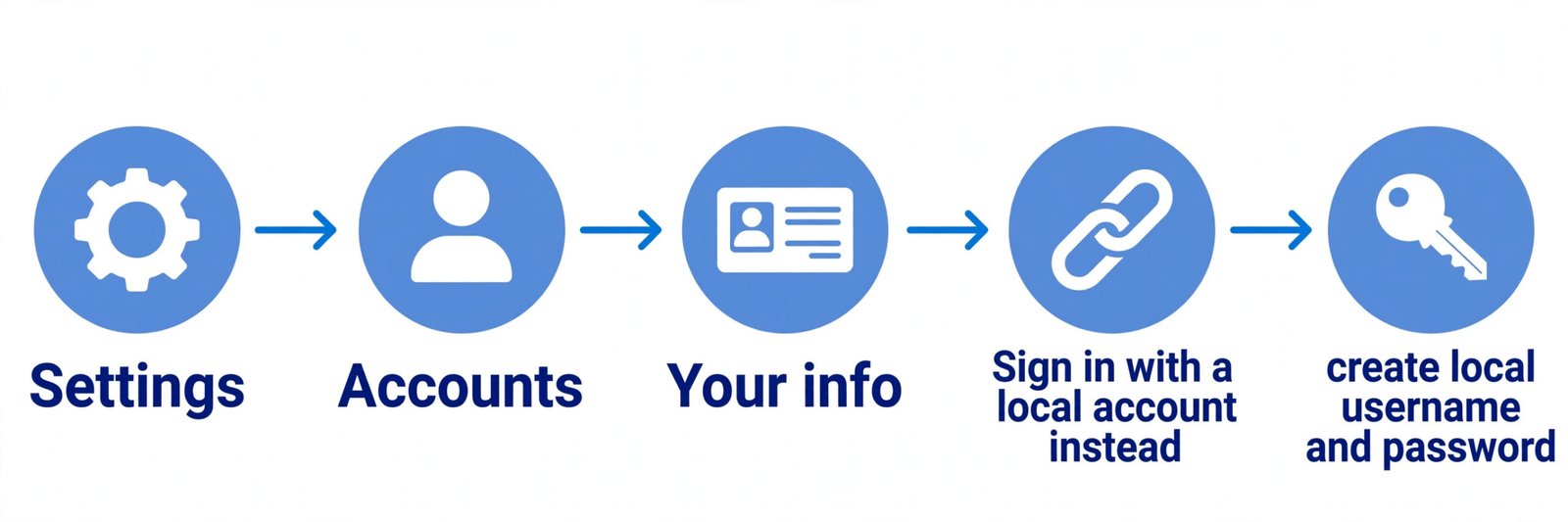
Step 1: Open Settings
Click the Windows Start button in the bottom left corner. Type “Settings” and press Enter. You’ll see the main Windows Settings window.
Step 2: Navigate to Accounts
Look for “Accounts” in the Settings window. Click it. On the left side, you’ll see several options. Make sure you’re on the “Your info” page.
Step 3: Add a New Account
Look for the button or link that says “Add account.” Click it. You’ll see options to add a Microsoft account or a local account.
Step 4: Choose Local Account
Select the option that says “I prefer to use a local account instead.” Windows will ask you for a username and password for this new local account.
Step 5: Create Your Credentials
Type a username you want to use. This should be something you’ll remember. Create a password that’s secure. You’ll also need to set up security questions. These help you reset your password if you forget it.
Step 6: Complete Setup
Confirm your choices. Windows creates the local account. You’ll be returned to your original domain account.
Step 7: Log Out and Test
Sign out of your domain account. From the login screen, select your new local account. Type your password and press Enter. If everything works, you’re in the clear.
Important Details About New Local Accounts
Your new local account starts fresh. It has no files or settings from your domain account. Your desktop will be empty. Your documents folder will be empty. You’ll need to copy any files you want to keep.
Before you delete your domain account, make sure you’ve moved all important files to your new local account or to an external drive. Domain accounts sometimes encrypt files. When the account is deleted, encrypted files become inaccessible.
Method 2: Converting Your Domain Account to Local (Faster But Riskier)
This method is faster because you keep everything on your current account. However, it’s riskier because you’re modifying your existing account. If something goes wrong, you might lose access to your files or settings.
Only use this method if you feel comfortable with Windows or if you’ve backed up everything important.
Step-by-Step Process
Step 1: Disconnect from the Domain
Open Settings and go to Accounts. Look for “Access work or school” on the left side. Click it. You’ll see your domain account listed.
Click your domain account. Select “Disconnect.” Windows will ask for confirmation. Proceed.
Step 2: Restart Your Computer
Once disconnected, restart your computer. Press the Windows button and the power icon at the bottom right. Choose “Restart.”
Step 3: Log Back In After Restart
Your computer now treats your account as a local account. You’ll be asked to set a password when you log in. Create one you’ll remember. This becomes your new login password.
Step 4: Verify Your Files
Check that your documents, desktop, and downloads folders still contain your files. Make sure your installed programs still work. Test the programs you use most.
Step 5: Update Your Sync Settings
If you use Microsoft services like OneDrive or Microsoft 365, you’ll need to log in again with your Microsoft account. Go to Settings and look for “Sync your settings” to adjust what syncs to the cloud.
Risks of Converting Your Domain Account
Encrypted files stored by your domain account might become inaccessible. Windows File Encryption (EFS) ties files to the account that created them. If you had encrypted files, you may lose access.
Some workplace software might stop working. Applications your IT department configured for domain accounts might not work on local accounts. You won’t be able to access shared network drives or printers managed by your workplace domain.
Your user profile might still be labeled as a domain account in some places. You might see reminders to connect to a domain. These are harmless but annoying.
What Happens to Your Files and Settings
This is one of the biggest concerns people have, so let’s be specific.
Files and Folders
Your personal files stay on your computer. Documents you created, photos you saved, and downloads all remain exactly where they are. The location doesn’t change. The files don’t move or get deleted.
However, if your domain account had encryption enabled, some files might become locked. You won’t be able to open them. This is rare unless your IT department specifically enabled encryption.
To avoid this problem, copy important files to an external drive or cloud storage before making the switch. This takes extra time but protects you.
Installed Programs
Most programs continue to work. Office applications, web browsers, Adobe software, and most commercial programs don’t care which account you use. They work the same on local accounts.
Some workplace-specific software might break. Anything your IT department customized for domain accounts might fail. This includes some security software, network clients, or proprietary company tools.
You’ll only discover these problems after switching. This is another reason creating a new local account first is safer. You can test your programs before fully committing.
Desktop and Wallpaper Settings
Your desktop settings might reset. The wallpaper might change to the default. Shortcuts you had on your desktop might disappear. Your taskbar configuration might change.
These are cosmetic issues, but they’re annoying. After switching, you’ll need to reconfigure your desktop the way you like it. This takes 10 to 20 minutes.
Email and Passwords
Saved passwords in web browsers usually transfer over. Windows remembers the passwords you saved in Edge or Chrome. However, programs that stored passwords in the domain account system might forget them.
Your email applications might ask you to log in again. Outlook might need your password re-entered. Gmail, Yahoo, and other email services need you to authenticate again. This is normal and expected.
Shortcuts and Connections
Network shortcuts and connected network drives probably won’t work. If you had shortcuts to company file servers, those might show as unavailable. You’ll need to reconnect manually if the drives are still accessible.
WiFi networks you were connected to usually stay configured. Your internet connection itself won’t be affected.
Handling Network Drives and Shared Resources
If you used shared network drives at work, you’ll lose automatic access when you switch to a local account. You might still be able to access them if they’re public or if you have login credentials.
Reconnecting to Network Drives
Open File Explorer. Right-click on “This PC” in the left sidebar. Choose “Map network drive.” Type the network path your IT department provided. You’ll be asked for a username and password. Enter your domain credentials if you still have access.
This reconnects you to the shared drive. However, it will only work if the network is available and your domain account still has access.
When Network Drives Won’t Work
If your domain credentials are deactivated, you can’t reconnect. If you no longer work at the organization, the shares probably won’t let you in. In these cases, ask whoever manages the files to send you copies or to give you access with a different method.
Setting Up Cloud Services on Your Local Account
After switching to a local account, you’ll want to set up Microsoft services properly.
Microsoft OneDrive
Open Settings and search for “OneDrive.” Click “Microsoft OneDrive” from the results. Sign in with your personal Microsoft account email (not your domain email).
Choose which folders you want to sync to the cloud. Your Documents, Desktop, and Pictures folders can automatically upload. This ensures your files are backed up.
Microsoft 365 and Office
Open any Office application like Word or Excel. You’ll see a prompt to sign in. Use your personal Microsoft account, not your domain account.
If you purchased Microsoft 365, sign in with that account. If you used an organization license through your domain account, that license won’t transfer to your local account. You’ll need to purchase your own subscription or use the free versions of Office online.
Other Cloud Services
Google Drive, Dropbox, iCloud, and other cloud services work fine with local accounts. Install them and sign in with your personal account. They work the same way.
Troubleshooting Common Problems
Sometimes things don’t go smoothly. Here are the most common issues and how to fix them.
You’re Still Seeing Domain Prompts
After switching, you might still see references to your domain account in Settings or notifications. This is usually harmless. The computer is still registered to the domain in some systems, even though you’re not using the domain account.
To fully disconnect, you might need to contact your IT department or wait for the domain to remove your device automatically.
Encrypted Files Are Inaccessible
If files show as locked or encrypted, try right-clicking them and looking for an “Unlock” option. If that doesn’t work, you’ll need to access them from a computer or account that still has domain access.
For critical files, contact your IT department. They might have a way to decrypt them or provide you with unencrypted copies.
Programs Won’t Start
Some workplace programs require domain authentication. They check that you’re connected to the domain before they’ll run. These programs will fail on a local account.
You’ll need to contact the software vendor or your IT department to see if there’s a version that works without domain connectivity. Some software has workarounds, but others simply won’t function.
Network Printing Doesn’t Work
Network printers often require domain authentication. Once you switch to a local account, you might not be able to print.
Ask whoever manages the printers to provide the printer’s IP address and driver. You can often add network printers manually if you know their address. Most modern printers work without domain requirements.
WiFi Passwords Aren’t Remembered
This is rare, but sometimes WiFi passwords don’t transfer to a local account. If your WiFi keeps disconnecting, go to Settings, find your network, “Forget” it, then reconnect and re-enter the password.
Quick Comparison of Methods
| Aspect | New Local Account | Convert Existing Account |
|---|---|---|
| Time Required | 15-20 minutes | 5-10 minutes |
| Risk Level | Very Low | Moderate |
| File Access | Need to copy files | Automatic access |
| Program Compatibility | Need to test | Might have issues |
| Encryption Issues | None | Possible |
| Recovery Options | Keep domain account | Harder to recover |
| Best For | Most people | Experienced users only |
Best Practices After Switching
Once you’ve successfully switched to a local account, follow these practices to stay secure and organized.
Back Up Your Important Files
Use cloud storage like OneDrive, Google Drive, or Dropbox. Set them to automatically sync your important folders. This protects your files if something happens to your computer.
Keep Your Passwords Secure
Write down or use a password manager for important accounts. Don’t rely on Windows to remember passwords. If you lose access to your account, a password manager helps you recover.
Install Security Software
Local accounts don’t get automatic updates from a domain server. You need antivirus software. Windows Defender is built in and provides decent protection. You can upgrade to a paid antivirus if you want more features.
Check for Windows Updates
Go to Settings, then “Update & Security.” Windows should check for updates automatically. Let them install. These updates include security patches that protect your computer.
Test Your Setup Thoroughly
Before deleting your domain account, make sure everything works for at least a week. Check that your printer works. Verify your email. Test your most-used programs. Only after confirming everything is fine should you delete the domain account.
When to Keep Your Domain Account
You don’t always need to delete your domain account. Sometimes it’s better to keep it.
If you switch jobs but might need to access old files, keep the domain account. You can use it only when necessary. Just don’t make it your primary account.
If you’re troubleshooting and not sure if switching is permanent, keep the domain account as a backup. Switch to a new local account first and test everything. If it works great, you can delete the domain account later.
If you need temporary access to network resources, keep the domain account. Log into it when you need network access, then switch back to your local account. This hybrid approach gives you flexibility.
Summary
Switching from a domain account to a local account is straightforward, but it requires planning. The safest approach is creating a new local account first, testing it thoroughly, then deleting your domain account if everything works.
Your files stay on your computer during the switch. Most programs continue working. You lose automatic access to network drives and company resources, but you gain full control over your device. You’ll need to set up Microsoft services and cloud storage on your local account, but this usually takes just a few minutes.
The entire process takes less than an hour if you’re organized and prepared. Back up important files first, create your new account, test everything for a week, then make the final switch. Following these steps prevents data loss and ensures a smooth transition.
Remember: you can always create a new local account before deleting your domain account. This safety net protects you from mistakes and gives you time to verify everything works as expected.
Frequently Asked Questions
Can I Use Both Accounts on the Same Computer?
Yes. You can have both a domain account and a local account on the same computer. Windows lets you switch between them at the login screen. Some people keep the domain account for work purposes and use a local account for personal use. You can log out and switch whenever you need to.
Will My Internet Connection Change?
No. Your internet connection works exactly the same on a local account. WiFi networks and network cables continue to function. Your internet speed and connection type don’t change. You’ll have the same access to websites and online services.
What If I Forget My Local Account Password?
If you set up security questions during account creation, you can use them to reset your password. Go to the login screen, click “I forgot my password,” and answer the security questions you set up. If you didn’t set up security questions, you’ll need to use another admin account to reset it, or you’ll need to recover your account through Microsoft.
Can I Convert Back to a Domain Account?
Converting back is possible but complicated. You’d need to rejoin the domain through Settings or Control Panel. Your IT department would need to approve and set up your device on the domain again. Most people don’t do this because it defeats the purpose of switching. Plan ahead to make sure switching to local is what you really want.
Do I Need Microsoft Account to Use a Local Account?
No. A local account works completely independently from any Microsoft account. You can use Windows without ever logging into Microsoft. However, some features like cloud sync and Microsoft 365 require a Microsoft account. You can use Windows just fine without these features if you prefer.
- Fix “StartTLS Is Required to Send Email” Error (SMTP Configuration) - January 11, 2026
- Fix: RDP Can’t Connect to Remote Computer (8 Solutions) - January 11, 2026
- Fix “Sysprep Was Not Able to Validate Your Windows Installation” Error: Complete Solution Guide - January 11, 2026