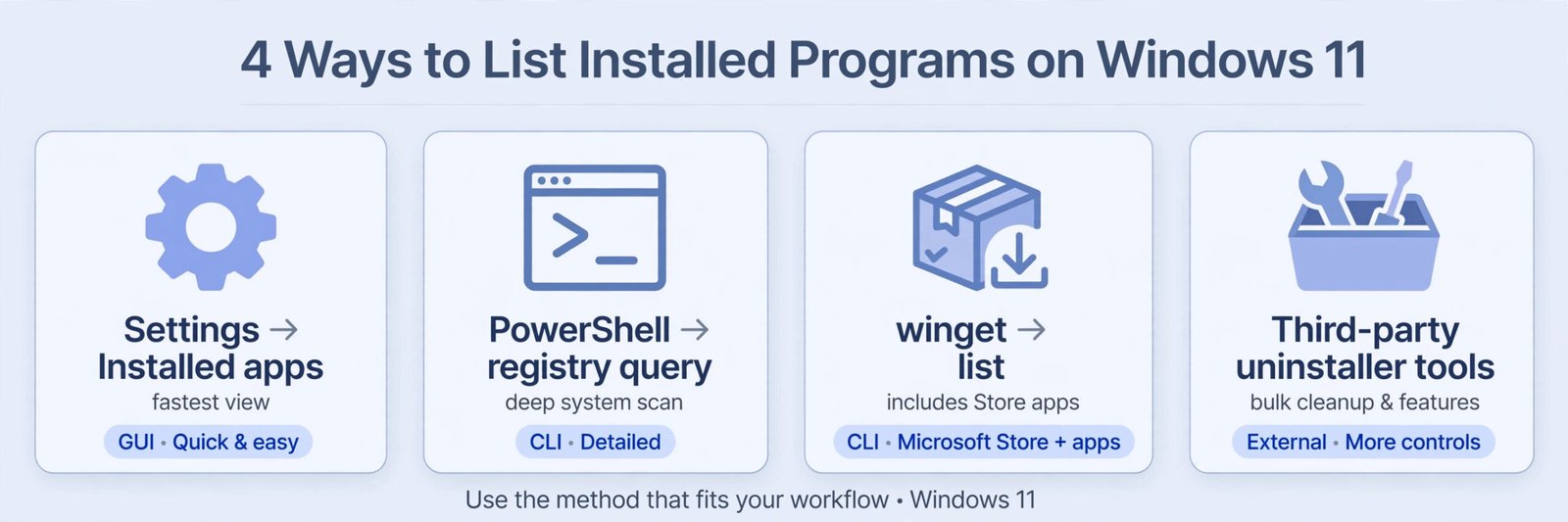
You can get a list of all installed programs in Windows using three main methods: the Control Panel’s Programs and Features window, PowerShell command line, or third-party software inventory tools. The fastest method is PowerShell, which gives you a complete list in seconds. The easiest visual method is Control Panel for most users.
Why You Might Need a List of Your Installed Programs
Before diving into how, let’s talk about why this matters. There are real reasons people need this list.
You might want to find a program you forgot you installed. Maybe you’re trying to free up disk space and need to see what’s taking up room. You could be troubleshooting a problem and need to check what software is running. Some people need to document everything on their computer for work or compliance reasons. Others want to transfer their setup to a new PC.
Whatever your reason, having a quick way to see everything installed saves time and frustration.

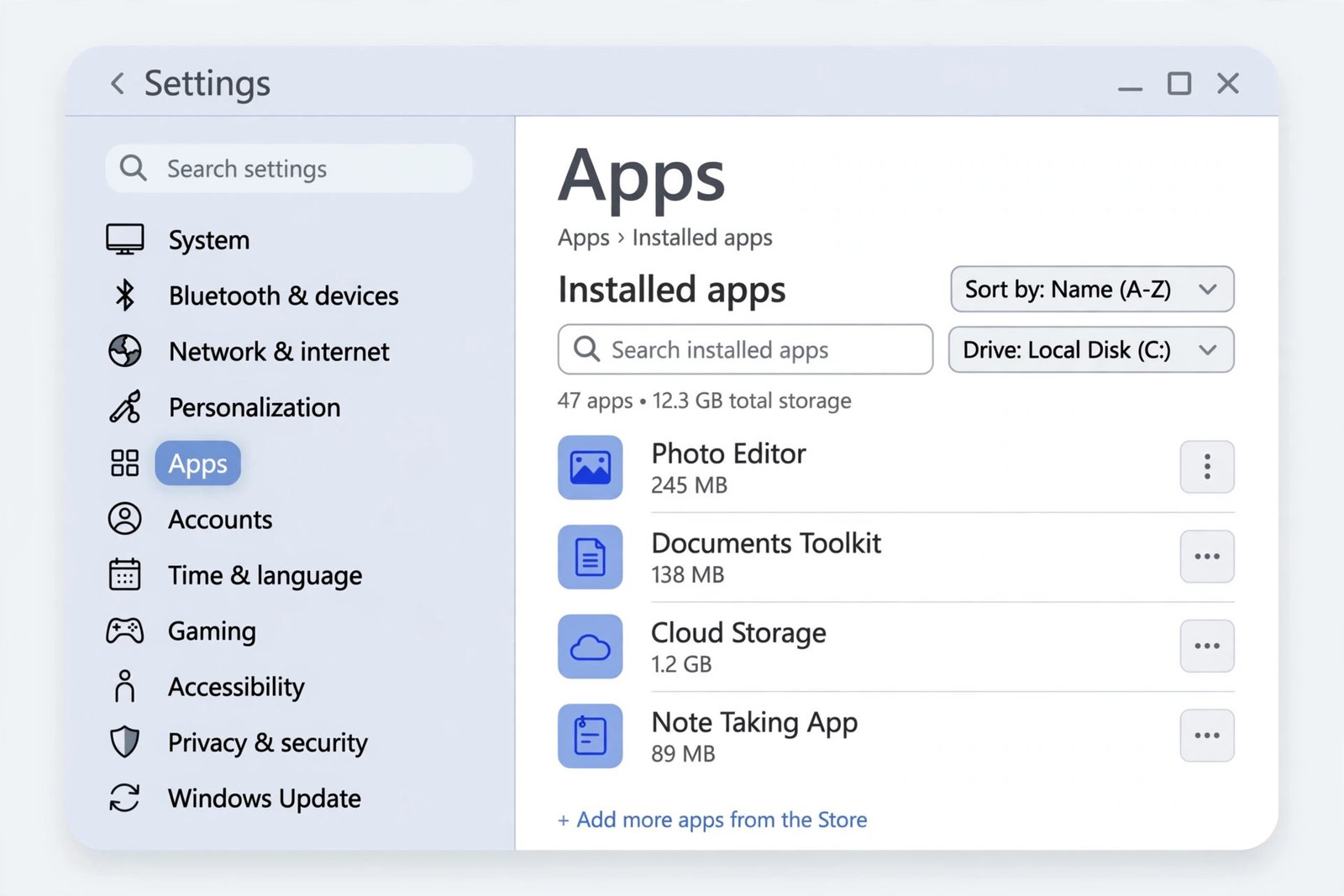
Method 1: Control Panel and Programs and Features (The Visual Way)
This is the most straightforward method for most Windows users. You’re looking at a clear list with details about each program.
Step by Step
Open the Control Panel
Press the Windows key and type “Control Panel.” Click the first result. You’ll see the classic Windows control center.
Find Programs and Features
Look for “Programs” or “Programs and Features.” Click it. This window shows every program Windows knows about.
Review Your List
You’ll see columns showing:
- Program name
- Publisher (who made it)
- Installed date
- Size (how much space it takes)
- Version number
Sort or Search
Click any column header to sort by that category. Use the search box at the top right to find a specific program quickly.
Why Use This Method
This approach is familiar to most Windows users. You can see program details at a glance. You can uninstall programs directly from this window. No special knowledge required.
Limitations
This list sometimes misses programs that don’t register with Windows properly. It doesn’t show every single file or portable programs. The display can be slow if you have many programs installed.
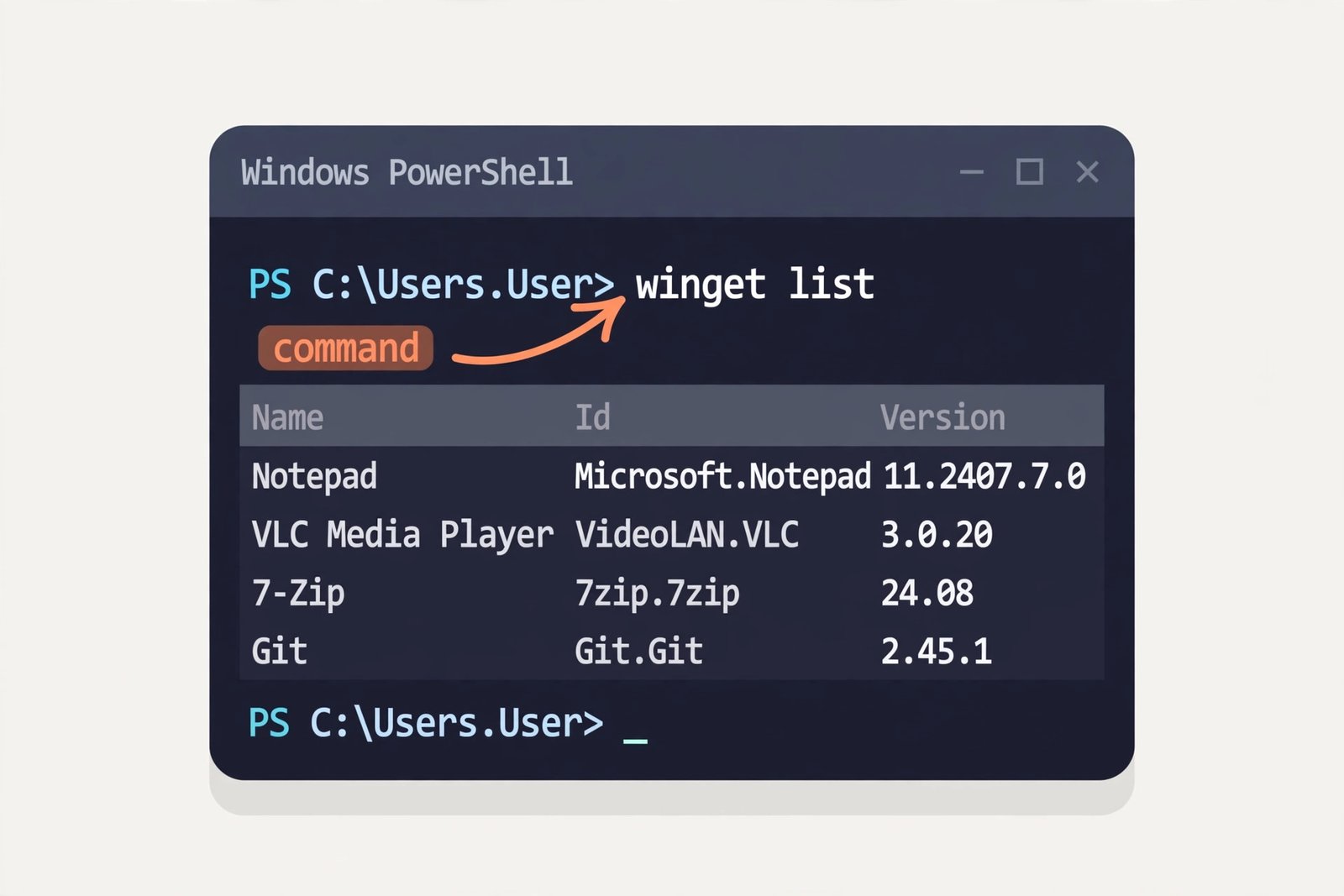
Method 2: PowerShell Command (The Fast and Complete Way)
PowerShell is a command line tool built into Windows. It’s powerful and shows you everything.
What You Need to Know First
PowerShell is a text-based tool. Don’t worry. You’ll just copy and paste commands. It’s actually faster than clicking through menus once you know the command.
Step by Step
Open PowerShell as Administrator
Press the Windows key and type “PowerShell.” Right-click on Windows PowerShell. Select “Run as administrator.” Click Yes if Windows asks for permission.
Copy This Command
Get-ItemProperty HKLM:\Software\Wow6432Node\Microsoft\Windows\CurrentVersion\Uninstall\* | Select-Object DisplayName, DisplayVersion, Publisher, InstallDate | Format-Table –AutoSize
Paste It In
Right-click in the PowerShell window and paste. Press Enter.
Wait for Results
Your programs will appear in a table. This includes installed date, version, and publisher for each one.
What This Command Does
It looks in the Windows registry where all installed programs are recorded. It pulls out the name, version, publisher, and install date. It formats everything into a readable table.
Exporting Your List to a File
Want to save this list? Use this command instead:
Get-ItemProperty HKLM:\Software\Wow6432Node\Microsoft\Windows\CurrentVersion\Uninstall\* | Select-Object DisplayName, DisplayVersion, Publisher, InstallDate | Export-Csv -Path "C:\Users\YourUsername\Desktop\InstalledPrograms.csv" -NoTypeInformation
Replace “YourUsername” with your actual Windows username.
This creates a CSV file on your Desktop. You can open it in Excel.
Why Use This Method
PowerShell finds programs that Control Panel might miss. It’s much faster on computers with many programs. You can export the list to share with others. It works on any Windows version from Windows 7 onward.
Limitations
You need to feel comfortable typing commands. It shows technical information some people don’t need. The initial learning curve is steeper than the Control Panel method.
Method 3: Third-Party Program Inventory Tools (The Detailed Way)
Some specialized software does this job thoroughly and adds useful features.
Popular Options
Ninite
Ninite is primarily known for installing programs, but it also shows you what’s installed. It’s simple and clean.
WizTree
Designed to show disk usage, it also lists programs and how much space each takes. Helpful if you’re cleaning up storage.
Belarc Advisor
This tool creates a detailed HTML report of everything on your computer. It includes programs, hardware, security status, and more. You can share this report with tech support if you need help.
Advanced Uninstaller PRO
More powerful than Windows’ built-in uninstaller. Shows detailed program information and can help remove stubborn programs.
How to Use These Tools
Download the tool from the official website. Install it if required. Run the program. It scans your system automatically. View the report or list that appears. Export or save if you need to keep it.
Why Use This Method
Third-party tools often show more details than Windows does. Some highlight bloatware or unwanted programs. Many let you uninstall multiple programs at once. Reports are formatted nicely for sharing.
Limitations
You have to download and install extra software. Some tools are free while others cost money. Not all tools are equally reliable. You should only download from official sources.
Which Method Is Best for You
| Method | Speed | Completeness | Ease of Use | Best For |
|---|---|---|---|---|
| Control Panel | Medium | Good | Very Easy | Casual users, visual preference |
| PowerShell | Very Fast | Complete | Moderate | Tech-savvy users, exporting lists |
| Third-Party Tools | Medium | Excellent | Easy | Detailed reports, disk space analysis |
Important Tips When Viewing Your Program List
Don’t Uninstall Unknown Programs
If you see a program you don’t recognize, search for it before removing it. Some programs are system components that Windows needs.
Look for Bloatware
Many computers come with programs you’ll never use. If you recognize junk software, you can safely uninstall it.
Check Installation Dates
Programs installed long ago that you don’t use are good candidates for removal. This frees up disk space and can speed up your computer.
Note the Size
Large programs take more storage space. If you’re low on disk space, large programs are a good target for removal.
Watch for Duplicate Programs
Sometimes you have multiple versions of the same program. Usually you can safely remove the older version.
Combining Methods for Best Results
Here’s a practical approach:
Start with the Control Panel to get a general overview. Use PowerShell to get a complete technical list. If you spot something suspicious, search for it online. Use a third-party tool if you need detailed disk space information.
This combination gives you the full picture without missing anything important.
What If a Program Doesn’t Show Up
Some software doesn’t register with Windows. This includes:
Portable programs that don’t need installation. Programs installed in user folders rather than Program Files. Very old software. Games and software from alternative sources.
If you suspect a program is installed but don’t see it in your list, check the Program Files folder manually. Open File Explorer, navigate to C:\Program Files or C:\Program Files (x86), and look at the folders there.
Frequently Asked Questions
Why do I see programs I don’t remember installing?
Windows sometimes installs software as dependencies for other programs. Browser toolbars, drivers, and system utilities often get installed automatically. Search the program name if you’re unsure about it.
Can I trust the size numbers shown?
The displayed sizes are approximate. Actual disk usage can vary because files might be shared between programs. For exact storage information, use a disk analysis tool instead.
Is it safe to delete everything I don’t use?
Mostly yes, but be careful. Don’t remove Windows system programs or security software. If you’re unsure about a program, research it before removing it. You can always reinstall later if needed.
Why does PowerShell sometimes show programs that Control Panel doesn’t?
PowerShell reads directly from the Windows registry where all installations are recorded. Control Panel has filters that hide some entries. PowerShell shows the unfiltered truth.
Can I export the list from Control Panel like I can from PowerShell?
Control Panel doesn’t have a built-in export feature. You’d need to use third-party tools or manually copy the information. PowerShell is the quickest export method.
Conclusion: You Now Know How to Get Your Program List
You have three solid methods to see everything installed on your Windows computer. The Control Panel method works great if you like visual interfaces. PowerShell is fastest if you’re willing to use the command line. Third-party tools give you the most detailed information and pretty reports.
The best approach depends on what you need. Are you doing a quick check? Use Control Panel. Need to export and save? Use PowerShell. Want detailed analysis with disk space info? Use a third-party tool.
Start with whichever method fits your comfort level. You’ll quickly have a complete picture of what’s on your computer. From there, you can make informed decisions about what to keep and what to remove.
Most importantly, now you know how to look under the hood of your Windows system anytime you need to.
- Fix “StartTLS Is Required to Send Email” Error (SMTP Configuration) - January 11, 2026
- Fix: RDP Can’t Connect to Remote Computer (8 Solutions) - January 11, 2026
- Fix “Sysprep Was Not Able to Validate Your Windows Installation” Error: Complete Solution Guide - January 11, 2026