When you set “User must change password at next logon” for a Windows account, you expect that user to be forced to create a new password when they log in next time. Sometimes this setting doesn’t work the way you’d expect. The user logs in, and no password change prompt appears. They use their old password without any interruption.
This is a real problem. If you’re trying to enforce security policies or reset compromised accounts, this failure leaves you stuck. The good news: this issue has specific causes, and most are fixable.
The Main Reasons This Setting Fails
Before you start troubleshooting, understand why this happens. The “User must change password at next logon” feature relies on several systems working together. When one breaks, the whole thing fails.
Password Policies Are Overriding Your Setting
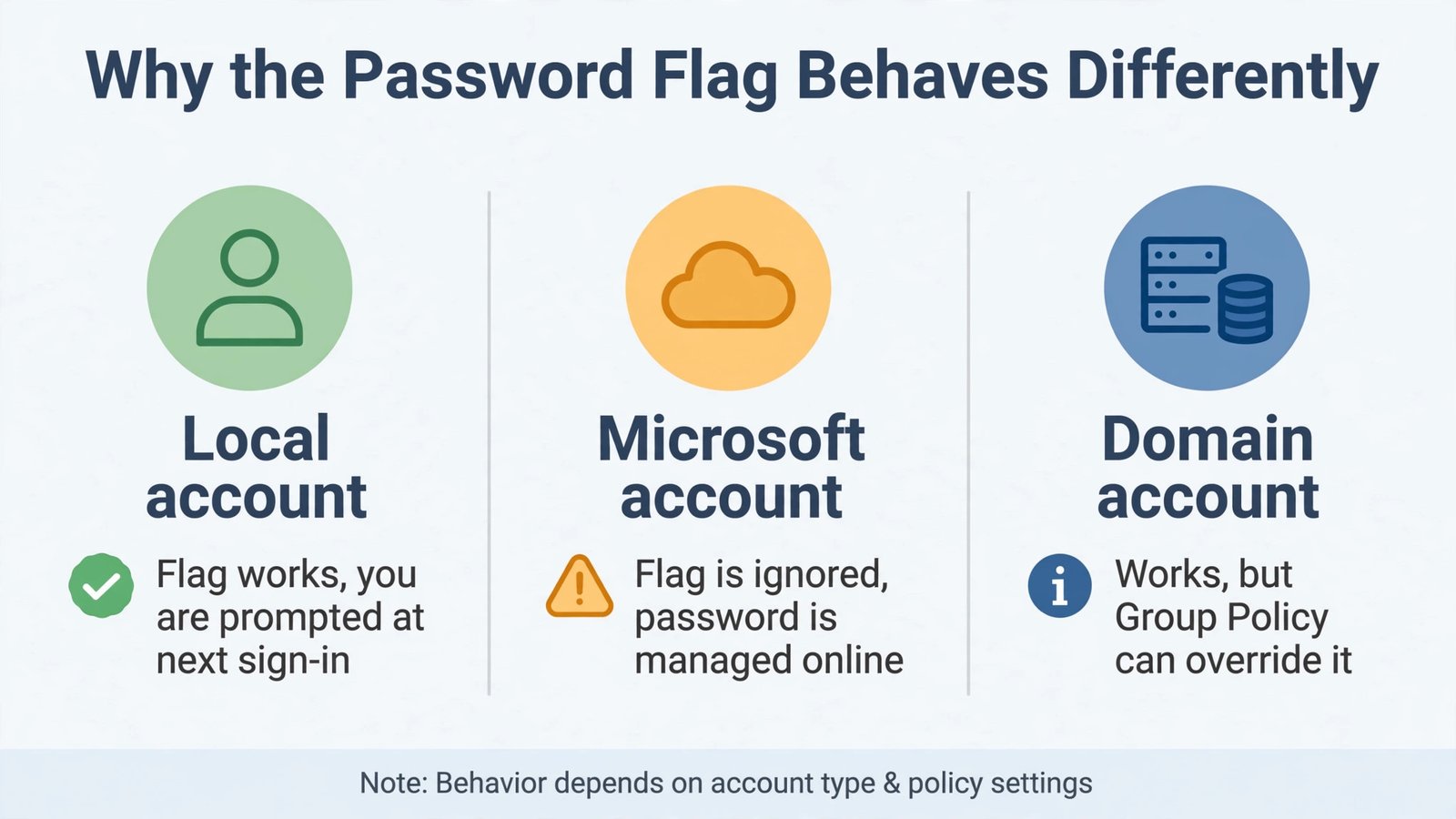
Group Policy can override your manual password settings. If you’ve set the password change requirement on one user, but Group Policy has different rules, Group Policy wins. This is the most common cause.
Windows applies Group Policy in this order:
- Local Group Policy first
- Then domain Group Policy
- Domain policies override local ones
Your manual setting gets ignored when Group Policy contradicts it.
Active Directory Synchronization Issues
In domain environments, changes don’t always sync immediately. You set the password change requirement in Active Directory, but the domain controller hasn’t updated yet. The user’s computer is checking a cached or outdated version of their account settings.
Replication delays between domain controllers cause this too. One controller has your change. Another doesn’t. Depending which controller the user connects to, they might bypass the prompt.
User Has Already Changed Their Password
This seems obvious but gets missed often. If the user already changed their password after you set the requirement, the flag clears. Windows removes the “must change at next logon” flag once any password change happens, even if they change it themselves.
Cached Credentials Are Being Used
When a user logs in offline or their computer has cached credentials saved, Windows might let them in without checking the domain. No domain check means no password change prompt.
The Password Has Already Expired Naturally
If the password expires through normal policy expiration and the user changes it, the “must change at next logon” requirement becomes irrelevant. The system already forced a change through expiration.
Cached Logon Information Is Stale
Computers cache recent logons. If a user has logged in before, their computer might authenticate them against cached data instead of checking current requirements. This happens especially with laptops that don’t connect to the domain regularly.
How to Fix This on Local Windows Accounts
If you’re managing a single computer with a local account, follow these steps.
Step 1: Open the Local Users and Groups Manager
Press Windows key and R together. Type this exactly:
lusrmgr.msc
Press Enter. This opens the Local Users and Groups window.
Step 2: Find the User Account
In the left panel, click “Users.” You’ll see all local user accounts listed in the right panel. Find the account that needs the password change.
Step 3: Reset the Password Setting
Right-click the user account. Select “Set Password.” A dialog appears asking if you want to proceed. Click “Proceed” because you’re about to reset things properly.
Create a temporary new password. You can make it complex. Write it down or remember it for now. Click “OK.”
Step 4: Set the Properties Correctly
Right-click the same user account again. Click “Properties.” Look for these settings:
- Uncheck “Password never expires” if it’s checked
- Uncheck “User cannot change password” if it’s checked
- Check “User must change password at next logon”
Click “Apply” then “OK.”
Step 5: Test It
Have the user log in with the temporary password you set. They should get a prompt immediately to change their password before accessing the desktop. If they do, it’s working.
If it’s still not working, move to the next section on Group Policy.
How to Fix This in Active Directory Domains
Domain environments are more complex. Group Policy usually controls these settings.
Step 1: Check Group Policy Settings
Press Windows key and R together. Type:
gpedit.msc
Navigate to this exact location:
Computer Configuration > Windows Settings > Security Settings > Account Policies > Password Policy
Look for these policies:
- “Minimum password age” should not be set to 0
- “Maximum password age” should be configured to something reasonable
- Check if any policy is forcing users to change passwords at intervals
These settings can prevent your “must change at next logon” flag from working if they conflict.
Step 2: Override with Group Policy Preference
Group Policy Preferences are different from Group Policy Objects. Preferences let you set individual account properties more reliably.
Open Group Policy Editor on a domain controller or admin computer. Go to:
User Configuration > Preferences > Windows Settings > Local Users and Groups
Right-click in the right panel. Choose “New” then “Local User.”
Set the username and check “User must change password at next logon.” Set it to “Update” action, which overwrites existing settings.
This method works better than the standard Group Policy setting because it targets individual accounts.
Step 3: Force Immediate Policy Update
On the user’s computer, press Windows key and R together. Type:
gpupdate /force
Press Enter. This forces Windows to download and apply Group Policy immediately instead of waiting for the scheduled refresh.
Step 4: Clear Cached Credentials
If the user has cached logon credentials saved on their computer, clear them.
Open Command Prompt as Administrator. Type:
rundll32.exe keymgr.dll,KRShowKeyMgr
Press Enter. The Credential Manager opens. Look for any saved passwords for domain accounts. Delete them.
The user should log off, clear the cache, then log in fresh. This forces authentication against the current domain settings.
Step 5: Verify Active Directory Settings Directly
On the domain controller, open Active Directory Users and Computers. Find the user account. Right-click it and choose “Properties.”
Go to the “Account” tab. Look for “User must change password at next logon.” This checkbox should be checked.
If it’s checked here but not working, the issue is typically caching or Group Policy interference. If it’s not checked here, make sure you actually saved it after checking the box.
When The User Has a Cached Account on Their Computer
Laptops and portable computers cache account information. This lets users log in when disconnected from the network. But it also lets them bypass new security requirements.
Check for Cached Credentials
Open Command Prompt as Administrator. Type:
net user username /logonpasswordchg:yes
Replace “username” with the actual username.
This command only works on the local machine. It won’t affect domain accounts. But if the account is cached, it affects the cached version.
Force the User to Connect to the Domain
Sometimes the simplest fix is forcing a domain connection. Have the user log in while connected to the company network. This clears cached authentication and forces them to use the current domain settings.
After they change their password through the prompt, log them out. The new password is now their current password, and the requirement is satisfied.
Disable Cached Logons If Security Requires It
If your organization has strict security policies, you can disable cached logons entirely.
Open Group Policy Editor. Go to:
Computer Configuration > Windows Settings > Security Settings > Local Policies > Security Options
Find “Interactive logon: Number of previous logons to cache.” Set this to 0.
Warning: Users won’t be able to log in offline. This should only be done if your organization requires it.
Troubleshooting When Nothing Works
Sometimes you need to dig deeper. Use these steps to find the real problem.
Check Event Viewer for Errors
Press Windows key and R together. Type:
eventvwr.msc
Look in “Windows Logs” then “System.” Filter for errors from the past 24 hours. Look for anything related to logon, authentication, or Group Policy.
Look in “Windows Logs” then “Security” for authentication events.
These logs often show exactly what prevented the password change prompt.
Verify Password Complexity Requirements
Windows requires passwords to meet complexity standards:
- At least 8 characters
- Uppercase letters
- Lowercase letters
- Numbers
- Special characters
If the user’s password doesn’t meet these, the system won’t let them change it. They might not get a prompt about this. They just get blocked.
Make sure you understand your organization’s password policy. Tell users what’s required.
Check if the User Account is Disabled
If an account is disabled, “must change password at next logon” won’t work. The user can’t log in at all.
In Active Directory Users and Computers, find the account. Right-click it. Choose “Properties.” Go to the “Account” tab. Make sure “Account is disabled” is unchecked.
Restart the Computer
This sounds too simple, but it works. Restart the user’s computer after making changes. Windows needs to refresh its authentication cache and download updated policies.
After restart, have them log in again.
Force Password Expiration Instead
If “must change at next logon” isn’t working, force the password to expire immediately instead.
In Active Directory Users and Computers, find the user. Right-click “Properties.” Go to “Account” tab. Click “Password Expires” (not “Expires”). Set the date to today. Click OK.
The next time the user logs in, their password is technically expired. The system should force a change. This works when the “must change” flag doesn’t.
Common Mistakes People Make
Knowing what not to do saves time.
Checking “Password Never Expires” While Setting “Must Change”
These two settings contradict each other. If you check both, “Password never expires” wins. Uncheck “Password never expires” first.
Not Waiting Long Enough for Replication
Domain changes take time to replicate to all servers. Wait at least 15 minutes before testing. In large organizations, wait an hour. Then test.
Testing Without Logging Off First
If a user is already logged in, setting “must change at next logon” won’t trigger until their next login. Have them log off completely. Then log back in.
Changing the Setting on a Cached Account
Changes you make to a domain account don’t affect cached versions on the user’s computer. The cached version is old. You need to clear the cache or force a domain login.
Ignoring Group Policy Conflicts
If Group Policy contradicts your manual setting, Group Policy always wins. Check Group Policy first before spending time on manual settings.
Step-by-Step: Complete Walkthrough for Domain Admins
Here’s the full process if you manage a domain.
Step 1: Confirm the Setting in Active Directory
On a domain controller or admin computer, open Active Directory Users and Computers. Find the user. Right-click “Properties.” Go to “Account” tab. Check “User must change password at next logon.” Click OK.
Step 2: Force Group Policy Update
Remote into the user’s computer (or ask them to run this). Open Command Prompt as Administrator. Type:
gpupdate /force
Wait for it to complete.
Step 3: Clear Cached Credentials
On the user’s computer, open Command Prompt as Administrator. Type:
cmdkey /list
This shows all cached credentials. Look for the domain account. If found, type:
cmdkey /delete:domainname\username
Replace “domainname\username” with the actual domain and username.
Step 4: Restart the Computer
Restart the user’s computer.
Step 5: Test
Have the user log in. They should see the password change prompt immediately.
If they still don’t see it, check Event Viewer on their computer for specific errors.
Table: Quick Comparison of Fixes
| Problem | Solution | Time to Fix |
|---|---|---|
| Group Policy overriding setting | Check Group Policy, use Group Policy Preferences | 15 minutes |
| Cached credentials | Clear credential cache, restart | 10 minutes |
| Password already changed | Set password expiration date instead | 5 minutes |
| Replication delay | Wait 15-60 minutes, test again | 60 minutes |
| Password complexity issues | Review requirements, notify user | 10 minutes |
| Disabled account | Enable the account | 2 minutes |
| Offline cached logon | Connect to domain network | 5 minutes |
| Wrong Group Policy Scope | Apply to correct OU or use Preferences | 20 minutes |
Summary
The “User must change password at next logon” setting fails usually because of Group Policy conflicts, cached credentials, or Active Directory synchronization delays.
Start by checking Group Policy settings. Then clear cached credentials. If using a domain, force Group Policy updates and wait for replication. For local accounts, use the Local Users and Groups Manager and check that conflicting password settings aren’t checked.
Test the change by having the user log off completely and log in fresh. If it works, they’ll see a password change prompt immediately. If not, check Event Viewer for specific error messages that point to the real cause.
Most of these issues take less than 30 minutes to fix once you know what to look for. The key is checking the most common causes first, not getting stuck on complex solutions.
FAQs
How long does Active Directory replication take?
By default, replication happens every 15 minutes within a site and every 3 hours between sites. If you’re testing immediately after making a change, wait at least 15 minutes. In larger organizations with multiple sites, wait an hour to be safe.
Can I set “must change password at next logon” for multiple users at once?
Yes. In Active Directory Users and Computers, select multiple users by holding Ctrl and clicking each one. Right-click and choose “Properties.” The setting applies to all selected users at once. This is faster than doing them individually.
What’s the difference between “User must change password at next logon” and password expiration?
“Must change at next logon” forces a change immediately on the next login. Password expiration sets a future date when the password expires and forces a change then. Use “must change” for immediate enforcement, like after a security breach.
Will “must change password at next logon” work on a Microsoft account in Windows 10 or 11?
No. This feature only works on local accounts and domain accounts. Microsoft accounts (Outlook, Hotmail, etc.) connected to your PC don’t use this feature. You’d need to manage that through the Microsoft account portal if changes are needed.
Why does the password change prompt appear and disappear after the user types their new password?
This is normal. The prompt appears, the user enters their new password twice, then it validates and closes. The user then proceeds to the desktop. They shouldn’t see anything odd. If the prompt crashes or closes without accepting the password, check password complexity requirements.
- Fix Wii Error Code 51330: Unable to Connect to Internet (Complete Guide) - January 20, 2026
- Fix: Unable to Set Printer as Default in Windows 10/11 - January 20, 2026
- Fix Windows Update Error 80072EE2: Connection Problem Solved - January 20, 2026