Yes, you can delete swapfile.sys in Windows 10 and 11, but you probably shouldn’t. Here’s why: swapfile.sys is a system file that helps Windows manage memory. Deleting it won’t harm your computer permanently, but it will hurt performance. Windows will recreate it automatically the next time you restart. If you want to remove it safely, disable it through system settings instead of manual deletion.
Let’s break down what this file does, why you might want to delete it, and the right way to handle it.
What Is Swapfile.sys and Why Does It Exist?
Swapfile.sys is a hidden system file stored in your C: drive root directory. It functions as temporary memory storage.
Here’s how it works in simple terms:
Your computer has physical RAM (the fast memory). When RAM fills up, Windows needs extra space to keep programs running smoothly. Swapfile.sys provides that extra space on your hard drive. It’s slower than RAM, but it prevents programs from crashing when memory runs out.
Think of it like this:
RAM is a desk where you work. Swapfile.sys is a filing cabinet next to your desk. When your desk gets full, you put less-used items in the filing cabinet. You can still access them, but it takes longer.
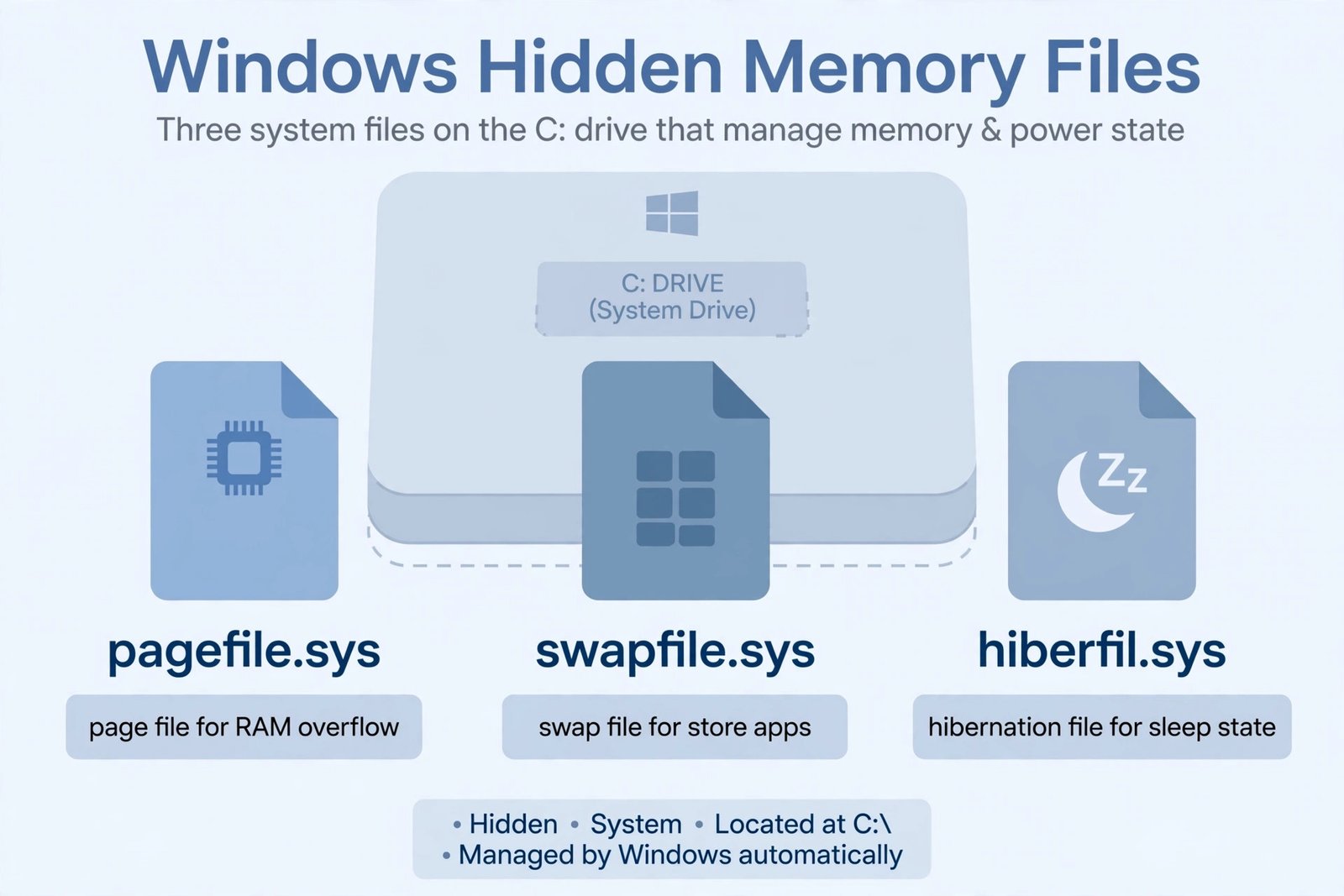
Windows uses three memory management files:
- Pagefile.sys (larger, used for virtual memory)
- Swapfile.sys (smaller, mainly for app suspension)
- Hiberfil.sys (stores data when hibernating)
Swapfile.sys appeared starting with Windows 8. It helps the system quickly pause and resume applications without losing data. This is especially useful on tablets and laptops where quick app switching matters.
When Might You Want to Delete Swapfile.sys?
Most people never need to delete this file. But certain situations might make you consider it:
High disk usage: If your drive is nearly full and you’re desperate for storage space.
Performance issues: You might think it’s slowing things down (it usually isn’t the problem).
Malware concerns: Some believe deleting temp files removes hidden threats (better solutions exist).
SSD optimization: Reducing write cycles on solid state drives (minimal real impact).
System cleanup: Removing all unnecessary files (swapfile.sys isn’t unnecessary).
Here’s the truth: if you have a performance problem, swapfile.sys is rarely the cause. Deleting it won’t noticeably speed up your computer.
Is It Safe to Delete Swapfile.sys?
The direct answer: it’s technically safe, but unhelpful.
Here’s what actually happens:
You can delete swapfile.sys while Windows is running. Windows won’t let you delete the active file, so you’d need to restart first. After deletion, Windows will recreate it automatically on the next startup. Your computer won’t break. Nothing bad will happen immediately.
However, removing it creates problems:
Performance drops: Your computer handles memory less efficiently. Apps take longer to launch. Multitasking becomes slower.
Increased crashes: When RAM fills completely, programs close without warning instead of using virtual memory.
System instability: Heavy workloads can cause freezing or unexpected shutdowns.
Useless effort: It comes back after restart, so the deletion accomplishes nothing permanent.
Think of it this way: deleting swapfile.sys is like removing the spare tire from your car. You might save a tiny bit of weight, but you’re just creating problems for yourself.
The file only takes up 256 MB to 1 GB of space anyway. Compared to modern drive sizes, it’s negligible.
How to Disable Swapfile.sys the Right Way
If you truly want to remove swapfile.sys (not just delete, but disable), follow this method:
Step-by-Step Disabling Process
Step 1: Open Settings
Press Windows key + I on your keyboard. The Settings app opens.
Step 2: Navigate to System Settings
Look for “System” in the left sidebar. Click it.
Step 3: Find Advanced System Settings
Scroll down and click “About” at the bottom of the left menu. On the right side, click “Advanced system settings.”
Alternatively, press Windows key + X and select “System” then scroll to find “Advanced system settings.”
Step 4: Access Virtual Memory Settings
The System Properties window opens. Click the “Advanced” tab at the top.
Under “Performance,” click “Settings.”
Step 5: Configure Virtual Memory
In the Performance Options window, click the “Advanced” tab again.
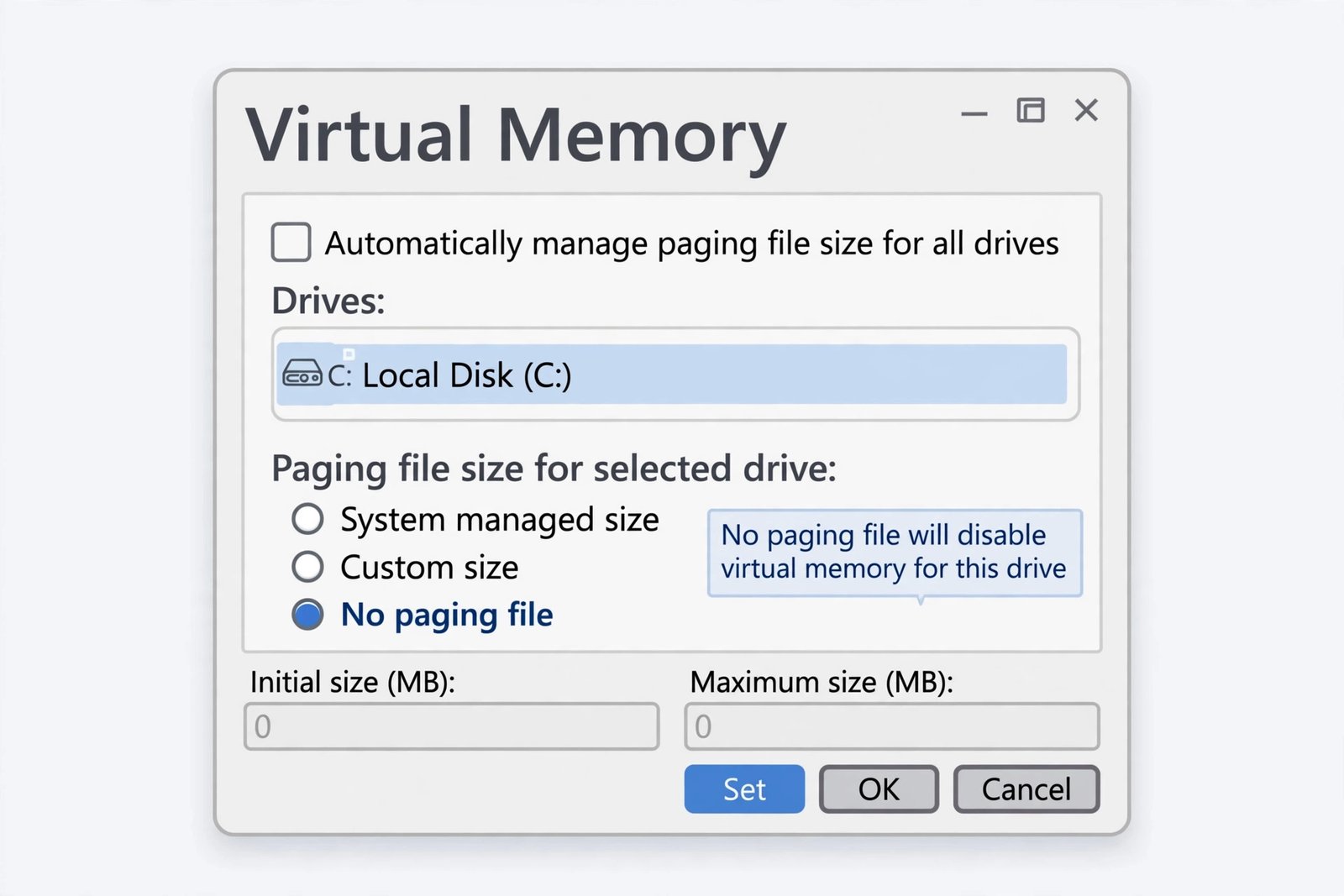
Under “Virtual memory,” click “Change.”
Step 6: Disable or Adjust
Uncheck the box that says “Automatically manage paging file size for all drives.”
Select your C: drive from the list.
Choose “No paging file” and click “Set.”
A warning will appear. Click “Yes” to confirm.
Click “OK” and “OK” again to close all windows.
Step 7: Restart Your Computer
Restart Windows for changes to take effect. The swapfile.sys file will stop being created.
What Happens When You Disable Swapfile.sys?
After disabling, here’s what you’ll notice:
Immediate effects:
Programs use only physical RAM. No virtual memory backup exists. When RAM fills, programs crash instead of slowing down.
Performance impact:
If you have abundant RAM (16 GB or more) and use light applications, you might not notice much. If you have 8 GB or less, or run heavy software, performance drops noticeably.
System behavior:
Multitasking becomes slower. Video editing, image processing, and gaming suffer. Browser tabs with many extensions may close unexpectedly.
Disk benefit:
You free up roughly 256 MB to 1 GB of disk space. Modern drives are 250 GB to 2 TB, so this saves less than 0.1% of your storage.
Hibernation changes:
Disabling swapfile.sys doesn’t affect hibernation (hiberfil.sys handles that). But it does affect sleep mode performance on low-RAM systems.
Practical Recommendation: Should You Actually Delete or Disable It?
The honest answer: probably not.
Here’s my recommendation based on your situation:
If you have an SSD with 500 GB or more: Leave swapfile.sys alone. The file impact is minimal.
If you have an SSD with less than 250 GB: Disable swapfile.sys if you have 16 GB RAM or more. Your system has enough physical memory.
If you have a traditional hard drive: Never disable it. Hard drives need virtual memory to function smoothly.
If your computer feels slow: Swapfile.sys is not the problem. Check for malware, too many startup programs, or failing hard drives instead.
If disk space is critically low: Delete unnecessary files first (Downloads folder, temporary files, old backups). Only disable swapfile.sys as a last resort.
How to Manually Delete Swapfile.sys
If you still want to delete the file manually, here’s how:
Method 1: Through Disk Cleanup
Press Windows key + R, type “cleanmgr” and press Enter.
Select your C: drive if prompted.
Check “Temporary files” and “Virtual memory” if available.
Click “Clean up system files” then “OK.”
Method 2: Safe Mode Deletion
Restart your computer into Safe Mode (restart while holding Shift, select Troubleshoot, then Advanced options, then Startup Settings).
Open File Explorer and navigate to C:\
Press Ctrl + H to show hidden files.
Find swapfile.sys, right-click it, and delete.
Restart normally.
Windows will recreate the file on next startup.
Method 3: Using Command Prompt
Press Windows key + R, type “cmd” and press Ctrl + Shift + Enter to open as administrator.
Type: fsutil behavior set DisableDeleteNotification 1 (disables notifications).
Type: del C:\swapfile.sys and press Enter.
Restart your computer.
The file returns after restart.
Virtual Memory Files in Windows
| File | Purpose | Size | Can Delete? | Should Delete? |
|---|---|---|---|---|
| Swapfile.sys | App suspension & memory | 256 MB–1 GB | Yes, but returns | No |
| Pagefile.sys | Virtual memory reserve | 1–8 GB | Yes, but harmful | No |
| Hiberfil.sys | Hibernation data | = RAM size | Yes, if no hibernation | Maybe |
| Temp files | Windows temporary storage | 1–10 GB | Yes | Yes |
Better Ways to Free Up Disk Space
Instead of deleting swapfile.sys, try these methods that actually help:
Use Storage Sense
Settings > System > Storage > Storage Sense (toggle on)
Automatically deletes temp files, recycle bin, and cache monthly.
Clear Downloads folder
Most downloads just accumulate. Delete files you no longer need.
Remove old Windows updates
Settings > System > Storage > Temporary files > Previous Windows installations
Can free up 5–20 GB.
Uninstall unused programs
Settings > Apps > Apps & features > uninstall applications you don’t use.
Compress your OS drive
Right-click C: > Properties > Advanced > Compress contents
Saves 10–30% space without removing files.
Archive old files
Move old photos, videos, and documents to external drives.
Clear browser cache
Browser settings > Clear browsing data > Cached images and files
Saves 1–5 GB per browser.
These methods free up far more space than deleting swapfile.sys ever could.
Understanding Virtual Memory in Windows 10 and 11
Both Windows 10 and 11 use identical swapfile.sys functionality. The file behaves the same in both versions.
Key points:
Windows 10 has reached end of support in October 2025. It still uses swapfile.sys for memory management.
Windows 11 includes improvements to memory management, but swapfile.sys remains essential.
Both versions recreate swapfile.sys automatically if deleted.
Both versions benefit from keeping swapfile.sys enabled, especially on systems with 8 GB RAM or less.
If you’re running Windows 11 on older hardware with limited RAM, keeping swapfile.sys enabled helps stability significantly.
Malware and Swapfile.sys: Common Misconceptions
Some people believe malware hides in swapfile.sys. This is partially true but misleading.
The truth:
Malware can write data to swapfile.sys, just like any file. It’s not special in this regard.
Deleting swapfile.sys does NOT remove malware. The virus remains in RAM and on disk elsewhere.
Proper malware removal requires antivirus software, not file deletion.
Swapfile.sys is not a common malware hiding place. Attackers prefer user folders and registry entries.
If you suspect malware:
Run Windows Defender full scan (Windows Security app).
Use Malwarebytes or Kaspersky free scanner.
Boot into Safe Mode and scan.
Never believe that deleting a single file cures infections.
For actual malware help, visit Microsoft Security site.
Impact on Different System Configurations
How disabling swapfile.sys affects various setups:
Gaming PC (16 GB RAM, SSD):
Minimal impact. Games use RAM directly. Virtual memory rarely needed. Disabling is safe but provides no real benefit.
Work laptop (8 GB RAM, SSD):
Noticeable impact. Office work with multiple browser tabs and programs. Virtual memory helps significantly. Keep swapfile.sys enabled.
Budget computer (4 GB RAM, hard drive):
Severe impact. Heavy reliance on virtual memory. Disabling causes crashes and freezing. Never disable.
Media workstation (32 GB RAM, NVMe):
No impact. Massive physical memory handles everything. Swapfile.sys is rarely used. Disabling changes nothing practical.
Server (variable RAM, RAID storage):
Depends on workload. High-traffic servers benefit from virtual memory. Disable only if proven unnecessary.
Setting Optimal Pagefile and Virtual Memory Settings
If you want to optimize (not disable), adjust these settings instead:
For high-RAM systems (16 GB or more):
Set pagefile.sys to 1.5x RAM (24 GB for 16 GB RAM).
Keep swapfile.sys enabled at default size.
Provides balance without excess disk usage.
For medium-RAM systems (8–15 GB):
Set pagefile.sys to 2x RAM (16 GB for 8 GB RAM).
Let swapfile.sys remain at default.
Ensures stability under load.
For low-RAM systems (4 GB or less):
Set pagefile.sys to 3x RAM (12 GB for 4 GB RAM).
Keep swapfile.sys enabled fully.
May need external drive for pagefile if main drive is small.
Adjust these in System Properties > Advanced > Virtual memory settings.
Final Thoughts: Is Deleting Swapfile.sys Worth It?
Let’s return to the main question with full context.
Safety: Deleting swapfile.sys is technically safe. Windows survives without harm.
Effectiveness: Deleting it accomplishes almost nothing. The file returns after restart.
Performance: Removing it reduces performance, not improves it.
Storage savings: Barely noticeable (under 1 GB freed).
Better alternatives: Exist for every reason you’d consider deletion.
Real-world scenario:
You have a 256 GB SSD half full (128 GB used). You want to free 256 MB by deleting swapfile.sys. Meanwhile, you have 5 GB in the Downloads folder, 8 GB of old Windows updates, and 3 GB of cache files. Which makes sense to delete first?
The answer is obvious.
Swapfile.sys deletion is a solution looking for a problem that doesn’t exist.
If your computer feels slow or disk space is critical, address the real issues first. Those methods deliver actual results.
Summary
Swapfile.sys is a Windows memory management file that enables virtual memory. It allows programs to function when physical RAM is full. You can delete it, but it returns after restart. Disabling it is possible through system settings, but unwise for most users. Better alternatives exist for freeing disk space or improving performance. Unless you have specific technical reasons and high RAM capacity (16 GB+), keep swapfile.sys enabled for system stability.
FAQs
Is swapfile.sys a virus or malware?
No. Swapfile.sys is a legitimate Windows system file. Malware sometimes uses it for storage, but the file itself is essential and safe. If your antivirus flags it, that’s a false positive. Never delete based on antivirus warnings for system files. Instead, run a full scan to check if malware exists elsewhere.
Will deleting swapfile.sys speed up my computer?
Not realistically. You might notice imperceptible changes. Most people won’t feel any difference. If your computer is slow, the causes are usually bloatware, too many startup programs, malware, or a failing drive. Delete swapfile.sys won’t fix those problems. Focus on actual causes for real speed improvements.
How much space does swapfile.sys take up?
Swapfile.sys typically uses 256 MB to 1 GB depending on your system configuration and RAM size. On modern drives measured in hundreds of gigabytes or terabytes, this is essentially nothing. If you need storage space, delete old downloads, cache files, or uninstall programs instead.
Can I move swapfile.sys to a different drive?
Technically no. Swapfile.sys location is fixed in Windows 10 and 11. You can only move the pagefile.sys through Virtual Memory settings. However, moving pagefiles to slower drives reduces performance. Keep them on your fastest drive (typically your main SSD).
What’s the difference between swapfile.sys and pagefile.sys?
Swapfile.sys (smaller, ~256 MB–1 GB) manages app suspension and quick memory switching. Pagefile.sys (larger, 1–8 GB) serves as general virtual memory. Both work together. Both should remain enabled on most systems. Pagefile.sys handles sustained memory demand. Swapfile.sys handles rapid app switching.
- Fix Wii Error Code 51330: Unable to Connect to Internet (Complete Guide) - January 20, 2026
- Fix: Unable to Set Printer as Default in Windows 10/11 - January 20, 2026
- Fix Windows Update Error 80072EE2: Connection Problem Solved - January 20, 2026