
You can allow saved credentials for Remote Desktop Connection (RDP) on Windows by enabling credential storage through Group Policy, registry settings, or credential manager. The most straightforward method is using the Credential Manager built into Windows, which stores your login information securely and lets RDP use it automatically when connecting to remote computers.
This isn’t just about convenience. Saving credentials properly means you won’t type passwords repeatedly, reduces connection errors, and lets you set up automated remote access when needed. But you need to do it correctly to avoid security risks.
Let’s walk through exactly how to do this on your system.
Why Save RDP Credentials in the First Place
Before jumping into the steps, it helps to understand why this matters.
When you connect to a remote desktop without saved credentials, you have to enter your username and password every single time. If you connect frequently to the same computer, this gets tedious fast. You might also make typos, which locks you out temporarily.
Saving credentials means:
- You connect faster without typing login information each time
- You reduce failed login attempts from typos
- You can set up scheduled tasks or scripts that need remote access
- You don’t have to remember multiple passwords for different systems
The tradeoff is that you’re storing passwords on your computer. That’s why the method you use matters. Windows has built-in security features to encrypt saved credentials, so they’re not stored as plain text.
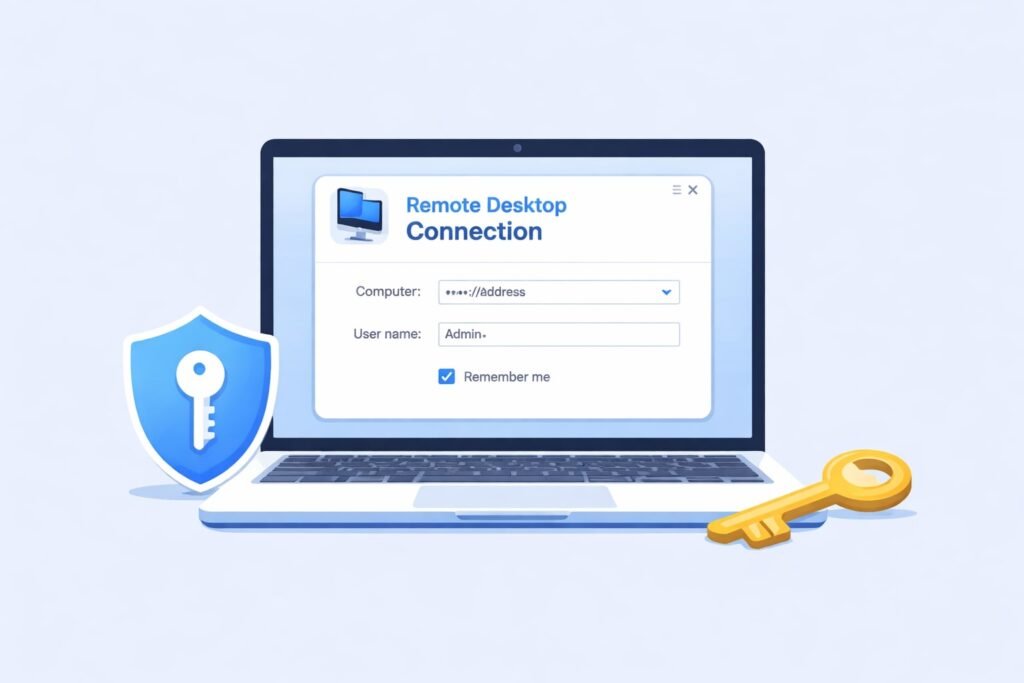
Method 1: Using Windows Credential Manager (Easiest Approach)
This is the simplest way to save RDP credentials on Windows 10 and Windows 11.
Step-by-Step Instructions
Step 1: Open Credential Manager
Press the Windows key on your keyboard. Type “credential manager” and press Enter. This opens the Windows Credential Manager application.
Step 2: Click Windows Credentials
In the Credential Manager window, you’ll see two sections: “Web Credentials” and “Windows Credentials.” Click on “Windows Credentials” to expand it.
Step 3: Add a New Credential
Look for the button that says “Add a Windows credential” or similar text (the exact wording varies by Windows version). Click it.
Step 4: Enter Your Remote Desktop Information
A new window appears asking for:
- Internet or network address: Type the IP address or hostname of the remote computer
- User name: Enter your username for that remote computer
- Password: Type the password associated with that username
Leave the other fields as default unless you have a specific reason to change them.
Step 5: Save the Credential
Click “OK” to save. Windows encrypts and stores this credential.
Step 6: Connect Using RDP
Open Remote Desktop Connection (search for “Remote Desktop Connection” in Windows search). Type the IP address or hostname in the “Computer” field. When prompted for credentials, Windows automatically fills in your saved username and password. If it doesn’t, click “More choices” and select “Use a different account.”
Method 2: Saving Credentials Directly in Remote Desktop Connection
You can also save credentials while setting up your RDP connection.
How to Do It
Step 1: Open Remote Desktop Connection
Search for “Remote Desktop Connection” in your Windows search bar and open it.
Step 2: Enter the Computer Address
In the “Computer” field, type the IP address or hostname of the remote computer you want to connect to.
Step 3: Click “Show Options”
At the bottom of the Remote Desktop Connection window, there’s a button labeled “Show Options.” Click it to expand more settings.
Step 4: Enter Username
Click the “General” tab if it’s not already selected. You’ll see a field labeled “User name.” Enter your username here.
Step 5: Enable Credential Saving
Check the box that says “Allow me to save credentials.” This option may be labeled differently depending on your Windows version.
Step 6: Save the Connection
Before clicking “Connect,” you might want to save this connection setup. Click “Save As” to give it a name. This saves your computer address and username for future use.
Step 7: Connect
Click “Connect.” Windows will ask for your password. Enter it and check the box to save the password if prompted.
Next time you use this saved connection, your credentials should fill in automatically.
Method 3: Enabling RDP Credential Storage Through Group Policy
This method works best if you’re an administrator managing multiple computers or want more control over credential settings.
Important Note
Group Policy Editor is available on Windows Pro, Enterprise, and Education editions. Windows Home edition doesn’t have Group Policy Editor built in.
Steps to Enable in Group Policy
Step 1: Open Group Policy Editor
Press Windows key + R together. Type “gpedit.msc” and press Enter.
Step 2: Navigate to the Correct Setting
In the Group Policy Editor window, follow this path:
Computer Configuration > Administrative Templates > System > Credentials Delegation
Step 3: Find “Allow Delegating Fresh Credentials”
In the right panel, locate the policy named “Allow Delegating Fresh Credentials.” Double-click it.
Step 4: Enable the Policy
Select “Enabled” from the options at the top of the window.
Step 5: Add the Remote Computer
In the “Options” section, you’ll see a field labeled “Show.” Click “Show” to add computers. Click “Add” and type the remote computer’s address in this format:
termsrv/computername.domain.com
Replace “computername” and “domain.com” with your actual computer details.
Step 6: Apply the Changes
Click “OK” and close Group Policy Editor. The changes take effect immediately, though you may need to restart for some changes to fully apply.
Method 4: Registry Edit (Advanced)
If you need to enable credential saving through the registry, use this method. This requires care, as editing the registry incorrectly can cause issues.
How to Do It Safely
Step 1: Open Registry Editor
Press Windows key + R. Type “regedit” and press Enter. A warning may appear asking for administrator permission. Click “Yes.”
Step 2: Navigate to the RDP Settings
Follow this path in the left sidebar:
HKEY_LOCAL_MACHINE > SOFTWARE > Policies > Microsoft > Windows NT > Terminal Services > SecurityLayer
Step 3: Modify the Value
Look for “SecurityLayer” in the right panel. The value should be set to allow credentials. If it doesn’t exist, you may need to create it. Right-click in the empty space and select “New” then “DWORD (32-bit) Value.” Name it “SecurityLayer” and set the value to 1 or 2 (1 for RDP Security Layer, 2 for SSL/TLS).
Step 4: Check Additional Settings
Also navigate to:
HKEY_LOCAL_MACHINE > SOFTWARE > Policies > Microsoft > Windows NT > Terminal Services
Look for a setting called “fPromptForPassword.” Set this to 0 to allow saved credentials, or 1 to always prompt.
Step 5: Close Registry Editor
Close the Registry Editor and restart your computer for changes to take full effect.
Important Security Considerations
Saving credentials is convenient, but it comes with responsibility.
Keep These Points in Mind
Use Strong Passwords
The credentials you save should be strong. Use a combination of uppercase letters, lowercase letters, numbers, and symbols. Never use dictionary words or simple sequences.
Limit Saved Credentials
Only save credentials for computers you connect to regularly. Don’t save credentials for systems you rarely use.
Use Encryption
Windows encrypts saved credentials automatically using your user account. However, if someone gains access to your user account, they could potentially access these saved credentials.
Lock Your Computer
Always lock your computer when you step away. Press Windows key + L to lock it quickly. This prevents someone from using your saved credentials.
Keep Windows Updated
Install Windows updates regularly. Security updates patch vulnerabilities that could expose saved credentials.
Use VPN for Remote Connections
If connecting over the internet, use a VPN (Virtual Private Network). This encrypts your connection and adds an extra security layer.
Monitor Active Connections
Periodically check which connections you have saved and delete ones you no longer need.
Troubleshooting Common Problems
RDP Not Using Saved Credentials
If you’ve saved credentials but RDP doesn’t use them:
- Make sure you’re connecting to the same computer address you saved credentials for. Using a different IP address or hostname won’t trigger saved credentials.
- Check that the username and password are correct by trying to log in manually.
- Try clearing the saved credential and re-entering it.
- Restart your computer to ensure changes take effect.
Credential Manager Shows Old Credentials
Sometimes old credentials stick around:
- Open Credential Manager
- Find the outdated entry
- Click it and select “Remove”
- Re-add the credential with current information
Getting “Access Denied” After Saving Credentials
This usually means:
- The password has changed on the remote computer
- Your user account doesn’t have permission to access the remote computer
- Network connectivity issues between the computers
Solution: Try entering the credentials manually to verify they still work. If they do, clear the saved credential and re-save it.
RDP Connection Keeps Asking for Credentials
This can happen if:
- The “Allow me to save credentials” option wasn’t properly enabled
- Credential saving was disabled by Group Policy on your network
- Your Windows user account doesn’t have the required permissions
Try opening Credential Manager directly and adding the credential there instead of through RDP.
Methods Explained
| Method | Ease | Security | Best For | Windows Versions |
|---|---|---|---|---|
| Credential Manager | Very Easy | High | Most users | All modern Windows |
| Direct RDP Saving | Easy | High | Single connections | All Windows versions |
| Group Policy | Moderate | High | Administrators | Pro, Enterprise, Education |
| Registry Edit | Difficult | Medium | Advanced users | All Windows versions |
Frequently Asked Questions
Is it safe to save RDP credentials on my computer?
Yes, if you follow security practices. Windows encrypts saved credentials using your user account. The main risk is if someone accesses your user account. To stay safe, use strong passwords, keep Windows updated, and lock your computer when away.
Can I save credentials for multiple remote computers?
Absolutely. You can save different credentials for each remote computer in Credential Manager. RDP will use the matching credentials for each connection based on the computer address you enter.
Will saved credentials work if I change my password on the remote computer?
No. Once you change the password on the remote computer, your saved credential becomes invalid. You’ll need to update it in Credential Manager or save it again through RDP.
Can network administrators see my saved RDP credentials?
Not directly, but administrators can restrict credential saving through Group Policy. If your organization disables credential saving, you won’t be able to use this feature even if you want to.
What happens to my saved credentials if I reset Windows?
Saved credentials are tied to your Windows user account and encrypted with it. If you reset Windows, even on the same computer, your old saved credentials won’t transfer to the new installation. You’ll need to save them again.
Summary
Saving RDP credentials makes remote desktop access faster and more convenient. Windows provides several ways to do this, from the simple Credential Manager approach to advanced Group Policy settings.
For most users, the easiest method is using Credential Manager or saving credentials directly in Remote Desktop Connection. Both are secure when you follow basic password hygiene and computer security practices.
Remember these key points:
- Use strong, unique passwords for remote systems
- Only save credentials for computers you access regularly
- Keep Windows updated with the latest security patches
- Lock your computer when you’re away from your desk
- Periodically review and remove unnecessary saved credentials
Start with Method 1 (Credential Manager) if you’re new to this. It’s straightforward and secure. If you need more control or manage multiple computers, explore Group Policy. For basic troubleshooting, check that the computer address matches exactly what you saved and verify your password hasn’t changed on the remote system.
Take action today by saving credentials for the remote computers you access most often. You’ll save time on every connection going forward.

- How to Clear Cache on Windows 11: Quick Guide in 2026 - February 23, 2026
- Top 10 Trending AI Apps in 2026 You Should Actually Be Using - February 22, 2026
- Top 10 AI Based Resume Makers in 2026 That Actually Get You Hired - February 22, 2026