
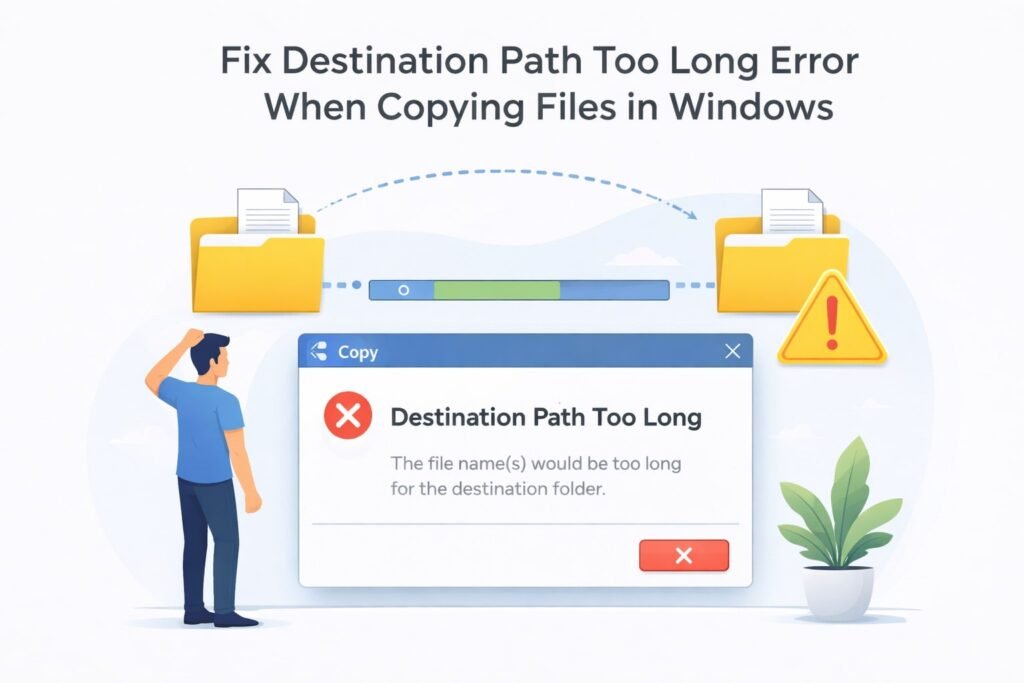
When you copy files in Windows and get an error message saying “The filename or extension is too long” or “Destination path too long,” Windows is hitting its character limit. Windows has a traditional 260-character limit for file paths. This includes the full path from your drive letter all the way to the filename.
You’re trying to copy a file, but the destination path exceeds this limit. It’s frustrating, but it’s fixable. Let me show you how.
Why This Error Happens
Windows uses what’s called the MAX_PATH limitation. This is a technical restriction that dates back decades. The path includes everything: your drive letter, all folders, subfolders, and the filename itself.
Example of a path that’s too long:
C:\Users\YourName\Documents\Projects\2024\ClientWork\SpecialProjects\DesignFiles\FinalVersions\ApprovedDesigns\ClientFeedback\RevisedFiles\FinalApproved\ReadyForProduction\FileName.psd
Count those characters. They add up fast.
The limit applies whether you’re moving files, copying them, or installing software. The error stops the operation completely.
Solution 1: Rename Folders to Shorter Names (Quickest Fix)
The simplest approach is making your folder names shorter. This reduces the total character count in your path.
Steps to try:
- Right-click the folder with the long path
- Select “Rename”
- Use shorter folder names
- Keep names meaningful but brief
Better approach:
Instead of: “ClientApprovedDesignFilesWithFinalRevisionsReadyForProduction”
Use: “ClientDesigns_Final”
This saves 40+ characters instantly.
Work backward from the file location. Start renaming folders closest to the file first. Each character you remove helps.
Solution 2: Use the Local Group Policy Editor (Windows Pro and Higher)
Windows Pro, Enterprise, and Education editions have a built-in fix. Home editions don’t have this feature, but Pro users should try this first.
Here’s how to enable long path support:
- Press the Windows key and type “gpedit.msc”
- Click the Group Policy Editor application
- Navigate to: Computer Configuration > Administrative Templates > System > Filesystem
- Find “Enable Win32 long paths”
- Double-click it
- Select “Enabled”
- Click “OK”
- Restart your computer
After restart, you can copy files with paths longer than 260 characters. This is the permanent fix for Pro users.
Note: This doesn’t work on Windows Home edition. You’ll need to use other solutions.
Solution 3: Move Files Closer to the Root Directory
Creating a temporary folder closer to your drive root keeps paths short.
Example:
Instead of copying to:
C:\Users\YourName\Documents\Projects\ClientWork\2024\Designs\Final\Approved
Copy to:
C:\Temp
Then move files to their final location afterward if needed. This breaks the operation into steps Windows can handle.
Steps:
- Create a folder on your C: drive called “Temp” (or any short name)
- Copy files there first
- Once successful, move them to their final destination
- Delete the temporary folder
This workaround lets you complete the copy operation even on Home edition.
Solution 4: Use Command Line Tools (Most Reliable for Tech Users)
The Windows Command Prompt handles long paths better than the File Explorer GUI.
Using Robocopy (built into Windows):
- Press Windows key and type “Command Prompt”
- Right-click and select “Run as Administrator”
- Use this command:
robocopy “C:\source\folder\path” “C:\destination\folder\path” /S /E
The /S flag copies subdirectories. The /E flag copies empty directories too.
Using PowerShell (even better):
- Right-click the folder and select “Open PowerShell window here”
- Type this command:
Copy-Item -Path “source_path” -Destination “destination_path” -Recurse
PowerShell handles long paths without the 260-character restriction. It’s more powerful and reliable than the graphical method.
Solution 5: Enable Long Path Support via Registry (Windows Home Edition)
Windows Home edition doesn’t have Group Policy Editor, but you can edit the registry directly to enable long paths.
Steps:
- Press Windows key and type “regedit”
- Click the Registry Editor
- Navigate to: HKEY_LOCAL_MACHINE\SYSTEM\CurrentControlSet\Control\FileSystem
- Look for “LongPathsEnabled”
- If it doesn’t exist, right-click in the empty space
- Select “New” then “DWORD (32-bit) Value”
- Name it “LongPathsEnabled”
- Double-click it and change the value from 0 to 1
- Click OK and restart your computer
This enables long path support on Home edition. It works the same way as the Pro fix, just accessed differently.
Warning: Only edit the registry if you’re comfortable doing so. Back up your registry first or create a system restore point.
Solution 6: Use File Compression Tools
7-Zip and WinRAR can compress files with long paths, then extract them to the destination. The temporary compressed file has a shorter path.
Using 7-Zip:
- Right-click the files you want to copy
- Select “7-Zip” then “Add to archive”
- Create a 7z file
- Transfer the archive to your destination
- Right-click and extract
This avoids the path length issue entirely by using a single compressed file instead of individual files.
Which Solution to Use
| Solution | Difficulty | Time Required | Works on Home Edition | Permanent |
|---|---|---|---|---|
| Rename folders | Very Easy | 10 minutes | Yes | Yes |
| Group Policy Editor | Easy | 5 minutes | No (Pro only) | Yes |
| Move to root | Easy | 5 minutes | Yes | No |
| Command line (Robocopy) | Moderate | 5 minutes | Yes | Yes |
| PowerShell | Moderate | 5 minutes | Yes | Yes |
| Registry edit | Moderate | 10 minutes | Yes | Yes |
| File compression | Easy | 10 minutes | Yes | No |
Step-by-Step Prevention Guide
Once you fix the current problem, prevent it from happening again.
Create a folder structure that stays under 260 characters:
- Use short, clear folder names (8-15 characters max)
- Avoid repeating information in folder names
- Keep your folder depth to 5-7 levels maximum
- Use abbreviations when appropriate
Example of good structure:
C:\Users\YourName\Documents\Projects\2024\Design\Final
Example of bad structure:
C:\Users\YourName\Documents\ProjectFiles\ActiveProjects\CurrentDesignProjects\ClientDesignProjectsTwentyTwentyFour\FinalDesignFiles\ReadyForDelivery
The good example is only 56 characters. The bad example is 165. Plan ahead and you won’t hit this limit.
What If You’re Copying to External Drives or Network Locations?
Network drives and external USB drives can have different path length limitations.
External drives: Follow the same solutions above. The 260-character limit applies to them too.
Network drives: Some network locations have their own restrictions. Try these steps:
- Copy files to your local drive first (using the solutions above)
- Then copy from your local drive to the network location
- This breaks the process into manageable steps
UNC paths (network shares): Use Command Prompt or PowerShell for these. They handle long paths better than File Explorer.
Example UNC path:
\servername\sharename\folder\subfolder\filename
Real-World Examples
Scenario 1: Photo Organization
You have nested folders by year, month, and event. After three years, paths are 280 characters. Solution: Use the Group Policy fix on Pro edition, or rename folders to use year-month abbreviations (2024-01-Event instead of 2024-January-EventName).
Scenario 2: Design Projects
Your clients’ projects have deep folder structures for different design phases. Solution: After delivering files, archive old projects with 7-Zip to reduce folder depth. Keep only current projects in deep folders.
Scenario 3: Large File Transfer
You’re copying a backup to an external drive. The path becomes too long. Solution: Use Robocopy from Command Prompt. It’s faster and handles long paths. Or move files to a simpler folder structure temporarily.
Common Mistakes to Avoid
Don’t just delete old folders hoping the error goes away. The error is about the destination path, not available space.
Don’t try copying files one by one if the issue is your folder structure. You’ll face the same problem repeatedly.
Don’t assume upgrading to Windows Pro is necessary. Most problems can be solved with shorter folder names or PowerShell.
Don’t edit the registry without understanding what you’re doing. Make a backup first.
Troubleshooting If It Still Doesn’t Work
After enabling long paths, I still get the error:
Some applications don’t recognize the long path setting. This is rare. Restart your computer completely (not sleep mode).
PowerShell gives permission errors:
Right-click PowerShell and select “Run as Administrator.” File permissions might block the operation otherwise.
The registry edit didn’t work:
Check that you created the value correctly. The name must be exactly “LongPathsEnabled” (capital L, capital P, capital E). The value must be 1, not 0.
Robocopy says the path doesn’t exist:
Make sure you’re using the correct path. Include quotation marks around paths with spaces. Example:
robocopy “C:\My Documents\Files” “D:\Backup\Location” /S /E
Summary
The destination path too long error in Windows is fixable in multiple ways. Your best approach depends on your Windows edition and comfort level.
Quick fixes:
- Rename folders to be shorter (works everywhere, takes minutes)
- Enable long paths in Group Policy (Pro edition only, permanent)
- Use PowerShell or Robocopy (works on all editions, reliable)
Permanent solutions:
- Reorganize your folder structure to use shorter names
- Enable long path support via Group Policy or Registry
- Archive old projects to reduce folder depth
The error isn’t a Windows failure. It’s a limitation you can work around. Most people solve this in under 10 minutes once they know which solution to try.
Start with renaming folders if you’re not technical. Try PowerShell if you’re comfortable with commands. Enable long paths permanently if you use Windows Pro. Any of these approaches will get your files copied.
Frequently Asked Questions
Can I permanently remove the 260-character limit on Windows Home edition?
Yes. Edit the registry to add “LongPathsEnabled” and set its value to 1. Restart your computer. This is the permanent fix for Home edition. It’s the same as the Group Policy method on Pro edition, just accessed through the registry instead.
Why does Windows have this 260-character limit anyway?
The limit comes from old DOS and early Windows systems. It’s been maintained for backward compatibility with very old software. Modern versions of Windows can handle longer paths, but the restriction exists by default for compatibility reasons.
Will using PowerShell or Robocopy create any problems with my files?
No. These command line tools copy files exactly the same way as File Explorer. They just handle long paths better. Your files won’t be different or damaged.
Is it safe to rename folders with hundreds of files in them?
Yes, completely safe. Renaming a folder doesn’t change the files inside or break any connections. Windows updates all the internal paths automatically. Just close any programs that are using those files first.
Do external hard drives and USB sticks have the same path limit?
Yes. The 260-character limit applies to all storage devices formatted in NTFS or FAT32. If you’re copying to external storage and hit this error, use the same solutions. PowerShell or renaming folders work on external drives too.

- How to Clear Cache on Windows 11: Quick Guide in 2026 - February 23, 2026
- Top 10 Trending AI Apps in 2026 You Should Actually Be Using - February 22, 2026
- Top 10 AI Based Resume Makers in 2026 That Actually Get You Hired - February 22, 2026