
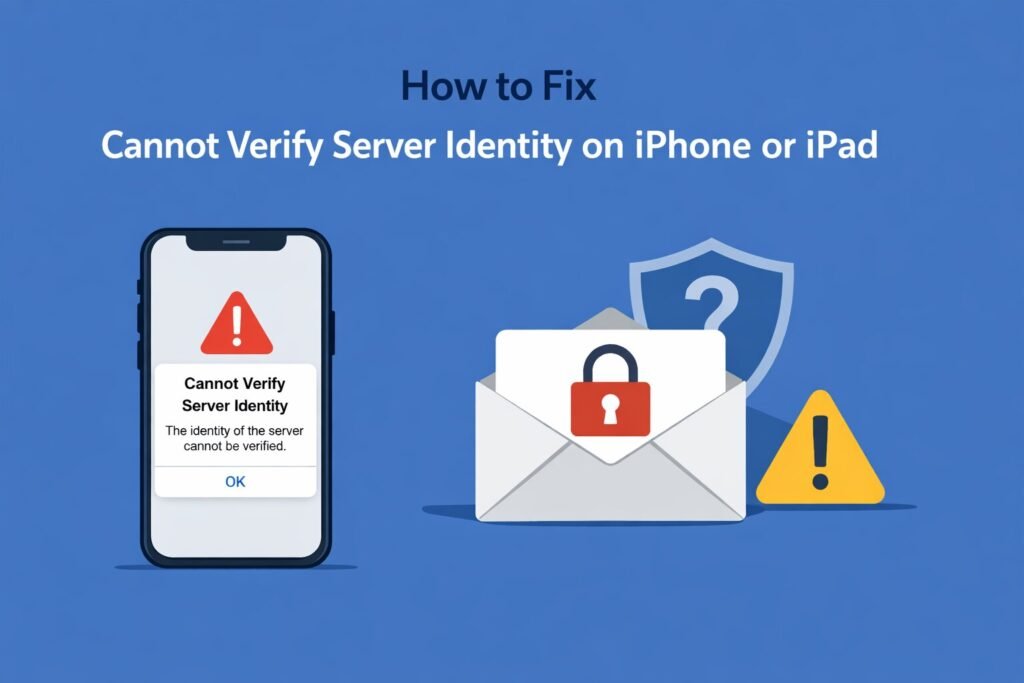
That “Cannot Verify Server Identity” pop-up on your iPhone is frustrating, especially when it keeps appearing every few minutes. This alert means your device can’t confirm the security certificate of a mail server trying to connect to your email account. The good news? You can fix this in about five minutes with the right steps.
This comprehensive guide walks you through every solution, from quick fixes to advanced troubleshooting, so you can stop those annoying alerts and get your email working properly again.
What Does “Cannot Verify Server Identity” Actually Mean?
When you see this error, your iPhone is essentially saying: “I’m trying to connect to your email server, but I can’t confirm it’s legitimate.” This happens because:
- The SSL certificate on the mail server has expired
- The server name in your email settings doesn’t match the certificate
- Your network is interfering with the secure connection
- iOS updated and now enforces stricter security standards
The error usually shows the server hostname (like mail.yourprovider.com) and gives you options to Cancel or Details. Most people tap Cancel repeatedly, but that doesn’t solve anything.
Quick Fix: Restart Your iPhone First
Before diving into settings, restart your device. This simple step resolves the issue about 30% of the time because it refreshes your network connections and clears temporary glitches.
For iPhone X and later:
- Press and hold the Side button and either Volume button
- Slide to power off
- Wait 30 seconds
- Press the Side button to turn it back on
For iPhone 8 and earlier:
- Press and hold the Top or Side button
- Slide to power off
- Wait 30 seconds
- Press the same button to restart
Check if the error returns. If it does, continue to the next solutions.
Solution 1: Update Your Mail Server Settings
The most common fix is correcting your incoming mail server address. Email providers often use multiple server names, and you need the one that matches their SSL certificate exactly.
Step-by-Step Process
- Open Settings on your iPhone
- Scroll down and tap Mail
- Tap Accounts
- Select the email account showing the error
- Tap Account at the top
- Tap Advanced at the bottom
Look at the Incoming Settings section. You’ll see a hostname like “mail.example.com” or “imap.example.com”. This needs to match your provider’s official server name.
Common Email Provider Server Names (2026)
| Email Provider | Incoming Server (IMAP) | Port | SSL |
|---|---|---|---|
| Gmail | imap.gmail.com | 993 | Yes |
| Outlook/Hotmail | outlook.office365.com | 993 | Yes |
| Yahoo Mail | imap.mail.yahoo.com | 993 | Yes |
| iCloud | imap.mail.me.com | 993 | Yes |
| AOL | imap.aol.com | 993 | Yes |
If your provider isn’t listed, visit their support website and search for “IMAP settings” or “incoming mail server.”
Update the Server Name
- Tap on Incoming Mail Server under Advanced settings
- Delete the current hostname
- Enter the correct server name from your provider
- Tap Done
- Go back and tap Done again to save
Your iPhone will attempt to reconnect. Wait about 30 seconds to see if the error disappears.
Solution 2: Toggle SSL On and Off
Sometimes the SSL setting gets stuck in a weird state. Toggling it forces your iPhone to renegotiate the secure connection.
- Go to Settings > Mail > Accounts
- Select the problematic account
- Tap Account, then Advanced
- Find Use SSL and toggle it OFF
- Tap Done and wait 10 seconds
- Go back to Advanced and toggle Use SSL back ON
- Tap Done to save
This refresh often resolves certificate mismatches without changing any other settings.
Solution 3: Delete and Re-add Your Email Account
If updating server names doesn’t work, removing and re-adding the account creates a fresh configuration. Don’t worry, this won’t delete your actual emails from the server, just removes them from your iPhone temporarily.
Before You Delete
Make sure you know your email password. You’ll need it to sign back in. If you’re unsure, reset your password through your email provider’s website first.
Deletion Process
- Open Settings > Mail > Accounts
- Tap the account with the error
- Scroll to the bottom and tap Delete Account
- Confirm by tapping Delete from My iPhone
Re-adding Your Account
- Go back to Settings > Mail > Accounts
- Tap Add Account
- Select your email provider (Gmail, Outlook, Yahoo, etc.) or choose Other
- Enter your email address and password
- Tap Next and wait for verification
- Choose what to sync (Mail, Contacts, Calendars)
- Tap Save
Your iPhone will automatically configure the correct server settings for major providers. Test by sending yourself an email from another account.
Solution 4: Check Date and Time Settings
Incorrect date and time settings cause certificate validation failures because SSL certificates have validity periods. If your iPhone thinks it’s 2020, a 2026 certificate looks invalid.
- Open Settings
- Tap General
- Tap Date & Time
- Enable Set Automatically
If it’s already enabled, toggle it off, wait 5 seconds, then toggle it back on. This forces a time sync with Apple’s servers.
Solution 5: Update iOS to the Latest Version
Apple regularly updates the trusted certificate list in iOS. Running an outdated version might flag legitimate certificates as unverified, especially for smaller email providers.
- Go to Settings > General > Software Update
- If an update is available, tap Download and Install
- Follow the prompts to complete the update
This is particularly important in 2026, as many older SSL certificates issued before 2023 are expiring and being replaced with newer standards.
Solution 6: Reset Network Settings
Network configurations can interfere with SSL connections. Resetting network settings clears VPN profiles, Wi-Fi passwords, and cellular settings that might be causing conflicts.
Warning: You’ll need to reconnect to Wi-Fi networks afterward.
- Open Settings > General > Transfer or Reset iPhone
- Tap Reset
- Select Reset Network Settings
- Enter your passcode
- Confirm by tapping Reset Network Settings
Your iPhone will restart. After it boots up, reconnect to Wi-Fi and check if the mail error is gone.
Solution 7: Contact Your Email Provider
If you’ve tried everything and still see the error, the problem might be on your email provider’s end. Their SSL certificate could genuinely be expired or misconfigured.
Visit your provider’s status page or contact their support. Here are direct links to major providers:
- Gmail support: Google Account Help
- Outlook/Hotmail: Microsoft Support
Explain that you’re getting a “Cannot Verify Server Identity” error on iOS and mention the exact server name shown in the alert. They can confirm if there’s a known issue or provide updated server settings.
Advanced Solution: Install a Custom Certificate Profile
Some organizations and smaller email providers use self-signed certificates or custom certificate authorities. In these cases, you need to manually install their certificate profile.
Only do this if your IT department or email provider specifically instructs you to. Installing unknown certificates is a security risk.
- Your provider will email you a .cer or .crt file or a configuration profile
- Open the email on your iPhone and tap the attachment
- Tap Install when prompted
- Enter your passcode
- Tap Install again to confirm
- Tap Done
Go to Settings > General > VPN & Device Management to see installed profiles. The certificate should appear there.
Why This Error Keeps Coming Back
If the error disappears temporarily but returns hours or days later, you’re dealing with one of these issues:
Server-side certificate rotation: Your email provider updates certificates regularly, and the new one doesn’t match your saved settings. Solution: Update your server hostname to the primary domain.
Third-party email apps interfering: Apps like Spark, Edison, or Outlook may be using different server addresses. Solution: Check which app is triggering the alert and update its settings separately.
VPN or proxy interference: Some VPNs perform man-in-the-middle inspection that breaks certificate validation. Solution: Disable your VPN temporarily to test, or whitelist mail ports (993 for IMAP, 995 for POP3).
Corporate or school email policies: Managed email accounts have restrictions you can’t override. Solution: Contact your IT administrator.
Prevention Tips for 2026
Avoid this problem in the future with these practices:
- Enable automatic iOS updates in Settings > General > Software Update > Automatic Updates
- Use your email provider’s official app (Gmail app for Gmail, Outlook app for Outlook) instead of the native Mail app if you experience repeated issues
- Bookmark your provider’s official server settings page for quick reference
- Set up two-factor authentication, which often requires app-specific passwords that are more stable than regular passwords
What to Do If Nothing Works
If you’ve exhausted all solutions:
- Try a different email app from the App Store. Microsoft Outlook and Spark are reliable alternatives that handle certificates differently
- Set up email forwarding to a more stable provider like Gmail, then access everything from one account
- Use webmail through Safari as a temporary solution while troubleshooting
- Factory reset your iPhone as a last resort (backup first via iCloud or computer)
For factory reset:
- Backup via Settings > [Your Name] > iCloud > iCloud Backup > Back Up Now
- Go to Settings > General > Transfer or Reset iPhone > Erase All Content and Settings
- Set up as new or restore from backup
Understanding SSL Certificates and Email Security
This error exists because your iPhone takes security seriously. SSL/TLS certificates prove that the mail server you’re connecting to is legitimate and not an imposter trying to steal your password.
When certificates expire or are misconfigured, your iPhone refuses the connection to protect you. While annoying, this is actually good security design. Never tap “Trust” or “Accept” on certificate warnings unless you’re absolutely certain the server is legitimate.
Summary
The “Cannot Verify Server Identity” error on iPhone typically stems from mismatched server names, expired SSL certificates, or network issues. Start with the simple fixes like restarting your device and checking date/time settings. If those don’t work, update your incoming mail server to match your provider’s official hostname, found in the table above or on their support site.
For persistent issues, delete and re-add the account with fresh settings. As a last resort, contact your email provider or switch to their dedicated app. Most users resolve this within 10 minutes using the server name update method.
The key is patience and working through solutions systematically rather than just dismissing the alert repeatedly. Your email will work smoothly again once the certificate validation passes.

- How to Clear Cache on Windows 11: Quick Guide in 2026 - February 23, 2026
- Top 10 Trending AI Apps in 2026 You Should Actually Be Using - February 22, 2026
- Top 10 AI Based Resume Makers in 2026 That Actually Get You Hired - February 22, 2026