
Getting an eSIM working on your iPhone should take about 5 minutes. This guide walks you through every method available in 2026, from scanning QR codes to using carrier apps. You’ll know exactly what to do, whether you’re switching from a physical SIM or adding a second line.
What Is eSIM and Why Use It?
An eSIM is a digital SIM built into your iPhone. No physical card needed. You download your carrier’s profile directly to your device.
Main benefits:
- Add multiple phone numbers to one iPhone
- Switch carriers without waiting for a SIM card
- Keep your physical SIM slot free for travel cards
- Set up service immediately, no store visit required
All iPhones from XS, XS Max, and XR (2018) onward support eSIM. The iPhone 14 and newer models in the US have no physical SIM slot at all, only eSIM.
Before You Start: Requirements Checklist
Make sure you have these ready:
- iPhone XS or newer model
- iOS 12.1 or later (iOS 17 or 18 in 2026)
- WiFi or cellular data connection
- Carrier that supports eSIM
- eSIM QR code, activation details, or carrier app
Check if your carrier supports eSIM: Most major carriers do in 2026. Visit your carrier’s website or call their support line. AT&T, Verizon, T-Mobile, and most international carriers fully support eSIM activation.
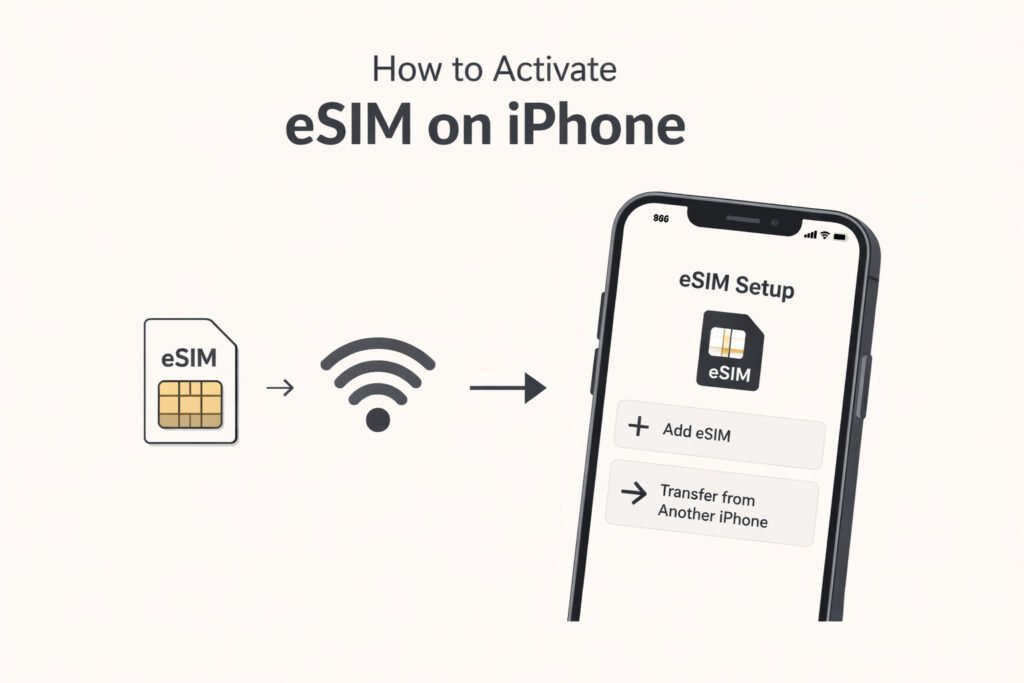
Method 1: Activate eSIM Using QR Code (Most Common)
This is the standard way most people activate eSIM. Your carrier gives you a QR code, you scan it, done.
Step 1: Get Your QR Code
Your carrier sends this via email, shows it in their online account portal, or prints it at their store. Some carriers text you a link that displays the QR code.
Step 2: Open iPhone Settings
- Tap Settings
- Tap Cellular (or Mobile Data in some regions)
- Tap Add Cellular Plan or Add eSIM
Step 3: Scan the QR Code
- Your iPhone camera activates automatically
- Point it at the QR code your carrier provided
- Hold steady until the code is recognized
- Tap Continue when prompted
Step 4: Enter Confirmation Code
Some carriers require a confirmation code. If prompted, type the code provided by your carrier.
Step 5: Label Your Plan
Give your plan a name like “Personal” or “Work” or “Travel SIM.” This helps when you have multiple lines.
Choose which line to use for:
- Default voice line
- Default messaging line
- Cellular data
Step 6: Complete Activation
Tap Done. Your eSIM activates within 1-2 minutes. You’ll see signal bars appear.
If activation fails, restart your iPhone and try again. Contact your carrier if problems continue.
Method 2: Activate eSIM Using Carrier App
Many carriers offer apps that handle eSIM activation without QR codes. T-Mobile, Verizon, AT&T, and most MVNOs have this option in 2026.
Steps for App-Based Activation
- Download your carrier’s official app from the App Store
- Log into your account
- Find the “Add eSIM” or “Activate Service” option
- Tap “Use iPhone eSIM” or similar option
- Follow the in-app prompts
- Approve the cellular plan installation when iOS asks
- Label your plan and set preferences
The app method is faster than QR codes for existing customers. Your carrier account is already linked, so fewer steps.
Method 3: Convert Physical SIM to eSIM
You can convert your existing physical SIM to eSIM without calling your carrier. Works with most US carriers in 2026.
Quick Conversion Process
- Keep your physical SIM in the iPhone
- Go to Settings > Cellular
- Tap your phone number
- Look for “Convert to eSIM” option
- Tap Convert Cellular Plan
- Tap Convert to eSIM again to confirm
- Wait 2-3 minutes for completion
Your carrier handles the switch automatically. Signal might drop briefly during conversion. Once complete, you can remove the physical SIM card.
Note: Not all carriers support this automatic conversion. If you don’t see the option, use Method 1 or Method 2 instead.
Method 4: Quick Transfer from Another iPhone
Transferring to a new iPhone? eSIM can move automatically during setup.
During iPhone Setup
When setting up your new iPhone:
- Place it near your old iPhone
- Follow on-screen Quick Start instructions
- When asked about cellular plan, choose Transfer from Another iPhone
- Select the plan you want to transfer
- Approve transfer on your old iPhone
- Wait for completion
Both phones need iOS 16 or later for this method. Your carrier must support eSIM transfer (most do in 2026).
After iPhone Setup
Missed it during setup? Transfer later:
- Settings > Cellular > Add Cellular Plan
- Choose Transfer From Nearby iPhone
- Follow the same process
Setting Up Dual SIM (Two Numbers on One iPhone)
Once you activate an eSIM, you can add another line. Great for separating work and personal calls.
Configuration Options
| Setup Type | Primary Line | Secondary Line | Best For |
|---|---|---|---|
| Dual eSIM | eSIM | eSIM | iPhone 14+ US models |
| Physical + eSIM | Physical SIM | eSIM | International travel |
| Multiple eSIM | eSIM | eSIM (stored) | Frequent travelers |
How to Manage Two Lines
Settings > Cellular shows both lines. Tap each to configure:
- Which line makes calls by default
- Which line sends messages by default
- Which line uses cellular data
- Contact-specific line selection
You can assign contacts to always use a specific line. Tap a contact, scroll down, choose Preferred Cellular Plan.
For data, choose Allow Cellular Data Switching to let your iPhone use either line for data when the primary has weak signal.
Troubleshooting Common eSIM Activation Issues
QR Code Won’t Scan
Solutions:
- Increase screen brightness if scanning from another device
- Clean your iPhone camera lens
- Try entering details manually: tap “Enter Details Manually” below the scanner
- Screenshot the QR code, open Photos, tap the code, select “Copy eSIM Details”
“Cellular Plan Cannot Be Added” Error
Causes and fixes:
- eSIM already activated on another device: Contact carrier to deactivate old device first
- Carrier account issue: Verify your account is in good standing
- Software glitch: Restart iPhone and try again
- Network required: Connect to WiFi or cellular data before activating
No Signal After Activation
Try these steps in order:
- Wait 5 minutes, activation can be slow
- Toggle Airplane Mode on and off
- Restart your iPhone
- Remove and re-add the eSIM plan
- Contact carrier to verify activation on their end
Activation Code Expired
QR codes typically expire after 30 days. Request a new one from your carrier. This usually takes 5 minutes through their website or app.
Managing Multiple eSIM Profiles
iPhones can store 8 or more eSIM profiles, though only 2 can be active simultaneously (iPhone 13 and later).
View Stored eSIMs
Settings > Cellular shows all plans. Active plans appear at the top. Stored (inactive) plans appear under “SIMs.”
Switch Between eSIMs
- Tap the eSIM you want to activate
- Toggle Turn On This Line
- If you have 2 active lines, you must turn off one first
Switching takes 10-30 seconds.
Delete an eSIM
- Settings > Cellular
- Tap the eSIM plan
- Scroll down to Remove Cellular Plan
- Confirm deletion
Warning: Deleting removes the eSIM profile completely. You’ll need a new QR code to reactivate that carrier’s service.
eSIM for International Travel in 2026
eSIM makes travel simple. Buy a data plan for your destination country, activate before or after landing.
Popular Travel eSIM Providers
- Airalo: 200+ countries, data-only plans
- Holafly: Unlimited data in 170+ destinations
- Nomad: Flexible regional plans
- Local carriers: Often the cheapest option
Activate Travel eSIM
- Purchase plan from provider’s website or app
- Receive QR code via email
- Activate using Method 1 above (QR scan)
- Keep your home eSIM active for calls/texts
- Set travel eSIM as default data line
Learn more about international eSIM options at GSMA’s eSIM information page.
Privacy and Security Considerations
eSIM is more secure than physical SIM cards. Thieves can’t remove it to access your accounts.
Security benefits:
- Cannot be physically stolen from your device
- Requires Face ID or passcode to modify
- Remote deactivation through Find My iPhone
- Carrier authentication required for changes
Privacy tip: When selling your iPhone, go to Settings > General > Transfer or Reset iPhone > Erase All Content and Settings. This removes all eSIM profiles completely.
Comparing eSIM vs Physical SIM in 2026
| Feature | eSIM | Physical SIM |
|---|---|---|
| Activation time | 5 minutes | Hours to days |
| Damage risk | None | Can break or corrode |
| Multiple numbers | Yes, store 8+ | No |
| Carrier switching | Instant | Requires new card |
| International travel | Buy plans online | Find store abroad |
| iPhone 14+ US | Required | Not available |
| Older devices | iPhone XS+ | All iPhones |
Physical SIM still works on older iPhones and in regions where eSIM isn’t widely adopted. But eSIM is the standard for most users in 2026.
For detailed technical specifications, visit Apple’s eSIM support page.
Summary
Activating eSIM on iPhone in 2026 takes just a few minutes using any of four methods: scanning a QR code from your carrier, using the carrier’s app, converting your physical SIM, or transferring from another iPhone. The QR code method remains most common, requiring you to open Settings, tap Cellular, select Add Cellular Plan, and scan the code provided by your carrier.
Dual SIM capability lets you maintain two lines simultaneously, useful for separating work and personal numbers or keeping a home line active while traveling internationally. Most issues resolve with a simple restart or by requesting a fresh QR code from your carrier.
eSIM technology has matured significantly, with nearly all major carriers worldwide supporting instant digital activation. The physical SIM tray is disappearing from new iPhone models, making eSIM knowledge essential for all users going forward.
Frequently Asked Questions
Can I use eSIM and physical SIM at the same time?
Yes, on iPhone XS through iPhone 13, you can use one physical SIM and one eSIM simultaneously. iPhone 14 and later US models don’t have a physical SIM slot, so you’ll use two eSIMs instead. Both configurations let you have two active phone numbers on one device.
Does eSIM cost extra money?
No, carriers don’t charge extra for eSIM service. You pay the same plan price whether using physical SIM or eSIM. Some carriers might charge a one-time activation fee, but this is rare in 2026. Travel eSIM providers price their plans separately, just like buying a local SIM card would cost.
Can I remove eSIM and reuse it on another iPhone?
No, you cannot move an eSIM profile directly between devices like you can with a physical SIM card. You must contact your carrier to deactivate the eSIM on your old iPhone, then activate it on your new iPhone using a new QR code or carrier app. Some carriers support Quick Transfer between iPhones during setup, which handles this automatically.
Will I lose my phone number if I delete the eSIM?
Deleting the eSIM profile from your iPhone removes it from the device but doesn’t cancel your service or release your number. Your carrier still maintains your account and number. However, you’ll need to contact your carrier for a new QR code to reactivate service on any device. Don’t delete your eSIM unless you’re sure you want to remove it.
Does eSIM work without WiFi or data connection?
You need an internet connection (WiFi or cellular data) to initially download and activate the eSIM profile. Once activated, your eSIM works exactly like a physical SIM and doesn’t require WiFi to make calls, send texts, or use cellular data. If you’re setting up eSIM on a device with no service, connect to WiFi first.

- How to Clear Cache on Windows 11: Quick Guide in 2026 - February 23, 2026
- Top 10 Trending AI Apps in 2026 You Should Actually Be Using - February 22, 2026
- Top 10 AI Based Resume Makers in 2026 That Actually Get You Hired - February 22, 2026