
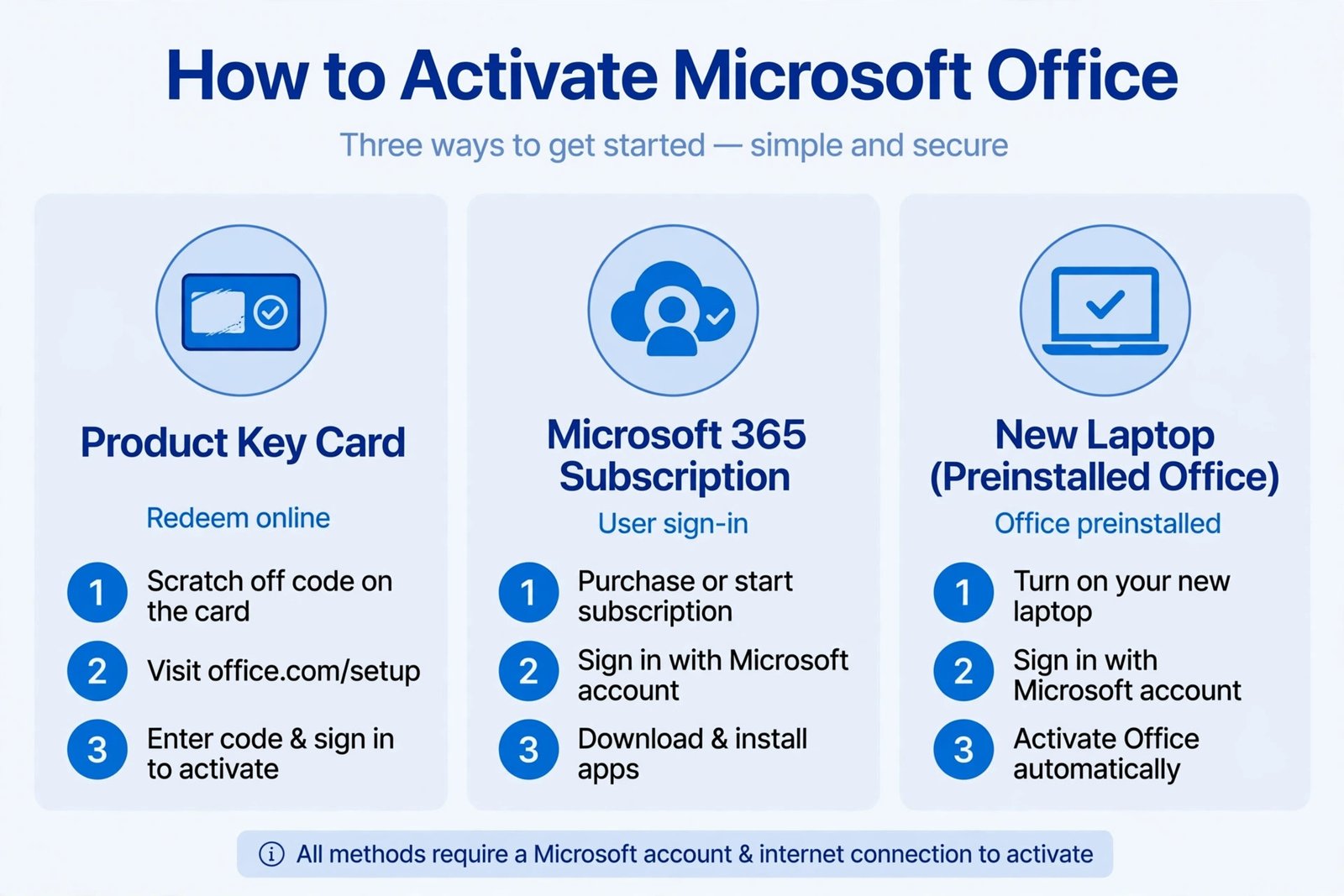
Activating Microsoft Office in 2026 comes down to one question: did you buy a product key, or a subscription? The steps are different for each, and mixing them up is the reason most activation attempts fail. Pick your situation below and follow the matching method.
Which Method Matches Your Situation?
| Your situation | Use this method |
|---|---|
| You bought a boxed copy, key card, or 25-character key from a retailer | Method 1: redeem the key online |
| You pay for Microsoft 365 Personal or Family, or your school or employer gave you an account | Method 2: sign in with your subscription |
| Word and Excel were already on your new PC when you bought it | Method 3: preinstalled Office |
Method 1: Activate with a Product Key
If you have a 25-character product key (five groups of five letters and numbers), you redeem it once on Microsoft’s website. You do not type the key into Word itself.
- Go to setup.office.com in your browser. This is Microsoft’s official redemption page.
- Sign in with the Microsoft account you want tied to this Office license. This matters: the license stays with this account permanently, so use the account you actually keep. If you do not have one, create it here.
- Enter your 25-character product key carefully, with no extra spaces, and click Next.
- Confirm your country or region and language when asked.
- From your Microsoft account’s Services and subscriptions page, find the Office product you just redeemed and click Install. You can also use microsoft365.com/setup as an alternate redemption page.
- Run the downloaded installer. When you open Word or Excel afterward, sign in with the same Microsoft account. Office activates automatically; you will not be asked for the key again.
Method 2: Activate with a Microsoft 365 Subscription
Subscriptions (Microsoft 365 Personal, Family, or a work or school account) do not use product keys at all. Activation is just signing in.
- Install the Office apps if they are not on your device yet: sign in at your Microsoft account page, open Services and subscriptions, and click Install.
- Open any Office app, such as Word.
- When prompted, choose Sign in and use the Microsoft account (or work or school account) that holds the subscription.
- Office activates in the background. If you have both a personal and a work license on the same account list, Office may ask which one to use: pick the one matching what you installed.
Students should check whether their school provides Microsoft 365 free before buying anything. Our guide to the best AI tools for students also covers free productivity options worth knowing about.
Method 3: Office Came Preinstalled on a New PC
Many new Windows laptops ship with Office apps already installed, which is confusing because the apps being present does not mean they are licensed. Open Word from the Start menu and you will see one of these options:
- Sign in: choose this if you already redeemed a key or have a subscription. Use the matching account.
- Enter a product key: choose this if your PC came with a key card in the box. This takes you to the redemption page from Method 1.
- Try or buy Microsoft 365: these start a trial or a purchase. Only pick one if that is genuinely what you want; a trial started under the wrong account is a common source of “my license disappeared” headaches later.
If the preinstalled trial nag screens annoy you, our guide to removing bloatware from Windows 11 covers cleaning up unwanted bundled apps safely.
How to Check That Office Is Activated
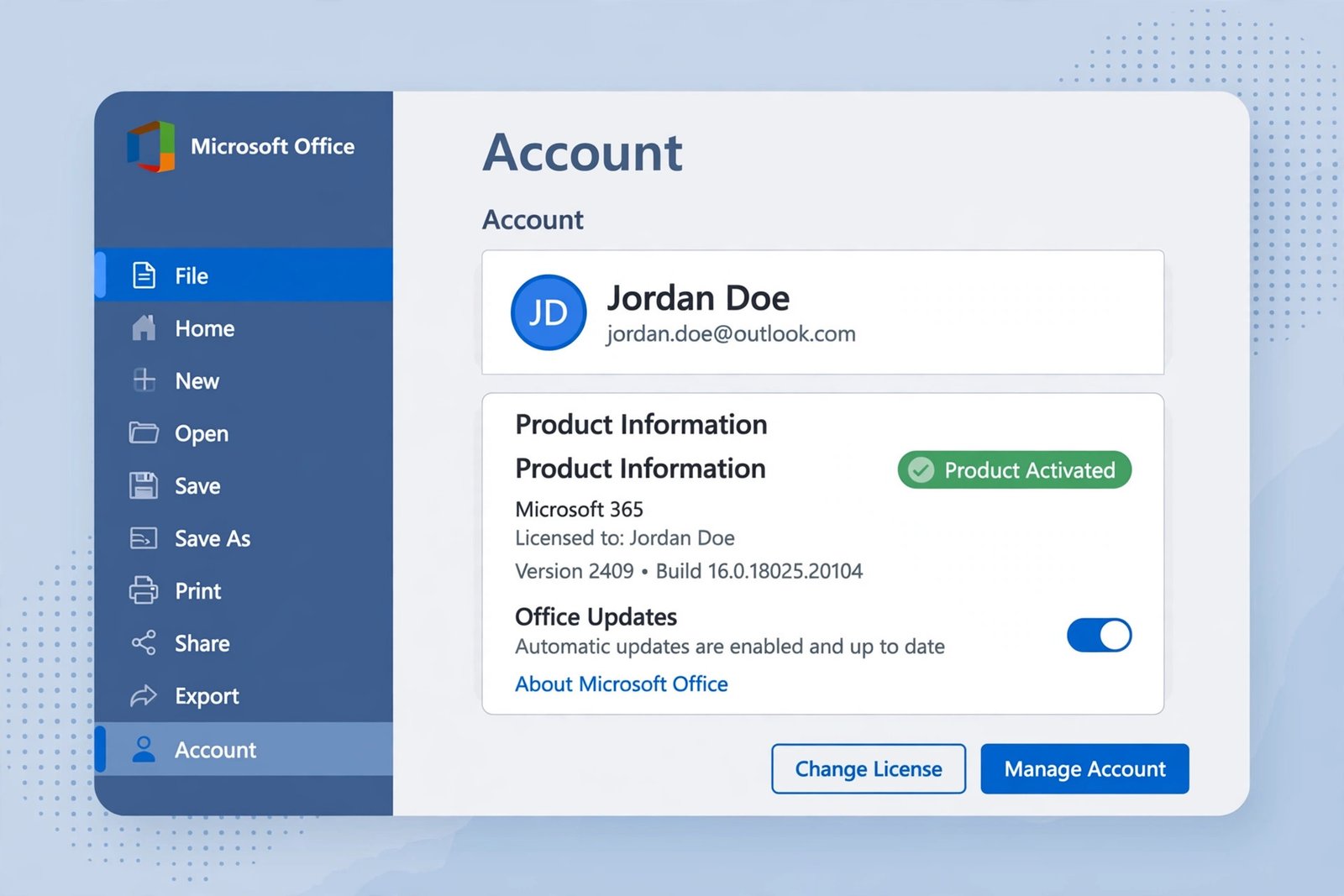
On Windows, open any Office app, go to File, then Account, and look under Product Information. It should show your product name and confirm activation. On a Mac, open an Office app and check the account or license area from the app menu.
Common Activation Problems and Fixes
- “We can’t find this product key.” Double-check each character. Keys never contain certain lookalike characters, and the most common cause is a mistyped character or a key meant for a different product.
- No Install button on your account page. You are signed in with the wrong account. The license lives with whichever account redeemed the key, so sign out and try the other email addresses you own.
- “Your subscription has expired.” Check your subscription status on your Microsoft account services page. If a payment failed, update your billing details. On a Family plan, confirm the plan owner has not removed you from the share.
- Office keeps asking for activation after you signed in. A corrupted licensing cache is often the culprit. Sign out of Office, and see our guide to clearing the cache on Windows 11 before signing back in.
- Activation fails right after reinstalling Windows. Reinstall Office from your account page rather than from an old installer file, then sign in. Old installers sometimes carry stale licensing components.
Our Take
The single biggest mistake is entering the product key in the wrong place, or under the wrong Microsoft account. Redeem once on Microsoft’s site, install from your account page, and sign in with the same account. Do that and activation takes five minutes. And skip any third-party “Office activator” tool no matter how convincing it looks: Microsoft’s own pages are the only safe place to type a product key.

- How to Fix the Windows 11 Taskbar Auto-Hide Problem - October 24, 2026
- How to Fix a Laptop Camera Not Working in Windows 11 - October 23, 2026
- How to Fix the Brightness Slider Missing in Windows 11 - October 22, 2026