
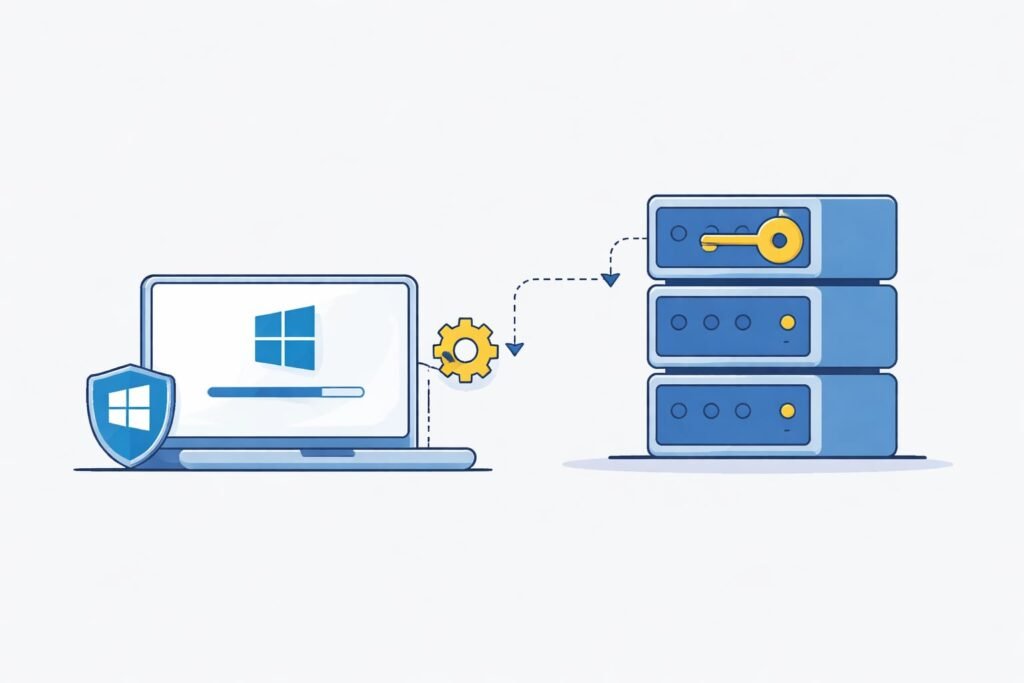
KMS stands for Key Management Service. It’s a Microsoft activation method designed for organizations with multiple computers. Instead of activating each Windows installation individually online, a KMS server handles activation for all machines on your network.
Here’s the basic process: Your Windows computer contacts a KMS server on your local network. The server verifies your software is genuine. Once verified, your Windows gets activated. The activation lasts 180 days. After that, your computer automatically reconnects to renew it.
This system works differently than typical online activation. You don’t need individual product keys for every device. One KMS server can activate thousands of machines. This is why organizations prefer it. It’s efficient, automated, and reduces administrative overhead.
KMS vs. Other Windows Activation Methods
Windows offers several activation paths. Knowing the differences helps you choose the right approach.
Volume Activation Methods:
- KMS Activation: Requires a KMS server on your network. Works offline after initial contact. Requires 25 Windows devices (or 5 for servers) to function. Activations renew every 180 days automatically.
- MAK (Multiple Activation Key): Single key for multiple devices. Each installation contacts Microsoft directly online. Doesn’t need a local server. Better for smaller deployments or remote workers.
- ADBA (Active Directory-Based Activation): Tied to your Active Directory domain. Automatic upon domain join. Requires AD infrastructure. No internet contact needed after initial setup.
Retail vs. Volume Licensing:
Retail licenses are for individual users. One key per computer. Volume licenses (like KMS) are for organizations buying multiple seats. They cost less per unit but require proper licensing agreements.
System Requirements for Setting Up a KMS Server
Before you start, verify your infrastructure meets the requirements. Missing even one requirement causes activation failures.
Hardware Requirements:
- Processor: 1.4 GHz 64-bit processor
- RAM: Minimum 512 MB (2 GB recommended)
- Disk Space: 145 MB free space minimum
- Network: Stable connection to your network
- Optional: Redundancy (second KMS server for failover)
Software Requirements:
- Windows Server 2008 R2 or newer (any edition)
- Windows Server 2012, 2012 R2, 2016, 2019, 2022
- Windows 8.1, Windows 10, Windows 11
- Supported client operating systems (check Microsoft’s documentation for your specific OS version)
Network Requirements:
- TCP port 1688 (default KMS communication port) must be open
- Firewalls shouldn’t block this port between clients and server
- DNS must be properly configured
- Clients need network access to the KMS server
- Static IP address recommended for the KMS server
- Stable network connectivity throughout the day
Licensing Requirements:
- Valid Volume License agreement with Microsoft
- KMS Host Key (from your Microsoft licensing account)
- Proper documentation of all activated machines
Step-by-Step: How to Set Up a KMS Server
Step 1: Prepare Your Server Machine
Choose a dedicated Windows Server machine or repurpose an existing one. This becomes your KMS host. The machine needs:
- Stable power supply (or UPS protection)
- Static IP address assigned
- Proper network connectivity
- Remote access capability (optional but useful)
Document the server’s hostname and IP address. You’ll need these details when configuring clients.
Step 2: Obtain Your KMS Host Key
Log into your Microsoft Volume Licensing Service Center account. Navigate to your Licenses section. Find your product keys. The KMS Host Key is different from a standard product key.
Look for keys labeled “KMS Host Key.” These are exclusively for KMS servers, not for regular installations. Keep this key secure. Don’t share it publicly. Treat it like sensitive administrative credentials.
If you don’t have a Volume License agreement, contact a Microsoft licensing partner. You cannot set up a legal KMS server without proper licensing.
Step 3: Install the KMS Host Key on Your Server
Connect to your server machine locally or via Remote Desktop. Open Command Prompt as Administrator.
Use this command:
slmgr.vbs /ipk KMS-HOST-KEY-HEREReplace “KMS-HOST-KEY-HERE” with your actual KMS Host Key. Press Enter.
You should see a confirmation message saying the key was installed successfully. If you get an error, verify:
- You’re running Command Prompt as Administrator
- The key is typed correctly
- The server has internet connectivity
- Your Windows Server edition supports the key
Step 4: Activate the KMS Server
Still in Command Prompt (as Administrator), run:
slmgr.vbs /atoThis attempts online activation. Your KMS server contacts Microsoft to verify the key. This step requires internet access. It might take a few minutes.
When successful, you’ll see a message confirming activation. Write down the confirmation ID. Save this in your records.
If activation fails:
- Check your internet connection
- Verify the key is correct
- Try again after a few hours
- Contact Microsoft support if errors persist
Step 5: Configure KMS Listening and Publishing
KMS servers need to advertise their presence on the network. Clients discover them through DNS or direct configuration.
For DNS SRV records (recommended):
Create DNS records that allow clients to find your KMS server automatically. Contact your DNS administrator. Provide them with:
- KMS server hostname
- KMS server IP address
- Port: 1688
The DNS record format looks like:
_vlmcs._tcp.yourdomain.com SRV 0 0 1688 kmsserver.yourdomain.comYour DNS administrator sets this up. Once configured, clients on your network can automatically discover the KMS server.
For manual configuration:
If DNS setup isn’t possible, you’ll manually configure each client with the KMS server address (covered in the next section).
Step 6: Enable the KMS Service
The KMS service should start automatically. Verify it’s running:
- Open Services (services.msc)
- Search for “Volume Activation”
- Ensure it’s running and set to “Automatic” startup type
If the service isn’t running, right-click it and select “Start.” Set the startup type to Automatic so it starts after reboots.
How to Configure Client Machines for KMS Activation
Once your KMS server is ready, configure Windows installations to use it.
Method 1: Automatic Discovery via DNS
If you’ve configured DNS SRV records, clients can find the KMS server automatically.
On each client machine, open Command Prompt as Administrator:
slmgr.vbs /skms autoThis tells the client to search DNS for available KMS servers. Most machines find it within minutes.
Method 2: Manual Server Configuration
If DNS isn’t available, specify the KMS server directly.
Open Command Prompt as Administrator on the client:
slmgr.vbs /skms kmsserver.yourdomain.com:1688Replace “kmsserver.yourdomain.com” with your actual KMS server hostname or IP address.
If using IP address instead:
slmgr.vbs /skms 192.168.1.100:1688The colon and port number (1688) are required unless you’re using the default port.
Method 3: Install Generic Volume License Key
Client machines need a Generic Volume License Key (GVLK) matching their Windows edition. These keys are publicly available and safe to use.
For Windows 11 Pro:
slmgr.vbs /ipk W269N-WFGWX-YVC9B-4J6C9-T83GVFor Windows 10 Pro:
slmgr.vbs /ipk W269N-WFGWX-YVC9B-4J6C9-T83GVFor Windows Server 2022:
slmgr.vbs /ipk VDYBN-N2PY6-NQRQ9-KHSDM-2DQWJFind the correct key for your Windows version on Microsoft’s GVLK reference page.
Step 4: Trigger Activation on Client
After configuring the KMS server and installing the GVLK, trigger activation:
slmgr.vbs /atoThe client contacts the KMS server. Within seconds, you should see a confirmation message. Activation is complete.
Verify Activation Status
Check if activation succeeded:
slmgr.vbs /dliThis displays:
- License Status (Licensed = success)
- Windows edition
- Product ID
- Activation ID
- Last activation date
If status shows “Notification,” activation hasn’t occurred yet. Wait a few minutes and try again.
Troubleshooting Common KMS Activation Problems
Problem: Clients Can’t Find the KMS Server
Causes:
- DNS records not configured correctly
- Firewall blocking port 1688
- Network connectivity issues
- Incorrect server address
Solutions:
- Verify DNS SRV records exist:
nslookup -type=SRV _vlmcs._tcp.yourdomain.com - Test firewall: Temporarily disable it to confirm it’s not blocking
- Check network connectivity: Ping the KMS server from the client
- Verify hostname spelling and IP address accuracy
- Ensure TCP port 1688 is open in firewalls between client and server
Problem: KMS Server Activation Fails
Causes:
- Internet connectivity issues
- Incorrect KMS Host Key
- Server edition doesn’t support KMS
- Microsoft account permission issues
Solutions:
- Check internet connection explicitly
- Verify the KMS Host Key character by character
- Confirm Windows Server edition supports KMS (most do, except Home editions)
- Ensure your Microsoft licensing account has valid KMS keys
- Restart the Volume Activation service
- Wait 24 hours and try again (Microsoft systems sync periodically)
Problem: Clients Show “Notification” Status
Causes:
- Not enough machines connected to KMS (minimum 25 PCs or 5 servers required)
- Activation hasn’t renewed in 180 days
- Client can’t reach KMS server
- GVLK isn’t installed
Solutions:
- Add more machines to meet minimum thresholds
- Ensure clients can reach the KMS server (test ping and port 1688)
- Reinstall GVLK for the client’s Windows edition
- Manually trigger activation:
slmgr.vbs /ato - Wait 24 hours for status update
Problem: “Insufficient Data” Error on KMS Server
This means the KMS server doesn’t have enough clients activated yet. KMS requires:
- Minimum 25 Windows client activations, OR
- Minimum 5 Windows Server activations
Until you reach these thresholds, all machines show “Notification” status. This is expected. Continue activating machines. Once you hit the threshold, all previous machines activate automatically.
Common GVLK Keys by Windows Version
| Windows Version | GVLK |
|---|---|
| Windows 11 Pro | W269N-WFGWX-YVC9B-4J6C9-T83GV |
| Windows 11 Enterprise | NPPR9-FWDCX-D2C8J-H872K-2YT43 |
| Windows 10 Pro | W269N-WFGWX-YVC9B-4J6C9-T83GV |
| Windows 10 Enterprise | NPPR9-FWDCX-D2C8J-H872K-2YT43 |
| Windows Server 2022 Standard | VDYBN-N2PY6-NQRQ9-KHSDM-2DQWJ |
| Windows Server 2022 Datacenter | WX4NM-KYWYW-QJJCY-PF3GW-KHQST |
| Windows Server 2019 Standard | N69G4-B89J2-4G8F4-WWYCC-J464C |
| Windows Server 2019 Datacenter | WMDGN-G9PQG-XVJG6-GM7RQ-QXM6G |
For complete lists, consult Microsoft’s official GVLK documentation.
Best Practices for Managing KMS Servers
Network and Infrastructure
Set your KMS server with a static IP address. DHCP-assigned IPs change. If the IP changes, clients can’t find the server. Static addresses prevent this problem.
Use redundancy when possible. Deploy a second KMS server for failover. If the primary server goes down, clients still activate. This is critical for large organizations.
Place the KMS server on a reliable network segment. Avoid putting it on unstable connections or underpowered machines. Activation is a critical business function.
Security
Don’t share your KMS Host Key publicly. It’s sensitive. Treat it like administrator credentials.
Restrict access to the KMS server. Only authorized administrators should have access. Use role-based access control.
Monitor activation logs. Windows logs KMS activation events. Review them regularly to spot unusual patterns.
Update your server regularly. Keep Windows and patches current. Security vulnerabilities affect KMS functionality.
Documentation
Document your KMS server:
- Hostname and IP address
- Installation date
- KMS Host Key (store securely)
- Client machine list (optional but helpful)
- Backup recovery procedures
Store documentation in a secure location. You’ll need it for troubleshooting and compliance audits.
Monitoring and Maintenance
Check the KMS service status monthly. Ensure it’s running. Verify network connectivity.
Monitor disk space. KMS doesn’t use much, but ensure your server has adequate free space for logs and updates.
Plan for server replacement. KMS servers run for years. Plan updates before hardware fails. Prepare a new server before retiring the old one.
Review activation reports quarterly. Check how many machines are activated. Identify any machines not activating as expected.
KMS Activation Timeline and Renewal
Initial Activation
When a client machine first contacts the KMS server, activation takes minutes. You see the success message immediately upon running /ato.
Activation ID is generated. This unique identifier tracks the activation.
Windows then shows “Licensed” status in Settings > System > About.
180-Day Renewal Cycle
KMS activation lasts 180 days (approximately 6 months). This is by design. It prevents ghost licenses for machines that no longer exist.
After day 180, Windows automatically attempts renewal. The client contacts the KMS server again. If successful, the activation renews for another 180 days.
This renewal happens automatically. No action required from users or administrators.
What Happens If Renewal Fails
If a machine can’t reach the KMS server after 180 days:
- Days 181-179 (next day): Windows switches to “Notification” status
- Days 181-249: Machine functions normally but shows notifications
- Days 250+: Machine enters reduced functionality mode
Reduced functionality means limited features. Most core functions work, but some features disable. Users can still work, but limitations appear.
To avoid this, ensure machines can reach the KMS server regularly. A simple ping test monthly verifies connectivity.
Calculating KMS Requirements for Your Organization
Determining Server Capacity
One KMS server can handle thousands of client activations. For most organizations, one server suffices.
Estimate:
- Small org (1-100 machines): 1 KMS server
- Medium org (100-1000 machines): 1-2 KMS servers
- Large org (1000+ machines): 2-3 KMS servers (with redundancy)
Add a second server for redundancy if activation is critical. Failover prevents issues if the primary server fails.
Minimum Activation Thresholds
Windows machines: Need 25 total activations before all show “Licensed”
Server machines: Need 5 total activations before all show “Licensed”
Mixed environments count separately. 25 Windows clients plus 5 servers gives you full activation for both.
Until you hit thresholds, machines show “Notification” status. Once thresholds are met, all previous machines retroactively show “Licensed.”
Comparing KMS to Alternative Activation Methods
KMS vs. MAK (Multiple Activation Key)
| Aspect | KMS | MAK |
|---|---|---|
| Setup Complexity | Higher (requires server) | Lower (key only) |
| Activation Count | Unlimited on network | Limited per key |
| Renewal Frequency | Every 180 days | One-time per machine |
| Server Required | Yes | No |
| Internet Access | Initial setup only | Each activation |
| Best For | Large organizations | Small orgs, remote workers |
| Cost | Higher upfront | Lower upfront |
KMS requires infrastructure investment but scales beautifully. MAK works without servers but requires managing individual activations.
KMS vs. ADBA (Active Directory-Based Activation)
ADBA ties activation to Active Directory. Machines join the domain and activate automatically. No KMS server needed.
Requirements for ADBA:
- Windows Server 2012 or newer
- Active Directory domain
- All machines must be domain-joined
- Windows 8.1 or newer on clients
ADBA is simpler if you already have Active Directory. KMS works in environments without AD.
FAQs About KMS Server Activation
Can I use KMS on a home network?
Technically yes, but it’s not recommended or legal without proper licensing. KMS requires a Volume License agreement with Microsoft. Home users don’t have this. You need a valid license to use KMS legitimately. For home networks with multiple machines, consider MAK or retail licenses instead.
How many clients do I need before KMS works?
KMS requires 25 Windows client activations (or 5 server activations) before displaying “Licensed” status. Until then, machines show “Notification.” This is intentional. It prevents deployment in unlicensed scenarios. Once you hit the threshold, all machines show Licensed immediately.
What happens if my KMS server goes down?
Machines continue functioning for 180 days without renewal. After 180 days without contacting the KMS server, machines switch to “Notification” status. Users can still work, but notifications appear. When the server comes back, machines renew immediately upon contacting it. This is why redundancy matters for critical environments.

- How to Clear Cache on Windows 11: Quick Guide in 2026 - February 23, 2026
- Top 10 Trending AI Apps in 2026 You Should Actually Be Using - February 22, 2026
- Top 10 AI Based Resume Makers in 2026 That Actually Get You Hired - February 22, 2026