
Here is the short version: three settings changes in iOS 27 pay for themselves immediately. Turn off the hidden Connectivity Assist so your phone stops burning cellular data behind your back, split your alarm volume from your ringtone so you never sleep through a quieted phone again, and lock down which apps get your exact location to help both battery and privacy. The other nine settings below are small, verified for 2026, and take about 15 minutes total. No jailbreaking, no extra apps.
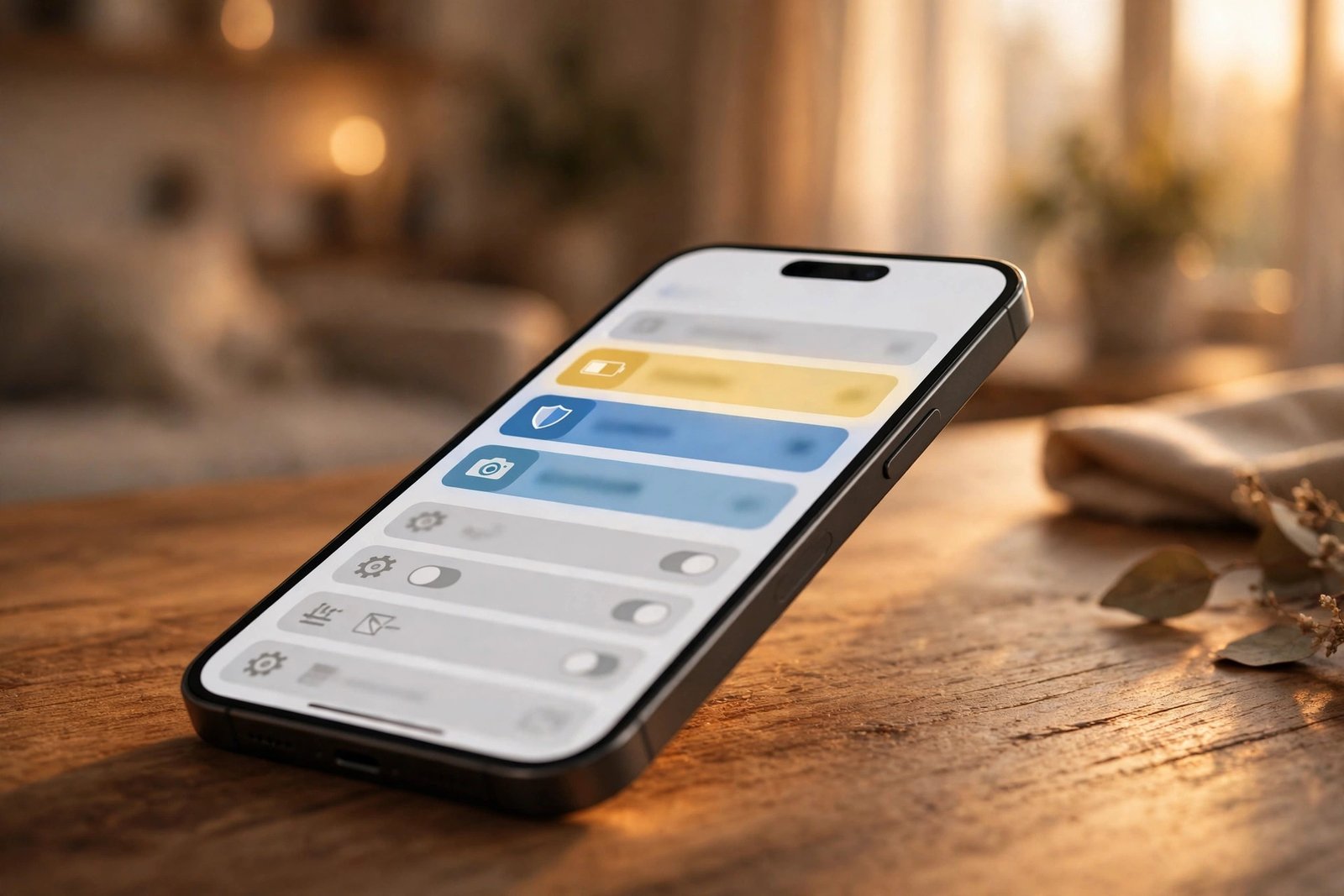
First, a two-second version check: go to Settings > General > Software Update and make sure you are on iOS 27 or later. The features below shipped with the iOS 27 release that came alongside the iPhone 17 lineup in September 2026, and a few refinements are landing in the iOS 27.2 betas right now. If a toggle described here is missing on your phone, update first, then come back.
Make the battery last longer
Battery complaints spike after every major iOS release, and iOS 27 was no exception. Some of that is normal: the phone spends days re-indexing after an update. But a few of iOS 27’s new defaults quietly keep draining your battery long after indexing finishes. Start here.
1. Turn off Connectivity Assist, the hidden data and battery drain
This is the big one. iOS 27 moved and renamed the old Wi-Fi Assist into a feature called Connectivity Assist, and it is enabled by default. When your Wi-Fi gets weak, the phone silently switches to cellular data to keep things loading. The intent is stability, but the new version is more aggressive, which means a weak hotel or cafe Wi-Fi can quietly chew through both your data allowance and your battery while you think you are on Wi-Fi.
Change it: Settings > Wi-Fi, scroll all the way to the bottom, and toggle Connectivity Assist off. You will still get a warning when Wi-Fi drops; you just will not silently pay for the gap. If you travel on limited data plans, this is the single most useful toggle in iOS 27.
2. Audit Background App Refresh instead of leaving it on for everything
Background App Refresh lets apps update themselves while you are not looking, which is one of the biggest quiet drains on battery and cellular data. iOS 27 did not change the setting, but the update reset or re-enabled it for many people.
Change it: Settings > General > Background App Refresh. Set the top switch to Wi-Fi so apps never refresh on cellular, then go through the app list and turn off anything you open less than once a week. Keep it on for messaging apps if you want conversations ready instantly; notifications arrive separately either way, so turning refresh off does not silence anyone.
3. Decide about Adaptive Power honestly
iOS 27’s newer battery tools include Adaptive Power, which throttles your processor to keep the phone cool and stretch battery life. That is genuinely useful on hot days, but it also means your phone deliberately slows itself down.
Change it: Settings > Battery > Power Mode. If your phone rarely gets warm and you like it snappy, leave Adaptive Power off and use Low Power Mode manually on long days (add it to Control Center for one-swipe access). If your phone gets uncomfortably hot on commutes or in summer, turn Adaptive Power on and accept the tradeoff. Also verify Optimized Battery Charging is on in the same screen; it pauses charging past 80 percent to protect long-term battery health.
Close the data leaks Apple left open
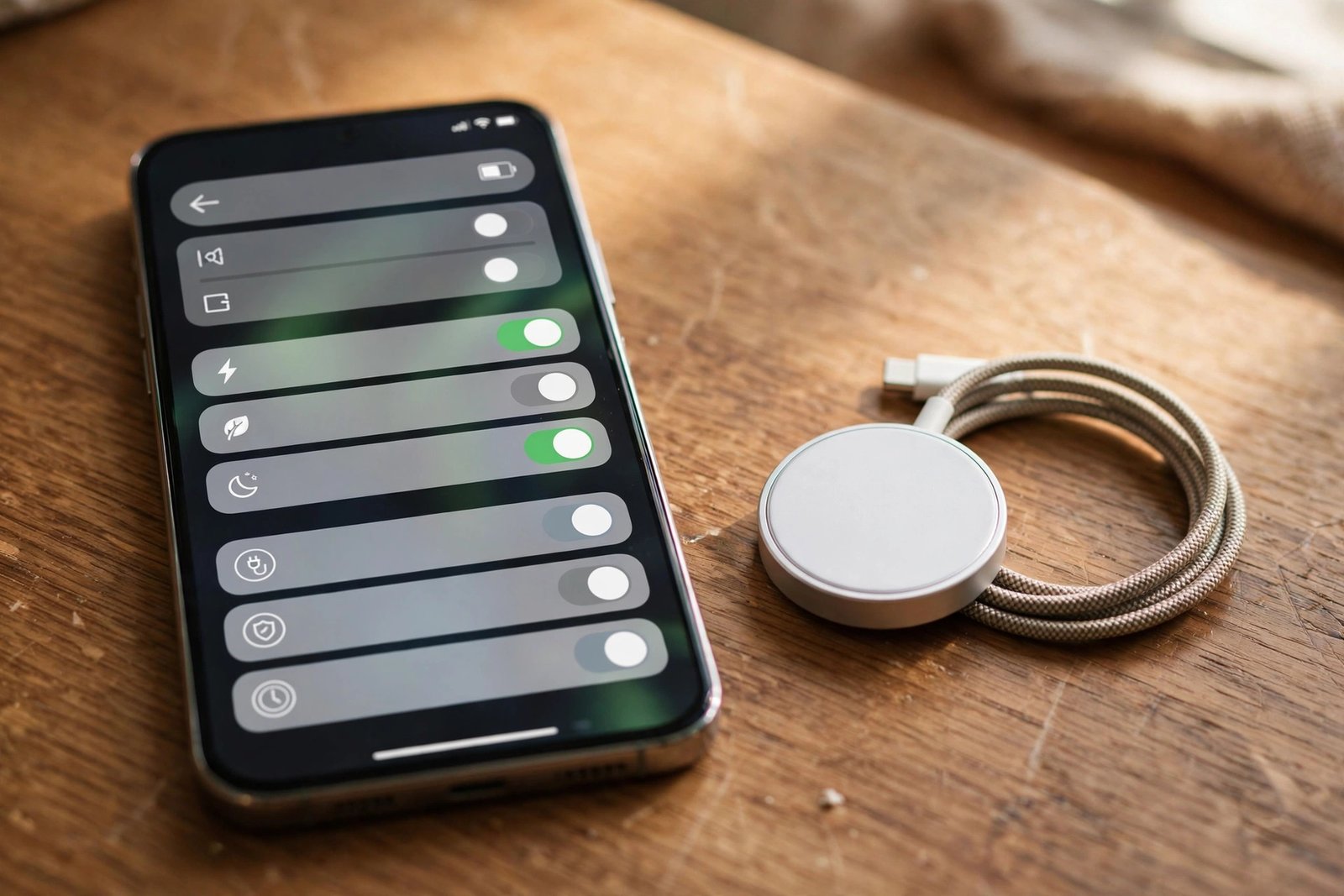
iOS 27 tightened privacy in real ways, including new granular controls arriving in iOS 27.2 for the suggested actions in Messages. But the update also kept several data-sharing defaults switched on. Fixing them costs you nothing and helps battery life too, since tracking and location pings are background work.
4. Change location access from Always to While Using
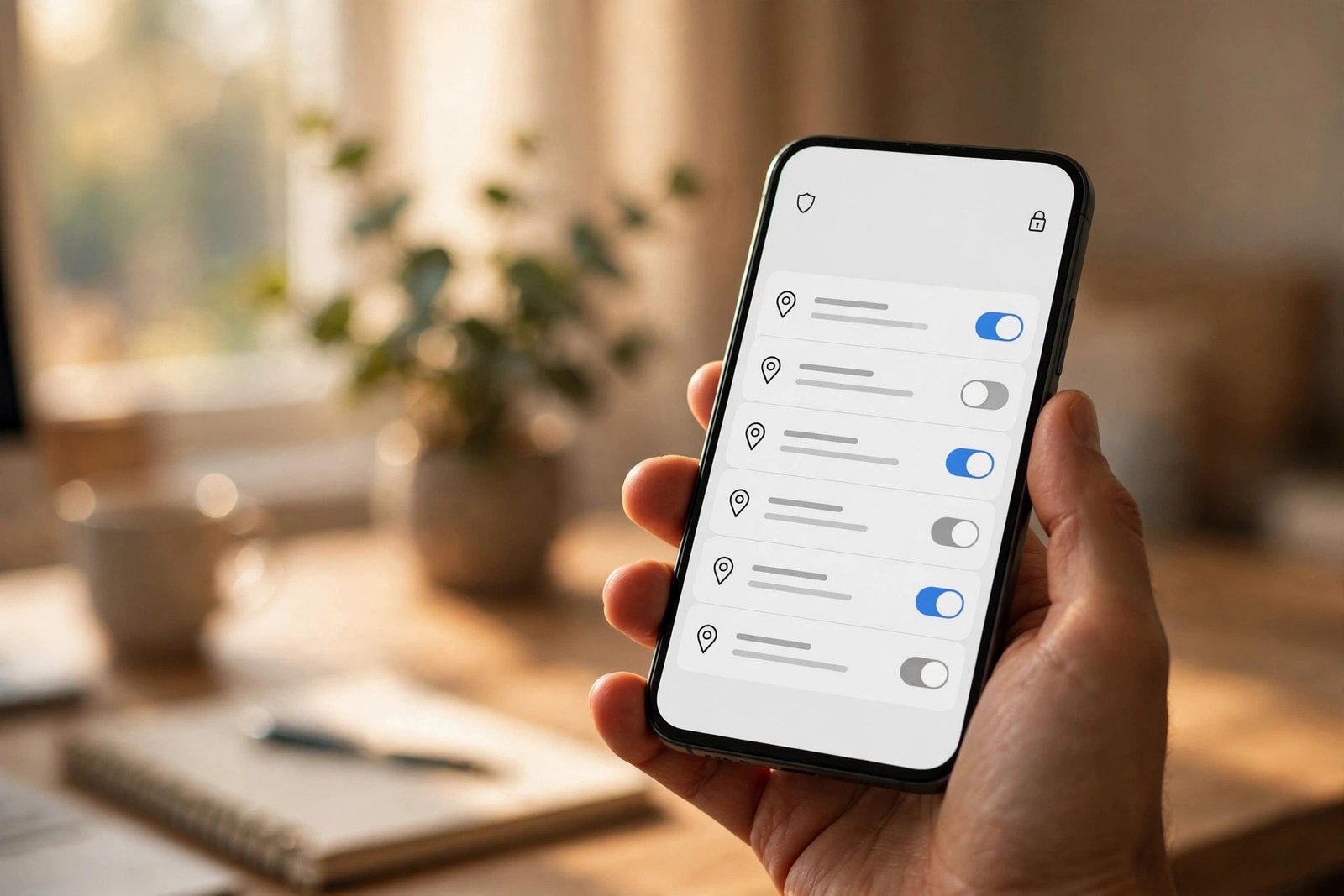
Go to Settings > Privacy & Security > Location Services and scroll the app list. Any app set to Always is tracking your location even when closed. Weather apps, delivery apps, and social apps ask for this constantly, and almost none of them truly need it.
Change it: Switch every non-essential app from Always to While Using the App. While you are there, tap individual apps and turn off Precise Location for anything that does not need your exact coordinates. Maps and delivery get precision; social media and games do not. Leave location on for Find My and your maps app. Those two genuinely earn it.
5. Turn off the system services that phone home
Below your app list on that same Location Services screen sits System Services. Inside, several product-improvement toggles quietly send Apple your location data to improve maps and services. They are easy to miss because they are pre-enabled.
Change it: Settings > Privacy & Security > Location Services > System Services, and turn off the product-improvement items. Also review the nearby toggles that control whether location is used for search suggestions and ads. One common result of this cleanup, reported across iPhone forums after the iOS 27 launch, is measurably less overnight battery drain.
6. Run an App Privacy Report audit
The App Privacy Report is still the fastest way to catch misbehaving apps: it shows how often each app touched your camera, microphone, location, and contacts over the past week.
Change it: Settings > Privacy & Security > App Privacy Report. Turn it on if it is not already, use your phone normally for a day or two, then come back and revoke anything absurd. A photo filter app does not need your location every night. Also turn off Allow Apps to Request to Track in the Tracking menu so advertisers cannot follow you across apps; apps already on your phone keep their old permissions until you say otherwise, so this is about stopping the next ones.
Fix the everyday annoyances
These are the small iOS 27 additions that feel like they should have existed years ago. Each one takes under a minute to set up and saves you irritation daily.
7. Give your alarm its own volume level
Before iOS 27, your alarm shared its volume with your ringtone, which is how people ended up sleeping through a phone they had quieted for a meeting. iOS 27 finally splits them.
Change it: Settings > Sounds & Haptics, turn off Match Ringtone Volume, and set the alarm slider to a level that will actually wake you. Keep the ringtone quiet, keep the alarm loud. This one toggle has prevented more missed mornings than any other change in this guide.
8. Save any video frame as a photo
The old workflow for grabbing a still from a video was miserable: pause, screenshot, crop. iOS 27 adds a proper option: open any video in Photos, tap the three-dot menu, and choose to save the current frame as a photo. It lands in your library as a separate image, full quality.
Change it: Nothing to toggle, but it is worth knowing, because the option is one layer deep and easy to miss. Scrub to the exact frame you want before opening the menu, since it saves precisely what is on screen. Great for pulling a sharp photo out of a shaky kid-or-pet video.
9. Clean up suggested actions and the Messages buttons
Messages now suggests actions based on your conversations, like adding an event to your calendar when someone proposes a date. Useful in theory; noisy in practice. The iOS 27.2 beta adds granular controls so you can switch off individual suggestions (Add to Calendar, Add to Reminders, Show in Maps, and the rest) instead of all or nothing, plus a “Hide Unused Suggestions” option that retires ones you ignore for 30 days.
Change it: When 27.2 arrives, look for the new suggestion toggles in Messages settings and keep only the ones you use. Today, you can already declutter the typing area: iOS 27 lets you choose whether Messages shows a voice recording button, a dictation button, or hides both entirely. One less accidental voice note to the wrong group chat.
Camera and photo upgrades hiding in Settings
iOS 27’s camera story is about control: audio isolation, easier organization, and better backup behavior. All three upgrades below are toggles or options most owners never discover.
10. Turn on Audio Zoom for clearer video sound
Video at a concert, a game, or a crowded event usually comes home with everyone else’s noise in it. Audio Zoom isolates the sound coming from your subject and pushes background noise down, so recordings sound far more professional with no extra gear.
Change it: Open the Camera app, go into its settings, and toggle Audio Zoom on. It works best when you zoom in on the subject, since the mic focus follows the lens. Try it once at your next noisy event and compare with an older clip; the difference is immediate.
11. Rate your photos with stars
If your library has 20,000 photos and you can never find the good ones, iOS 27’s Rating Controls are for you. Enable them and every photo gets a 1-to-5-star rating you can filter and sort by later.
Change it: Settings > Apps > Photos, and turn on Rating Controls. Spend five minutes starring the keepers from your last trip and the library starts feeling organized instead of infinite. Photographers have asked Apple for this for a decade.
12. Force an iCloud Photos sync when it matters
Normally iCloud Photos waits for the right conditions, charging plus Wi-Fi, before syncing. If you just shot a day’s worth of photos on a trip and the hotel Wi-Fi is decent for once, you no longer have to wait: iOS 27 lets you trigger a sync manually and then returns to normal behavior afterward.
Change it: Look for the new sync-now control inside the iCloud Photos section of Settings. Use it after travel days or big photo sessions so your backup is current before you sleep. The old backup logic resumes automatically, so there is nothing to remember to turn back off.
The 15-minute sweep
If you do nothing else, do these four in order: kill Connectivity Assist, trim Background App Refresh to Wi-Fi only, set location to While Using for non-essentials, and give your alarm its own volume. That is roughly five minutes of tapping and it covers the biggest battery, privacy, and morning-ruin risks in iOS 27. The other eight are bonus points that make the phone noticeably nicer to live with. For the full rundown of what Apple quietly added at launch, TechCrunch’s iOS 27 feature roundup covers the hidden extras, and MacRumors tracks the iOS 27.2 beta for the new Messages suggestion controls.
Revisit the App Privacy Report once a month and the Location Services list after installing any new app. New apps ask for everything at install time; a thirty-second review keeps your settings the way you left them. If your iPhone is feeling its age, a few well-chosen accessories help too: our tech gifts under $50 guide has MagSafe chargers and stands that pair nicely with these optimizations, and the 2026 tech gift guide covers the AirPods Pro 3 and Sony XM6 headphones that make the most of iOS 27’s audio features.

- How to Transfer Everything to iPhone Duo from iPhone or Android - October 16, 2026
- Windows 10 ESU Extended to 2027: What to Do Now - October 15, 2026
- How to Turn Off Google AI Mode and AI Overviews: 3 Workarounds That Still Work - October 15, 2026