There’s no single “best” tool because it depends on what you’re removing backgrounds from. For most people, Remove.bg works great for portraits and product photos because it’s fast and free. For videos, Adobe After Effects or DaVinci Resolve are industry standards. For batch processing large quantities of images, Photoshop or GIMP give you more control.
The key difference is between automatic tools (one click) and manual tools (you have control). Automatic is faster. Manual gives better results on complex images.
Understanding Background Removal: The Basics
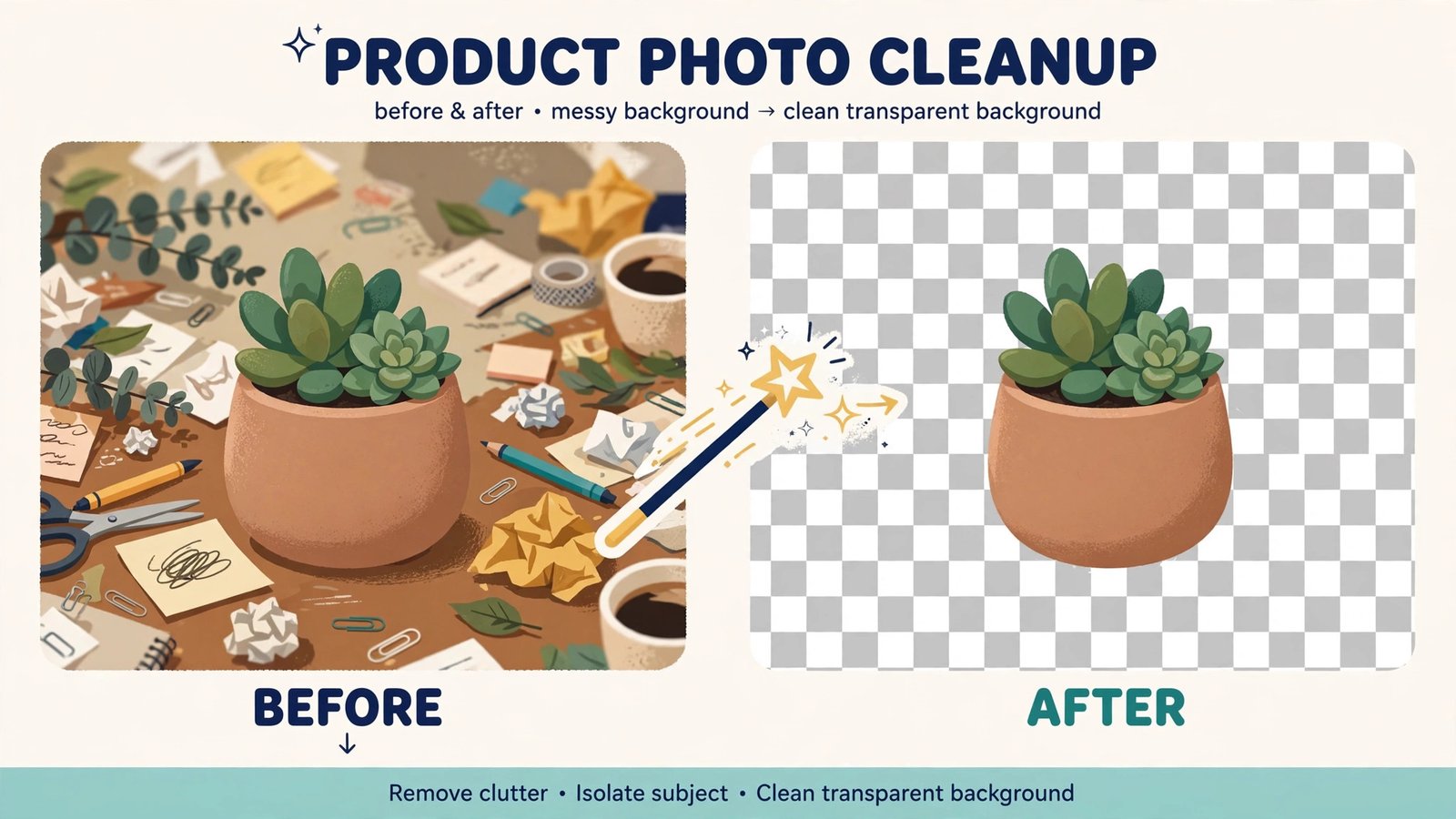
Background removal is the process of separating an object or person from the image behind them. You’re left with just the subject you want.
This is useful for:
- E-commerce product photos
- Professional headshots
- Social media content
- Video thumbnails
- Creating composite images
- Selling digital products
The tool you choose matters because some are designed for simple tasks and others handle complicated scenarios.
Types of Background Removal Tools
There are three main categories. Understanding them helps you pick the right one.
Automatic Online Tools
These are web-based services that remove backgrounds automatically with minimal effort.
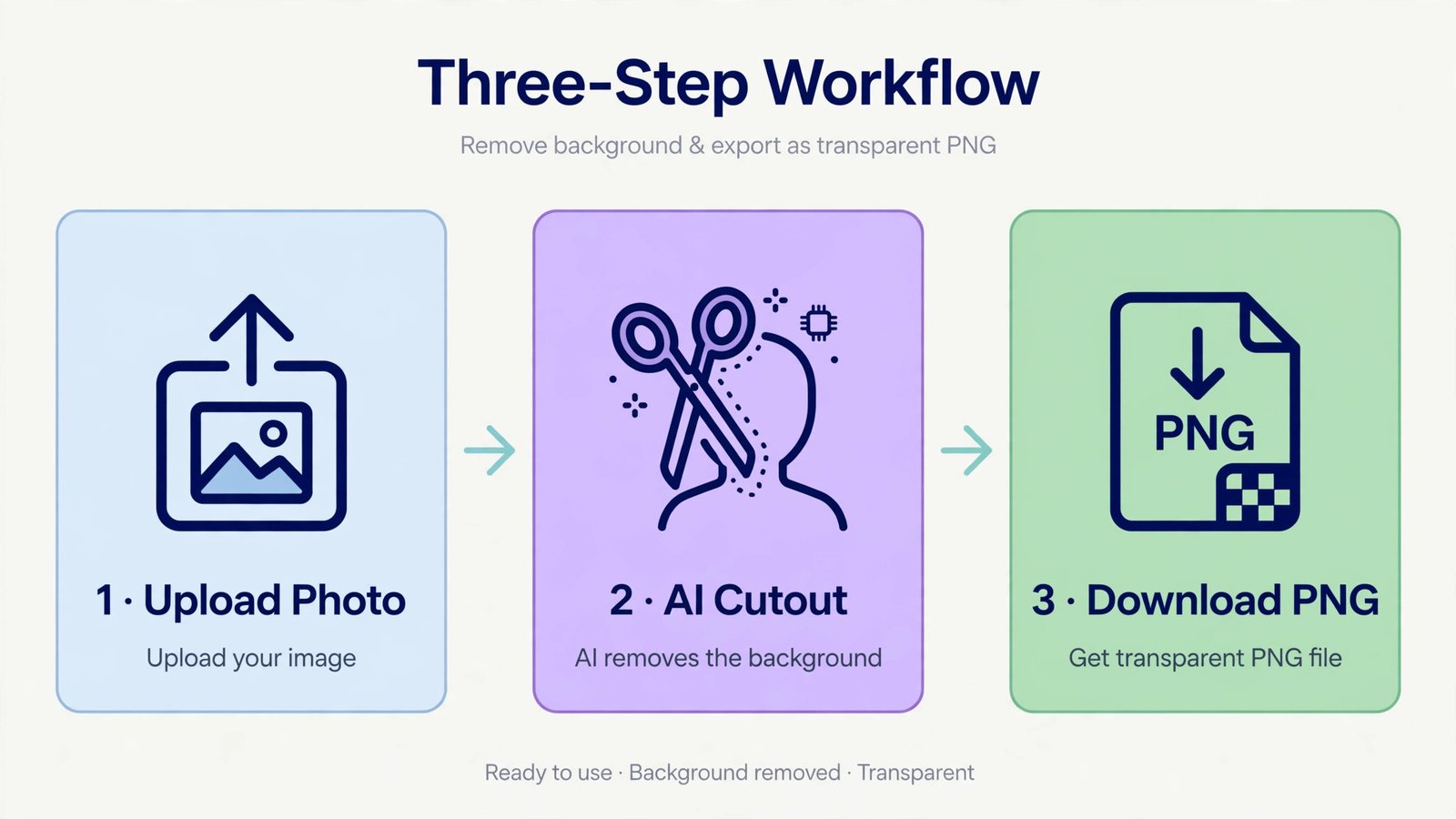
How they work:
- Upload your image
- AI analyzes the image instantly
- Background disappears in seconds
- Download the result
Best for: Quick tasks, beginners, simple images
Popular options: Remove.bg, PhotoScissors, Cleanup.pictures
Limitations: Struggles with complex edges, transparent areas, or detailed hair
Desktop Software
These are programs you install on your computer. They offer more control than online tools.
How they work:
- Import images or video
- Use selection tools to mark what stays and what goes
- Make fine adjustments
- Export your result
Best for: Professional work, batch processing, complex images
Popular options: Adobe Photoshop, GIMP (free), Paint.NET, Affinity Photo
Limitations: Requires learning, takes more time, needs computer resources
Mobile Apps
These are smartphone applications for quick edits on the go.
How they work:
- Open app and take or import photo
- AI removes background automatically
- Fine-tune if needed
- Share directly
Best for: Quick social media edits, casual use, convenience
Popular options: Snapseed, TouchRetouch, Adobe Lightroom Mobile
Limitations: Limited precision, smaller screen, file quality depends on phone
Top Background Remover Tools Reviewed
Here’s an honest breakdown of tools people actually use.
Remove.bg: Best for Simplicity
Remove.bg is the most popular automatic background remover online.
What it does well:
- Removes backgrounds in one click
- Handles portraits and products very well
- Free version works great
- Batch processing available (paid)
- API available for developers
What it doesn’t do well:
- Struggles with complex hair or fur
- Can’t handle transparent backgrounds well
- Limited editing options
- No video support
Pricing: Free for basic use, premium at $0.50 per image or monthly subscription
Best for: Product photos, simple portraits, quick turnarounds
How to use it:
- Go to remove.bg
- Upload or drag image
- Wait 5 seconds
- Download result
Photoshop: Best for Control and Precision
Adobe Photoshop is professional-grade software trusted by designers worldwide.
What it does well:
- Incredible precision and control
- Multiple removal methods (Object Selection, Magic Wand, etc.)
- Works with layers and masks
- Batch processing possible
- Can handle nearly any image type
- Non-destructive editing
What it doesn’t do well:
- Steep learning curve
- Expensive subscription
- Slower than automatic tools
- Overkill for simple tasks
Pricing: $22.49/month with Creative Cloud subscription
Best for: Professional designers, complex images, clients who demand perfection
How to use it:
- Open image in Photoshop
- Select “Object Selection Tool”
- Click on background
- Press Delete
- Add new background or transparency
GIMP: Best for Free Desktop Software
GIMP is open-source software that does most of what Photoshop does without the price tag.
What it does well:
- Completely free
- Powerful selection tools
- Large community support
- Works on Windows, Mac, Linux
- Non-destructive with layers
- No subscription needed
What it doesn’t do well:
- Steeper learning curve than online tools
- Slower performance on large files
- Less intuitive than Photoshop
- No AI-powered removal
Pricing: Free
Best for: Budget-conscious users, Linux users, learning design
How to use it:
- Open GIMP
- Load your image
- Select “Select by Color” tool
- Click on background
- Press Delete
- Refine edges with Feather option
DaVinci Resolve: Best for Video
DaVinci Resolve is professional video editing software with background removal capabilities.
What it does well:
- Handles video background removal
- Color correction tools
- Professional grading
- Free version is surprisingly powerful
- Works on Windows, Mac, Linux
- Removes backgrounds frame by frame or with tracking
What it doesn’t do well:
- Not ideal for still images alone
- Steeper learning curve
- Requires more computer power
- Free version has some limitations
Pricing: Free for basic use, Studio version at $295 one-time
Best for: Video creators, professional editors, complex video projects
Cleanup.pictures: Best for Detail Work
Cleanup.pictures uses AI specifically designed for removing unwanted objects and backgrounds.
What it does well:
- Excellent for hair and fine details
- Removes unwanted objects, not just backgrounds
- Simple interface
- Works quickly
- Free limited version
What it doesn’t do well:
- Not specialized for product photography
- Can be unpredictable on certain backgrounds
- Limited control options
Pricing: Free basic version, premium starts at $9.99/month
Best for: Portrait retouching, removing unwanted objects, detail work
Photoshop’s Generative Fill: Best for AI-Powered Background
Photoshop now includes AI-powered background options using generative fill.
What it does well:
- Removes background AND fills with AI-generated content
- Seamlessly blends generated elements
- Offers multiple style options
- Non-destructive
What it doesn’t do well:
- Inconsistent results sometimes
- Requires Photoshop subscription
- Takes longer than simple removal
- AI generation can look artificial
Pricing: Part of Photoshop subscription ($22.49/month)
Best for: Creative projects, replacing backgrounds with generated alternatives
Quick Reference Table
| Tool | Type | Best For | Price | Learning Curve |
|---|---|---|---|---|
| Remove.bg | Online | Quick portraits | Free/Paid | None |
| Photoshop | Desktop | Precision work | $22.49/month | High |
| GIMP | Desktop | Budget option | Free | Medium |
| DaVinci Resolve | Desktop | Video | Free/Paid | High |
| Cleanup.pictures | Online | Detail work | Free/Paid | Low |
| Snapseed | Mobile | Quick edits | Free | Low |
Step-by-Step Guide: Removing Backgrounds Effectively
Let’s walk through the actual process for different scenarios.
Scenario 1: Quick Product Photo
You need to remove the background from a product image quickly for an online store.
Step 1: Choose your tool
Remove.bg or Cleanup.pictures are perfect here.
Step 2: Prepare the image
Make sure lighting is clear and the product stands out from background.
Step 3: Upload and process
Upload to Remove.bg, wait 5 seconds, download.
Step 4: Check quality
Look at edges carefully. If they’re rough, try Cleanup.pictures instead.
Step 5: Export correctly
Download as PNG to preserve transparency. Use JPG only if adding a new background.
Why this works: Product photos have clear separation between subject and background, making AI tools very accurate.
Scenario 2: Professional Headshot
You need a polished headshot with clean background removal.
Step 1: Choose your tool
Use Photoshop or GIMP for maximum control.
Step 2: Open the image
Load file into Photoshop or GIMP.
Step 3: Select the background
Use Object Selection Tool (Photoshop) or Select by Color (GIMP).
Step 4: Refine edges
Use “Select and Mask” in Photoshop to clean up hair edges. Use “Feather” in GIMP for smoother transitions.
Step 5: Delete background
Press Delete key to remove background or make it transparent.
Step 6: Add new background (optional)
Create new layer below and add color, gradient, or image.
Step 7: Export
Save as PNG for transparency or PSD for further editing.
Why this works: Professional tools let you control exactly how edges blend, which matters for faces.
Scenario 3: Video Background Removal
You’re removing backgrounds from a video for a YouTube thumbnail or montage.
Step 1: Choose your tool
DaVinci Resolve or Adobe After Effects.
Step 2: Import video
Bring footage into your editing timeline.
Step 3: Use background removal effect
Apply the Fusion page tool in DaVinci (free version) or rotoscope for more control.
Step 4: Track movement
Set up motion tracking so the effect follows your subject throughout the video.
Step 5: Refine edges
Adjust feathering and edge detection to make transitions smooth.
Step 6: Add new background
Place video or image behind your subject.
Step 7: Export
Export as MP4 or your desired format.
Why this works: Video requires frame-by-frame consistency. Professional tools handle this automatically with tracking.
Scenario 4: Complex Image with Hair
You’re working with a portrait where hair is challenging.
Step 1: Choose Cleanup.pictures or Photoshop
Both handle hair better than basic tools.
Step 2: Upload or open
Use your chosen tool.
Step 3: Let AI do initial work
Allow the automatic removal to process first.
Step 4: Manual refinement
In Photoshop, use the “Refine Edge Brush” around hair. In Cleanup.pictures, use the detail adjustment slider.
Step 5: Zoom in and check
Examine edges at 100% zoom for stray pixels.
Step 6: Add light color background
Place a light, simple background behind to make remaining imperfections less visible.
Step 7: Export as PNG
Preserve all transparency details.
Why this works: Complex edges need both AI assistance and human refinement. This hybrid approach saves time while ensuring quality.
Common Mistakes to Avoid
These errors cost people time and frustration. Learn from them.
Mistake 1: Not Checking Image Quality First
Bad lighting or low resolution makes removal harder.
Solution: Make sure your original image is well-lit and at least 1200 pixels wide. Better source image equals better result.
Mistake 2: Using JPEG Instead of PNG
JPEG format doesn’t support transparency, defeating the purpose.
Solution: Always export as PNG if you need transparency. Use JPEG only when placing a new background color or image.
Mistake 3: Assuming Online Tools Will Handle Everything
Automatic tools work great for simple images but struggle with complexity.
Solution: Test with Remove.bg first (it’s free). If edges look rough, switch to desktop software for manual control.
Mistake 4: Ignoring Edge Quality
Small imperfections around edges become obvious when you place the image over a background.
Solution: Zoom to 100% and inspect edges closely. Take time to refine them properly.
Mistake 5: Processing Low-Resolution Images
Stretching a small image makes removal look worse and pixelated.
Solution: Use images at least 1200 pixels wide. Higher resolution gives better results.
Mistake 6: Not Making a Backup
Editing directly on original files means you lose the original.
Solution: Duplicate the image first. Work on the copy. Keep the original safe.
Choosing the Right Tool for Your Situation
Here’s a decision framework to pick the best tool.
Ask yourself these questions:
Question 1: How quickly do I need this done?
- Need it in seconds? Use Remove.bg online
- Have 10 minutes? Use desktop software
- Working on multiple images? Batch processing in Photoshop
Question 2: How complex is the image?
- Simple product photo? Remove.bg works
- Detailed portrait with hair? Use Photoshop or GIMP
- Video content? DaVinci Resolve
Question 3: What’s my budget?
- Zero dollars? Use GIMP or free Remove.bg
- Modest budget? Cleanup.pictures or Paint.NET
- Professional budget? Photoshop
Question 4: How much control do I need?
- Just remove and done? Online tools are perfect
- Need to adjust and refine? Desktop software
- Want to replace background creatively? Photoshop
Question 5: Am I doing this once or regularly?
- One-time project? Online tool saves money
- Regular work? Desktop software worth learning
- High volume? Invest in Photoshop with batch automation
Decision Flow:
Simple product photo → Remove.bg
Portrait with fine details → Photoshop or GIMP
Video content → DaVinci Resolve
Complex object with cleanup → Cleanup.pictures
Budget-conscious regular use → GIMP
Quick mobile edits → Snapseed
Best Practices for Professional Results
Getting consistently good results requires technique, not just tools.
Preparation Matters Most
Start with the right image.
Good lighting: Bright, even lighting makes edges clearer. Avoid harsh shadows behind your subject.
Clear separation: Make sure your subject clearly stands out from the background. Avoid colors that match your subject.
High resolution: Larger images preserve detail. Aim for at least 2000 pixels wide.
Clean background: Simple, solid backgrounds are easier to remove than busy patterns.
Making Selections More Accurate
Whether you’re using automatic or manual tools, accuracy counts.
For automatic tools: Try multiple tools if the first one doesn’t work perfectly. Remove.bg, Cleanup.pictures, and Photoshop’s Object Selection often give different results.
For manual tools: Start with rough selection, then refine. Don’t try to be perfect immediately.
Use layers: In desktop software, use layer masks instead of permanently deleting. This lets you adjust later.
Feather edges: Feather selections by 1-2 pixels to smooth hard edges.
Adding Backgrounds Effectively
If you’re replacing the background, do it right.
Color backgrounds: Use complementary colors that make your subject pop. Test multiple options.
Image backgrounds: Slightly blur the background so it doesn’t compete with your subject.
Consistency: If you’re processing multiple images, keep backgrounds consistent for a professional look.
Foreground refinement: Add a subtle shadow or reflection of your subject on the new background for realism.
Batch Processing for Multiple Images
When you have lots of images to process:
Online tools: Remove.bg offers batch processing. Upload all images at once.
Photoshop: Record actions to automate repetitive steps. Process one image perfectly, then apply settings to all others.
Command line tools: For developers, Python libraries like rembg can process hundreds of images automatically.
Spreadsheet setup: Organize your workflow with a spreadsheet tracking original, processed, and approved versions.
When to Hire a Professional
Sometimes DIY isn’t the best option.
Hire a professional if:
- You have hundreds of images to process and no time
- The images are extremely complex (overlapping transparent objects, fine details)
- Your results determine business success (e-commerce, professional photography)
- You don’t want to learn software
- Consistency and quality are critical
Cost consideration: Professional services cost $0.25 to $2 per image depending on complexity. Fiverr and Upwork have specialists. Large-scale work might justify outsourcing.
Troubleshooting Common Issues
Problem: Background isn’t fully removed
Solution: The tool isn’t recognizing where the background ends. Try Cleanup.pictures for manual adjustment. Or use Photoshop’s Object Selection tool and click more precisely on the background.
Problem: Subject edges look rough or pixelated
Solution: Your image resolution is too low or you didn’t refine edges. Use a higher resolution image. In desktop software, use feather selection (1-2 pixels) and refine edge tools.
Problem: Transparent areas inside the subject were also removed
Solution: The tool detected something inside your subject as background. In Photoshop or GIMP, use the History tool to undo, then manually paint back those areas.
Problem: Hair looks completely unnatural
Solution: AI struggles with hair because it’s translucent. Use Cleanup.pictures specifically or Photoshop’s Refine Edge Brush. Manually paint back fine hair strands. Add a slightly blurred background to make imperfections less obvious.
Problem: The tool removed something I wanted to keep
Solution: Undo and try a different tool. Remove.bg and Photoshop often make different choices. Use desktop software for more precise control over what stays and what goes.
Problem: Colors look wrong after removal
Solution: This happens with transparent backgrounds. The transparency creates a slight color change. Add a new background layer underneath (usually white) to see true colors.
Recommended Workflow for Best Results
Here’s the professional approach most designers use:
Step 1: Prepare (5 minutes)
Gather images, organize files, set up folders for originals and processed versions.
Step 2: Batch automatic removal (depends on volume)
Upload to Remove.bg or similar tool. Processes while you do other work.
Step 3: Review each result (2-5 minutes each)
Check quality at 100% zoom. Flag any that need manual work.
Step 4: Manual refinement (5-15 minutes each)
Use Photoshop or GIMP only on images that need it. Don’t waste time refining already-good results.
Step 5: Background addition (optional, 3-5 minutes each)
Add color, gradient, or image background if needed.
Step 6: Export properly (1 minute each)
Save as PNG for transparency. Use correct file naming for easy organization.
Step 7: Quality control (1-2 minutes each)
Final check before delivery. Spot any issues before client sees them.
- IDM for Android: Guide to Fast Downloads on Your Phone - January 9, 2026
- Canva Alternatives: Guide to Design Tools That Actually Work Better for Your Needs - January 9, 2026
- Best Linux Phones: Guide to Open Source Mobile Devices - January 9, 2026