
Key takeaways
- Microsoft Edge can start itself through several independent channels, which is why one fix is often not enough: Windows startup apps, Edge’s Startup boost, Windows app restore, scheduled tasks, and registry or policy settings. The paths below are current for Windows 11 26H2, the 2026 feature update (see what is new in Windows 11 26H2).
- Start with the fastest fix: disable Microsoft Edge under Task Manager, Startup apps.
- Edge’s Startup boost preloads browser processes at sign-in even when Edge is not listed as a startup app, so turn it off at edge://settings/system.
- Windows and Edge updates sometimes re-enable these settings, so recheck them after a major update.
You sign in, and before you click anything, Microsoft Edge is already open. Again. The reason it keeps happening is that Edge has more than one way to start itself, so blocking a single setting often does not finish the job. This guide walks through 5 fixes, ordered from fastest to most thorough, that shut down every autostart vector Edge uses.
Method 1: Turn off Microsoft Edge as a startup app
This is the most direct fix, and it solves the problem for most people. Windows lets apps register to launch at sign-in, and Edge sometimes re-adds itself to this list after an update.
- Press Ctrl + Shift + Esc to open Task Manager.
- Select Startup apps in the left sidebar.
- Find Microsoft Edge in the list. On some installs it appears as msedge.exe.
- Select it and click Disable in the top right. You can also right-click the entry and choose Disable. The Status column should change to Disabled.
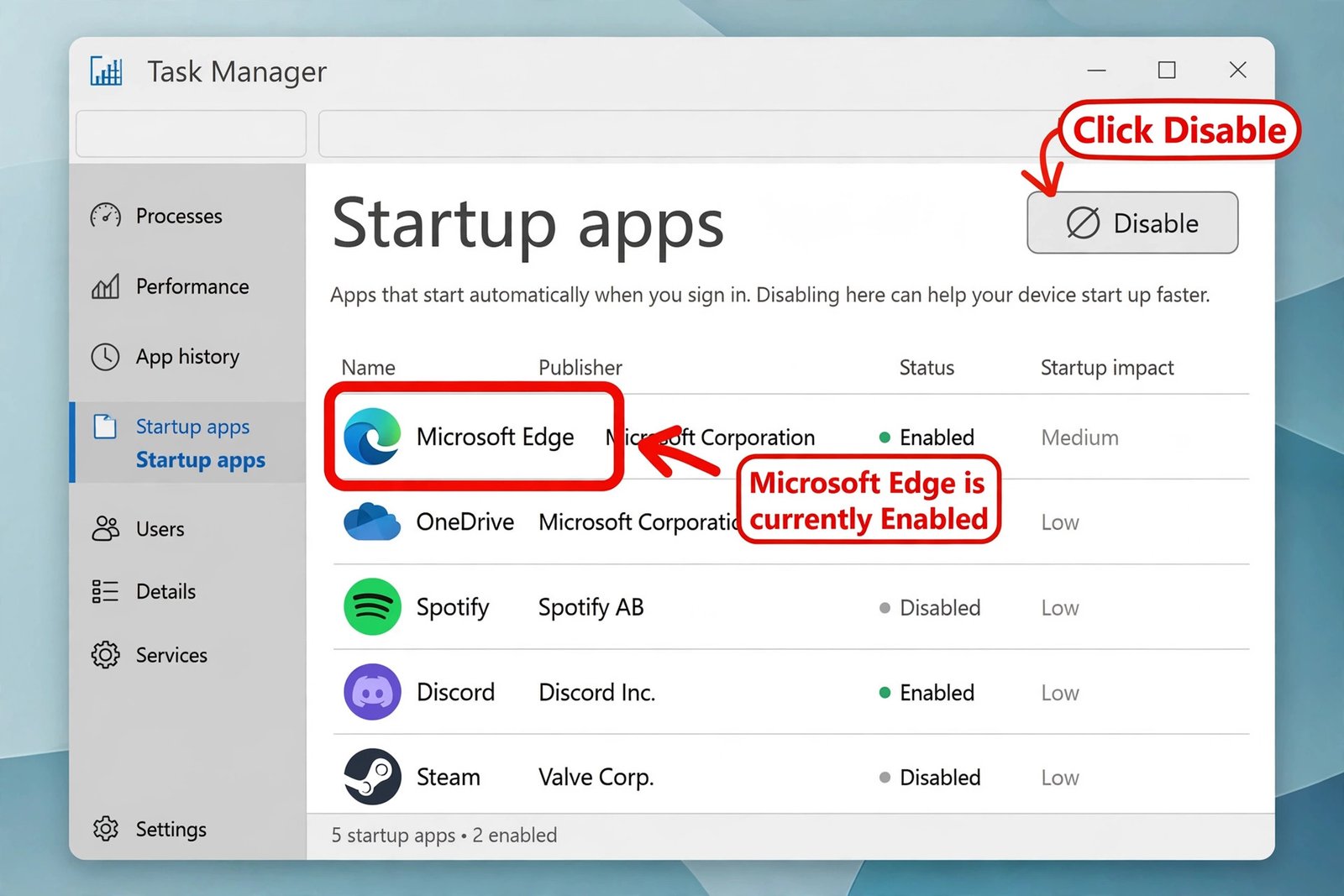
You can do the same thing from Settings: press Win + I, go to Apps, Startup, and switch off Microsoft Edge. Both screens control the same list, so fixing one is enough. If your startup list is crowded with apps you do not recognize, see how to add or remove startup programs in Windows 11 for the full walkthrough.
If Edge is not listed here at all, it is starting through one of the sneakier channels below. Keep going. One more thing worth checking on this screen: a messaging app, printer utility, cloud storage tool, or the manufacturer’s own support app can open a webpage in Edge when Windows starts. If Edge keeps opening to a specific support, login, or promotional page, review the other enabled entries and disable suspicious ones one at a time.
Method 2: Disable Startup boost and background apps in Edge
This is the culprit most people miss. Startup boost preloads core Edge processes when you sign in so the browser opens faster later, and those background processes can make Edge appear to start on its own. Microsoft documents this behavior on its Startup boost support page.
- Open Microsoft Edge.
- Click the three dots in the top right, then Settings. The faster route is typing edge://settings/system in the address bar.
- In the left sidebar, choose System and performance. Under System, turn off Startup boost.
- On the same page, turn off Continue running background extensions and apps when Microsoft Edge is closed.
- Close and reopen Edge so the change takes effect.
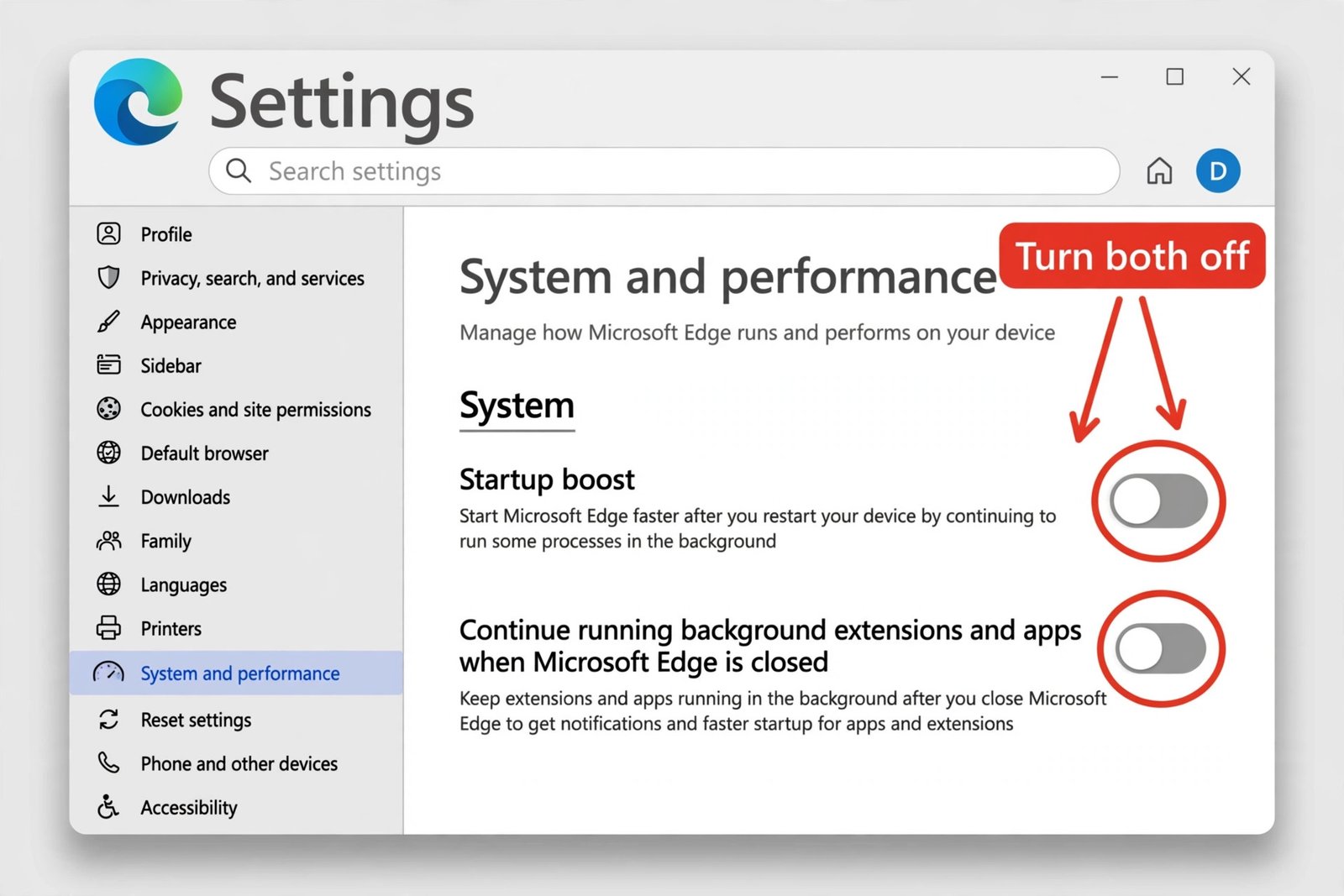
Recent Edge builds also show an option like Start Microsoft Edge when you sign in to Windows on this same page. If your build has it, turn that off too.
Method 3: Stop Windows and Edge from reopening your last session
Sometimes Edge is not really starting from scratch. Windows is restarting it, reloading the tabs you had open before you signed out. Two settings control this behavior.
Turn off automatic app restart in Windows
- Press Win + I to open Settings.
- Go to Accounts, Sign-in options.
- Under Additional settings, turn off Automatically save my restartable apps and restart them when I sign in.
While you are here, also turn off Use my sign-in info to automatically finish setting up my device after an update if you do not want Windows resuming apps after updates either.
Tell Edge to open a fresh tab instead of your old tabs
Edge has its own session behavior. If it is set to restore your previous session, every window you had open returns the next time Edge launches for any reason.
- In Edge, go to edge://settings/onStartup. You can also find it under Settings, Start, home, and new tabs.
- Under When Edge starts, choose Open the new tab page instead of Open tabs from the previous session.
- If you had specific pages set to open on startup, remove any you no longer need.
Method 4: Disable Edge’s scheduled tasks in Task Scheduler
Edge installs background tasks that check for updates and, on some builds, run at sign-in. If you have turned everything else off and Edge still appears, these tasks are the likely trigger.
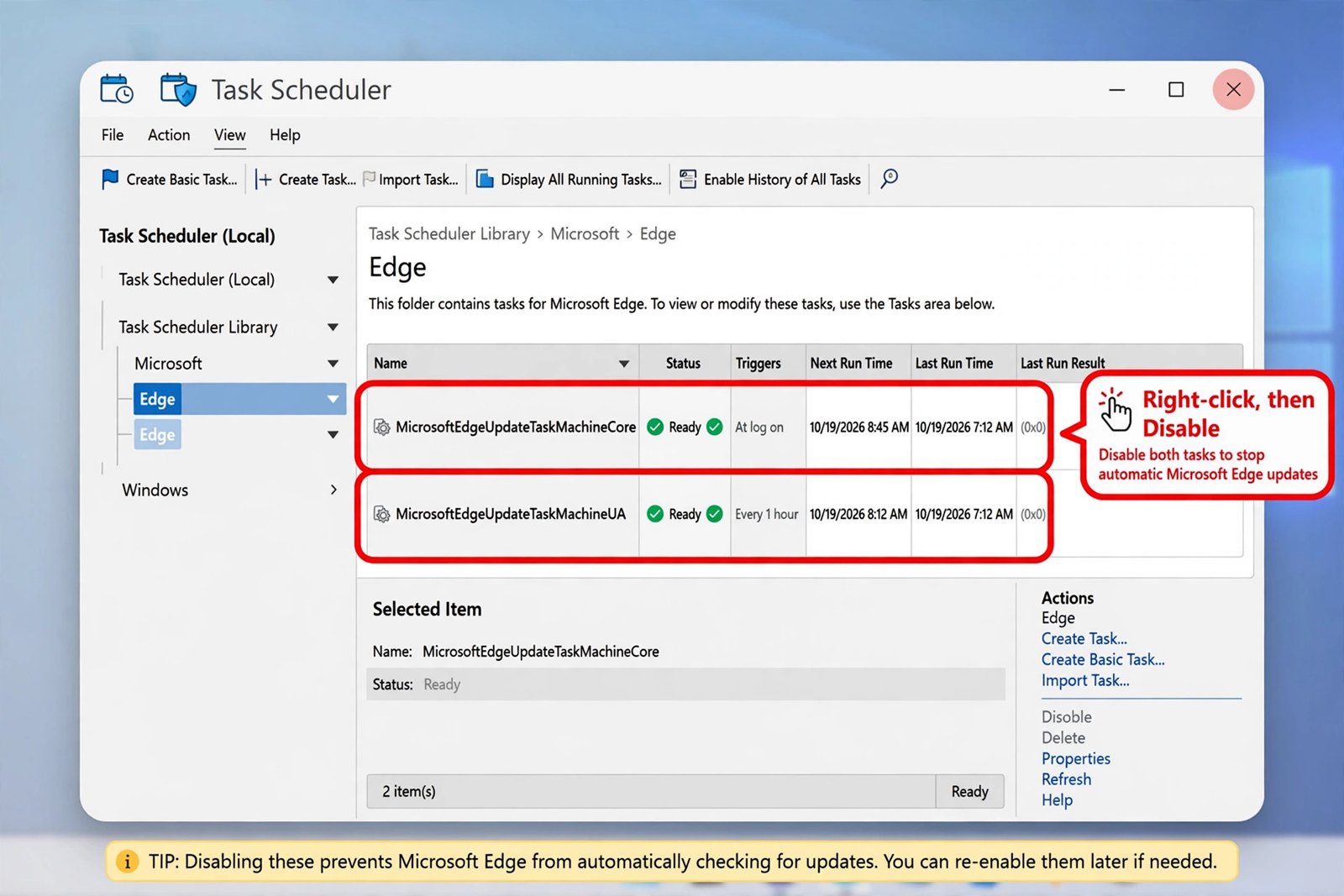
- Press Win + R, type taskschd.msc, and press Enter.
- In the left pane, open Task Scheduler Library, Microsoft, Edge.
- Check the Triggers column. Right-click any task with an At log on or At startup trigger and choose Disable.
| Task name | What it does | What to do |
|---|---|---|
| MicrosoftEdgeUpdateTaskMachineCore | Checks for Edge updates, often triggers at log on | Disable if it triggers at log on |
| MicrosoftEdgeUpdateTaskMachineUA | Checks for Edge updates on a schedule, often hourly | Leave alone unless Edge keeps reopening |
| MicrosoftEdgeUpdateTaskUser | Per-user update check, the name ends with your user ID | Same as above |
Prefer Disable over Delete so you can undo the change later. One honest warning: these are update tasks, so disabling them can delay automatic Edge updates. If staying patched matters more to you than a quiet startup, update Edge manually at edge://settings/help instead.
Method 5: Advanced fixes: the registry and Group Policy
For PCs where Edge keeps coming back after every other fix, the last two layers are the registry and policy settings. Changes here affect the whole system, so follow them exactly.
Check the registry Run keys
- Press Win + R, type regedit, and press Enter. Approve the admin prompt.
- Go to HKEY_CURRENT_USER\Software\Microsoft\Windows\CurrentVersion\Run.
- If you see any entry referencing Microsoft Edge or msedge.exe, right-click it and choose Delete.
- Check the same path under HKEY_LOCAL_MACHINE\Software\Microsoft\Windows\CurrentVersion\Run.
Do not worry if neither key has an Edge entry. Edge does not always register itself here, so an empty search is a normal result. As a rule, only delete entries you can clearly identify as Edge, because editing the wrong registry keys can destabilize Windows.
Block Edge with Group Policy on Windows Pro and Enterprise
Policy settings outrank the toggles above and survive updates better, which makes them the most durable option on Windows Pro and Enterprise. Windows Home does not include the Group Policy Editor.
- Press Win + R, type gpedit.msc, and press Enter.
- Go to Computer Configuration, Administrative Templates, Microsoft Edge. On some builds the folder sits under Windows Components, Microsoft Edge instead.
- Find Allow Microsoft Edge to pre-launch at Windows startup, when the system is idle, and each time Microsoft Edge is closed and set it to Disabled.
- Also disable Allow Microsoft Edge to start and load the Start and New Tab page at Windows startup and each time Microsoft Edge is closed.
- Run gpupdate /force in an admin terminal, then restart your PC.
If the Microsoft Edge folder is missing from the policy tree, your PC needs the Edge policy templates (MSEdge.admx) installed. Microsoft’s StartupBoostEnabled policy documentation lists the exact registry and policy values behind these settings.
What to do when Edge comes back after an update
If Edge starts opening on its own again weeks from now, do not assume the fixes failed. Major Windows and Edge updates are known to reset startup settings. The quick recheck takes five minutes: Task Manager, Startup apps first, then edge://settings/system, then Task Scheduler. After that, it should stay quiet.
If background Edge processes are also making the browser feel heavy when you do open it, see how to fix a slow web browser for more ways to trim it down.

- How to Stop Microsoft Edge From Opening on Startup in Windows 11 - October 19, 2026
- Best Noise-Cancelling Headphones in 2026 for Travel, Work, and Home - October 18, 2026
- How to Set Up Passkeys on Google, Apple, and Microsoft: The Complete 2026 Guide - October 17, 2026