
The short version:
- Microsoft added an official Web Searches toggle under Settings > Privacy & security > Search during 2026, so most users no longer need registry edits to remove Bing results.
- The fastest method: open the Search settings page and switch Web Searches off. It takes seconds and is fully reversible.
- If the toggle has not reached your PC yet, the registry value DisableSearchBoxSuggestions (set to 1) or Group Policy on Pro editions does the same job.
- Warning: the registry route needs an administrator account and a registry backup first, because a wrong edit can cause real problems.
For years, removing Bing from Windows Search meant editing the registry, a job Microsoft never made easy. That changed in 2026, when Microsoft started rolling out an official Settings toggle for web results, confirmed in June and reaching PCs through optional updates from August. This guide covers three methods: the new Settings toggle, the Registry Editor fallback, and Group Policy for Pro editions.
Turn Off Web Results With the New Settings Toggle (the 2026 Way)
If your PC has received the 2026 Search changes, this is the method to use. Microsoft previewed the toggle at a Windows Insider meetup in early June 2026, confirmed it later that month, and began shipping it to PCs through optional updates in August 2026, with a separate toggle for Microsoft Store suggestions alongside it (Windows Latest).
- Open Settings with Win + I.
- Go to Privacy & security, then click Search in the right pane.
- Under Show suggested search results, turn off the Web Searches toggle.
- Optional: turn off the Microsoft Store toggle too, if you also want Store app suggestions out of your results.
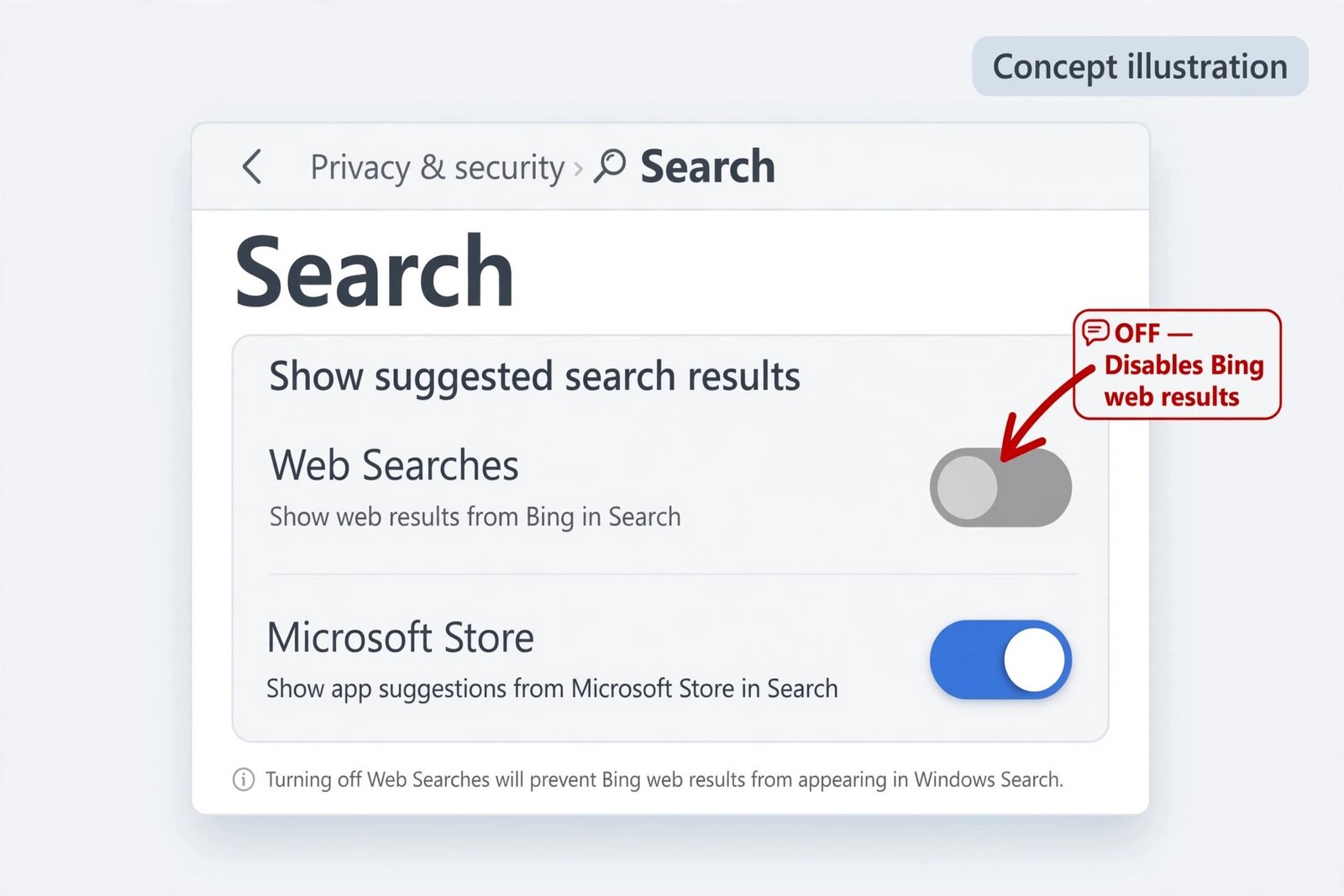
The change takes effect right away. Type anything into Start or taskbar search and you will see only apps, settings, and files from your own PC. To bring web results back, simply flip the toggle on again.
Quick note: if you do not see the “Show suggested search results” section, your PC has not received the update yet. Check Settings > Windows Update and install any pending optional updates. The toggle is arriving as part of the 2026 Search changes shipping with the Windows 11 26H2 update, so it is worth checking what is new there while you wait.
Disable Web Results With Registry Editor (Works on Every Edition)
This is the classic method, and it still works on every Windows 11 edition, including Home. It is also the right fallback while the Settings toggle is still rolling out.
Warning: back up the registry before you start. In Registry Editor, click File > Export and save a copy somewhere safe, so you can restore it if anything goes wrong.
- Press Win + R, type regedit, and press Enter. Approve the User Account Control prompt.
- Click the address bar at the top of Registry Editor, paste the following path, and press Enter:
HKEY_CURRENT_USER\Software\Policies\Microsoft\Windows\Explorer - If the Explorer key does not exist, right-click the Windows key, choose New > Key, and name it Explorer.
- With Explorer selected, right-click in the right pane, choose New > DWORD (32-bit) Value, and name it exactly DisableSearchBoxSuggestions.
- Double-click the new value, set Value data to 1, and click OK.
- Sign out and back in, or restart your PC, for the change to take effect.
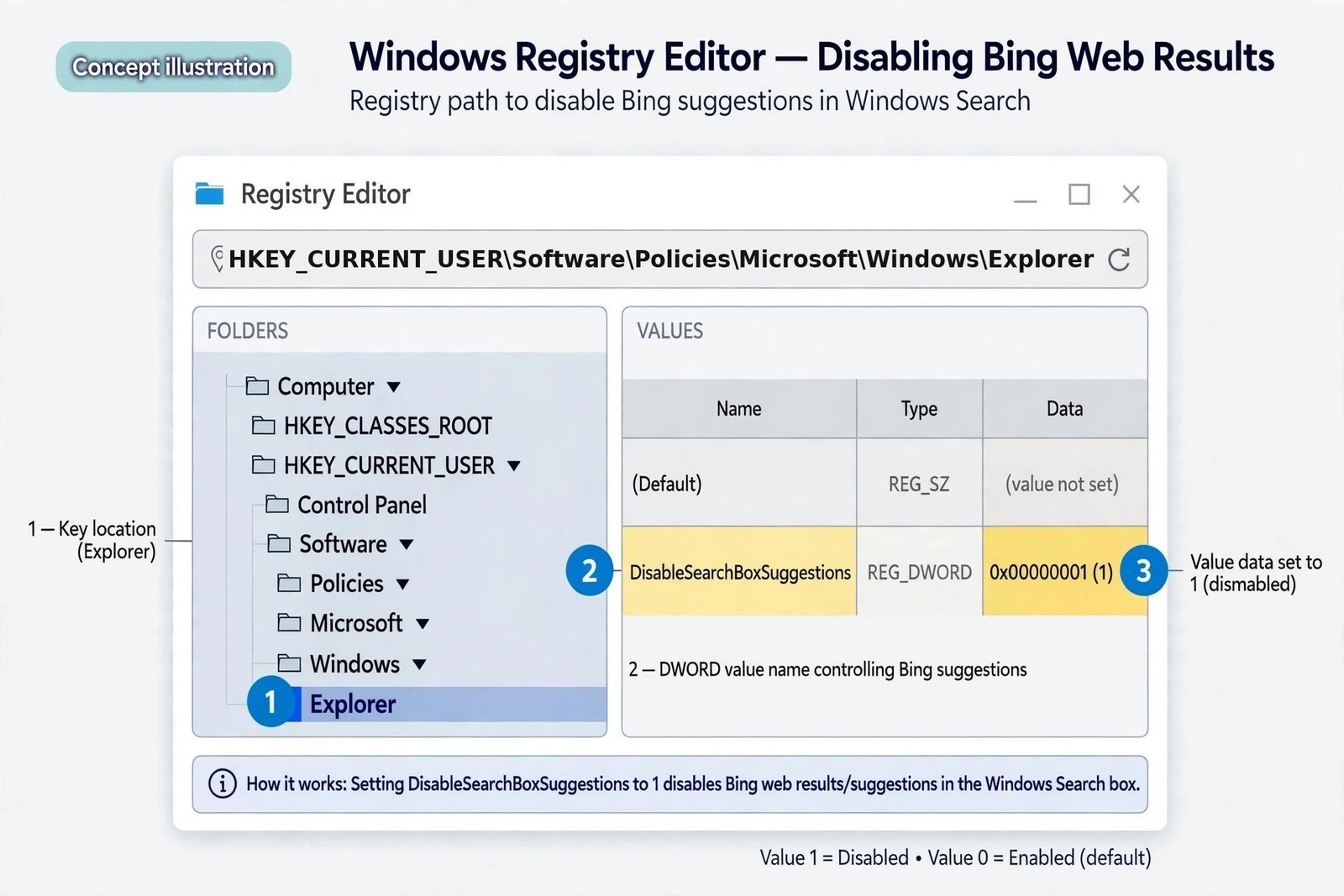
After signing back in, search the Start menu for something that is not on your PC. Instead of Bing web links, you should see local results only. On many builds, the Show search highlights toggle in Search settings appears greyed out after this change, which is a handy confirmation that the policy took effect.
Quick tip: an older registry value still works as a fallback on most builds. At HKEY_CURRENT_USER\Software\Microsoft\Windows\CurrentVersion\Search, create a DWORD named BingSearchEnabled and set it to 0. To undo either change, delete the value (or set it to 0 for DisableSearchBoxSuggestions, 1 for BingSearchEnabled) and sign out again.
Quick note: these two registry values do slightly different jobs. DisableSearchBoxSuggestions suppresses the web suggestion UI in the search box, while the Group Policy Don’t search the web or display web results in Search maps to a separate value (ConnectedSearchUseWeb) that tells the Search component not to perform web queries at all. In practice, the Explorer value alone is enough for most home PCs, but administrators who want the strictest block apply both.
Turn Off Web Results With Group Policy (Windows 11 Pro, Enterprise, Education)
If you run Windows 11 Pro, Enterprise, or Education, the Local Group Policy Editor gives you the cleanest, most manageable way to do this. Home editions do not include the Group Policy Editor, so Home users should stick with the registry method above.
- Press Win + R, type gpedit.msc, and press Enter.
- In the left pane, navigate to Computer Configuration > Administrative Templates > Windows Components > Search.
- Double-click Do not allow web search, select Enabled, and click OK.
- Double-click Don’t search the web or display web results in Search, select Enabled, and click OK.
- Open an elevated Command Prompt and run gpupdate /force, or restart your PC, to apply the policies.
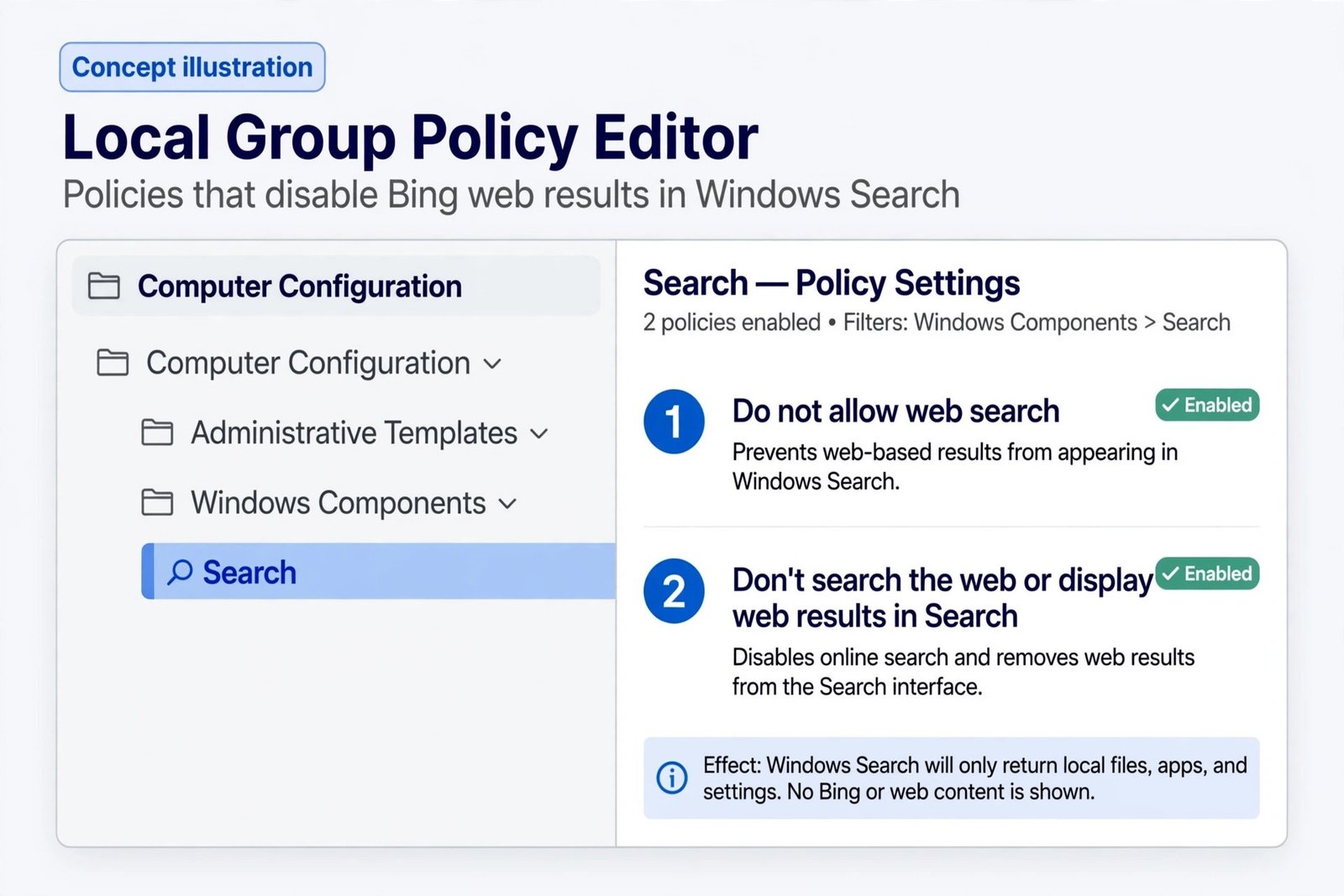
To revert, set both policies back to Not Configured and run gpupdate /force again. New to the policy editor? This walkthrough of changing a policy in the Local Group Policy Editor shows the same basic moves in a different context.
Web Results Still Showing? Check These Three Things
- Check the registry location. The DisableSearchBoxSuggestions value must sit in the Policies branch (
...\Policies\Microsoft\Windows\Explorer), not in the similarly named non-policy Explorer key. The wrong key does nothing. - Sign out completely. Locking the screen is not enough. Sign out of your account (or restart) so the new setting loads.
- Check for a managed PC. If your computer is joined to a work or school domain, an administrator policy can override your change. On a personal PC, also confirm the DWORD type is correct: it must be a 32-bit DWORD, not a string value.
What Changes After You Turn Off Web Results
Whichever method you pick, the result is the same: Start menu and taskbar search stop showing Bing web links and show only what lives on your PC. Because Search no longer waits on a web round-trip before displaying results, the search panel also tends to feel noticeably snappier, especially on slower machines.
| Method | Works on | Difficulty | Reversible |
|---|---|---|---|
| Settings toggle | PCs with the 2026 Search update | Easiest | Yes, flip it back on |
| Registry Editor | All editions, including Home | Medium (needs care) | Yes, delete or reset the value |
| Group Policy | Pro, Enterprise, Education | Easy, menu-driven | Yes, set back to Not Configured |
A few things do not change. Your browser is untouched: Edge keeps its own search settings, and Bing.com works exactly as before. This only affects the Windows Search panel itself, not your web browsing.
Our Take: Which Method Should You Use?
Use the Settings toggle if your PC has it. It is the safest option, takes seconds, and reverses just as fast. No toggle yet? Home users should use the registry method, and Pro, Enterprise, or Education users should use Group Policy, which is the most manageable of the three on machines you administer.
One honest caveat: if you ever use Start search as a quick web launcher, you will miss that shortcut, and you may want to leave web results on. For everyone else, a local-only search is cleaner, faster, and one less surface sending queries to the web. If you enjoy the snappier feel, here are more ways to speed up Windows 11 that go beyond search.

- How to Turn Off Bing Web Results in Windows 11 Start Menu Search - October 19, 2026
- Android 17: What Is New, and Which Phones Get It in 2026 - October 18, 2026
- How to Run Android Apps on Windows 11 Without WSA in 2026 - October 17, 2026