
You are mid-game or mid-sentence, you tap Shift a few times too quickly, and suddenly a little window asks whether you want to turn on Sticky Keys. Your typing goes strange, modifier keys seem to stick down, and the game you were playing just lost focus. That popup is Windows 11 trying to be helpful, and for most people it is the opposite. The good news: you can stop it from ever appearing again with two switches in Settings, and the whole fix takes under a minute.
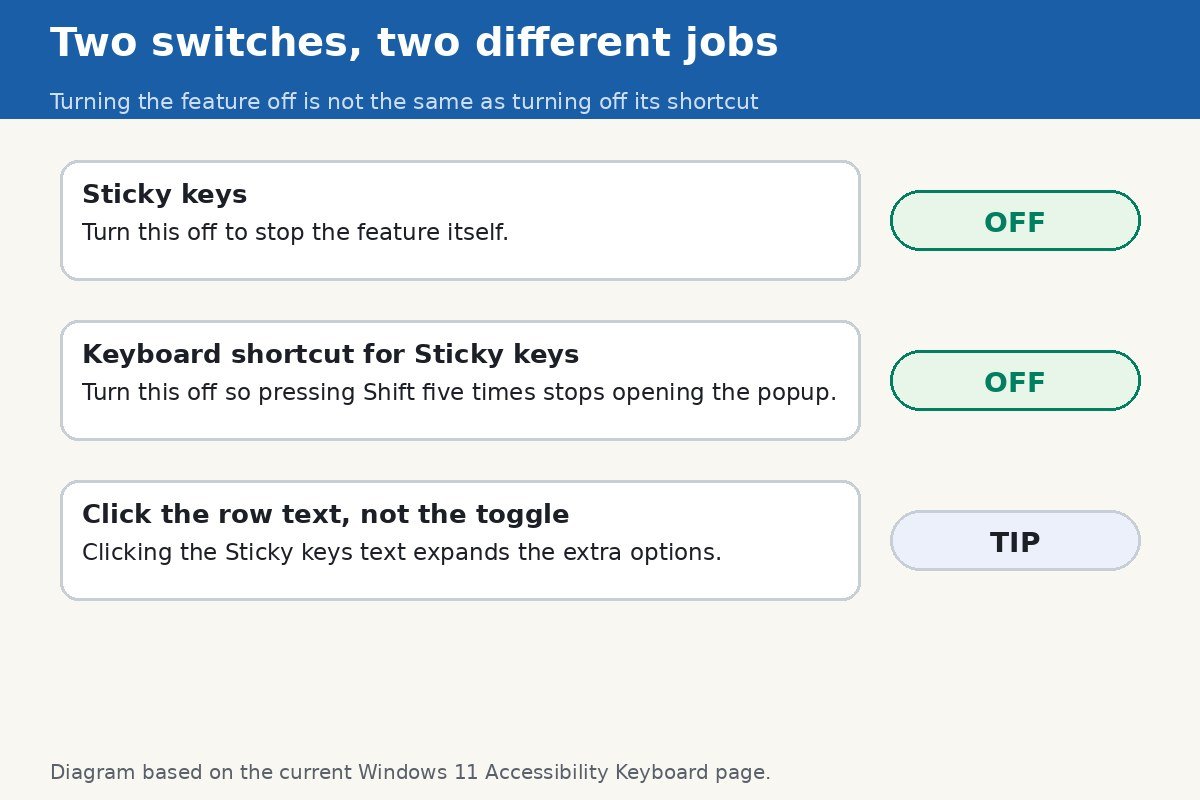
The key detail most guides skip is that there are two separate switches, and you need both. Turning off Sticky Keys stops the feature. Turning off its keyboard shortcut stops the popup. If you only do the first one, the popup can still appear, because the shortcut itself is still armed. Do both, and pressing Shift five times becomes just pressing Shift five times.
What the popup is and why it appears
Sticky Keys is an accessibility feature. It lets someone press shortcut keys one at a time instead of holding them together, so Ctrl, Alt, Shift, and the Windows key can be pressed in sequence rather than all at once. For people who need it, it is genuinely useful. For everyone else, it is a feature that gets triggered by accident, because Windows 11 ships with a shortcut that turns it on: pressing Shift five times in a row.
That is exactly why gamers and fast typists meet this popup so often. Rapid Shift presses are normal in games, for sprinting or crouching, and in typing, for capital letters in quick succession. Windows cannot tell the difference between an intentional five Shift presses and an accidental burst, so it asks. The popup itself is not a virus, an error, or a sign that something is broken. It is a default setting, and defaults can be changed.
Turn off the shortcut so the popup never returns
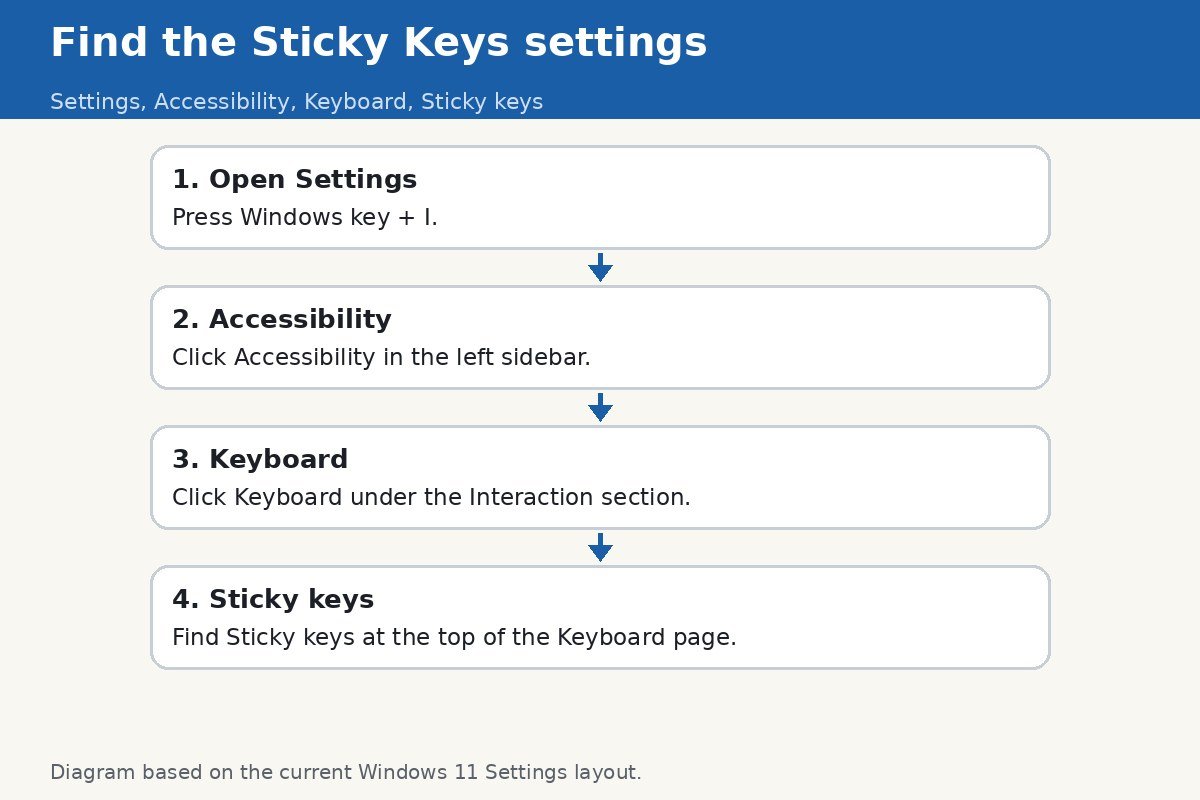
- Press Windows key + I to open Settings.
- Click Accessibility in the left sidebar.
- Click Keyboard, under the Interaction section.
- Find Sticky keys at the top of the page. If it is on, switch it Off.
- Now click the Sticky keys text itself, not the toggle, to expand its extra options. Clicking the toggle would just switch the feature on or off again.
- Turn off Keyboard shortcut for Sticky keys. Depending on your Windows 11 build, this appears as a checkbox or a toggle, and on some builds it reads Allow the shortcut key to start Sticky Keys. Either way, clearing it is what disarms the Shift five times trigger.
- Close Settings. The change applies immediately, with nothing to save.
Test it right away. Press Shift five times in a row, deliberately. If nothing happens, the shortcut is off and the fix worked. If the popup still appears, you probably only turned off the feature and missed the shortcut option underneath it, which is the most common mistake with this setting. Reopen the page and check both switches, not just the first one.
The two switches, side by side
| Switch | What it controls | If you leave it on |
|---|---|---|
| Sticky keys | Whether the feature itself is active | Modifier keys can stick after a single press |
| Keyboard shortcut for Sticky keys | Whether Shift five times triggers the popup | The popup keeps appearing during games and fast typing |
There is a subtle point here that is worth stating plainly. Turning off the shortcut does not remove your ability to use Sticky Keys. You can still switch the feature itself on in Settings any time you want it. All you have removed is the accidental trigger. That distinction matters if someone in your household actually relies on the feature: leave their feature switch on, turn off only the shortcut, and the popup stops without taking the accessibility help away.
If the popup is already on screen right now
If the popup appeared while you were reading this, you do not need Settings to dismiss it. Click No on the popup itself, or press Shift five times again, and Sticky Keys turns back off. If Sticky Keys is already active and your keys feel stuck, pressing two modifier keys at the same time, for example Ctrl and Alt together, also turns it off, as long as the option to turn off Sticky Keys when two keys are pressed is enabled, which it is by default. Any of these gets you back to normal typing in seconds. The Settings fix above is what stops it from happening again tomorrow.
If the popup keeps coming back
Most of the time, the two switches end the problem permanently. If the popup returns after a restart or an update, work through the checks in order rather than assuming the setting is broken. First, reopen Settings, Accessibility, Keyboard, and confirm that both the feature and the shortcut option are still off, because a major Windows update can occasionally reset an accessibility setting. Second, install any pending Windows updates, since build-specific bugs in setting persistence do crop up. Third, restart and test with five Shift presses again.
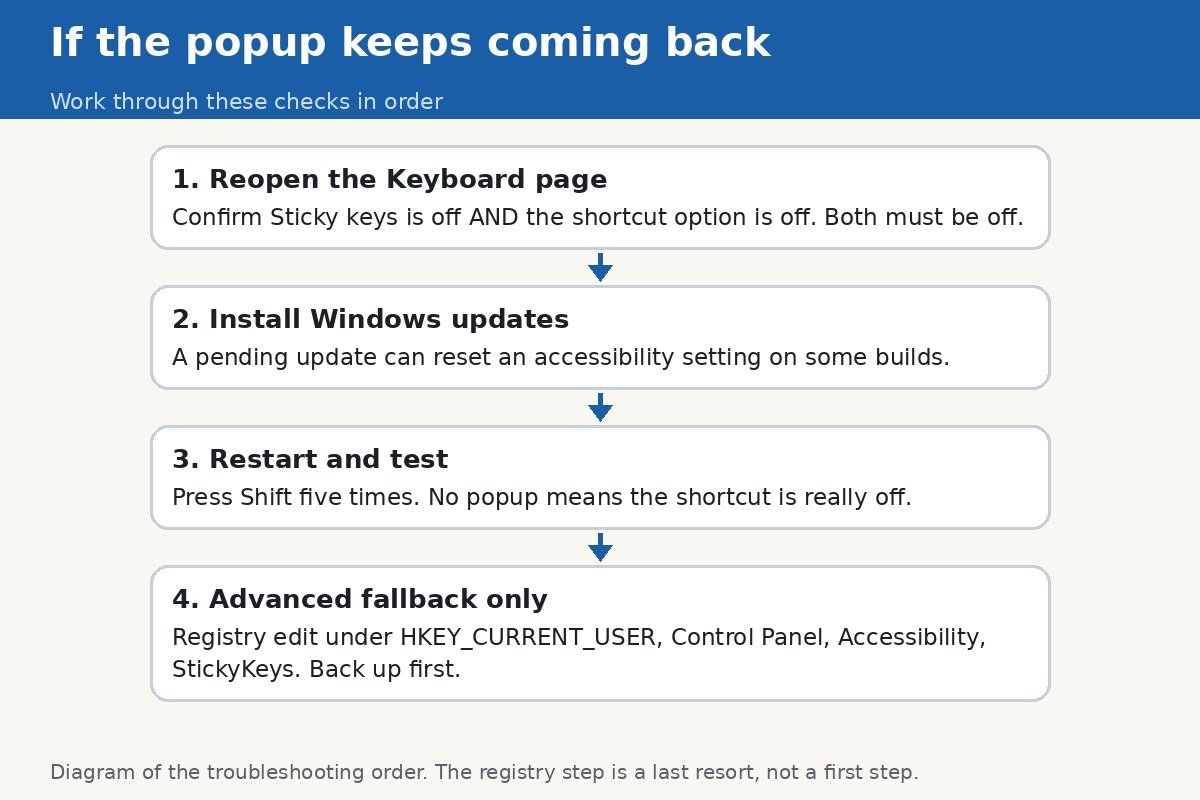
For stubborn cases where the setting refuses to stick, there is an advanced fallback: a per-user registry value under HKEY_CURRENT_USER, Control Panel, Accessibility, StickyKeys, where a Flags value of 506 disables Sticky Keys for that user. Treat this as a last resort, not a first step. Back up the registry before changing anything, edit only that one value, and restart afterwards. On a work or school PC, group policy may also be forcing the setting, in which case no local change will hold, and your IT administrator owns the answer. If none of this applies and the popup still returns, note which app was in focus when it appeared, since some games and remote desktop tools send their own rapid key sequences.
Turn Sticky Keys back on when you actually need it
Disabling the shortcut is not a one-way door, and that matters in a shared household. If someone who relies on Sticky Keys sits down at the same PC, they can switch the feature itself back on from the same page: Settings, Accessibility, Keyboard, Sticky keys on. The shortcut stays off unless someone deliberately turns it back on, so the feature can be used without the accidental trigger returning. That combination, feature on and shortcut off, is actually the best setup for a household where one person needs the accessibility help and another keeps tripping over the popup. Each person gets what they want, and nobody has to keep re-fixing the same setting.
If you use more than one Windows PC with the same Microsoft account, check the setting on each machine separately. Accessibility settings like this one are per-device in practice, and a fix applied on a desktop does not automatically carry to a laptop. The same applies after a Windows reset or a fresh install: the defaults come back, including the Shift five times shortcut, so the two switches are worth re-checking whenever a PC has been set up from scratch. It takes less than a minute once you know where they live, and it saves the next interrupted game.
Two related popups worth knowing about
Sticky Keys is not the only accessibility popup with a keyboard trigger. Holding the right Shift key for eight seconds brings up Filter Keys, which ignores brief or repeated keystrokes. Its shortcut lives on the same Accessibility, Keyboard page, under Filter keys, and it can be switched off the same way if it ever interrupts you. Toggle Keys, which beeps when Caps Lock, Num Lock, or Scroll Lock is pressed, is also on that page. None of these are connected to the Sticky Keys shortcut, so turning off one does not turn off the others, and if you are a gamer it is worth checking all three while you are on the page. A current guide to the Sticky Keys shortcut setting confirms the same two-switch layout and the same build-to-build label differences.
That is the whole fix. Two switches, one test with five Shift presses, and the popup that used to hijack your game or your sentence is gone. If it ever returns, you now know exactly where to look, and which of the two switches is the one that actually matters.

- How to Turn Off the Sticky Keys Shortcut Popup on Windows 11 - October 29, 2026
- How to Fix Windows 11 Wi-Fi That Keeps Disconnecting - October 28, 2026
- How to Change the Lock Screen Timeout on Windows 11 - October 25, 2026