
Tap Share on your Samsung Galaxy and before you reach the app you actually want, you have to scroll past a row of people you messaged once and a row of apps Samsung thinks you might want. The share sheet is supposed to save time, but when it is full of suggestions you never asked for, it does the opposite: it slows you down and, worse, it can put the wrong name one careless tap away from your photo. The good news is that Samsung does give you a way to clean it up. The honest news is that the way runs through Samsung’s own Good Lock app, not through a simple switch in Settings.
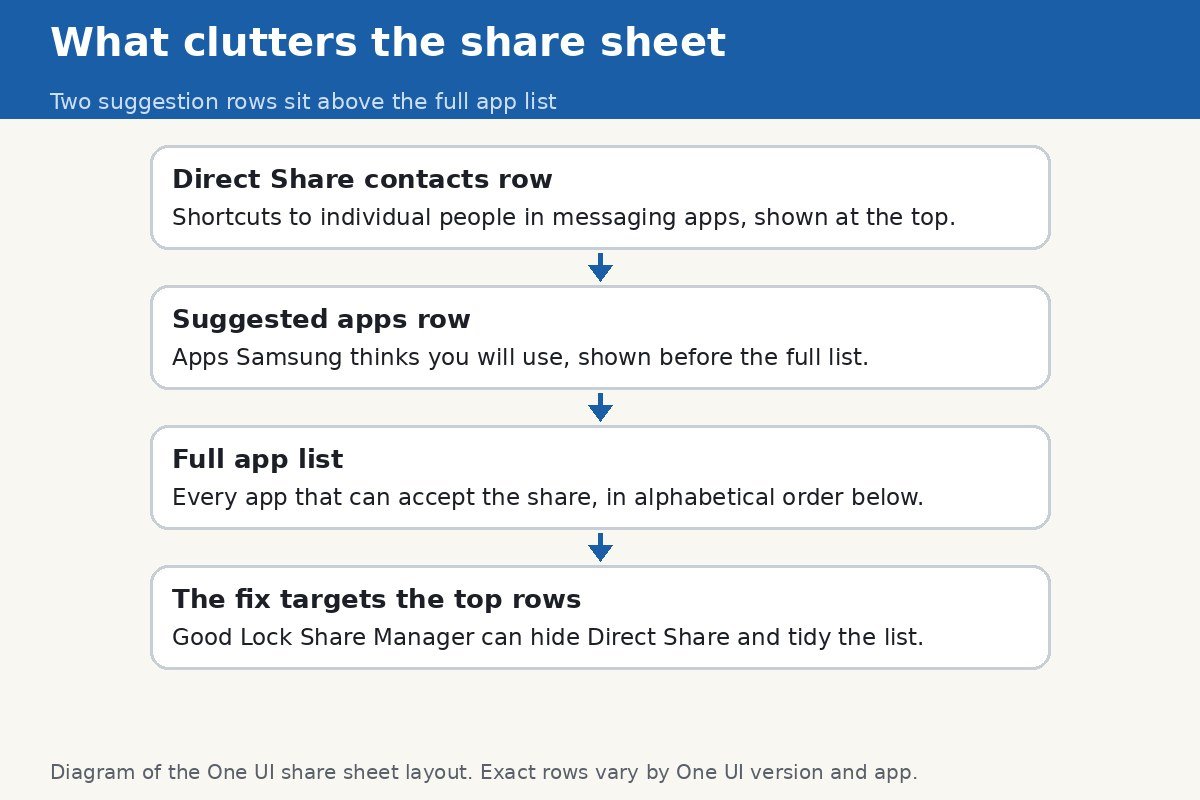
Start with what you are actually looking at, because the share sheet has two different suggestion rows and they are fixed two different ways. The top row holds Direct Share contacts: shortcuts to individual people inside messaging apps. Below that, or beside it depending on your One UI version, sits a row of suggested apps. Under both is the full alphabetical app list, which is the part you actually want. Once you know which row is annoying you, the fix gets much clearer.
Two different kinds of suggestions
| Row | What it shows | How to remove it |
|---|---|---|
| Direct Share contacts | Individual people from messaging apps, based on recent chats | Good Lock, Home Up, Share Manager, Show Direct Share off |
| Suggested apps | Apps Samsung predicts you will share to | Share Manager: hide the apps you never use, pin the ones you do |
| Full app list | Every app that can accept the share | Nothing to fix: this is the list you want |
The honest limit: there is no stock switch for this
On older Samsung phones, a Direct share toggle lived in Settings under Advanced features, and turning it off removed the contacts row. On current One UI versions, including One UI 7 and One UI 8, that toggle is gone from Settings, which is why so many people search for it, follow an old guide, and end up staring at a menu that no longer contains it. Samsung’s own community forum gives the current answer, and it is the same answer users confirm works: install Good Lock, open the Home Up module, open Share Manager, and switch Show Direct Share off. It is a few more steps than a Settings toggle, but it is the supported route, and it is the one Samsung’s own support ambassadors point people to.
Remove the Direct Share contacts row with Share Manager
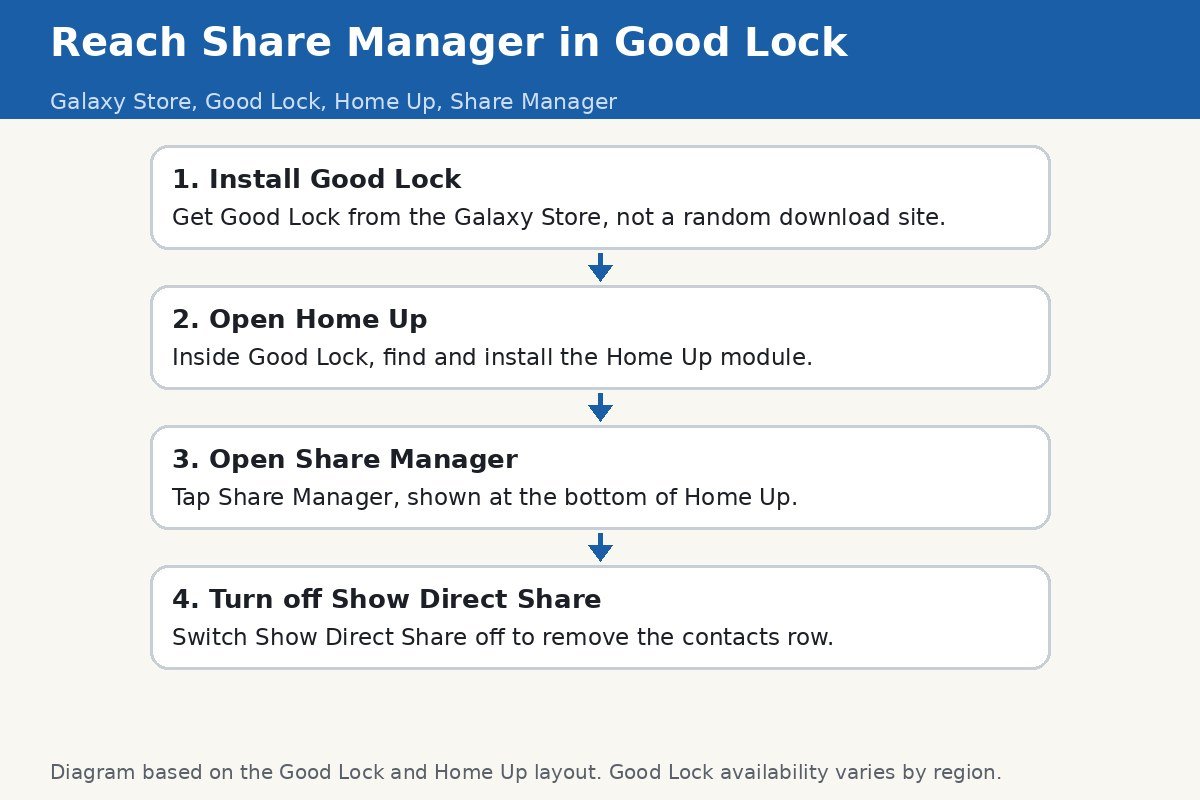
- Open the Galaxy Store on your phone and install Good Lock. Get it from the Galaxy Store, not from a random download site, since Good Lock is a Samsung app and the store version is the one that stays compatible with your One UI version.
- Open Good Lock and find the Home Up module. Install it if it is not already installed.
- Open Home Up and tap Share Manager, shown at the bottom of the Home Up screen.
- Turn off Show Direct Share. This removes the row of contact shortcuts from the share sheet.
- Open any app and tap Share to check. The contacts row should be gone, and the full app list should now sit at the top.
If Share Manager does not appear in Home Up, the usual cause is an outdated Home Up version or a One UI version that predates the module. Update both Good Lock and Home Up from the Galaxy Store, then reopen Home Up. Good Lock availability also varies by region: Samsung has expanded it to many more countries over the years, but if the Galaxy Store on your phone does not list Good Lock at all, your region may still be one of the exceptions, and the stock share sheet cannot be tidied without it. That is a real limitation, not a step you missed.
Tidy the rest of the share sheet
Removing the contacts row is only half the cleanup. Share Manager also lets you shape the app list itself, which is where the suggested apps row stops being a nuisance. Inside Share Manager, you can hide apps you never share to, so they stop taking up space, and you can pin your favourite apps to the front, so the ones you actually use are always the first ones you see. You can also hide the Nearby Share shortcut if you never use it. Nothing here uninstalls anything: a hidden app is one toggle away from coming back, so there is no risk in hiding aggressively and unhiding later if you change your mind.
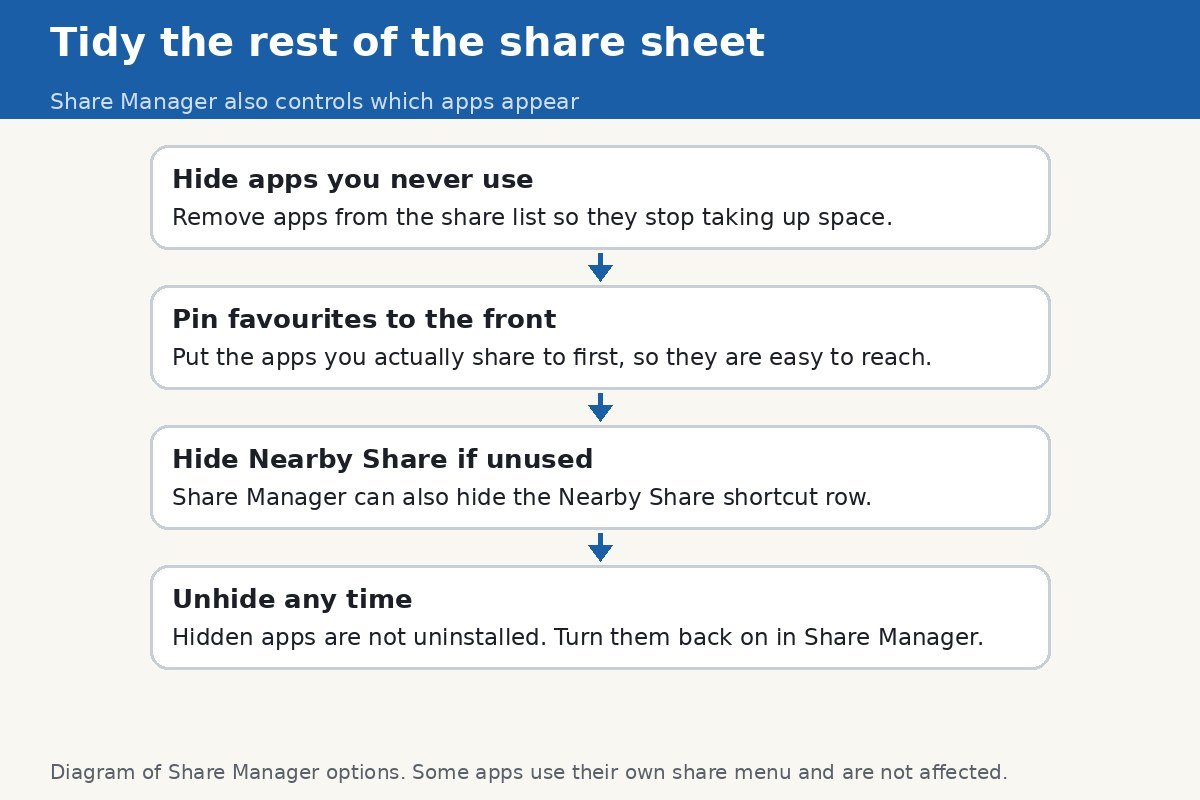
A practical way to do this: hide every app you have never once shared to, then pin the two or three apps you share to every week. After a week of normal use, revisit Share Manager once and hide anything else that still gets in your way. The share sheet gets better the more honest you are about which apps you actually use, and the whole cleanup takes about five minutes.
What Share Manager cannot change
There are two limits worth knowing before you expect a perfect share sheet. First, some apps do not use the standard Android share menu at all. Google Photos is the best-known example: it shows its own built-in suggestions for sharing to individual contacts, and no Share Manager setting touches that, because the menu belongs to the app, not to One UI. If a contacts row still appears inside one particular app after you have turned off Show Direct Share, check whether that app is using its own share menu. Second, Samsung’s newer One UI 8.5 beta extends Share Manager so individual apps can be excluded from the Direct Share panel, but that is beta software, not something to install just for a tidier share sheet. The stable Good Lock route above is the one to use today.
One more distinction that trips people up: the suggested apps inside home screen folders are a different setting entirely. If apps keep appearing inside a folder on your home screen, that is the folder’s Suggested apps option, switched off from inside the folder or from Home screen settings, and it has nothing to do with the share sheet. The Samsung community thread that solved this for One UI 7 users confirms the Share Manager route and the exact location of the Show Direct Share switch.
If the share sheet still looks wrong after all this
Run through a quick diagnosis before assuming the fix failed. First, test the share sheet from two different apps, for example from the Gallery and from a web browser. If the contacts row is gone in one app but still present in the other, the second app is using its own share menu, and no One UI setting will change it. That is the Google Photos situation described above, and it is working as designed, however annoying it feels.
Second, check that Home Up itself is up to date in the Galaxy Store, and restart the phone after changing Share Manager settings. A stale module version can leave Share Manager options missing or unresponsive, and a restart clears any share sheet state left over from before the change. Third, if Show Direct Share is off but a particular contact still appears, check whether that contact is being suggested by the app itself rather than by One UI. Messaging apps keep their own recent and favourite contacts, and those appear inside the app’s own share targets, not in the system row you just removed. Telling those two apart saves a lot of fruitless toggling.
Finally, remember that the share sheet learns from use. Even with the contacts row removed and the rarely used apps hidden, the order of the remaining apps reflects what you actually share to, so the sheet keeps improving the longer you use it after the cleanup. Give it a week of normal sharing before judging the result. If it still feels cluttered after that week, one more pass through Share Manager, hiding anything you have not touched since, usually finishes the job.
That is the full cleanup: Good Lock from the Galaxy Store, Home Up, Share Manager, Show Direct Share off, then hide and pin until the share sheet shows only what you use. No more scrolling past people you barely know to reach the app you actually wanted, and no more near-misses with the wrong contact.

- How to Stop Your Samsung Galaxy From Suggesting Apps in the Share Menu - October 30, 2026
- How to Change the Default Messaging App on Android 16 - October 28, 2026
- How to Turn Off App Suggestions on Your Android Home Screen - October 25, 2026