
You get up from your desk, reach for the keys to lock your PC, and press what you think is Win plus L. Instead of the lock screen, a small bar appears and starts writing out every word from your video or call. The fix takes seconds. Press Win plus Ctrl plus L again and the captions switch straight off, because the same shortcut turns Live Captions on and off. If that does not work, Settings and Quick Settings both have a switch for it.
One wrong key is usually the cause
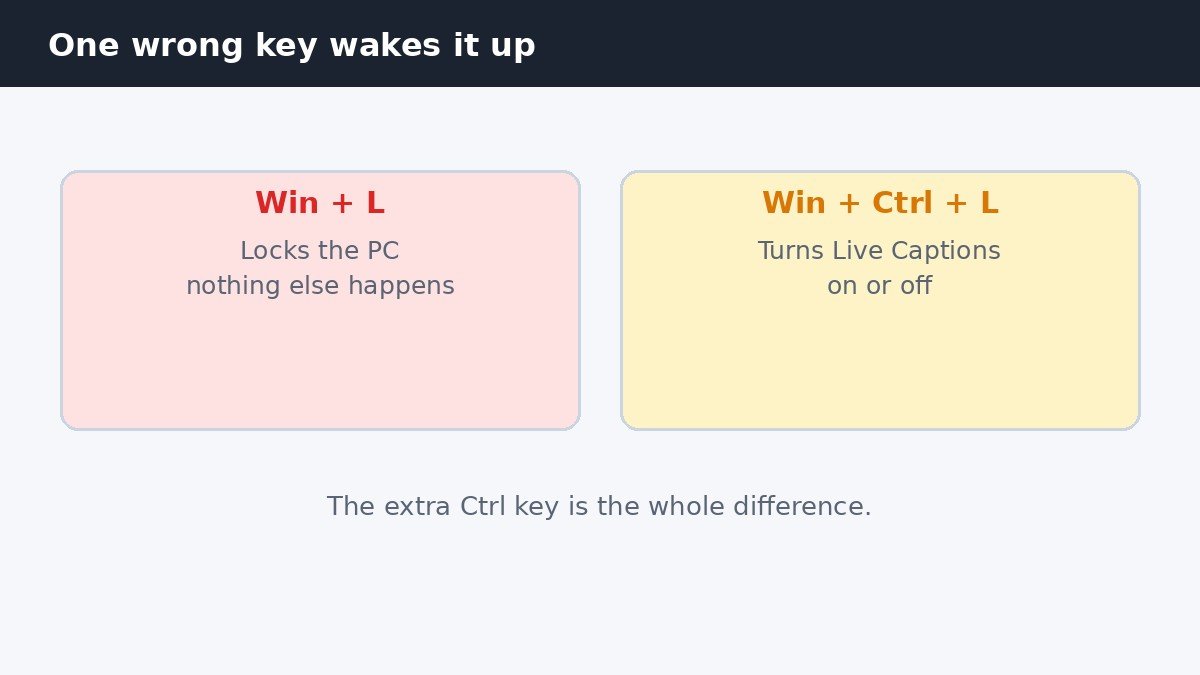
Live Captions is a Windows 11 accessibility feature that writes spoken words on screen as text, in real time, for any audio playing on your PC. It works across apps, and the audio is transcribed on the device itself. Most people meet it by accident, and the accident has a simple explanation. The shortcut to lock a PC is Win plus L. The shortcut to turn Live Captions on is Win plus Ctrl plus L. Those two combinations sit one key apart, so a finger that lands on Ctrl by mistake wakes the captions up instead of locking the screen.
Turn it off with the same shortcut
Win plus Ctrl plus L is a toggle, which means the same keys that switched Live Captions on will switch it off again. Press Win plus Ctrl plus L once and wait a moment. The caption bar should disappear, and the words should stop. You can press it while a call or a video is still playing. There is nothing else to confirm and no setting to save.
If the bar is still there after a second or two, press the keys once more, slowly, and make sure you are holding Ctrl as well as the Windows key. A quick or half pressed combination can be missed. If the bar still refuses to go, move on to the Settings method below, which will show you clearly whether the feature is on or off.
Turn it off in Settings
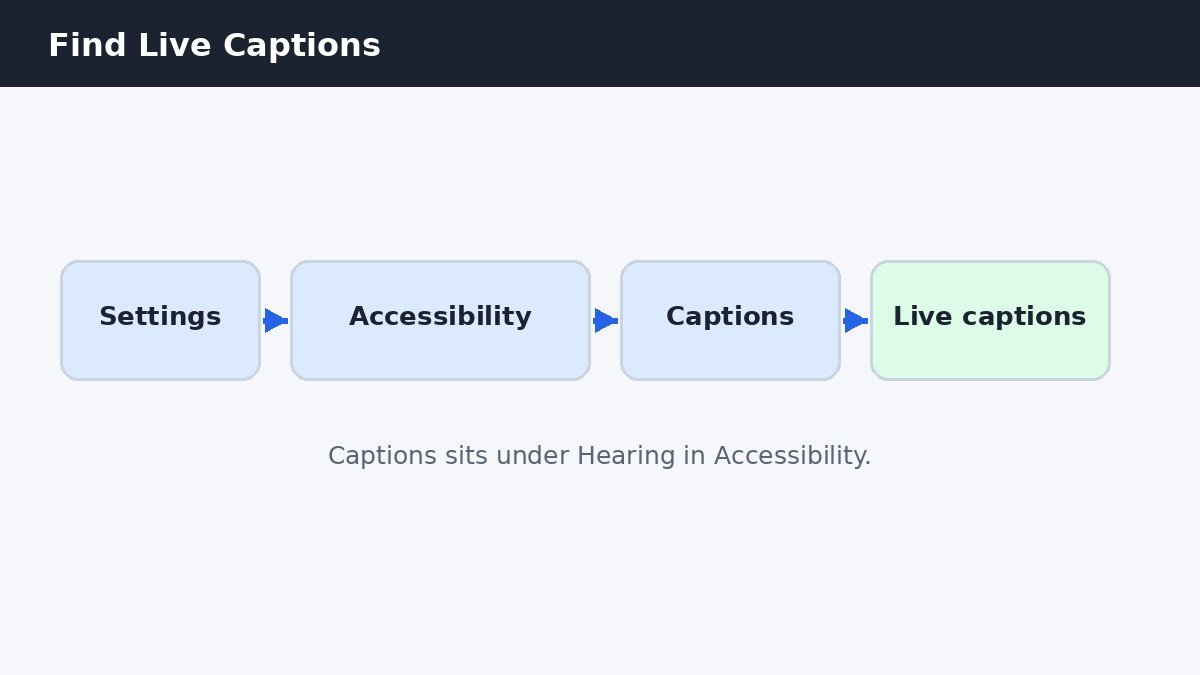
The Settings app gives you the clearest view of what Live Captions is doing. Open Settings, then go to Accessibility. In the Accessibility list, look under the Hearing section and select Captions. On the Captions page you will see a switch labelled Live captions. Turn that switch off. The caption bar should vanish, and the feature will stay off until you turn it on again.
This is also the method to use if you want to be sure the job is done. A switch that shows Off is a plain answer, where a missing caption bar can leave you wondering whether the feature is really off or just hidden. Microsoft’s guide to Live Captions describes the same Captions page. If the switch is already off and captions are still appearing, the words are probably coming from a different app, covered near the end of this guide.
Turn it off from Quick Settings
Quick Settings is the fastest route when you do not want to open the full Settings app. Press Win plus A to open the Quick Settings panel, which appears near the bottom right of the screen. In the panel, select Accessibility. A short list of options appears, including Live captions. Select it once to turn the feature off. The caption bar should disappear straight away.
All three methods switch off the same Windows feature. The shortcut is quickest when your hands are already on the keyboard. Settings is clearest when you want to see the switch for yourself. Quick Settings sits in the middle, fast to reach with the mouse.
| Method | How to do it | Best when |
|---|---|---|
| Keyboard shortcut | Press Win plus Ctrl plus L | You want it off in seconds |
| Settings | Settings, Accessibility, Captions, Live captions off | You want to see the switch |
| Quick Settings | Win plus A, Accessibility, Live captions off | You prefer the mouse |
Closing the bar is not turning it off
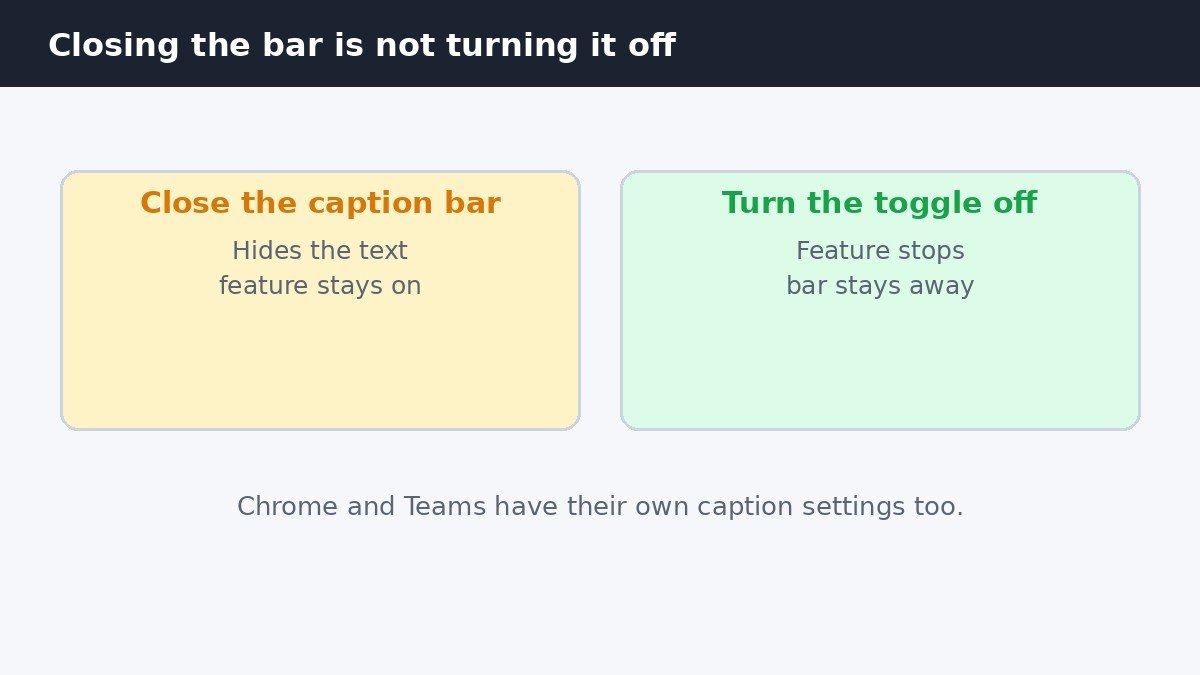
This is the step that catches the most people out. When Live Captions is running, the caption bar has a close button, and clicking it makes the words disappear. That feels like switching the feature off, but it is not the same thing. Closing the bar only hides the text for now. The feature itself stays switched on in the background, so the bar can come back. If captions keep returning after you thought you had dealt with them, this is very often the reason.
The test is simple. After you close the bar, open the Captions page in Settings and look at the Live captions switch. If it still shows On, the feature is still running, even though nothing is visible on screen. Turn the switch off there, and the problem is properly settled. Treat the close button as a way to hide the bar for a moment, and the switch as the way to turn the feature off.
When captions keep coming back
If Windows Live Captions is definitely off and words still appear on screen, the captions are almost certainly coming from a separate app. Google Chrome has its own live caption setting, and Microsoft Teams has its own caption controls too. Those settings belong to the apps themselves, not to Windows, so turning off Windows Live Captions does not touch them. Open the app where the captions appear and turn its own live captions off there.
There is one more thing to check if you cannot find Live Captions anywhere on your PC. The feature needs Windows 11 version 22H2 or later, and Windows 10 never received it, so a PC on an older version will not have the switch at all. To check your version, press Win plus R, type winver, and press Enter. The first time Live Captions runs, Windows may need to download a language pack for the spoken language, which needs an internet connection.
Live Captions is easy to start by accident, because its shortcut sits one key away from the lock shortcut, but it is just as easy to stop. Press Win plus Ctrl plus L to toggle it off, or use the switch in Settings under Accessibility and Captions, or in Quick Settings. Remember that closing the caption bar only hides it, and check the separate caption settings in Chrome and Teams if words keep appearing.

- How to Turn Off Live Captions in Windows 11 - November 8, 2026
- How to Turn Off Most Used Apps in the Windows 11 Start Menu - November 7, 2026
- How to Remap or Turn Off the Copilot Key in Windows 11 - November 6, 2026