
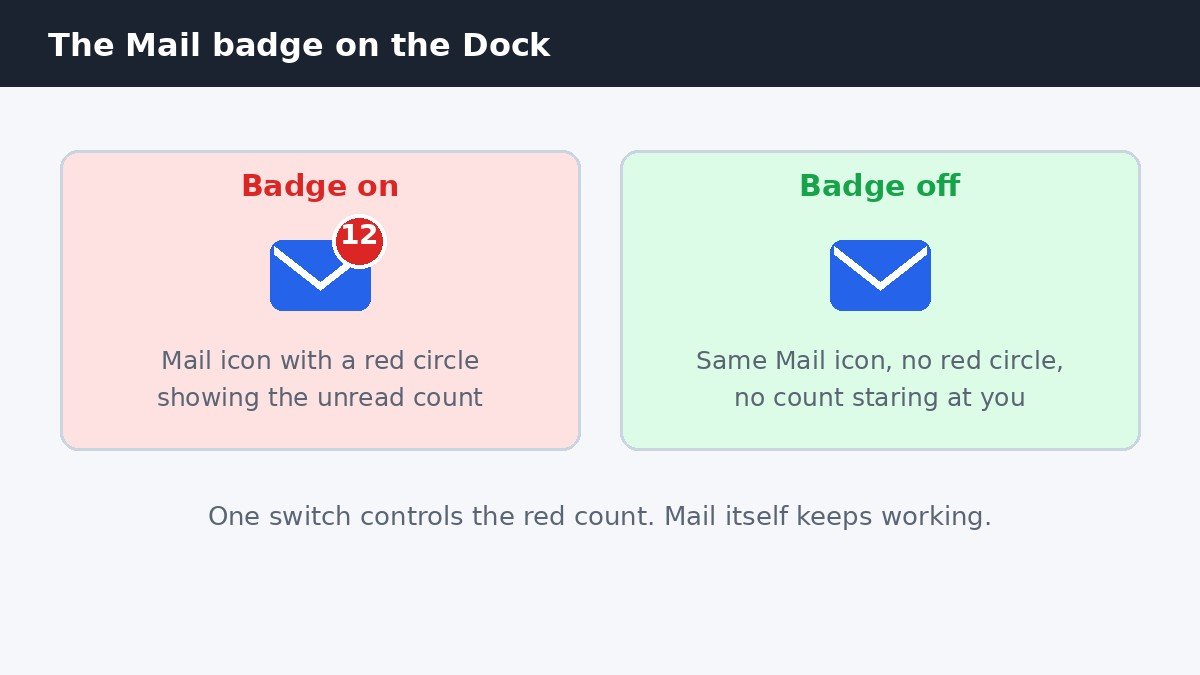
That little red number on the Mail icon in your Dock is called a badge. It counts your unread emails and stays there until you open Mail and deal with them. If you would rather check your email on your own schedule, you can turn the badge off in about thirty seconds.
The short version: open System Settings, click Notifications, click Mail, and turn off Badge application icon. Mail keeps working exactly as before. Only the red count on the Dock icon goes away.
1. The quick answer: turn off the Badge switch
The badge is controlled per app, not by one big switch for the whole Mac. You change it for Mail only, and nothing else is touched.
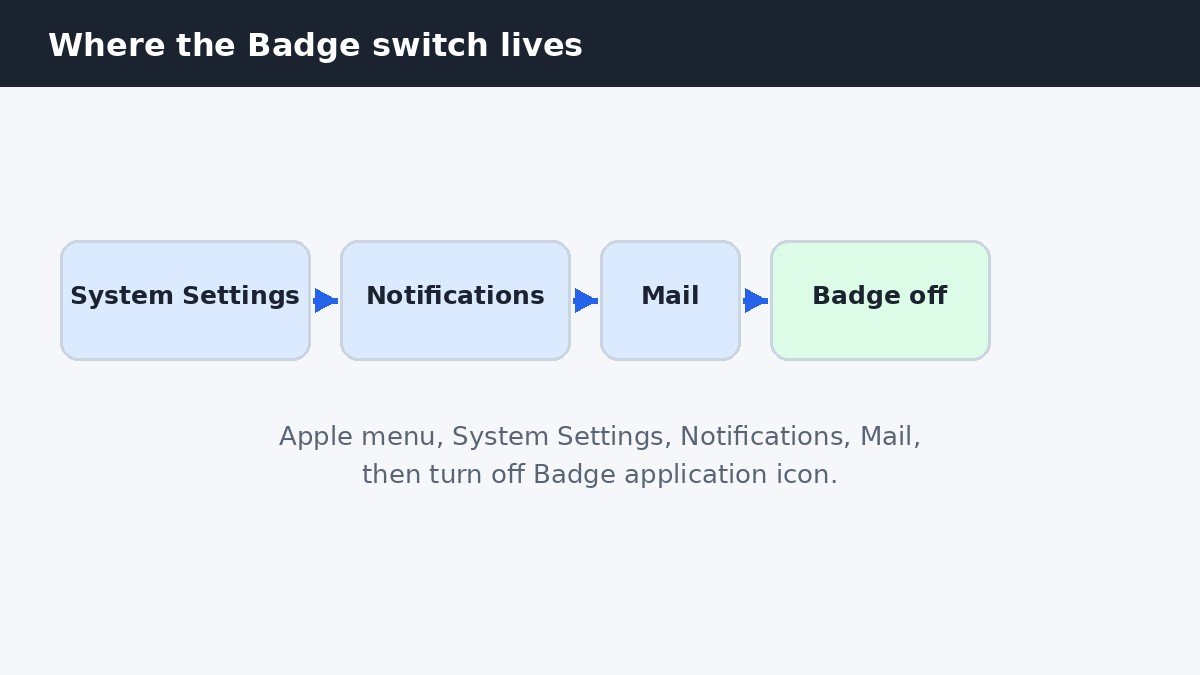
Here is the whole fix in one line: Apple menu, System Settings, Notifications, Mail, then turn off Badge application icon. The change takes effect right away. There is no need to restart your Mac or sign out, and Mail does not need to be closed first.
2. Step by step: turn off the Mail Dock badge
Follow these steps in order. Each one takes a few seconds.
- Click the Apple menu in the top left corner of your screen, then click System Settings.
- Click Notifications in the sidebar. If you do not see it, scroll down.
- Scroll down to the Application Notifications list and click Mail.
- Find the switch labelled Badge application icon and turn it off.
Done. The red number on the Mail icon is gone, your inbox is untouched, and no email has been deleted or marked as read.
The Badge application icon switch is separate from the Allow Notifications switch at the top of the same page. Leave Allow Notifications on if you still want banners or sounds when new mail arrives. Apple explains each of these controls in its guide to changing notification settings on a Mac.
3. What turning off the badge does not stop
People often expect the badge switch to silence Mail completely. It does not. It controls one thing only: the red number on the Dock icon. New mail still arrives on the same schedule, banners and sounds still appear if you have them turned on, and the unread count inside Mail itself is still there, next to each mailbox in the sidebar.
The table below sums up the three states this guide covers.
| What changes | Badge on | Badge off | Focus filter only |
|---|---|---|---|
| Red count on the Dock icon | Shows unread count | Hidden | Shows only for accounts in the Focus |
| Banners and sounds | As set | As set, unchanged | Only for accounts in the Focus |
| Unread count inside Mail | Visible | Visible | Visible for accounts in the Focus |
| New mail still arrives | Yes | Yes | Yes |
The badge switch and the notifications switch do different jobs. If you want the badge gone but still want to know when mail arrives, keep Allow Notifications on and use banners.
4. Want the badge only sometimes? Use a Focus filter
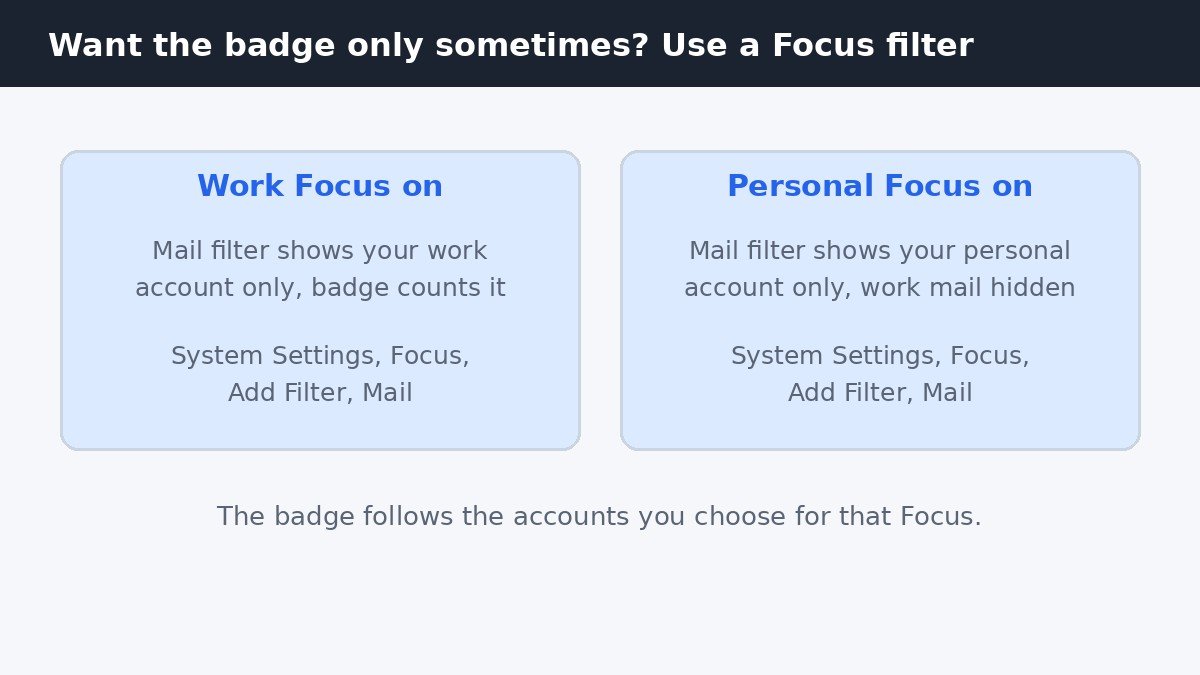
Turning the badge off completely is not the only option. If you like seeing the count during work hours but not in the evening, a Focus filter gives you that middle ground. Apple documents this in its guide to managing notifications from Mail on Mac.
A Focus filter chooses which email accounts are visible in Mail while a Focus is on. You only get notifications and badge counts for the accounts you pick.
Here is how to set one up:
- Open System Settings and click Focus in the sidebar.
- Click the Focus you want to use, such as Work or Personal, or create a new one.
- Scroll to Focus Filters and click Add Filter, then choose Mail.
- Pick the accounts to show while that Focus is on, then click Add.
Try it this way: a Work Focus that shows only your work account during the day, and a Personal Focus that shows only your personal account in the evening. While the Work Focus is on, personal mail arrives as usual but adds nothing to the badge. Nothing is deleted or moved. For the filter to work, Mail also has to be allowed to send notifications during that Focus.
5. Other apps keep their own badges
Turning off the badge for Mail changes nothing for your other apps. Messages, Calendar, Reminders, and any app that shows a count on its Dock icon each have their own Badge application icon switch in the same list. There is no single switch for every app at once.
If another app's badge bothers you too, repeat the same steps for it. It takes a few seconds per app, so start with the ones that show a count most often. The same per-app idea applies to the rest of your notification setup. If you also want to stop message text from showing on the lock screen, our guide to hiding notification previews on the Mac lock screen walks through that setting for Mail and other apps.
6. If the badge will not go away
If the red number is still there after you turned the switch off, work through this short list.
- Check you changed Mail, not another app. Open System Settings, Notifications, click Mail, and confirm Badge application icon is off.
- Quit Mail completely and open it again. Press Command Q, or right click the Mail icon in the Dock and choose Quit, then relaunch Mail. A badge drawn before the change sometimes needs a restart to clear.
- Check which mailboxes the badge counts. In Mail, open Mail, Settings, General, and look at Dock unread count. All Mailboxes counts every folder, including Junk. Inbox counts only the inbox. This only matters while the badge is on, but it explains counts that look wrong.
- Restart your Mac if nothing else works. A restart clears any stuck badge. After the restart, check the Notifications page once more to confirm the switch is still off.
If the badge is gone from the Dock but you still see a count inside Mail, next to each mailbox in the sidebar, that is normal. That count is separate and it stays.
Turning off the Mail Dock badge is a small change, but it removes one of the most persistent nudges on your Mac. Your mail is still there whenever you want it, and the same switch turns the count back on just as quickly.

- How to Disable the Mail Dock Badge on Mac - November 13, 2026
- How to Hide Notification Previews on Mac Lock Screen - November 12, 2026
- How to Turn Off Autocorrect in Windows 11 - November 11, 2026